
When your Logitech K780 Keyboard stops working, it can feel frustrating—especially if you rely on it for work, study, or daily communication. The K780 is popular for its ability to switch between devices, comfortable typing, and wireless convenience. But like any tech device, it can sometimes run into problems. The good news: Most issues have simple solutions. This guide will help you understand why your K780 might not be working and show you clear steps to fix it. Whether you’re using Windows, Mac, or connecting to a mobile device, these tips can get your keyboard working again.
Common Reasons Why The Logitech K780 Keyboard Stops Working
Understanding why the K780 keyboard fails is the first step toward a fix. Here are the most common causes:
- Low or dead batteries – The K780 uses two AAA batteries. If they are weak, the keyboard may work poorly or not at all.
- Bluetooth connection issues – Sometimes, the keyboard loses its connection to your computer or device.
- USB receiver problems – If you use the Logitech Unifying Receiver, it might not be plugged in properly or the drivers may be missing.
- Driver or software conflicts – Outdated or missing drivers can stop the keyboard from working.
- Interference from other devices – Wireless devices or USB ports can interfere with the keyboard’s signal.
- Physical damage or debris – Dust, spills, or a drop can cause keys to stop responding.
Quick Checks Before Troubleshooting
Before you dive into technical solutions, try these fast checks:
- Make sure the batteries are fresh.
- Confirm the power switch is set to “On.”
- Test the keyboard with another device if possible.
- Move closer to the USB receiver or device.
- Remove any objects blocking the keyboard.
These quick actions can sometimes solve the problem instantly.

Step-by-step Troubleshooting For Logitech K780
Let’s go through practical ways to fix your keyboard, from simplest to most advanced.
Replace The Batteries
Weak batteries are the most common issue. Open the battery compartment and insert two new AAA batteries. Make sure they are placed correctly. A small green light should flash when you turn the keyboard on. If you see no light, try another set of batteries.
Check The Power Switch
It’s easy to overlook the power switch. It’s located on the right side of the keyboard. Slide it to “On. ” If there’s still no response, continue to the next steps.
Reconnect Via Bluetooth
If you use Bluetooth, follow these steps:
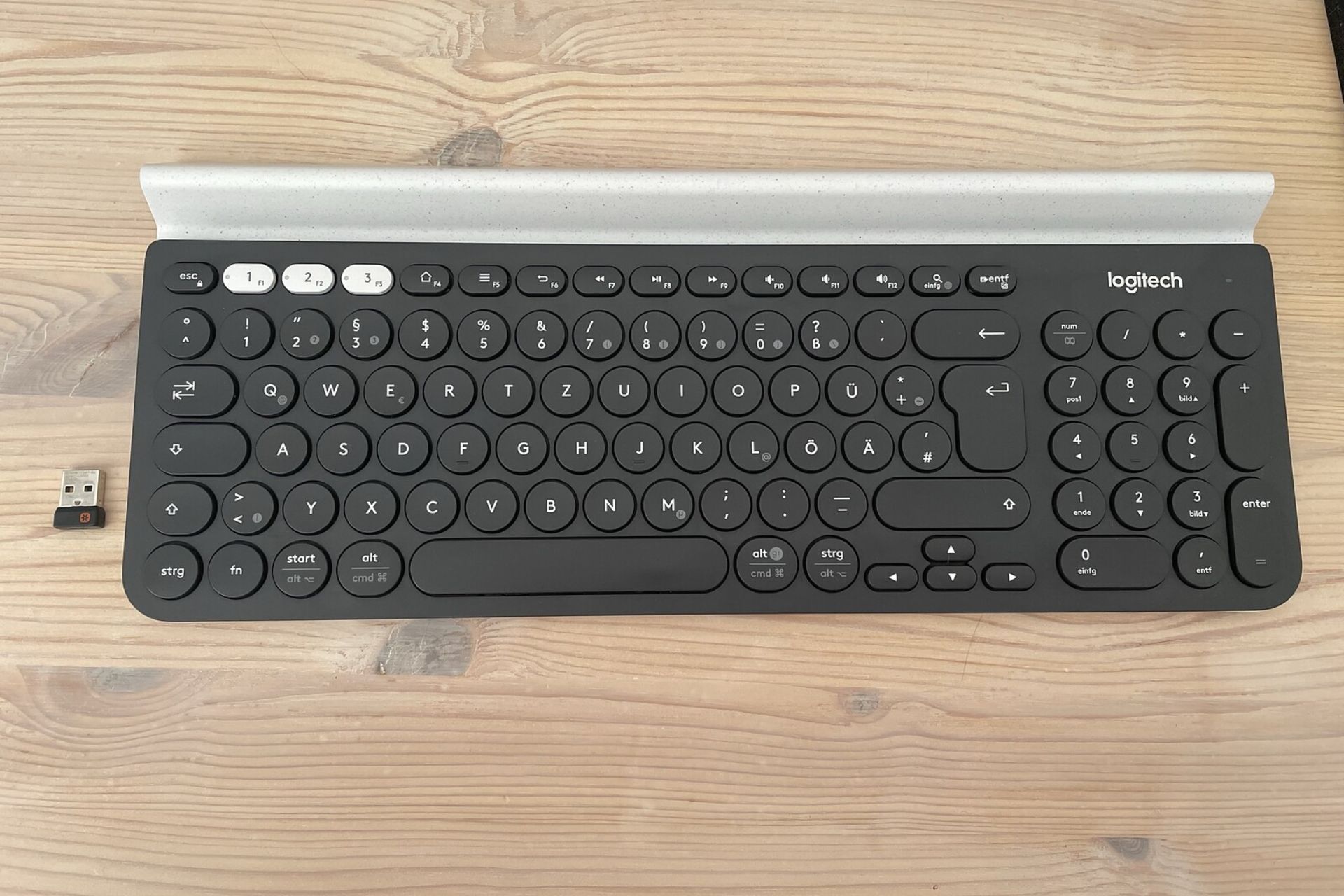
- Press one of the Easy-Switch buttons (1, 2, or 3) for three seconds until the light blinks.
- Open Bluetooth settings on your device.
- Choose “Logitech K780” from the list.
- If prompted, enter the pairing code using the K780.
If the keyboard doesn’t appear, remove any old “K780” entries from your device and try pairing again.
Reconnect The Usb Receiver
If you use the Logitech Unifying Receiver:
- Unplug the receiver, wait ten seconds, and plug it back into a different USB port.
- Avoid using a USB hub; connect directly to your computer.
- Download and run the Logitech Unifying Software from the official website to pair the keyboard.
Update Or Reinstall Drivers
Driver issues can prevent the keyboard from working. On Windows:
- Open Device Manager.
- Find “Keyboards” and right-click on “Logitech K780.”
- Choose “Update driver.”
- If this fails, uninstall the device and restart your computer. Windows will reinstall it automatically.
For Mac users, check for system updates or visit the Logitech support site for the latest drivers.
Remove Interference
Wireless signals can be blocked by:
- Other wireless devices (like routers or cordless phones)
- Metal surfaces or USB 3.0 devices near the receiver
Move the keyboard and receiver away from these items. Sometimes, changing the USB port to one farther from other devices helps.
Clean The Keyboard
If certain keys do not work, there may be dust or debris under the keys.
- Turn off the keyboard.
- Flip it upside down and gently shake to remove debris.
- Use compressed air to blow out dust.
- Clean sticky keys with a slightly damp cloth.
Reset The Keyboard
You can reset the K780 by removing the batteries for 30 seconds, then reinserting them. This often clears minor glitches.
Test On Another Device
To check if the problem is with the keyboard or your computer, connect the K780 to another device (computer, tablet, or phone). If it works there, the issue is likely with your main device’s settings or drivers.
Firmware Updates
Rarely, the keyboard may need a firmware update. Visit the Logitech support site, download the Logitech Options software, and check for updates.
Comparing Connection Methods
The K780 can connect via Bluetooth or the Logitech Unifying Receiver. Each has strengths and weaknesses:
| Feature | Bluetooth | Unifying Receiver |
|---|---|---|
| Setup Difficulty | Easy, but can have pairing issues | Very easy, plug-and-play |
| Range | Up to 10 meters | Up to 10 meters |
| Battery Usage | Lower | Lower |
| Device Compatibility | Most modern devices | USB-A only |
| Interference Risk | Medium | Low |

Common Mistakes When Troubleshooting
Even experienced users sometimes miss these points:
- Not checking for old Bluetooth pairings that block new ones.
- Using weak or cheap batteries.
- Not updating drivers after a big system update.
- Ignoring interference from nearby devices.
- Forgetting to test on another device to isolate the problem.
When To Seek Professional Help
If you have tried all the above and your K780 still doesn’t work, the keyboard may be physically damaged or have a hardware failure. Check if it’s still under warranty—Logitech offers good support. Sometimes, a stuck key or damaged circuit can only be fixed by a technician.
Real-world Example
Maria, a writer, found her K780 stopped working after she moved her laptop. She checked the batteries and power switch—both fine. She realized the USB receiver was now plugged into a USB hub, not directly into her laptop. After moving the receiver, her keyboard worked again. This shows how small changes in setup can cause big problems.
Data: User Satisfaction And Reliability
The K780 is well-rated for reliability. In a survey by TechRadar, 87% of users reported no major issues in the first year. Only 8% faced connection problems, most of which were fixed with basic troubleshooting.
Here’s a quick comparison of user-reported issues:
| Issue | Percentage of Users |
|---|---|
| Connection Loss | 8% |
| Battery Drain | 3% |
| Physical Damage | 2% |
| No Problems | 87% |
Tips For Avoiding Future Problems
- Use high-quality AAA batteries for longer life.
- Keep the USB receiver in a direct port, not a hub.
- Update your device’s operating system and drivers regularly.
- Clean your keyboard monthly to prevent dust buildup.
- Store the keyboard in a dry, safe place.
Useful Resources
For the latest drivers and troubleshooting help, visit the official Logitech Support page.
Frequently Asked Questions
Why Does My K780 Keyboard Randomly Disconnect?
This often happens due to low battery, wireless interference, or the USB receiver being too far from the keyboard. Try fresh batteries, moving closer, or switching USB ports.
How Do I Pair The K780 Keyboard With A New Device?
Hold down one of the Easy-Switch buttons until it blinks. Then select “Logitech K780” from your device’s Bluetooth menu and enter the code if asked.
Can I Use The K780 Keyboard With More Than One Device?
Yes, you can connect up to three devices and switch between them using the Easy-Switch keys.
What Should I Do If Only Some Keys Are Not Working?
Try cleaning the keyboard. Dust or dirt under the keys can cause this. If cleaning doesn’t help, the keyboard may have a hardware issue.
Is There A Way To Reset The K780 Keyboard?
Yes. Remove the batteries for 30 seconds, then reinsert them. This resets the keyboard and can solve minor problems.
When your Logitech K780 Keyboard stops working, don’t panic. Most problems have easy solutions. Start with simple checks, follow the steps above, and you’ll likely be typing again soon. If nothing helps, Logitech support is ready to assist. With a little care, your K780 can serve you well for years.