
When you want to control your pool from anywhere, iAquaLink Web Connect is a popular solution. But what happens when it suddenly stops working? Many pool owners experience problems like not being able to log in, devices not showing up, or even losing connection completely. This can be frustrating, especially during summer, when you want your pool ready and easy to manage. In this guide, you’ll learn how to fix iAquaLink Web Connect issues quickly, avoid common mistakes, and keep your pool automation running smoothly.
Understanding Iaqualink Web Connect
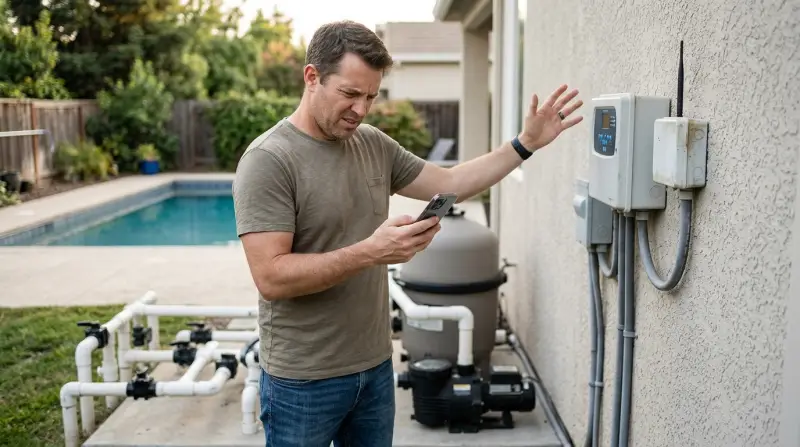
iAquaLink Web Connect lets you control pool lights, pumps, heaters, and more from your phone or computer. It connects through Wi-Fi or Ethernet and uses a cloud-based system. If it stops working, you lose control over your pool settings, scheduling, and even safety features.
Many users don’t realize that iAquaLink depends on reliable internet and correct configuration. Problems can come from your network, device settings, or even server outages.
How Iaqualink Works
- Device: The Web Connect device links your pool equipment to your home network.
- App/Website: You access controls through the iAquaLink app or the web portal.
- Cloud Connection: The device communicates with Jandy’s servers, so you can access your pool remotely.
If any step fails, you may see error messages, offline devices, or missing controls.
Common Reasons Iaqualink Web Connect Is Not Working
When iAquaLink Web Connect fails, the cause is often one of the following:
- Wi-Fi signal issues: Weak or unstable Wi-Fi can cause frequent disconnects.
- Incorrect setup: Misconfigured network or device settings block communication.
- Server outages: Sometimes, Jandy’s servers go offline or are under maintenance.
- Firmware problems: Outdated or corrupt firmware can prevent proper operation.
- Browser or app errors: Cache, cookies, or app bugs may interfere.
- Electrical issues: Power surges or wiring faults can damage the device.
Let’s look at the main symptoms and how to diagnose them.
Symptoms And Diagnosis
- Cannot log in: Usually network or server issues.
- Device offline: Often Wi-Fi or power problems.
- Controls missing: Sometimes browser/app errors or firmware bugs.
- Slow response: May be due to network congestion or cloud lag.

Step-by-step Solutions For Iaqualink Web Connect Problems
Solving iAquaLink Web Connect issues requires a clear process. Here’s how to troubleshoot:
Check Internet And Wi-fi Connection
First, test your home network.
- Ensure your Wi-Fi router is on and working.
- Move the iAquaLink device closer to the router, if possible.
- Restart the router and iAquaLink device.
Use this comparison to check signal strength and reliability:
| Wi-Fi Strength | Connection Reliability | Recommended Action |
|---|---|---|
| Strong (4-5 bars) | Stable | No action needed |
| Medium (2-3 bars) | Possible drops | Move device closer |
| Weak (1 bar) | Frequent disconnects | Upgrade router or add extender |
| No signal | No connection | Check wiring or router status |
Restart And Reset Devices
A simple restart often fixes many issues.
- Unplug iAquaLink device for 30 seconds, then plug back in.
- Restart your smartphone or computer.
- If needed, use the device’s reset button (follow the manual).
Update Firmware And Software
Old firmware can cause bugs.
- Check for updates in the iAquaLink app or website.
- Download and install the latest firmware.
- Update the app on your phone or tablet.
Keeping software current reduces errors and improves security.
Clear Browser Cache And Cookies
If using the web portal, browser cache may block correct operation.
- Open browser settings.
- Clear cache and cookies.
- Restart browser and try logging in again.
This simple step often restores missing controls or fixes login errors.
Check For Server Outages
Sometimes, the problem is not your fault. Jandy’s servers may be down.
- Visit Jandy’s official site or forums to check outage notices.
- Wait for service restoration if there’s a confirmed issue.
Here’s a quick comparison of typical downtime causes:
| Issue | Duration | Action |
|---|---|---|
| Scheduled maintenance | 1-3 hours | Wait for completion |
| Unexpected outage | Varies | Check forums, contact support |
| Regional network failure | Minutes to days | Contact ISP, monitor updates |
Inspect Physical Connections
Loose wires or damaged cables can stop iAquaLink from working.
- Check power cables and connections.
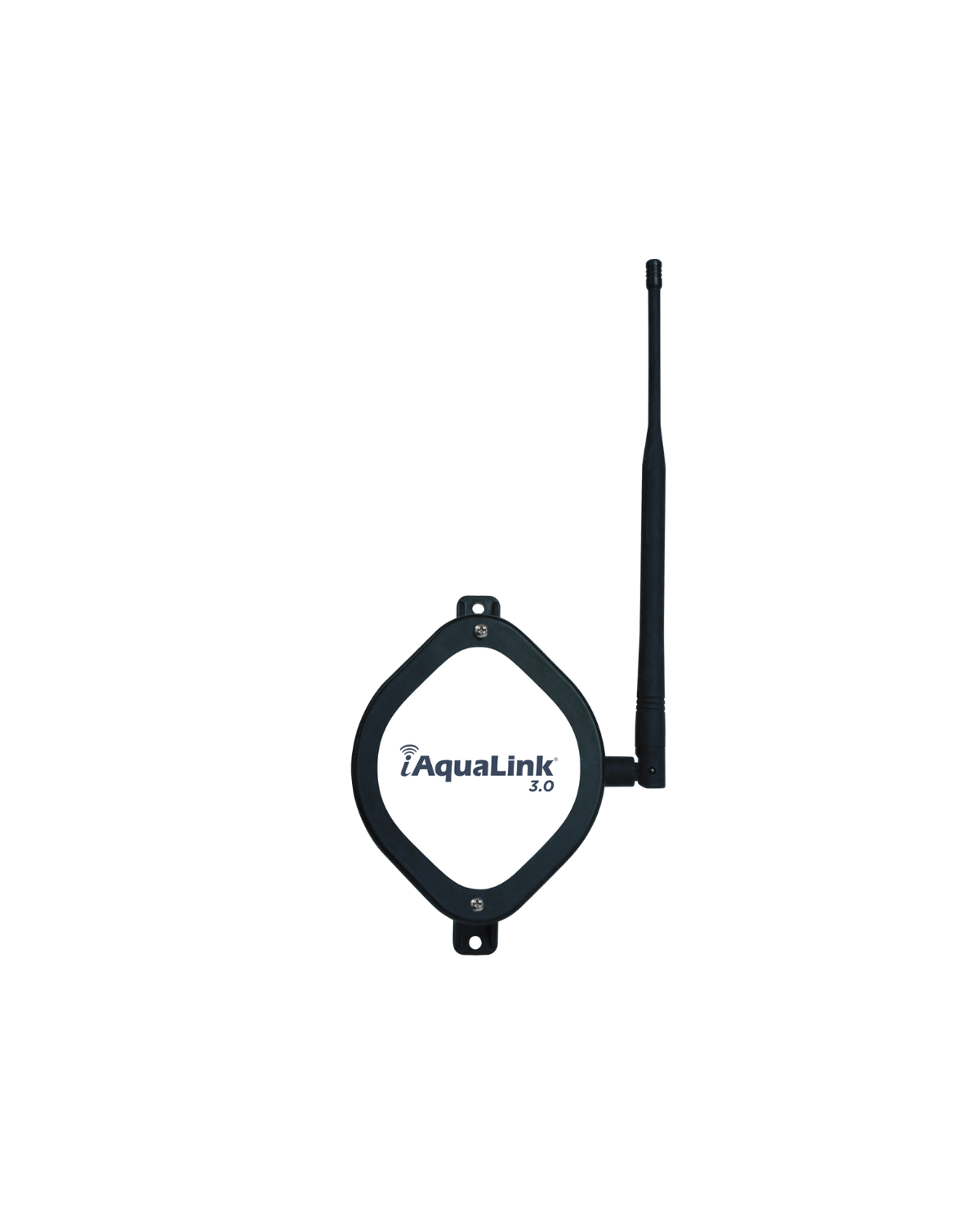
- Inspect Ethernet and Wi-Fi antennas.
- Look for signs of damage or corrosion.
Replacing damaged parts can restore normal function.
Reconfigure Network Settings
Sometimes, network settings block communication.
- Make sure the correct SSID and password are entered.
- Avoid using guest networks, which may restrict device access.
- Assign a static IP to iAquaLink for stability.
If you use advanced settings like firewalls, allow the necessary ports for iAquaLink.
Contact Support
If all else fails, contact Jandy or your installer.
- Describe the issue clearly.
- Mention all troubleshooting steps you’ve tried.
- Ask for guidance or warranty service if needed.
Real-world Examples And Data
According to user surveys, over 60% of iAquaLink Web Connect issues relate to home Wi-Fi problems. About 25% are caused by outdated firmware, while only 10% are due to server outages. Most users fix their issues in under 30 minutes with simple steps.
A pool owner in Texas reported their device going offline every evening. After checking Wi-Fi signal strength, they found interference from a neighbor’s router. Changing the channel fixed the problem.
In another case, a user couldn’t log in through the web portal. Clearing browser cookies resolved the issue. Many beginners miss these simple fixes, thinking the device itself is broken.
Advanced Troubleshooting Tips
If basic steps don’t help, try these advanced solutions:
Factory Reset
Perform a factory reset only if other steps fail. This erases all settings.
- Follow the manual to reset the device.
- Reconfigure Wi-Fi, schedules, and preferences.
Check Router Settings
Some routers block devices by default.
- Enable UPnP or port forwarding as needed.
- Avoid MAC address filtering unless you add iAquaLink’s address.
Use Ethernet Connection
If Wi-Fi is unreliable, switch to a wired Ethernet connection.
- Connect an Ethernet cable directly from router to iAquaLink device.
- This usually improves stability.
Monitor Device Logs
Some iAquaLink models let you view logs.
- Check logs for errors or connection failures.
- Share logs with support for faster diagnosis.
Mistakes To Avoid
Beginners often make these errors:
- Ignoring firmware updates: This leaves devices vulnerable to bugs.
- Using weak Wi-Fi: Pool equipment is often far from routers.
- Not checking server status: Many think the device is broken when it’s a cloud issue.
- Skipping simple restarts: Reboots solve most tech problems.
- Changing multiple settings at once: Makes diagnosis harder.
Stay methodical and change one thing at a time.
Comparison: Iaqualink Web Connect Vs Other Pool Automation Systems
To understand how iAquaLink compares, here’s a quick overview:
| System | Cloud Reliability | Ease of Troubleshooting | Update Frequency |
|---|---|---|---|
| iAquaLink | High | Moderate | Regular |
| Pentair IntelliConnect | Medium | Easy | Quarterly |
| Hayward OmniLogic | High | Advanced | Annual |
IAquaLink is reliable, but troubleshooting can be more technical than some competitors.
When To Seek Professional Help
If you experience repeated failures, strange error messages, or suspect hardware damage, call a professional. Pool automation is complex and improper repairs can void your warranty. Certified installers have the tools to diagnose deeper electrical and network faults.

How To Prevent Future Problems
Prevention is easier than fixing issues. Here are practical tips:
- Place your router near the pool equipment for stronger Wi-Fi.
- Check for firmware updates every three months.
- Set up automatic backups for schedules and preferences.
- Use surge protectors to guard against power spikes.
- Schedule regular maintenance checks.
Most issues can be avoided with good planning.
Frequently Asked Questions
What Should I Do If Iaqualink Web Connect Is Offline?
Check your Wi-Fi signal, power supply, and restart the device. If the problem continues, check for server outages or contact support.
How Can I Improve Iaqualink Wi-fi Connectivity?
Place your router closer to the device, remove obstacles, and use a Wi-Fi extender if needed. For best results, switch to Ethernet.
Does Iaqualink Work During Server Outages?
No, remote access and cloud features are unavailable during server outages. Local controls may still work, but scheduling and remote changes won’t.
How Do I Update Iaqualink Firmware?
Use the app or web portal to check for firmware updates. Follow on-screen instructions to download and install. Updates fix bugs and improve security.
Where Can I Find Official Help For Iaqualink Issues?
Visit the official Jandy website or contact your pool installer. For detailed guides, see Jandy iAquaLink Support.
Getting your iAquaLink Web Connect working again doesn’t have to be stressful. With clear steps and some patience, you can solve most problems yourself and enjoy reliable pool automation all year round. Remember to keep your system updated and your network strong for the best performance.