
If your Roomba docking station is not working, it can be frustrating. You rely on your robot vacuum to keep your floors clean, and a faulty dock means more manual work. Many people face this issue, but finding the real cause is not always easy. Roomba docks are simple devices, but small problems can make them stop working. In this article, you’ll learn why your Roomba docking station might fail, how to fix it, and how to keep it running smoothly. You’ll also find data comparisons, practical steps, and answers to common questions.
What Does A Roomba Docking Station Do?
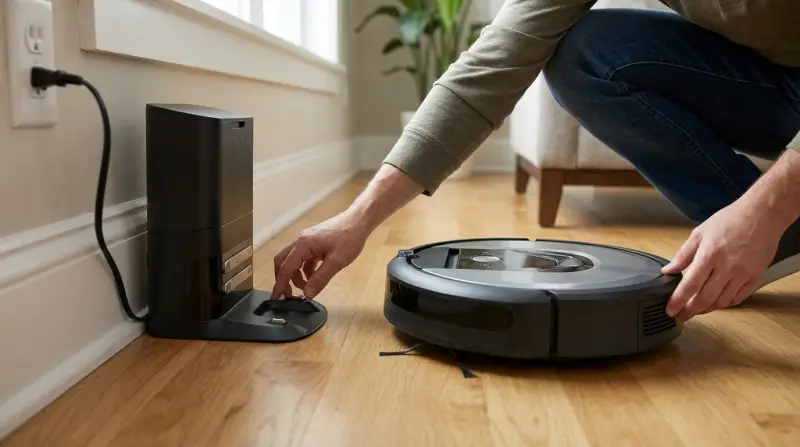
The docking station is the home base for your Roomba. It charges your robot, helps it find its way back after cleaning, and is needed for scheduled cleaning sessions. If the dock stops working, your Roomba can’t recharge or start cleaning on its own.
Key Functions Of A Docking Station
- Charging: Supplies power for the Roomba’s battery.
- Navigation: Sends infrared signals so the Roomba can find the dock.
- Scheduling: Allows timed cleaning if your Roomba model supports it.
Many people think the dock only charges, but it also plays a role in guiding your Roomba and keeping it ready for the next cleaning cycle.
Common Reasons Roomba Docking Station Stops Working
Several things can cause a Roomba dock to fail. Understanding these reasons helps you fix the issue faster.
1. Power Supply Issues
If the dock is not getting power, it cannot charge the Roomba. This is often caused by:
- Unplugged power cord
- Faulty wall outlet
- Damaged cable
2. Dirty Charging Contacts
Dust or debris on the charging contacts prevents electricity from flowing. This is a common issue in homes with pets or lots of dust.
3. Blocked Infrared Sensors
Roomba uses infrared signals to find the dock. If something blocks the sensors, the robot will not dock correctly.
4. Battery Problems
Sometimes the battery is the problem, not the dock. A dead or old battery will not charge even if the dock is fine.
5. Faulty Dock Components
Internal parts like circuit boards can fail. Sometimes, the dock’s internal fuse or wiring burns out.
6. Software Or Firmware Bugs
Rarely, a software bug in the Roomba or dock can prevent docking. Updating firmware can fix this.
How To Diagnose The Problem
Before you replace anything, run a quick check to find the real issue.
Step-by-step Troubleshooting Guide
- Check Power: Make sure the dock’s power light is on.
- Test Outlet: Plug another device (like a lamp) into the same outlet.
- Inspect Charging Contacts: Look for dirt or corrosion on both the dock and Roomba.
- Observe Docking Behavior: Watch how your Roomba approaches the dock.
- Try Manual Docking: Place the Roomba directly onto the dock and see if it charges.
If these steps do not solve the problem, it may be a deeper hardware issue.
Roomba Docking Station Vs. Other Robot Vacuum Docks
Not all robot vacuum docks are the same. Some brands use different charging methods or have extra features.
Here’s a simple comparison:
| Brand | Dock Type | Charging Contacts | Extra Features |
|---|---|---|---|
| Roomba | Standard | 2 metal contacts | Infrared navigation |
| Roborock | Smart | 2-3 contacts | Wi-Fi, auto-empty |
| Eufy | Basic | 2 contacts | Simple charging |
Roomba’s dock is known for reliability, but it is not immune to common issues.

Credit: www.youtube.com
Practical Fixes For Roomba Docking Station Problems
You can solve most docking station problems at home. Here are practical steps for each common issue.
Power Supply Fixes
- Confirm the power cord is plugged in securely.
- Try a different wall outlet.
- Check for damage in the cable.
Cleaning Charging Contacts
- Use a dry cloth or a cotton swab to wipe the contacts.
- For stubborn dirt, use a small amount of rubbing alcohol.
- Avoid using water or sprays.
Clearing Sensor Blockages
- Remove objects around the dock.
- Clean the dock’s sensors with a soft, dry cloth.
- Make sure there’s at least 1.5 feet of open space around the dock.
Replacing The Battery
- Buy a genuine Roomba battery for your model.
- Follow the manufacturer’s instructions for battery removal and replacement.
- Avoid cheap third-party batteries; they can cause more problems.
Fixing Dock Hardware
- If the dock’s power light won’t turn on, the dock itself might be faulty.
- Check for burnt smells or visible damage.
- If the dock is dead, you might need to replace it.
Updating Software
- Use the Roomba app to check for firmware updates.
- Update both the Roomba and dock if needed.
- Restart the Roomba after updating.
Tips To Prevent Docking Station Issues
A little care can keep your Roomba dock working for years.
- Clean contacts weekly: Dust builds up quickly.
- Keep the dock area clear: Roomba needs open space to dock.
- Use surge protectors: Protects against power spikes.
- Avoid moving the dock: Roomba remembers the dock’s location.
- Check for firmware updates: Keeps everything running smoothly.
Roomba Docking Station Error Codes
Some Roombas show error codes when docking fails. Understanding these codes helps you fix problems faster.
| Error Code | Meaning | Possible Fix |
|---|---|---|
| Err 1 | Dock not detected | Check power, clear area |
| Err 5 | Charging error | Clean contacts, check battery |
| Err 6 | Battery not installed | Re-seat or replace battery |
Always check your Roomba’s manual for specific error codes. Some newer models use app notifications instead.
Signs Your Dock Needs Replacement
Sometimes, no fix will work and you need to buy a new dock. Here are signs to look out for:
- Dock’s power light never turns on, even after trying different outlets.
- Visible damage or burnt smell from the dock.
- Roomba charges fine on another dock (if you can test).
- Dock is more than 3–5 years old; electronics can fail over time.
Buying from the official store is safest. Avoid used docks unless you can test them first.

Roomba Dock Placement: Why It Matters
Placement of the dock can affect performance. If your dock is in a bad spot, Roomba may fail to find it or charge.
Ideal Dock Placement
- Place on a flat, hard surface (not carpet).
- Keep at least 1.5 feet of space on each side and in front.
- Avoid direct sunlight and heat sources.
- Keep away from stairs or drop-offs.
Placing the dock in a crowded area is a common mistake. Roomba’s sensors need a clear path.
How Roomba Finds The Dock: A Quick Look
Roomba uses sensors and signals to find its dock. If these are blocked or fail, docking will not work.
Here’s a simple breakdown:
| Sensor Type | Role | Common Issues |
|---|---|---|
| Infrared | Guides Roomba to dock | Blocked by objects, dust |
| Contact Sensors | Detect charging contacts | Dirty, misaligned |
| Cliff Sensors | Prevent falls | Can interfere if near stairs |
Understanding these sensors helps you spot problems that are not obvious at first.

When To Call Support
If you have tried all the steps and your Roomba dock still does not work, it’s time to contact iRobot customer support. They can help diagnose rare issues or offer replacements under warranty. Keep your purchase receipt handy; most Roomba docks have a 1-year warranty.
For official troubleshooting guides, visit the iRobot Official Site.
Frequently Asked Questions
Why Does My Roomba Dock’s Power Light Stay Off?
If the power light is off, check the power cord and outlet. If other devices work in the outlet, the dock may be faulty. Sometimes, a blown internal fuse can cause this. If cleaning contacts and resetting the dock do not help, consider replacing the dock.
Can I Use A Third-party Replacement Dock For My Roomba?
Most Roombas work best with official docks. Some third-party docks can cause charging or navigation errors. If you use a non-official dock, check compatibility with your Roomba model. Using genuine parts is safer and avoids warranty issues.
How Often Should I Clean My Roomba Dock?
Clean the dock’s charging contacts weekly. Dust and pet hair can build up fast and block charging. Use a dry cloth or cotton swab. Do not use water or harsh chemicals.
Why Does My Roomba Miss The Dock Sometimes?
This usually happens if the dock is placed in a crowded area or the sensors are dirty. Make sure the dock has open space around it. Clean the sensors regularly. Also, check for firmware updates that improve navigation.
My Roomba Charges But Does Not Start Cleaning. Is The Dock The Problem?
Not always. If charging works but cleaning does not start, the issue may be with the Roomba’s scheduling or software. Reset your Roomba and check for app updates. If the dock sends signals for scheduling, check if those are working.
If unsure, contact support for help.
No one wants to spend time fixing their robot vacuum, but with these tips, you can solve most Roomba docking station problems yourself. Regular cleaning and careful placement prevent many issues. Understanding error codes and sensors helps you catch hidden problems. If all else fails, official support is your best option. With a working dock, your Roomba will keep your floors clean and your life easier.