
If your Logitech M325 mouse suddenly stops working, it can disrupt your workflow and cause frustration. This popular wireless mouse is known for its reliability, but like any device, it can encounter issues. Whether you use it for work, gaming, or browsing, knowing how to fix problems quickly is essential. In this guide, you’ll find easy steps, practical tips, and data to help you resolve every possible issue with the Logitech M325 mouse.
Common Reasons Why Logitech M325 Mouse Stops Working
Many users face issues with their wireless mouse at some point. The Logitech M325 is no exception. Here are the main reasons it may stop working:
- Battery is dead or weak
- USB receiver is not connected
- Driver problems
- Physical damage or wear
- Interference from other devices
- Outdated software
- Operating system compatibility
- Dirty sensor or buttons
- Loose battery contacts
- Malfunctioning USB port
Understanding these causes can help you diagnose the problem faster. Let’s look at each in detail.
Step-by-step Troubleshooting For Logitech M325 Mouse
Fixing your mouse doesn’t have to be complicated. These steps are designed for beginners and non-native English readers, so you can follow easily.
1. Check The Battery
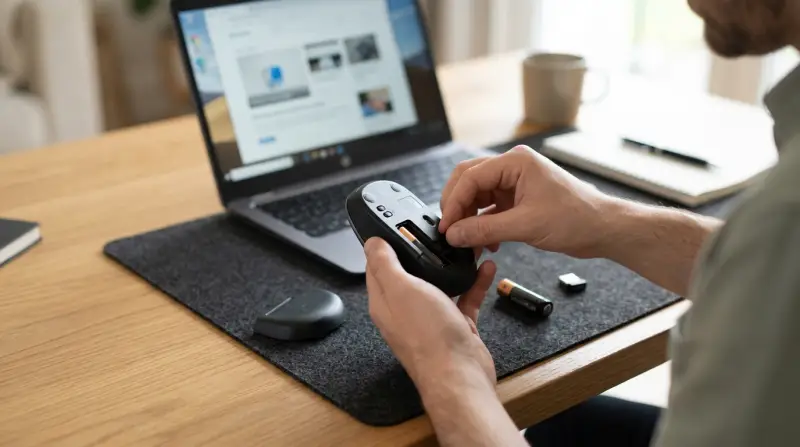
The M325 uses a single AA battery. If the battery is weak or dead, the mouse won’t work.
- Remove the battery cover.
- Replace the old battery with a new one.
- Make sure the battery is inserted correctly.
Use alkaline batteries for longer life.
2. Inspect The Usb Receiver
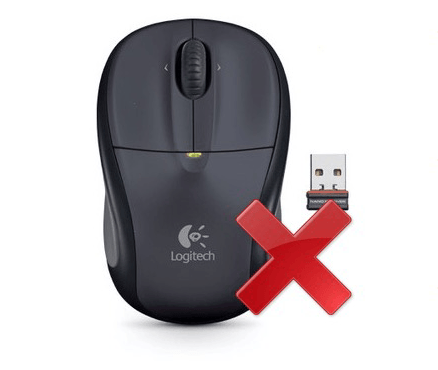
The M325 connects to your computer through a USB receiver (also called a dongle).
- Unplug the receiver from your computer.
- Plug it into another USB port.
- Try the receiver on a different computer if possible.
If the receiver works on another computer, the issue may be with your USB port.
3. Update Or Reinstall Drivers
Outdated or corrupted drivers can cause the mouse to stop working.
- Go to Device Manager on your computer.
- Find “Mice and other pointing devices.”
- Right-click the Logitech M325 and choose “Update driver.”
- If updating doesn’t help, uninstall and reinstall the driver.
You can download drivers from the Logitech website.
4. Clean The Mouse
Dust and debris can block the optical sensor or stick to the buttons.
- Wipe the bottom of the mouse with a soft cloth.
- Use compressed air to blow dust out.
- Clean the battery contacts with a dry cotton swab.
5. Check For Interference
Wireless devices can interfere with the mouse signal.
- Move the mouse closer to the USB receiver.
- Remove other wireless devices nearby.
- Avoid using the mouse near metal objects.
6. Test With Another Computer
To rule out software issues, try the mouse on another device.
- If the mouse works, your original computer may have a problem.
- If it doesn’t work, the mouse or receiver may be defective.
7. Examine For Physical Damage
Look for signs of damage:
- Cracks or broken parts
- Loose battery compartment
- Stuck buttons
If you see damage, consider replacing the mouse.
8. Update Your Operating System
Sometimes, older versions of Windows or macOS may not support the mouse.
- Check for system updates.
- Install any available updates.
9. Try A Different Usb Port
USB ports can fail over time.
- Plug the receiver into another port.
- Avoid using USB hubs; plug directly into the computer.
10. Reset The Mouse
Some users find that resetting the mouse helps.
- Turn the mouse off and on.
- Remove the battery for 30 seconds, then replace.
11. Check Logitech Software
Logitech offers software like Logitech Options for customizing mouse settings.
- Download and install Logitech Options.
- Check for updates inside the software.
12. Replace The Usb Receiver
If the receiver is defective, buy a replacement Unifying receiver.
- Logitech Unifying receivers work with many Logitech mice.
13. Contact Logitech Support
If none of the above steps help, reach out to Logitech support.
Data And Comparison: Logitech M325 Vs Other Wireless Mice
To understand how the M325 compares to other wireless mice, see the following data:
| Mouse Model | Battery Life (months) | Wireless Range (feet) | Supported OS |
|---|---|---|---|
| Logitech M325 | 18 | 33 | Windows, Mac, Linux |
| Logitech M185 | 12 | 33 | Windows, Mac, Linux |
| Microsoft Wireless Mobile Mouse 3500 | 8 | 30 | Windows, Mac |
The M325 stands out for its battery life and compatibility.
How To Prevent Logitech M325 Mouse Problems
Most issues can be avoided with simple care:
- Keep the mouse clean and dry.
- Store it in a safe place when not in use.
- Replace batteries regularly.
- Avoid dropping or hitting the mouse.
- Update drivers and software.
Credit: www.drivereasy.com
Non-obvious Insights For Beginners
Many beginners overlook these details:
- Battery brands matter: Cheap batteries can leak or lose power quickly.
- USB port health: Sometimes, ports lose power due to computer settings. Try restarting your computer or checking power management settings.
- Unifying receiver compatibility: If you own other Logitech devices, you can use the same receiver for multiple mice or keyboards.
Advanced Troubleshooting: M325 Mouse Not Working
If basic fixes don’t work, try these advanced steps:
Change Power Management Settings
Windows sometimes powers down USB ports to save energy.
- Go to Device Manager.
- Find “Universal Serial Bus controllers.”
- Right-click each entry, select Properties, and uncheck “Allow the computer to turn off this device to save power.”
Check For Firmware Updates
Some Logitech mice get firmware updates.
- Visit the Logitech support site.
- Download any available firmware for the M325.
Use Mouse On Different Surface
Optical mice perform poorly on glass or shiny surfaces.
- Use a mouse pad or a matte surface.
Test Receiver With Other Devices
If you have another Logitech mouse or keyboard, try pairing it with your receiver.
- If other devices work, the issue is likely with the mouse.
Data: Common Problems Reported By M325 Owners
Based on user reviews and support forums:
| Problem | % of Reports | Usual Fix |
|---|---|---|
| Mouse not detected | 45% | Replace battery or receiver |
| Cursor skipping | 20% | Clean sensor |
| Buttons not responding | 15% | Check for damage |
| Short battery life | 10% | Use high-quality batteries |
| Connection drops | 10% | Move closer to receiver |
Real-world Example: Fixing M325 Mouse Issues
Sara, a student, noticed her M325 mouse stopped working during a school project. She tried these steps:
- Replaced the battery, but the mouse still failed.
- Moved the receiver to another USB port; nothing happened.
- Cleaned the mouse sensor, and the cursor began moving again.
This shows that simple cleaning can solve many issues.
When To Replace Your Logitech M325 Mouse
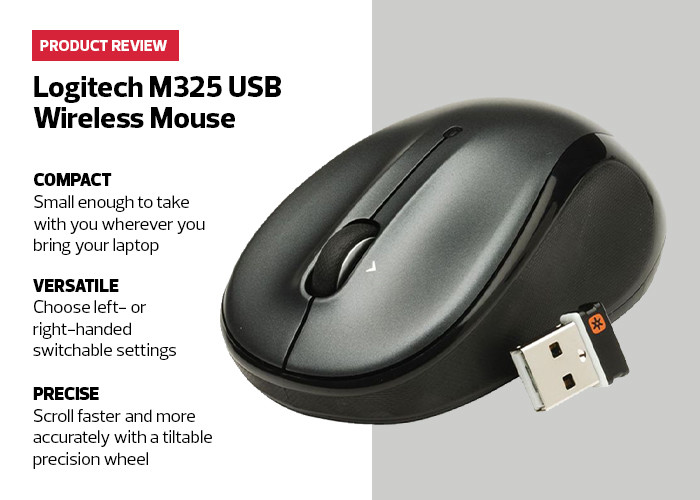
If your mouse is several years old and none of the troubleshooting steps help, it may be time to buy a new one. Signs you need a replacement:
- Buttons are physically stuck or broken.
- The scroll wheel doesn’t work.
- The mouse stops working randomly, even with new batteries and receiver.
Warranty And Support
Logitech offers a 3-year warranty for the M325. If your mouse is still under warranty, contact Logitech for a free replacement or repair. Keep your purchase receipt and check the warranty status on their website.

Tips For Buying A Replacement Mouse
If you decide to buy a new mouse, consider:
- Battery life
- Ergonomics
- Wireless range
- Compatibility with your computer
Avoid buying mice with low user ratings or poor build quality.
Frequently Asked Questions
Why Does My Logitech M325 Mouse Keep Disconnecting?
Frequent disconnections are often caused by low battery, USB interference, or faulty ports. Try replacing the battery, moving the receiver to a different port, and removing other wireless devices nearby.
How Can I Fix Unresponsive Buttons On My M325?
If buttons don’t respond, clean around them with a soft cloth. If cleaning doesn’t help, check for physical damage. Sometimes, software issues can cause button failures; reinstalling drivers may help.
Is The Logitech M325 Compatible With Mac Computers?
Yes, the M325 is compatible with Mac OS as well as Windows and Linux. For advanced features, download Logitech Options software for Mac.
What Is The Battery Life Of The Logitech M325 Mouse?
The battery life is up to 18 months with a single AA battery, depending on usage. Using high-quality alkaline batteries will give the best results.
Where Can I Get A Replacement Usb Receiver For My M325 Mouse?
You can buy a Logitech Unifying receiver from Logitech’s official website or major electronics retailers. Make sure the receiver matches your mouse model for full compatibility. For official information, visit Logitech Support.
Getting your Logitech M325 mouse working again is usually a simple process. With careful troubleshooting and regular care, you can avoid most problems. If all else fails, Logitech’s support and warranty are there to help. Use these tips to keep your mouse reliable and your workflow smooth.