
Resetting smart bulbs like the Philips Hue can seem tricky, especially when you want to use Amazon Alexa. Many people think you need a separate Hue Bridge, but that’s not always true. If your bulbs are acting up, won’t connect, or you’re moving to a new home, a reset is often the best fix. This guide will walk you through how to reset a Philips Hue bulb with Alexa—clearly, step by step. You’ll also learn what to do if something goes wrong and how to avoid common mistakes. Whether you use an Echo Plus, Echo Show, or another Alexa device with Zigbee, this article will help you get your smart lighting working smoothly again.
Understanding Philips Hue Bulbs And Alexa
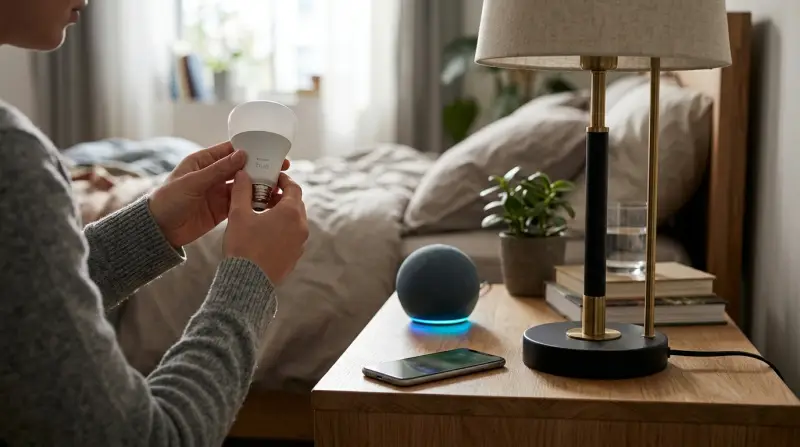
Philips Hue is a leading name in smart lighting. Their bulbs use Zigbee, a wireless protocol for smart home devices. Alexa, Amazon’s voice assistant, can control many smart bulbs directly—if your Echo device supports Zigbee.
Not all Echo devices have a Zigbee hub inside. The Echo Plus, Echo Show 2nd Gen, and some newer Echo models do. With these, you can connect Hue bulbs without a separate Hue Bridge. Other Echo devices need the Hue Bridge for advanced features. Understanding your setup is important before starting the reset.
Which Echo Devices Support Zigbee?
Here’s a quick comparison of common Echo models and their Zigbee support:
| Echo Device | Zigbee Hub Built-In? | Can Reset Hue Bulb Directly? |
|---|---|---|
| Echo Plus (1st & 2nd Gen) | Yes | Yes |
| Echo Show (2nd Gen, 10, 8) | Yes (some models) | Yes |
| Echo (4th Gen) | Yes | Yes |
| Echo Dot (all models) | No | No |
| Echo Studio | Yes | Yes |
| Echo Flex | No | No |
If your Echo device is not on this list, check the technical specs on the official Amazon site.
Reasons To Reset A Philips Hue Bulb
Resetting isn’t just for when things break. Here are some common reasons:
- Bulb not responding to voice commands or Alexa app
- Moving to a new home and want to set up bulbs again
- Selling or giving away your smart bulbs
- Connecting bulbs to a new Echo device
- Troubleshooting after a failed setup
A reset wipes the bulb’s memory and returns it to factory settings. This makes it ready to pair with any Zigbee hub or smart home system.
Preparing For The Reset
Before you start, make sure:
- The Philips Hue bulb is powered on and screwed in properly
- Your Echo device supports Zigbee (see above)
- Alexa app is installed and updated on your phone
- The bulb is within 30 feet (10 meters) of your Echo device
If your bulb is connected to a Hue Bridge, you should remove it from the Bridge first using the Hue app. This prevents old connections from causing problems later.
How To Reset Philips Hue Bulb With Alexa
There are two main ways to reset a Philips Hue bulb with Alexa: using the Alexa app or through Alexa voice commands (if supported). Let’s start with the most reliable method.
Method 1: Using Alexa App And Zigbee
- Open the Alexa App
- Launch the Alexa app on your smartphone or tablet.
- Go to Devices Tab
- Tap the ‘Devices’ icon (bottom right).
- Select ‘Lights’
- Look for your Philips Hue bulb in the Lights section.
- Delete the Bulb
- Tap the bulb’s name, then the gear icon.
- Scroll down and select ‘Delete Device.’ This removes the bulb from Alexa’s memory.
- Reset the Bulb With Alexa
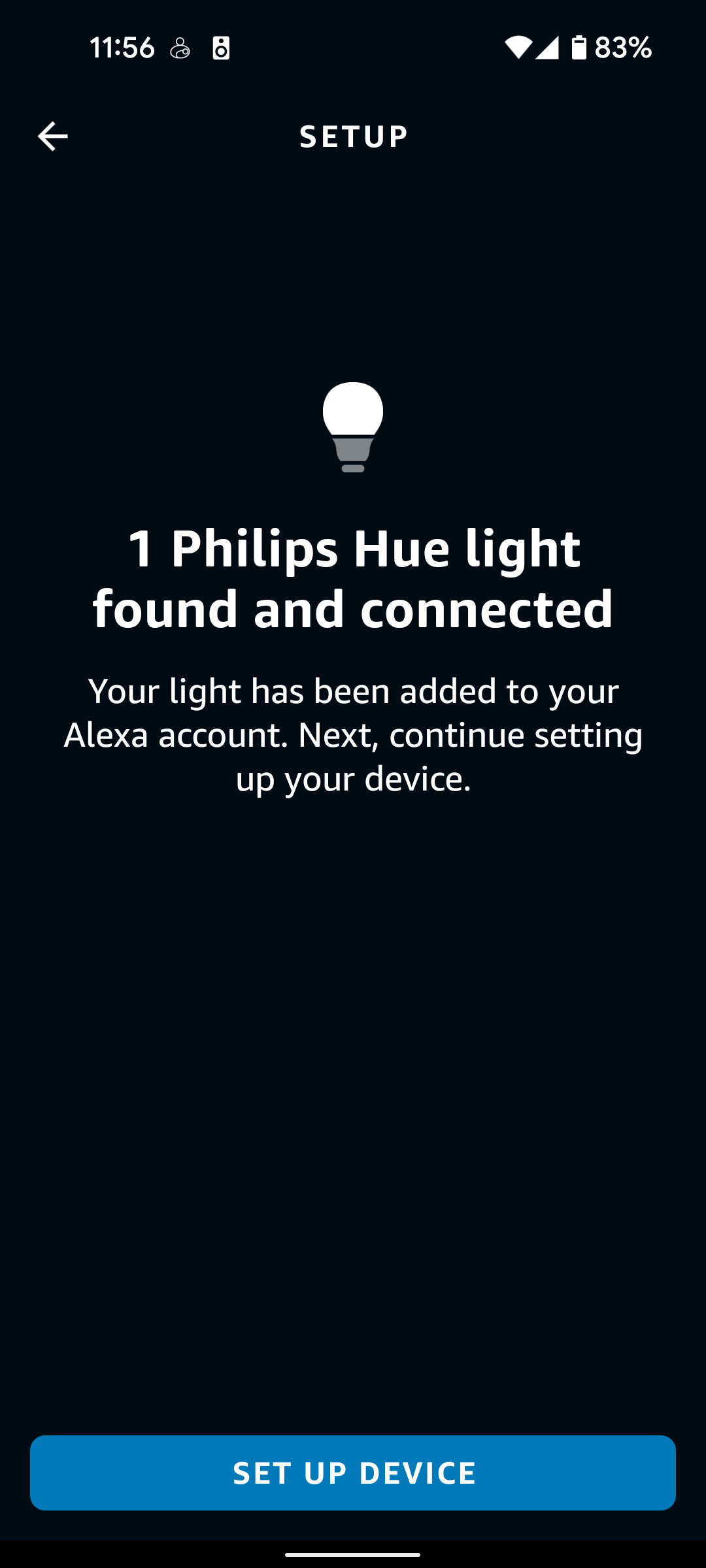
- Now, say: “Alexa, discover devices.”
- While Alexa is searching, turn the bulb off and on at the wall switch in this pattern:
- Off for 2 seconds, on for 2 seconds (repeat 5 times).
- The bulb will blink to show it’s in pairing mode. Alexa should find it as a new device.
- Rename and Assign Groups
- Once found, you can rename the bulb or add it to a group in the Alexa app.
Not all bulbs react the same way to the power cycle method. If your bulb doesn’t blink, try a different timing (1 second off/on).
Method 2: Using Voice Commands (echo Devices With Zigbee)
Some Echo devices let you reset bulbs with a voice command:
- Say: “Alexa, remove [bulb name].”
- Wait for Alexa to confirm removal.
- Turn the bulb off and on as above.
- Say: “Alexa, discover devices.”
- Bulb will appear as a new device after reset.
This only works if the bulb was already set up through Alexa directly (not through a Hue Bridge).
Method 3: Manual Reset With Serial Number
If you can’t reset using the Alexa app, use the bulb’s 6-character serial number (printed on the base):
- Open the Alexa app, go to Devices > Add Device > Light > Philips Hue.
- Tap “Don’t have a Hue Bridge?”
- Enter the bulb’s serial number and follow the on-screen steps.
- Alexa will reset and add the bulb.
This method is useful if the bulb isn’t found during automatic discovery.
What To Do If The Reset Fails
Sometimes, things don’t go as planned. Here’s a troubleshooting checklist:
- Bulb still not found? Move the bulb closer to your Echo device.
- Bulb doesn’t blink? Check the power cycle timing. Some bulbs need a faster or slower rhythm.
- Multiple bulbs nearby? Reset them one at a time to avoid confusion.
- Bulb paired to another hub? Remove it from the old system first.
- Alexa app not updating? Close and reopen the app, or log out and back in.
If all else fails, unplug your Echo device and bulb for a few minutes, then try again.
Comparing Reset Methods: Alexa Vs. Hue Bridge
You might wonder if using Alexa is better than the Hue Bridge for resets. Here’s a comparison:
| Feature | Alexa Direct (Zigbee) | Hue Bridge |
|---|---|---|
| Requires extra hardware? | No | Yes |
| Works offline? | Yes (local Zigbee) | Partially (for basic controls) |
| Supports routines and scenes? | Basic | Advanced |
| Resets multiple bulbs at once? | One by one | Yes (group reset) |
| Firmware updates? | No | Yes |
If you want advanced features, use the Hue Bridge. For simple setups, Alexa is enough.
Common Mistakes And How To Avoid Them
Many users make simple errors that cause frustration. Here are two non-obvious insights beginners often miss:
- Mixing Zigbee and Bluetooth bulbs: Not all Philips Hue bulbs are Zigbee. Some are Bluetooth-only. Alexa only resets Zigbee bulbs directly—Bluetooth models need the Hue app.
- Not removing bulbs from old systems: If the bulb is still linked to another smart hub or the Hue Bridge, reset will often fail. Always delete or “forget” the bulb from old controllers before trying with Alexa.
Other mistakes:
- Power cycling too fast or too slow
- Not waiting for Alexa to finish “discovering devices”
- Trying to reset multiple bulbs at the same time
Take your time with each step. If you’re stuck, a quick Google search or checking the official Philips Hue support page can help.
Advanced Tips For Philips Hue And Alexa
Once your bulbs are reset and connected, you can use Alexa for much more:
- Create routines: Automate lights to turn on/off at certain times.
- Group lights: Control multiple bulbs in a room with a single command.
- Voice dimming: Say “Alexa, dim the living room lights to 50%.”
- Color changes: If your bulb supports it, “Alexa, set the bedroom light to blue.”
Remember, some features (like color scenes and software updates) need the Hue Bridge. But for on/off, dimming, and basic routines, Alexa does the job well.

When To Use The Hue Bridge Instead
Some homes have dozens of smart bulbs, advanced color scenes, or want remote control from anywhere. In these cases, the Hue Bridge is the better choice. It supports:
- Up to 50 bulbs and accessories
- Complex routines and scenes
- Integration with Apple HomeKit and Google Home
- Firmware updates for bulbs
If you plan to expand your smart home, consider getting the Hue Bridge. Otherwise, Alexa Zigbee control is a good, simple solution.
Real-world Example
Imagine you bought a used Philips Hue bulb online. You screw it in, but Alexa won’t discover it. This likely means the bulb is still paired to the previous owner’s system. Use the manual reset method above (power cycling or serial number), and Alexa should find it as new.
Or, if you’re moving homes, resetting bulbs before packing them saves time during setup in your new place.

Quick Reference: Reset Steps Summary
Here’s a quick summary for easy reference:
- Make sure your Echo device supports Zigbee.
- Power on the Philips Hue bulb.
- Remove the bulb from the Alexa app (if already added).
- Power cycle the bulb (off 2 seconds/on 2 seconds, 5 times).
- Ask Alexa to “discover devices.”
- Wait for the bulb to blink and appear in the app.
- Assign a name and group if needed.
Keep these steps handy next time you need to reset.
Frequently Asked Questions
What If My Echo Device Does Not Support Zigbee?
You cannot reset Philips Hue bulbs directly with Alexa unless your Echo device has a Zigbee hub. In this case, use the Philips Hue Bridge or a Hue Dimmer Switch for resets, or purchase a compatible Echo device.
Can I Reset Multiple Philips Hue Bulbs At Once With Alexa?
No, Alexa allows you to reset one bulb at a time. Trying to reset several bulbs together can cause issues. For group resets, use the Hue Bridge.
Why Doesn’t My Bulb Blink During Reset?
If your bulb doesn’t blink, check the power cycle timing. Some bulbs need faster or slower switching. Also, make sure the bulb is Zigbee, not Bluetooth-only. If it still won’t blink, try using the serial number method.
Can Alexa Update My Philips Hue Bulb’s Firmware?
No, only the Hue Bridge can update the firmware of Philips Hue bulbs. Alexa controls basic functions but not software updates or advanced features.
Where Can I Find My Bulb’s Serial Number?
The serial number is printed on the base of the Philips Hue bulb (usually 6 characters). You might need a flashlight and a magnifying glass to read it. Enter this number in the Alexa app if automatic discovery fails.
For more technical details, visit the official Philips Hue support page.
Setting up and resetting Philips Hue bulbs with Alexa is easier once you understand the process. Take your time, follow each step, and soon your smart home lights will work exactly how you want.