
If you use OneNote to collect web clippings, you know how much time the OneNote Clipper can save. But when the Clipper stops working, it can be frustrating and slow down your workflow. Whether you rely on it for research, organizing ideas, or just saving interesting articles, a broken Clipper quickly becomes a headache. The good news is that most issues have clear solutions. This guide explains why OneNote Clipper stops working, how to fix it, and what to do if nothing seems to help. Even if you’re new to OneNote, you’ll find simple, step-by-step advice to get your Clipper back in action.
What Is Onenote Clipper And How Does It Work?
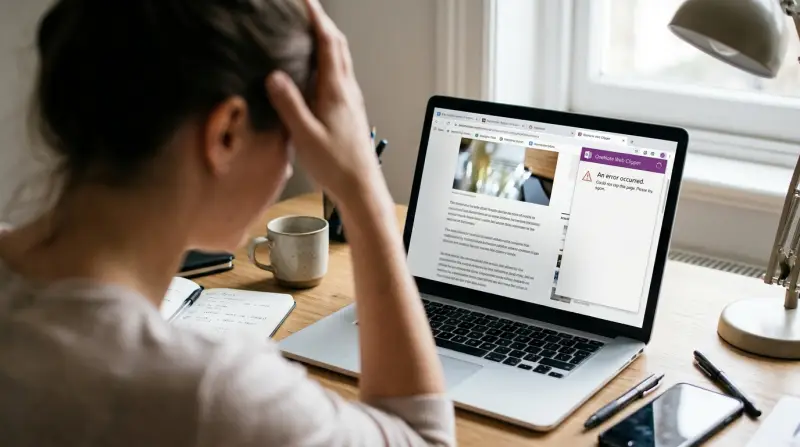
The OneNote Clipper is a web extension for browsers like Chrome, Edge, and Firefox. It lets you save web pages, images, or selected text directly into your OneNote notebooks with just a click. Instead of copying and pasting, you can clip content, organize it by section, and access it later from any device. Many users depend on Clipper for daily tasks, making it a critical tool in their productivity kit.
Common Reasons Why Onenote Clipper Stops Working
OneNote Clipper problems usually fall into a few main categories. Understanding these can help you fix the issue faster.
- Browser Compatibility Issues: Updates to Chrome, Edge, or Firefox can sometimes break extensions. Outdated browsers or Clipper versions are a common cause.
- Account or Sign-In Problems: If you’re not signed in to your Microsoft account, Clipper won’t save anything.
- Network or Connectivity Errors: Poor internet or company firewalls can block Clipper from sending data to OneNote.
- Corrupted Cache or Cookies: Browser data can become corrupted, stopping extensions like Clipper from working.
- Permission Settings: If Clipper doesn’t have permission to access the clipboard or web page data, it can’t function.
- Conflicting Extensions: Other browser add-ons (like ad blockers or privacy tools) may interfere.
- Microsoft Server Issues: Sometimes, the problem is on Microsoft’s end, not yours.
Credit: learn.microsoft.com
How To Diagnose The Issue
Before you start fixing, it helps to narrow down the cause.
- Try using Clipper in a different browser. If it works, your main browser is the problem.
- Test with another Microsoft account if you have one.
- Clip from a different website. Some pages block extensions or use code that interferes.
- Check if OneNote Clipper works on another device with the same account.
Small changes can reveal a lot about where the issue lies.
Step-by-step Solutions For Onenote Clipper Problems
Let’s go through the most effective solutions, starting with the simplest.
1. Update Your Browser And Clipper Extension
Outdated software is a leading cause of extension issues. Make sure both your browser and Clipper are updated.
- In Chrome/Edge/Firefox, go to the extension store and check for Clipper updates.
- Restart your browser after updating.
2. Check Your Internet Connection
A weak or unstable connection can block Clipper from sending data. Try these:
- Open a new website to test your connection.
- Switch to a different Wi-Fi or use a mobile hotspot if available.
3. Sign Out And Sign Back In
Authentication errors are common. Sign out of the Clipper extension and your OneNote account, then sign back in. This often resets things.
4. Clear Browser Cache And Cookies
Corrupt cache data is a hidden cause of many extension failures.
- In browser settings, find the option to clear browsing data.
- Select “Cookies and other site data” and “Cached images and files.”
- Restart your browser.
5. Adjust Extension Permissions
- Go to your browser’s extensions page.
- Make sure Clipper has access to the sites you want to clip.
- On Chrome: Find Clipper > Details > Site access. Set to “On all sites.”
6. Disable Conflicting Extensions
Some extensions block Clipper by mistake. Disable others, especially:
- Ad blockers
- Privacy tools
- Script blockers
Re-enable one at a time to find the culprit.
7. Reinstall Onenote Clipper
Remove the extension, restart your browser, and reinstall Clipper from the official store.
8. Check Microsoft’s Service Status
Sometimes, Microsoft’s servers are down. Visit the Microsoft Office Service Status page to check for outages.
9. Try Incognito Or Private Mode
Extensions sometimes behave differently in private mode. Try clipping a page there.
10. Reset Browser Settings
As a last resort, reset your browser settings to default. This removes all extensions and customizations.

Credit: www.reddit.com
Comparing Onenote Clipper With Other Web Clippers
It helps to see how OneNote Clipper stacks up against similar tools.
| Feature | OneNote Clipper | Evernote Web Clipper | Pocket Extension |
|---|---|---|---|
| Save to Cloud | Yes (OneNote) | Yes (Evernote) | Yes (Pocket) |
| Annotation Tools | Basic (in OneNote) | Advanced | No |
| Offline Access | Yes | Yes | Premium Only |
| Supported Browsers | Chrome, Edge, Firefox | Chrome, Edge, Firefox, Safari | Chrome, Firefox |
| Free to Use | Yes | Limited | Yes |
Insight: Many users switch between clippers. If OneNote Clipper is down, you can use another tool temporarily and later move content to OneNote.
Real-world Example: Fixing A Clipper Issue
Maria, a university student, noticed OneNote Clipper stopped saving articles from her Chrome browser. She tried reinstalling the extension, but nothing changed. After checking, she realized her Chrome browser hadn’t updated in months. Once she updated the browser and cleared her cache, Clipper started working again.
This shows that sometimes the problem is not with Clipper itself but with the surrounding software.

Credit: www.reddit.com
Problems Unique To Each Browser
While many solutions work across browsers, some issues are browser-specific.
| Browser | Common Clipper Problem | Best Fix |
|---|---|---|
| Chrome | Extension disabled after update | Re-enable in Extensions menu |
| Edge | Does not appear in toolbar | Pin Clipper to toolbar manually |
| Firefox | Permission errors | Check “Manage Extension” permissions |
Two Insights Many Users Miss
- Some websites block extensions: Highly dynamic or secure sites (like banking, web apps, or paywalled articles) may prevent Clipper from grabbing content. Try a simpler site to check if Clipper works elsewhere.
- Notebook organization can matter: If your default notebook is full or corrupted, Clipper may not save anything. In OneNote, change your default notebook or section and try again.
When Clipper Still Doesn’t Work: Advanced Steps
If you’ve tried everything and Clipper still fails, try these less obvious tips:
- Check for company policies: On work or school computers, IT policies can block extensions or cloud syncing. Try on a personal device or ask your IT team.
- Inspect the browser console: Developers can open the browser’s developer tools (usually F12), select the Console tab, and look for Clipper error messages. This can reveal more about what’s wrong.
- Switch to OneNote’s built-in ‘Send to OneNote’ tool: On Windows, you can use the “Send to OneNote” feature from the Share menu as a workaround.
Keeping Onenote Clipper Working Smoothly
To avoid future problems, consider these tips:
- Update regularly: Set your browser and extensions to update automatically.
- Limit extension clutter: Only keep extensions you truly use.
- Review permissions: After major browser updates, double-check extension permissions.
- Backup important clippings: Sync your OneNote notebooks so nothing gets lost.
Alternatives To Onenote Clipper
If you need a backup plan, several tools can fill the gap when Clipper fails.
- Evernote Web Clipper: Offers more annotation tools but requires an Evernote account.
- Pocket: Great for saving articles to read later, but doesn’t organize content the same way.
- Microsoft Edge Web Capture: In Edge, this built-in tool lets you clip web content to OneNote or other apps.
- Manual Copy-Paste: Old-fashioned but always reliable if extensions fail.
If you switch tools, you can often export clippings and import them into OneNote later.
Data Privacy And Security With Onenote Clipper
A key concern for many is how Clipper handles your data.
- Data stays in your Microsoft account: Everything you clip goes directly to your OneNote, secured by Microsoft’s cloud.
- Browser permissions: Clipper only accesses web content and your clipboard with your permission.
- No local storage of sensitive data: Everything is stored in the cloud, reducing risk if you lose your device.
For more on Microsoft’s privacy approach, see the official Microsoft Privacy Statement.
Frequently Asked Questions
Why Does Onenote Clipper Keep Asking Me To Sign In?
This usually happens if your browser blocks third-party cookies or you have an expired session. Try clearing your cookies and enabling third-party cookies for Microsoft sites.
Can I Use Onenote Clipper On My Phone?
No, OneNote Clipper is a browser extension for desktop browsers only. On phones, use the Share feature in your browser to send content to the OneNote app.
Does Onenote Clipper Work With All Websites?
No. Some websites block extensions or use scripts that prevent clipping. In these cases, try saving a screenshot or using the “Print” feature to PDF and upload to OneNote.
How Can I Change The Default Notebook Or Section For My Clippings?
After you clip something, Clipper lets you choose a notebook and section. You can change the default in the Clipper’s settings or in your OneNote account.
What Should I Do If Clipper Is Missing From My Browser?
Check your browser’s extensions or add-ons page. If Clipper is disabled, re-enable it. If it’s missing, reinstall it from the official extension store.
When OneNote Clipper stops working, it’s rarely a permanent problem. Most users can fix the issue in a few minutes with the right steps. By understanding the common causes and trying each solution, you’ll be back to clipping and organizing in no time.
And if all else fails, alternative tools and simple workarounds ensure your workflow doesn’t have to stop. Keep your tools updated, know your options, and OneNote Clipper will remain a reliable part of your digital toolkit.