
If you own Bose headphones, speakers, or soundbars, you probably know how useful the Bose Updater tool is. This small program helps you keep your devices up to date with the latest firmware and features. But what happens when Bose Updater stops working? It can be frustrating, especially if your device is experiencing issues or you want new features released by Bose.
This article explores the most common reasons why Bose Updater is not working, how to fix it, and what you can do to update your Bose device even if the updater fails. Along the way, you’ll find clear explanations, practical troubleshooting steps, and smart tips from real user experiences. If you want your Bose device running smoothly, you’re in the right place.
What Is Bose Updater And Why Does It Matter?
Bose Updater is a desktop application for Windows and Mac. It allows you to connect your Bose products, like QuietComfort headphones or SoundLink speakers, to your computer and download the latest software updates. These updates can:
- Fix bugs and glitches
- Improve sound quality
- Add new features
- Enhance compatibility with other devices
Without the latest firmware, your device might not work as well as it should. For example, some updates improve Bluetooth connectivity or battery life. Others fix problems users have reported. That’s why keeping your Bose device updated is important.
Common Problems With Bose Updater
Many users run into problems with Bose Updater. Here are the most reported issues:
- Updater does not detect the device
- Updater fails to launch
- Update process gets stuck or freezes
- Update completes but device does not change
- Error messages like “Update failed” or “Device not supported”
- Network or connection errors
Let’s break down each of these to understand them better.
Updater Does Not Detect The Device
Sometimes, you connect your Bose device to your computer, but Bose Updater cannot find it. The window just says “Connect a device” or stays blank.
Updater Fails To Launch
You double-click the program, but nothing happens. Or, you see a quick flash and then it disappears.
Update Gets Stuck
You start the update, but it freezes at a certain percentage—often 30%, 50%, or 80%. You wait, but it never finishes.
Update Completes But Device Doesn’t Change
The update says it’s done, but your device’s firmware version stays the same. Sometimes, the device works no differently than before.
Error Messages
You might see messages like:
- “Update failed”
- “Device not supported”
- “Network error”
These errors are not always clear, making it hard to know what went wrong.
Network Or Connection Errors
The updater may say it cannot connect to the server, or your internet connection is unstable. Sometimes this happens even if your internet seems fine.
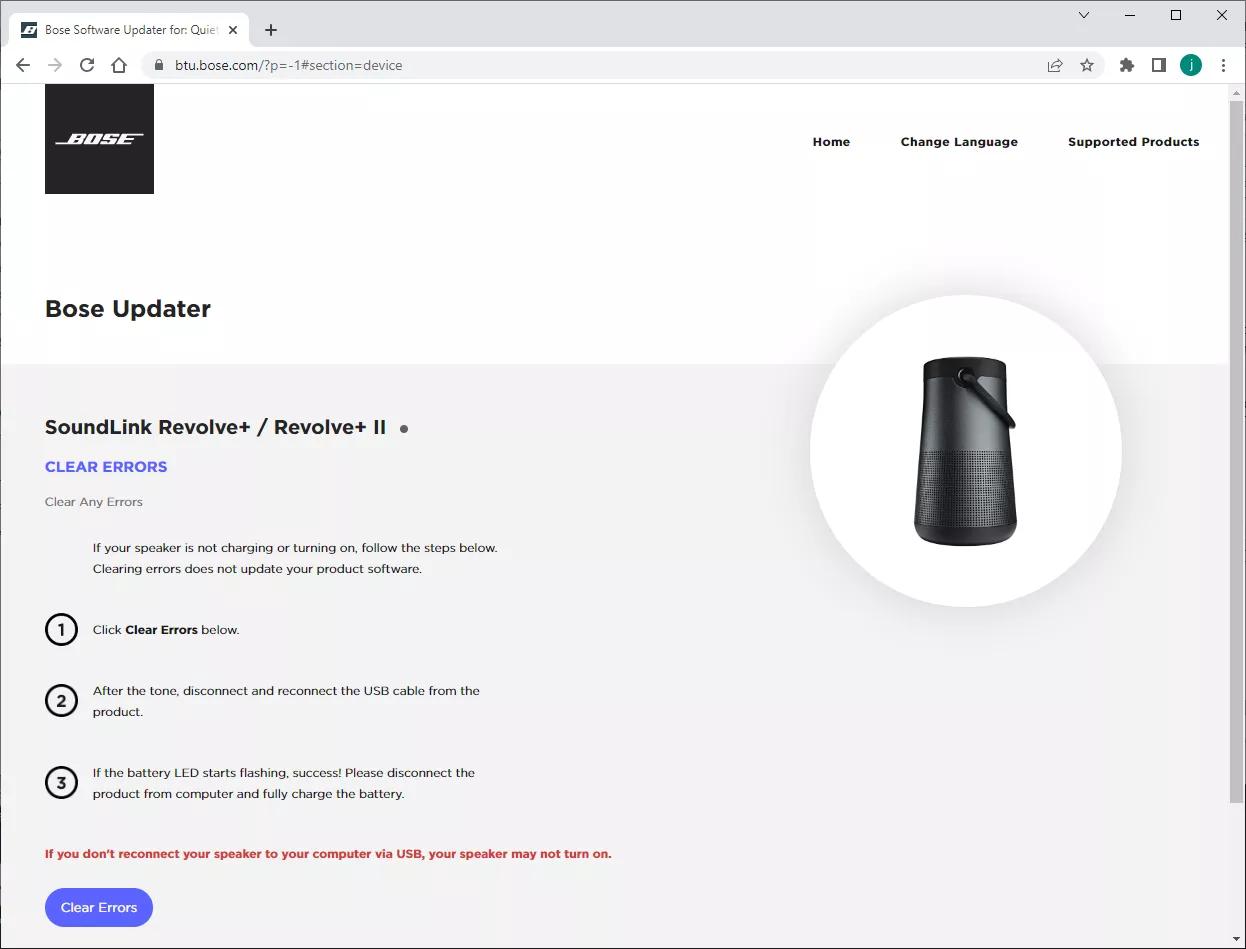
Why Bose Updater Stops Working
To fix the problem, you need to understand why Bose Updater might fail. Here are the main causes:
Outdated Software
If your computer’s operating system or the Bose Updater itself is out of date, it may not work properly. For example, older versions of Updater may not support the latest devices.
Usb Cable Or Port Issues
A faulty USB cable or port can cause connection problems. Sometimes, the cable only charges but does not transfer data.
Antivirus Or Firewall Blocking
Some security programs block the updater from accessing the internet or your device. This is a common cause of network or connection errors.
Internet Connection Problems
A slow, unstable, or restricted internet connection can interrupt the update process.
Device Not In Update Mode
Some Bose devices need to be in a special mode to update. If you just plug them in, the updater may not recognize them.
Corrupted Updater Installation
If the Bose Updater is not installed correctly, it may crash or freeze.
Device Firmware Issues
Rarely, the device itself has firmware problems that prevent updates.
How To Fix Bose Updater Not Working
Now that you know the main causes, let’s look at step-by-step solutions. These methods are ordered from simplest to most advanced. Try them in order, and don’t skip steps—even small things can make a big difference.
Check System And Updater Compatibility
Make sure your computer and Bose Updater are compatible. Bose Updater works with:
- Windows 7, 8, 10, and 11 (some older versions may not work on Windows 11)
- MacOS 10.10 or later
If you have a very new or very old operating system, check the official Bose website for the latest supported version.
How To Check Your Updater Version
- Open Bose Updater
- Click on “About” or “Help” (top menu)
- Look for the version number
- Go to the Bose support site and compare with the latest version
If your version is old, download the newest one.
Restart Everything
Sometimes, a simple restart solves the problem.
- Unplug your Bose device
- Close Bose Updater completely
- Restart your computer
- Reopen Bose Updater
- Plug in your device again
This can clear temporary glitches.
Use A Different Usb Cable And Port
Many update failures happen because of a bad USB cable. Try these steps:
- Use the original Bose cable if possible
- Try another USB port (avoid USB hubs—plug directly into your computer)
- Try a different cable (it must support data, not just charging)
- If you have another computer, try the process there
A surprising number of users fix the issue just by swapping cables.
Disable Antivirus And Firewall Temporarily
Some security programs block Bose Updater from connecting to the internet or your device.
- Temporarily disable your antivirus or firewall
- Try running Bose Updater again
- If it works, add Bose Updater as an exception in your security settings
Remember to turn your security software back on after updating.
Check Your Internet Connection
A weak or unstable connection can cause failed updates. Try these tips:
- Use a wired connection if possible
- Restart your router
- Avoid large downloads or streaming during the update
- If on a work or school network, try a home network (some networks block update servers)
Install The Latest Bose Updater
If you haven’t already, uninstall Bose Updater, then download and install the latest version from the official Bose website. Sometimes, the old version is incompatible with new devices.
Steps To Reinstall
- Go to your system’s app manager
- Uninstall Bose Updater
- Download the latest version from the Bose support site
- Install and run the new version
Put Your Device Into Update Mode
Some Bose devices need special steps to enter update mode. For example:
- Hold down the power button for 10 seconds
- Plug in the device while holding certain buttons
Check your device’s manual or the Bose support site for the exact steps. If the device isn’t in the right mode, the updater won’t detect it.
Reset Your Bose Device
A device reset can clear firmware glitches that block updates.
Example: Resetting Bose Quietcomfort Headphones
- Turn off the headphones
- Wait 30 seconds
- Connect to power for 5 seconds, then unplug
- Wait 1 minute before turning on
Each Bose device has its own reset method, so check the manual.
Try A Different Computer
If nothing works, try the update on another computer. Sometimes, computer-specific issues (like drivers or background programs) block the update.
Contact Bose Support
If you still can’t update, reach out to Bose support. They may offer:
- A manual update file
- Advanced troubleshooting steps
- Device repair or replacement if under warranty
You can find support contact details on the Bose official support page.

Real-world Example: Troubleshooting Step-by-step
Let’s look at a real example. Maria has a Bose SoundLink Mini II. She tries to update, but the updater doesn’t detect her device.
- She checks the USB cable—it’s a charging-only cable. She switches to a data cable.
- The updater now sees her device but gets stuck at 60%.
- She disables her antivirus and firewall. The update completes smoothly.
- Maria turns her security software back on and enjoys the new features.
This shows how simple details can make a big difference.
Comparing Bose Updater With Bose Connect And Bose Music Apps
Many users ask: Do I need the desktop Bose Updater, or can I use the Bose Connect or Bose Music app on my phone instead?
Here’s a quick comparison:
| Feature | Bose Updater (Desktop) | Bose Connect/Music (Mobile) |
|---|---|---|
| Device Compatibility | Most Bose headphones, speakers, older soundbars | Most wireless headphones, latest soundbars, smart speakers |
| Firmware Updates | Yes | Yes |
| Settings Control | No | Yes (noise canceling, EQ, etc.) |
| Required for All Updates? | No (but needed for some devices) | No (but some updates only via app) |
| Platform | Windows/Mac | iOS/Android |
If Bose Updater is not working, try updating through the mobile app if your device supports it. This sometimes solves stubborn update problems.
Advanced Troubleshooting: Digging Deeper
Sometimes, you need to go beyond the basics. Here are advanced steps for persistent problems.
Checking Usb Device Manager (windows Only)
If your computer doesn’t recognize the Bose device at all:
- Right-click the Start menu, select “Device Manager”
- Under “Universal Serial Bus controllers” or “Sound, video and game controllers,” look for your Bose device
- If there’s a yellow warning, right-click and select “Update driver”
- If the device is missing, try another cable or port
Looking For Hidden Processes
Sometimes, leftover processes from old Bose Updater sessions cause problems.
- On Windows: Press Ctrl+Shift+Esc to open Task Manager
- Look for “Bose Updater” or similar processes
- End the process, then relaunch Updater
- On Mac: Open Activity Monitor, search for Bose, quit related processes
Cleaning Temporary Files
Corrupted temporary files can block updates.
- On Windows: Press Win+R, type “%temp%”, delete Bose-related folders
- On Mac: Go to ~/Library/Caches and delete Bose folders
Restart your computer and try again.
Checking For System Updates
Make sure your operating system is up to date. Some updates fix USB or Bluetooth problems that can block Bose Updater.
- On Windows: Go to Settings > Update & Security > Windows Update
- On Mac: Apple menu > System Preferences > Software Update
Manual Firmware Update (when Supported)
Some Bose devices allow a manual update using a downloaded firmware file. This is not common, but if Bose support provides a file:
- Download the firmware file from the official site or support
- Connect your device
- Run Bose Updater and select “Update from file” (if available)
- Follow on-screen instructions
Not all devices or Updater versions support manual files.
When To Consider A Repair Or Replacement
If none of the steps above work, your device may have a hardware fault. Signs of hardware issues include:
- Device not powering on, even after charging
- Device not detected by any computer or cable
- Strange lights or error codes
If your device is under warranty, Bose may repair or replace it for free. If not, compare the cost of repair with a new device.
Quick Comparison: Repair Vs. Replace
| Situation | Repair | Replace |
|---|---|---|
| Device under warranty | Usually free or low cost | Not needed |
| Device out of warranty, minor issue | Often affordable | Consider if repair cost is high |
| Device out of warranty, major issue | Can be expensive | Buying new is often better value |

Non-obvious Insights For Bose Updater Issues
Many guides repeat the same basic steps. Here are some insights that even advanced users sometimes miss:
- Some cables marked “Bose” are charge-only: Even genuine Bose cables can be charging-only, especially if they came from a charging kit and not the original retail box. Try a phone data cable if unsure.
- Firmware updates may take longer than expected: Sometimes, the update appears stuck but is still working in the background. Wait up to 20 minutes before giving up—interrupting can sometimes “brick” the device.
- Old updater versions may silently fail: If you installed Bose Updater years ago and never updated it, it may “look” like it’s working but not actually update your device. Always download a fresh copy if you have issues.
- Updating through mobile app can “reset” update bugs: Users have found that attempting an update through the mobile app—even if it fails—can sometimes “unstick” the desktop updater on the next try.
- Multiple Bose devices connected can confuse the updater: Disconnect all other Bose devices when updating, especially if you own more than one.
What To Do If Your Device Is Bricked
“Bricked” means the device won’t turn on or respond after a failed update. This is rare, but if it happens:
- Leave the device unplugged for several hours, then try a reset
- Try the update on another computer or with another cable
- Contact Bose support—sometimes a special recovery mode can restore it
Keeping Your Device Updated In The Future
Once you solve your updater issue, keep your device working its best:
- Check for updates every few months
- Use the original cable and avoid USB hubs
- Install Bose Connect or Bose Music app for easier updates and extra features
- Keep your computer’s OS updated
Frequently Asked Questions
Why Does Bose Updater Keep Saying “connect A Device” When It Is Already Plugged In?
This usually means the USB cable is not transferring data, only charging. Try a different cable, preferably the one that came with your device, and plug directly into a computer’s USB port. Avoid using USB hubs or adapters.
Can I Update My Bose Headphones Without The Updater?
Yes, for most newer Bose headphones, you can use the Bose Connect or Bose Music app on your smartphone. Open the app, connect your headphones, and check for updates. However, some older devices still require the desktop Bose Updater.
What Should I Do If The Update Fails And My Device Won’t Turn On?
First, try resetting your device using the official method for your model. Leave it unplugged for 30-60 minutes, then try again. If it still won’t turn on, contact Bose support—sometimes they can help recover your device using a special process.
Is It Safe To Disable Antivirus/firewall During The Update?
It is generally safe if you are downloading Bose Updater from the official Bose website. Disable your antivirus or firewall only during the update process, and turn them back on immediately after. Never download Updater from unofficial websites.
How Can I Check If My Bose Device Has The Latest Firmware?
Connect your device to the Bose Updater, Bose Connect, or Bose Music app. The tool will show your current firmware version and whether an update is available. You can also check your device’s support page on the Bose website for firmware version details.
If you follow these steps, you’ll be able to solve most Bose Updater not working issues and keep your music experience smooth. Remember: patience, the right cable, and up-to-date software are your best tools. If you still have trouble, Bose support is ready to help.