
Resetting your Echo Dot is a simple but powerful way to solve many common issues. Maybe your device stopped responding, has connection problems, or you want to give it to someone else. No matter the reason, knowing how to reset Echo Dot—whether you have the 1st, 2nd, or 3rd generation—can save time and frustration. This guide will help you confidently reset your Echo Dot, explain the steps for each model, and share tips to avoid mistakes that many users make.
People often think all Echo Dots are the same, but design and button layouts have changed over the years. Resetting a 1st generation Dot is different from resetting a 3rd generation. If you press the wrong buttons, you might only restart the device instead of fully resetting it.
This article will clear up these differences and guide you through every step.
Beyond step-by-step instructions, you’ll learn when a reset is truly needed, what happens to your data, and how to prepare your device. You’ll also see comparison tables to help identify your Echo Dot model, avoid confusion, and understand what to expect after a reset.
By the end, you’ll be ready to reset your device safely, with all your questions answered.
Why Resetting Your Echo Dot Matters
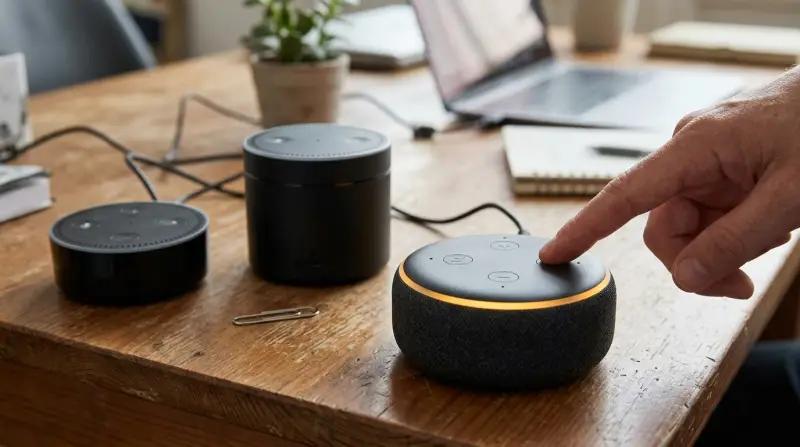
Resetting your Echo Dot is more than just pressing a few buttons. It can fix stubborn problems, clear saved settings, and return your device to its original state. Here’s why people choose to reset:
- Troubleshooting issues: If Alexa stops responding or the Echo Dot won’t connect to Wi-Fi, a reset often solves the problem.
- Preparing for resale or gifting: Resetting removes your personal data so the new owner can set up the Echo Dot as their own.
- Switching accounts: If you want to change the Amazon account linked to the device, resetting is the cleanest option.
- Starting fresh: After multiple failed fixes, a full reset gives you a clean slate.
It’s important to know that a reset is different from a restart. Restarting simply turns the device off and on, but resetting erases all settings, saved Wi-Fi networks, and linked accounts. After a reset, your Echo Dot will be just like it was when you first took it out of the box.
How To Identify Your Echo Dot Generation
Before you start, you need to know which generation Echo Dot you have. Each generation looks slightly different and uses different reset methods. Using the wrong steps can waste time or even cause confusion.
Look at the device’s shape, buttons, and size. If you still have the box, the generation is usually printed on the label. If not, compare your device using the table below:
| Generation | Release Year | Key Features | Button Layout | Design |
|---|---|---|---|---|
| 1st Gen | 2016 | No volume buttons, Micro USB power | Action, Microphone Off | Flat, plastic, light ring on top |
| 2nd Gen | 2016 (late) | Volume up/down, Micro USB power | Four buttons: Volume +, Volume –, Action, Microphone Off | Flat, fabric or plastic, light ring on top |
| 3rd Gen | 2018 | Fabric cover, rounded shape, DC barrel power | Four buttons: Volume +, Volume –, Action, Microphone Off | Thicker, fabric exterior, brighter ring |
Non-obvious tip: If you’re not sure, check the power port. The 3rd Gen Echo Dot uses a round power connector, while the 1st and 2nd Gens use Micro USB.
Preparing To Reset Your Echo Dot
Resetting will erase all your device settings. Take a few minutes to prepare:
- Note your Wi-Fi details. After resetting, you’ll need to reconnect your Echo Dot to Wi-Fi.
- Backup smart home settings. If your Echo Dot controls smart devices, record their names and routines.
- Unlink services if needed. If you have music or other third-party accounts connected, be ready to link them again.
- Warn others in your household. If someone else uses Alexa, let them know the device will be offline for a while.
Remember, after a reset, your device will not recognize your voice profiles, routines, or history until you set it up again.
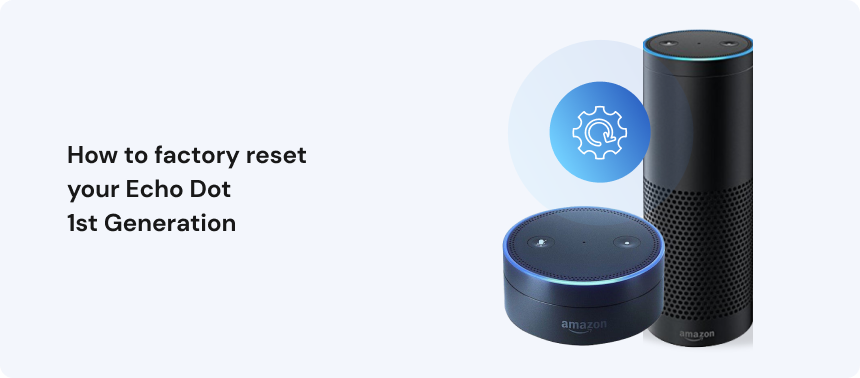
How To Reset Echo Dot 1st Generation
The 1st generation Echo Dot has a unique reset process. There are only two buttons: Action and Microphone Off.
Step-by-step Instructions
- Plug in your Echo Dot. Make sure it’s powered on.
- Find the two buttons. The Action button has a small dot, and the Microphone Off button has a microphone symbol with a slash.
- Press and hold both buttons. Hold the Action and Microphone Off buttons at the same time.
- Wait for the light ring to turn orange. Keep holding for about 20 seconds. The light ring will turn off, then on, and finally turn orange.
- Release the buttons. When the ring turns orange, let go. The device is now resetting.
- Wait for the blue ring. After a minute, the light will turn blue, then orange again. Alexa will say, “Hello, your device is ready for setup.”
Your Echo Dot is now reset and ready to connect to Wi-Fi through the Alexa app.
Practical insight: If you see a spinning blue light instead of orange, unplug your device and try the steps again. Sometimes, the device needs a fresh start.
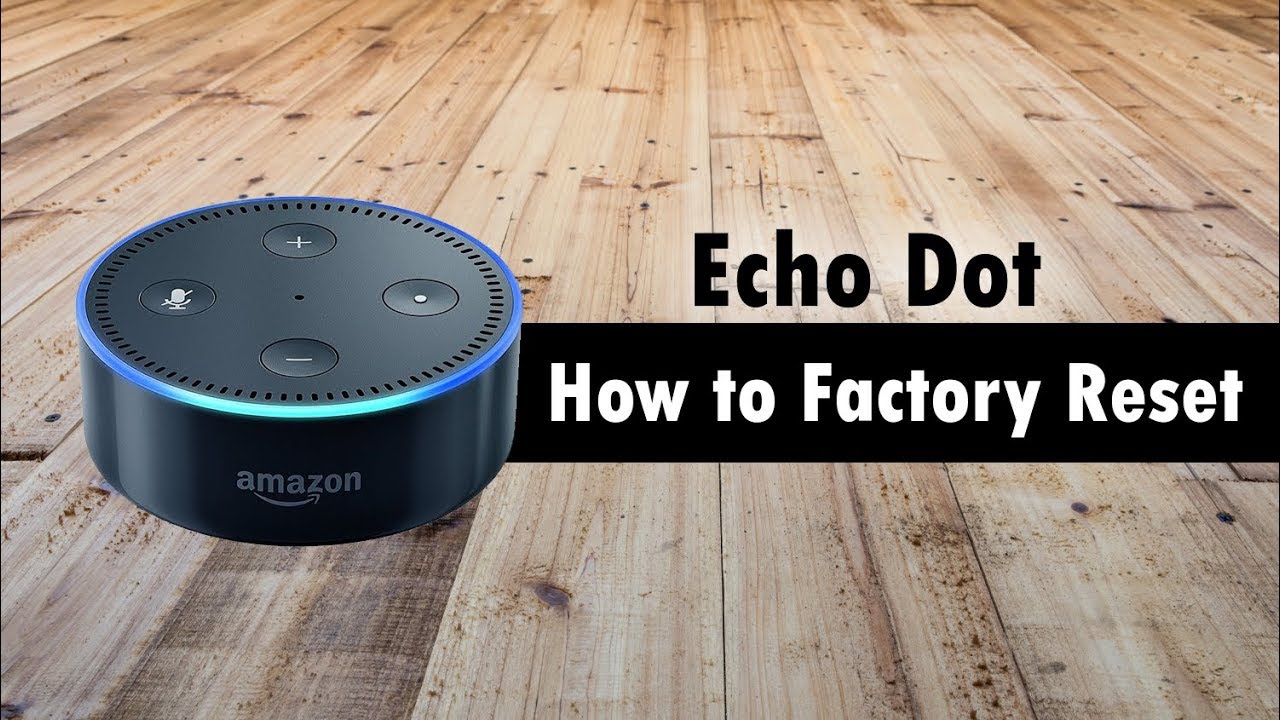
How To Reset Echo Dot 2nd Generation
The 2nd generation Echo Dot added volume buttons, but the reset process is different from the 1st gen.
Step-by-step Instructions
- Keep your Echo Dot powered on.
- Locate the Action button. It’s the button with a single dot.
- Press and hold the Action button. Hold it down for about 25 seconds.
- Watch the light ring. After a few seconds, the light ring will turn orange, then blue, and finally turn off.
- Release the button. When the light ring turns orange again, release the button.
- Wait for setup mode. Alexa will say the device is ready for setup.
You can now set up your Echo Dot again using the Alexa app.
Non-obvious tip: Many users accidentally press the microphone button instead of the Action button. Only the Action button triggers a reset for the 2nd gen model.
How To Reset Echo Dot 3rd Generation
The 3rd generation Echo Dot is more rounded and uses a DC barrel power connector. Its reset process is similar to the 2nd gen, but timing is important.
Step-by-step Instructions
- Plug in your Echo Dot. Make sure it’s powered on.
- Locate the Action button. This is the button with a dot on the top of your device.
- Press and hold the Action button. Hold for about 25 seconds.
- Wait for the orange ring. The light ring will turn off, then on again as orange.
- Release the button. When you see orange, let go.
- Set up your device. The device will now be in setup mode, and Alexa will give you instructions.
Extra advice: If your Echo Dot doesn’t enter setup mode, unplug it for 30 seconds, then repeat the process.
What Happens After You Reset
Resetting your Echo Dot means the following:
- All device settings are erased. Wi-Fi, routines, and linked accounts are gone.
- Smart home devices are unlinked. You’ll need to add them back after setup.
- Voice profiles are deleted.
- Device is no longer linked to your Amazon account.
This is important for privacy, especially if you plan to sell or give away your Echo Dot.
Common mistake: Some users expect their Alexa history to disappear from their Amazon account after a reset. In reality, voice recordings and activity are stored in the cloud. You need to delete these separately in the Alexa app or Amazon website.
Restarting Vs Resetting: Key Differences
Many Echo Dot owners confuse restart with reset. A restart simply turns the device off and on, while a reset erases everything.
Here’s a side-by-side comparison:
| Action | What It Does | When to Use | Data Erased? |
|---|---|---|---|
| Restart | Power cycles the device | Minor glitches, unresponsive device | No |
| Reset | Erases all settings and data | Major issues, changing owner, starting fresh | Yes |
Try a simple restart before you reset. Unplug the Echo Dot for 30 seconds and plug it back in. This can fix minor problems without erasing anything.

Setting Up Your Echo Dot After Reset
After resetting, you need to set up your Echo Dot again:
- Open the Alexa app on your smartphone or tablet.
- Sign in to your Amazon account.
- Tap the “Devices” icon at the bottom.
- Choose “+” to add a device.
- Select “Amazon Echo” and then your Echo Dot model.
- Follow the on-screen instructions. You’ll be asked to connect to your Wi-Fi and may need to enter your password.
- Customize your device. Set your location, add routines, and link any music or smart home services.
Non-obvious insight: The Alexa app may ask for location and microphone permissions. Allowing these makes setup smoother and enables voice commands.
Troubleshooting Common Reset Problems
Sometimes, resets don’t go as planned. Here’s how to solve the most frequent issues:
Echo Dot Won’t Enter Setup Mode
- Unplug and replug. Wait 30 seconds before plugging it back in.
- Repeat the button sequence. Ensure you’re holding the correct button for the right amount of time.
- Check your power adapter. A faulty adapter can prevent proper reset.
Orange Light Does Not Appear
- Try a different outlet. Electrical issues can disrupt the reset.
- Inspect the light ring. If it’s faint or flickering, the device might have hardware issues.
Alexa Is Still Responding After Reset
- Confirm you held the right button. On 2nd and 3rd gens, only the Action button works.
- Check for software updates. Sometimes, the device needs to update before resetting.
Device Not Showing In Alexa App
- Restart your phone/tablet.
- Update the Alexa app.
- Check Wi-Fi compatibility. Echo Dot supports 2.4GHz and 5GHz, but your phone and Echo need to be on the same network during setup.
Experience-based tip: If you’re stuck, factory reset from the Alexa app can sometimes work. Go to Device Settings > Factory Reset.
When Should You Reset Your Echo Dot?
Resetting should not be your first step for every problem. Here’s when a reset is a good idea:
- Device is changing owners.
- Major problems persist after restarting.
- You need to unlink from your Amazon account.
- You want a fresh start after many failed troubleshooting attempts.
For minor issues, try restarting, updating, or checking your Wi-Fi before doing a full reset.
Common mistake: Resetting too often can waste time. Many glitches are fixed with a restart or by updating the Alexa app.
Security And Privacy After Resetting
Resetting your Echo Dot is a good way to protect privacy before giving the device away or selling it. Here’s what you should know:
- Personal data is erased from the device.
- Cloud data (voice history, skills, etc.) Is not erased. Delete this from the Alexa app or your Amazon account.
- Smart home connections are removed.
Extra advice: If you’re selling your Echo Dot, deregister it from your Amazon account after resetting. In the Alexa app, go to Device Settings > Deregister.
Comparing Echo Dot Generations: Reset Methods
If you’re unsure which Echo Dot you own, compare the button layout and power port. Here’s a quick comparison:
| Generation | Reset Button(s) | Reset Time | Power Port |
|---|---|---|---|
| 1st Gen | Action + Microphone Off | 20 seconds | Micro USB |
| 2nd Gen | Action | 25 seconds | Micro USB |
| 3rd Gen | Action | 25 seconds | DC Barrel |
Insider note: Amazon rarely changes reset methods, but double-check the model if you have a special edition or limited-release Echo Dot.
Tips To Avoid Common Reset Mistakes
Many beginners make simple errors. Here’s how to avoid them:
- Don’t rush the button hold. If you let go early, the device might just restart instead of reset.
- Check your Wi-Fi password. If you forget it, you won’t be able to set up the device after resetting.
- Don’t unplug during the reset. Interrupting the process can cause software issues.
- Wait for Alexa’s voice prompt. The light ring alone isn’t always clear—listen for “Hello, your device is ready for setup.”
- Use the original power adapter. Third-party adapters sometimes cause problems.
Pro insight: If you’re planning to reset several Echo Dots (like in a business or classroom), label each one with its generation to avoid confusion.
What To Do If Reset Doesn’t Work
Occasionally, a reset won’t fix your problem. Here’s what you can do next:
- Contact Amazon support. They can walk you through advanced troubleshooting steps.
- Check for hardware issues. If your Echo Dot has been dropped or exposed to moisture, it may need repair.
- Try updating firmware. Sometimes, an old version of Alexa’s software prevents proper resetting.
- Consider device replacement. If you’ve tried everything, it may be time for a new Echo Dot.
Helpful resource: Amazon’s official help page provides up-to-date instructions and troubleshooting tips. Visit Amazon Echo Help for more details.
Resetting Via The Alexa App (alternative Method)
If your Echo Dot’s buttons don’t work, you can reset the device through the Alexa app:
- Open the Alexa app.
- Go to Devices.
- Select your Echo Dot.
- Tap on Device Settings.
- Scroll down and choose “Factory Reset” or “Deregister.”
This method works for all generations, but the device must be online and connected to your Amazon account.
Non-obvious insight: This is the safest way to reset if your Echo Dot is mounted out of reach or the buttons are broken.
The Role Of Software Updates
Sometimes, Echo Dot reset issues are caused by outdated software. Before resetting, check for updates:
- Open the Alexa app.
- Select your device under Devices.
- Tap “About” and check for updates.
- If an update is available, install it.
Keeping your device updated can prevent many problems and may even fix issues that made you consider resetting.
Schedule automatic updates during the night to avoid interruptions.
Understanding The Light Ring Colors
During the reset process, the Echo Dot uses colored lights to show its status. Here’s what they mean:
- Orange: Setup mode, ready for Wi-Fi connection
- Blue: Starting up or processing commands
- Red: Microphone is muted
- No light: Device is off or not powered
Recognizing these signals helps you know when to release buttons or when the device is ready.
Extra advice: If the light ring blinks yellow after a reset, check your Amazon account for notifications or device messages.
Resetting Multiple Echo Dots
If you have more than one Echo Dot in your home, you can reset them one by one, or use the Alexa app to remove devices from your account. This is helpful when reorganizing devices or moving to a new house.
- Label each device. Use stickers or names in the app to avoid confusion.
- Reset one at a time. This prevents Wi-Fi issues during setup.
- Update device names in the app after setup.
If you have a group (like “Living Room”), you’ll need to recreate it after resetting all devices.
Echo Dot Reset: Myths Vs Reality
There’s a lot of confusion about resetting Echo Dots. Here are some common myths:
- Myth: Resetting deletes all Alexa history from Amazon.
- Reality: Only device settings are erased. History stays in the cloud unless you delete it in the app.
- Myth: You must reset Echo Dot before selling or gifting.
- Reality: It’s not required, but strongly recommended for privacy and convenience.
- Myth: All Echo Dots reset the same way.
- Reality: Each generation uses different button combinations and timing.
Understanding these facts helps you avoid mistakes and protect your privacy.
Advanced Troubleshooting Steps
If you’ve tried every reset method and still have issues, here are advanced steps:
- Hard reset with power cycle. Unplug Echo Dot, wait 60 seconds, then hold the reset buttons while plugging it back in.
- Check your router settings. Some routers block new device connections—try disabling “AP isolation” or firewall temporarily.
- Factory reset from web browser. Go to Amazon’s device management page and deregister your Echo Dot.
- Test with a different Amazon account. Sometimes account issues block setup.
If none of these work, the device may need professional repair or replacement.
Real-world Examples
Let’s look at a few scenarios to see how resetting Echo Dot solves real problems:
- Wi-Fi won’t connect: After moving to a new house, your Echo Dot can’t find the new Wi-Fi. Resetting allows you to start fresh and enter new network details.
- Selling your device: Before giving your Echo Dot to a friend, you reset it so your Amazon account and routines don’t follow the device.
- Alexa not responding: After multiple voice command failures, a reset restores normal operation and clears any stuck routines.
Experience-based insight: Sometimes, slow Wi-Fi is mistaken for Echo Dot failure. Test your network on another device before resetting.
How To Protect Your Echo Dot Settings
If you want to avoid losing routines or device names after a reset, consider these steps:
- Write down your routines. There’s no backup for routines, so manual notes can save time.
- Screenshot device settings. Especially for smart home groups.
- Sync with the cloud. Skills and linked services are saved to your Amazon account and will reload after setup.
Extra advice: Use the Alexa app’s “Export” feature (where available) to save shopping lists and reminders.
Resetting For Troubleshooting Vs Resetting For Resale
The reason for resetting matters:
- For troubleshooting: Set up the device as before, using your own Amazon account.
- For resale/gifting: Remove from your account after resetting, and tell the new owner how to set up from scratch.
Common mistake: Forgetting to deregister means the new owner can’t set up until you remove the device from your account.
Echo Dot Reset: Quick Reference Chart
Here’s a summary of reset methods for each Echo Dot generation:
| Generation | How to Reset | When to Release Button(s) |
|---|---|---|
| 1st Gen | Hold Action + Microphone Off | When ring turns orange (about 20 sec) |
| 2nd Gen | Hold Action button | When ring turns orange (about 25 sec) |
| 3rd Gen | Hold Action button | When ring turns orange (about 25 sec) |
Keep this chart handy for quick reference when resetting devices in the future.
Frequently Asked Questions
How Do I Know Which Echo Dot Generation I Have?
Look at the button layout and power port. The 1st gen has only two buttons, 2nd and 3rd have four, but the 3rd gen is rounder with a fabric cover and uses a DC barrel adapter. If you’re still unsure, check the product details in your Amazon account orders.
Can I Reset My Echo Dot Without The Alexa App?
Yes, you can reset all Echo Dot generations using the physical buttons, as described earlier. The Alexa app is only required for setup after reset or if you want to reset remotely.
Will Resetting My Echo Dot Delete My Amazon Account Or Alexa History?
No, resetting removes device settings and account links from the device, but your Amazon account and Alexa history remain in the cloud. You can delete voice history through the Alexa app or Amazon Alexa Privacy.
My Echo Dot Won’t Reset what Should I Do?
First, make sure you’re following the correct steps for your generation. Try a different power adapter or outlet, ensure you’re pressing the right button(s), and hold for the full 20–25 seconds. If problems persist, try resetting from the Alexa app or contact Amazon support.
Do I Need To Reset Before Selling Or Giving Away My Echo Dot?
It’s strongly recommended. Resetting erases your settings and personal data, and deregistering removes the device from your Amazon account. This ensures the new owner can set up the device easily and your privacy is protected.
Resetting your Echo Dot is a straightforward process once you know your device’s generation and follow the right steps. Whether you’re solving a technical issue or preparing the device for a new owner, a proper reset ensures smooth and secure operation.
With the guidance above, you can reset any Echo Dot confidently, avoid common mistakes, and protect your personal information. Alexa is ready to help again—just like new.