
When you trust your computer to keep your data safe, Windows Defender is often your first line of defense. For most users, the built-in antivirus works quietly in the background, stopping threats before they become a problem. But what happens when you need a deeper scan—one that checks your PC outside the normal operating system? That’s when the Windows Defender Offline Scan comes in. Unfortunately, some people discover this feature isn’t working as expected. Maybe the scan won’t start, gets stuck, or fails with strange error messages. This article explores why Windows Defender Scan Offline might not work, how to fix it, and what you can do if you still can’t run a scan. You’ll get practical advice, examples, and clear answers to help you secure your device.
What Is Windows Defender Offline Scan?
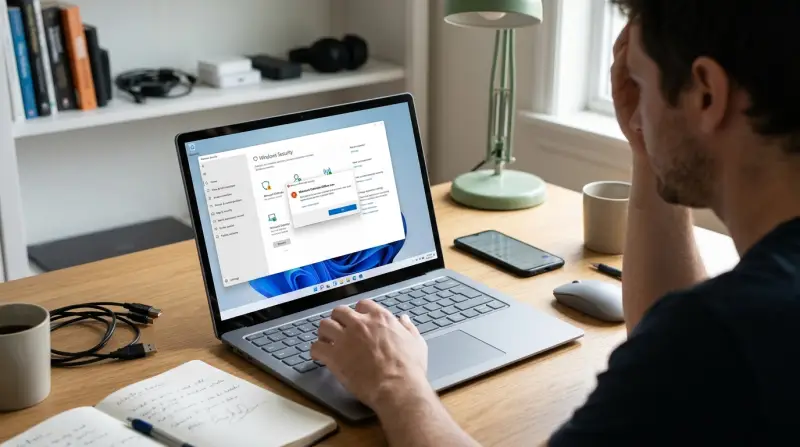
Windows Defender Offline Scan is a special tool built into Windows 10 and Windows 11. It runs a deep scan outside the normal Windows environment, catching malware that standard scans might miss. This is especially important for rootkits and other threats that hide from regular antivirus checks. Offline Scan boots your PC into a special recovery mode, scans your files, and removes any threats before Windows loads.
Why use it? Some malware can hide so well that they only appear when Windows is running. By scanning offline, Defender finds and removes these hidden threats. Microsoft recommends this scan for anyone who suspects a deep infection or gets warnings about persistent malware.
Common Reasons Windows Defender Offline Scan Fails
Many users experience issues when trying to run the offline scan. Here are the most frequent causes:
- Corrupted System Files: If your Windows installation has damaged files, Defender’s offline scan may not launch.
- Pending Windows Updates: Sometimes, updates block security features until they’re installed.
- Third-party Antivirus Conflicts: Other antivirus software can interfere with Defender’s tools.
- Insufficient Disk Space: The scan needs temporary storage; low disk space can prevent it from running.
- BitLocker Encryption: If your drive is encrypted, offline scan may not start without proper setup.
- Hardware Drivers Issues: Outdated or missing drivers can block booting into recovery mode.
- Malware Tampering: Some threats disable Defender scans to avoid detection.
Each of these issues can cause different symptoms. For example, you might see error messages, your PC may reboot without scanning, or the scan option disappears.
Credit: learn.microsoft.com
How To Troubleshoot Windows Defender Offline Scan
Fixing offline scan problems usually involves several steps. Let’s walk through the most effective solutions:
1. Run System File Checker
Windows includes a tool called System File Checker (SFC) to repair corrupted files.
- Open Command Prompt as administrator.
- Type `sfc /scannow` and press Enter.
- Wait for the scan to finish. If it finds errors, restart your PC.
This step fixes many issues related to Defender not working properly.
2. Check For Windows Updates
Outdated Windows versions can block security features.
- Go to Settings > Update & Security > Windows Update.
- Click “Check for updates.”
- Install all available updates and restart your PC.
3. Disable Third-party Antivirus Temporarily
Other antivirus apps can block Defender. Try disabling them:
- Open your antivirus software.
- Turn off real-time protection or completely exit the program.
- Try running Defender Offline Scan again.
If the scan works, consider using only one antivirus for best results.
4. Free Up Disk Space
Defender needs space to store scan data.
- Delete unnecessary files or programs.
- Empty your recycle bin.
- Aim for at least 2 GB of free space.
5. Check Bitlocker Encryption
If your drive uses BitLocker, you may need to suspend protection.
- Open Control Panel > BitLocker Drive Encryption.
- Click “Suspend protection.”
- After scanning, resume BitLocker.
6. Update Device Drivers
Outdated drivers can block recovery boot.
- Open Device Manager.
- Right-click each device and select “Update driver.”
- Focus on storage and chipset drivers.
7. Remove Malware Tampering
Some malware disables Defender. If you suspect this, use Microsoft’s Malicious Software Removal Tool or another trusted scanner first.
8. Try Manual Offline Scan
If the built-in scan fails, you can create a bootable USB with Defender Offline:
- Download Defender Offline from Microsoft’s site.
- Follow instructions to make a USB drive.
- Boot from USB and scan your PC.
Comparing Windows Defender Offline Scan With Other Methods
It helps to see how Offline Scan stacks up against other antivirus scans. Here’s a quick comparison:
| Scan Type | Scope | Ability to Remove Rootkits | Runs Outside Windows |
|---|---|---|---|
| Quick Scan | Common areas | Low | No |
| Full Scan | Entire system | Medium | No |
| Offline Scan | Entire system | High | Yes |
As you can see, Offline Scan is much better for finding hidden threats. If it fails, your computer could stay vulnerable.
Advanced Fixes For Persistent Issues
Sometimes, basic steps aren’t enough. Here are advanced ways to solve tough problems:
Repair Windows Image
The DISM tool repairs deeper system issues.
- Open Command Prompt as administrator.
- Type `DISM /Online /Cleanup-Image /RestoreHealth`.
- Wait for completion, then restart.
Create New User Account
Corrupt user profiles can block Defender.
- Go to Settings > Accounts > Family & other users.
- Add a new user.
- Log in with the new account and try the scan.
Reinstall Windows Defender
You can remove and reinstall Defender using PowerShell.
- Open PowerShell as administrator.
- Type `Get-AppxPackage Microsoft.SecHealthUI | Remove-AppxPackage`.
- Restart and update Defender.
Clean Boot
A clean boot starts Windows with minimal programs.
- Press Windows+R, type `msconfig`.
- Select “Selective startup” and uncheck “Load startup items.”
- Restart your PC and try the scan.
How To Prevent Windows Defender Offline Scan Problems
Prevention is always better than cure. Here are practical tips:
- Keep Windows Updated: Regular updates fix bugs and improve Defender.
- Use Only One Antivirus: Multiple antivirus tools can conflict.
- Check Disk Health: Use tools like CrystalDiskInfo to monitor drives.
- Regularly Run SFC and DISM: These tools keep system files healthy.
- Backup Your Data: In case you need to reset or reinstall.
Real-world Examples Of Defender Offline Scan Issues
Let’s look at how these problems appear in real life.
- User A: After clicking “Windows Defender Offline Scan,” the PC restarts, but nothing happens. The system boots normally with no scan results. Fix: Updating drivers solved the issue.
- User B: Offline scan option is missing in Windows Security. Fix: Removing third-party antivirus restored the option.
- User C: Error message “Scan couldn’t be started. Please try again.” Fix: Running SFC and DISM repaired system files.
These examples show that the cause is not always obvious. Sometimes, a simple update or driver fix can solve the problem.
Windows Defender Offline Scan Success Rate
Data from Microsoft and tech forums suggest that Offline Scan works for most users, but not all. About 85% of users report successful scans, while 15% face issues. The most common fix is updating Windows and drivers.
Here’s a quick summary of reported issues and fixes:
| Problem | Percent of Cases | Common Fix |
|---|---|---|
| Scan doesn’t start | 40% | Update Windows/drivers |
| Scan option missing | 25% | Remove antivirus software |
| Error messages | 20% | Repair system files |
| Other issues | 15% | Manual scan/clean boot |
Credit: learn.microsoft.com
What To Do If Nothing Works
If you still can’t run Windows Defender Offline Scan, here are your next steps:
- Use another trusted antivirus, like Malwarebytes or Kaspersky.
- Consider a system restore to a point before the problem started.
- Backup your files and do a clean install of Windows if malware is suspected.
- Contact Microsoft Support for help.
As a last resort, manual offline scans with bootable USB tools can help. Always make sure your data is backed up before major changes.

Frequently Asked Questions
Why Does Windows Defender Offline Scan Restart But Not Scan?
This usually means your PC failed to boot into recovery mode. Common causes include corrupted system files, outdated drivers, or conflicts with other antivirus software. Try updating Windows, running SFC, and disabling other antivirus apps.
Can I Run Defender Offline Scan With Bitlocker Enabled?
Yes, but you need to suspend BitLocker protection before the scan. After scanning, resume BitLocker to keep your drive secure. Scanning without suspending may cause errors or prevent the scan from starting.
What If The Offline Scan Option Is Missing In Windows Security?
If you don’t see the option, it’s often due to third-party antivirus software. Remove or disable other antivirus tools, then check again. Sometimes, Windows updates can also restore missing options.
Is Windows Defender Offline Scan Safe For All Pcs?
The scan is safe for most systems, but issues can arise with older hardware or encrypted drives. If your PC is very old or has special configurations, check Microsoft’s support site for compatibility.
How Often Should I Run Windows Defender Offline Scan?
For most users, running it once every few months is enough. If you suspect a deep infection or get repeated malware alerts, run it sooner. Regular scans keep your PC safer from hidden threats.
Protecting your computer means staying alert to new threats and fixing problems quickly. If Windows Defender Scan Offline isn’t working, you now have clear steps to solve the issue. Regular updates, single antivirus use, and healthy system files make Defender more reliable. For those who need extra help, Microsoft’s official guidance is always a good resource: Microsoft Support. With these tips, you can get your offline scan running and keep your PC secure, even against hidden malware.