
A Samsung TV turns on by itself mostly due to enabled smart features like Anynet+ or network-based wake signals that conflict with your connected devices. If your television powers up unexpectedly, the first step is to disable the “Wake on LAN” or “Power on with Mobile” settings in your network menu. This usually stops the TV from responding to phantom signals sent by your router or smart home devices. If the TV still wakes up, check the physical power button on the unit for debris or damage, as a stuck switch can trigger the system.
Why your Samsung TV turns on by itself
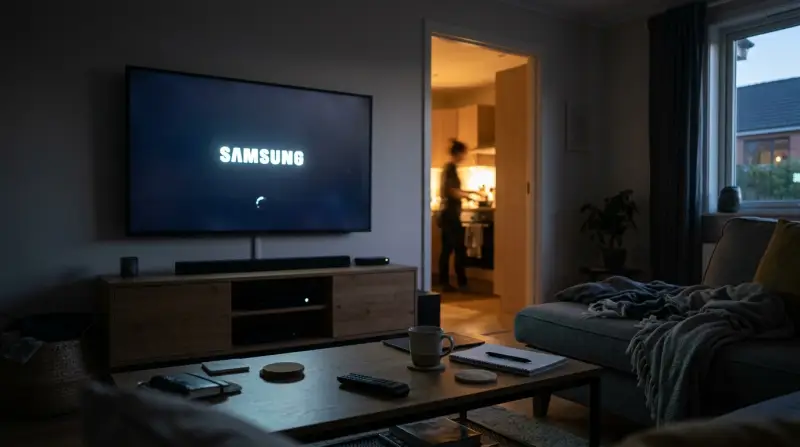
The primary reason for this behavior is the handshake protocol between your television and external hardware. Samsung uses a feature called Anynet+ (HDMI-CEC), which allows your TV to communicate with gaming consoles, soundbars, and streaming sticks. If a connected device sends a “wake” signal, the TV interprets this as a command to turn on. For instance, if you bump your controller or a game console performs an automatic update, it may send a signal through the HDMI cable that forces the TV to power up.
Another common cause is network interference. Modern smart TVs are designed to stay connected to your Wi-Fi even when they’re off. If you have “Wake on LAN” enabled, the TV stays in a low-power mode waiting for a command from your phone or tablet. If your network experiences a brief signal drop or a device on your network pings the TV, it can wake the unit from its standby state.
Finally, hardware faults can sometimes cause the TV to cycle power. A power surge can reset the internal components, or a faulty power cable may lose contact for a fraction of a second. If the power returns immediately, the TV might treat the event as a power-on command. This varies by model — check the label on the back of your set to identify your specific series, as older models may lack the software menus for these power management features.
Disable HDMI-CEC settings
This fix is for users who have consoles, soundbars, or streaming boxes plugged into the HDMI ports. These devices often send “power on” signals to the TV through the HDMI cable. To stop this, you need to turn off the control feature.
- Press the “Home” button on your remote.
- Navigate to “Settings” and select “General.”
- Look for “External Device Manager.”
- Select “Anynet+ (HDMI-CEC)” and toggle it to “Off.”
Once you turn this off, test the TV by putting it into standby mode. If it stays off, you know a connected device was the cause. If it still turns on, the issue lies elsewhere. Note that disabling this means your remote will no longer automatically control the power of your connected devices. You’ll have to turn them on and off manually. This isn’t for users who rely on a single remote to control their entire home theater system, as this fix breaks that convenience.
Adjust network wake settings
If the TV wakes up while you aren’t using it, it’s often reacting to your home network. You can stop this by limiting how the TV uses Wi-Fi in standby.
- Go to “Settings” and select “General.”
- Choose “Network” and then “Expert Settings.”
- Find “Power On with Mobile” and set it to “Off.”
- If you see “Wake on LAN,” set that to “Off” as well.
This prevents the TV from scanning for signals from your phone or other wireless devices. If you use the Samsung SmartThings app to turn on your TV, this fix will stop that functionality. It’s a trade-off: you gain the certainty that the screen will stay dark, but you lose the ability to start the TV using your smartphone.
Clean the remote sensors
Sometimes the problem isn’t the TV, but the remote control sending a signal without you knowing. A stuck button or a dirty sensor can fire a power command at random.
- Remove the batteries from your remote control.
- If the TV stops turning on, you have found the culprit.
- Clean the buttons with a tiny amount of isopropyl alcohol on a soft cloth.
- Replace the batteries with a fresh pair to ensure the voltage is stable.
This fix is helpful if you have children or pets that might be sitting on the remote. It’s a simple check that costs nothing. However, if you have multiple remotes for the same TV, remove the batteries from all of them to be sure.
A common mistake is assuming the remote is dead because it has no visible damage. If the buttons feel mushy or fail to “click,” debris has likely built up under the rubber membrane. Use a toothpick to gently clear the edges of each button before wiping the surface. If the remote uses a plastic cover, ensure no moisture seeps into the circuit board.
If you have done this and the TV continues to power up, the fault is internal. At this point, the issue is beyond a DIY fix. You should stop troubleshooting and contact the manufacturer or a certified technician, as replacing the mainboard or the infrared receiver requires specific tools and technical training. Attempting to open the TV casing yourself risks electric shock from the capacitors.
What not to do
Don’t unplug the TV while it’s performing a software update. This interrupts the write cycle, which corrupts the firmware and triggers a permanent boot loop. If your screen is stuck on a logo, the firmware may be corrupted.
Avoid spraying cleaning agents directly onto the screen or remote. Liquid often wicks behind the bezel, causing short circuits that manifest as phantom power cycles. Instead, dampen a microfiber cloth with water and wipe gently.
Don’t treat a factory reset as a primary troubleshooting step. This wipes all credentials and app configurations, yet it rarely resolves signal-based issues like HDMI handshake failures. Only reset if the menu interface itself is unresponsive.
Never ignore a burning smell or rhythmic crackling. These are definitive markers of capacitor failure or arcing on the power board. If you detect these, immediately disconnect the power cable. Continued use risks a localized fire hazard that can destroy the entire panel.
How to stop it happening again
Preventing ghost power-ons requires managing how your TV interacts with the devices in your home. Use this table to adjust your habits and settings.
| If you’re doing this | Do this instead | Why |
|---|---|---|
| Leaving remotes on the sofa | Store remotes in a drawer | Prevents accidental button presses |
| Keeping all CEC features on | Disable Anynet+ for devices | Stops phantom HDMI signals |
| Using “Always On” network modes | Turn off Wake on LAN | Stops network-based wake commands |
| Leaving the TV plugged in | Use a quality surge protector | Protects from voltage spikes |
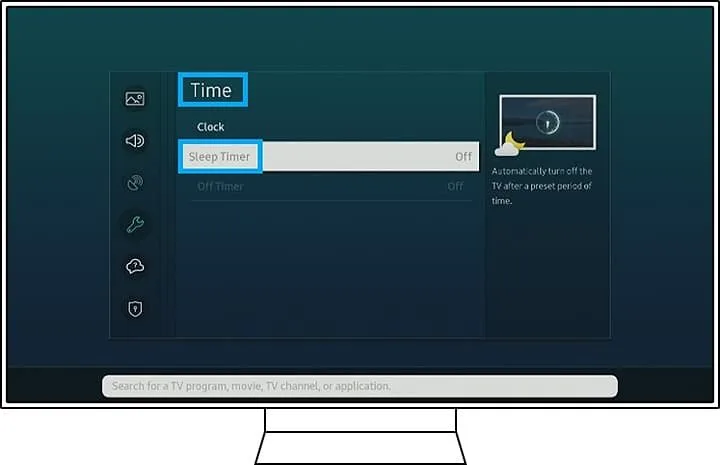
Most users mistake a faulty power supply for a software glitch. If your TV turns on at the exact same time each night, check the TV’s internal timer settings.
If the TV wakes randomly during the day, inspect your HDMI cables. A frayed cable can send false “active” signals to the television. Replace any cable showing exposed shielding or kinks. If the problem persists after swapping cables, disable the “HDMI-CEC” setting entirely to isolate the source. This simple decision rule saves hours of troubleshooting.
Frequently asked questions
Can a power surge turn on my Samsung TV?
Yes, a power surge can trigger the internal protection circuit or cause a reset that forces the TV to power on. Unstable electricity can cause the TV to reboot if the voltage drops below the operating threshold. Always use a high-quality surge protector to filter out these spikes.
Why does my TV turn on at the same time every day?
This usually happens because of an active “Auto Power On” timer or a scheduled software update that forces a reboot. Check your “System” or “General” settings menu to disable any existing timer configurations. If no timers are active, background syncs with smart home hubs may be the cause.
Is it safe to leave the TV in standby mode?
Yes, it’s perfectly safe to leave your Samsung TV in standby mode, as it’s designed to operate this way for its entire lifespan. Standby mode consumes minimal energy to keep network and remote sensors active. Disconnect the power only during severe thunderstorms or extended vacations.
How long does a Samsung TV last if it turns on by itself?
There’s no fixed lifespan for a TV that turns on by itself, but excessive power cycling can wear out the power supply board faster than normal use. Each startup cycle subjects internal components to heat and electrical stress. Fixing the root cause quickly helps preserve the power supply unit.
What happens if I disable Anynet+?
If you disable Anynet+, you lose the ability to control your soundbar or game console with your standard TV remote. You’ll have to use individual remotes for those devices to change volume or power. This is a minor inconvenience compared to the TV constantly waking up.
Does a software update fix this?
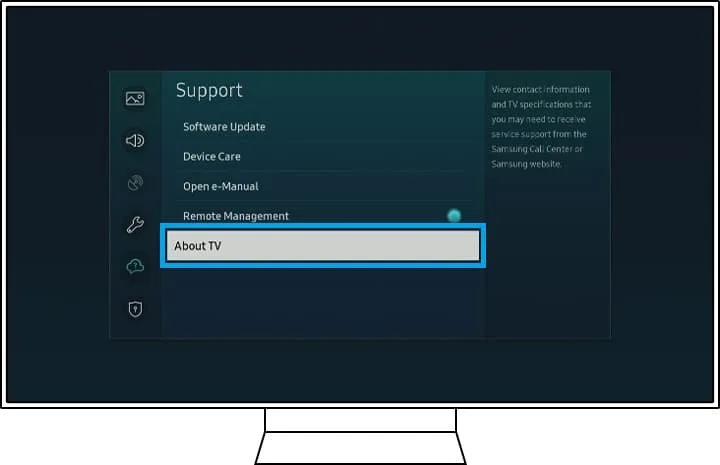
Sometimes a software update includes a patch for power management bugs that cause unexpected wake-ups. Go to “Settings,” then “Support,” and select “Software Update” to see if a newer version is available. If the problem persists after an update, check your hardware settings or physical connections.
Final Thoughts
If these adjustments don’t solve the issue, it’s a good idea to reach out to Samsung’s support team for a professional diagnostic. They’ll help you determine if there’s a deeper software glitch or a hardware fault. You shouldn’t have to deal with a restless screen, so don’t hesitate to ask for help.
Related guides
- How to Set Power Level on Samsung Microwave: Easy Guide
- Samsung Dishwasher Not Turning On: Quick Fixes and Solutions
- Insignia TV Turns on But Screen is Black: Easy Fixes Guide