
Resetting your Stadia Controller can solve many issues, like connection problems, battery glitches, or firmware errors. For gamers, a working controller is the heart of the experience. But sometimes, technology fails or acts strangely. Maybe your Stadia Controller won’t connect to Wi-Fi, the buttons aren’t responding, or the controller won’t turn on at all.
You don’t need to panic or buy a new one. With a few simple steps, you can reset your Stadia Controller and restore it to normal.
This article will guide you through everything you need to know about resetting your Stadia Controller. Whether you want a soft reset, a factory reset, or just need troubleshooting advice, you will find clear, practical steps here. We’ll also compare different reset methods, explain common mistakes, and answer the most frequent questions.
By the end, you’ll know exactly how to reset your Stadia Controller safely and effectively.
Why Reset Your Stadia Controller?
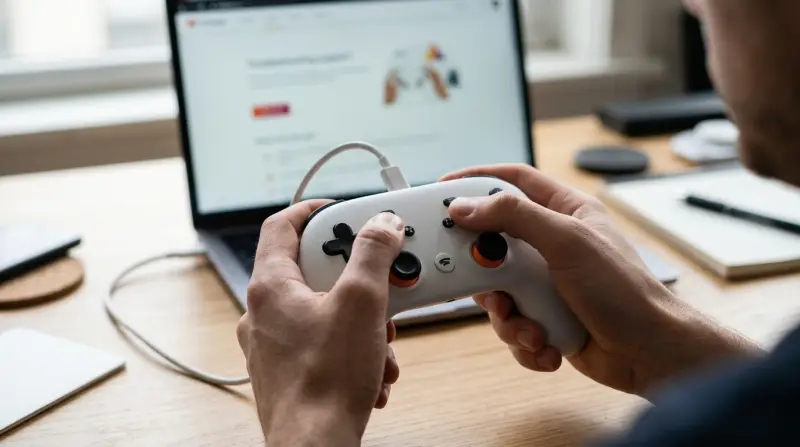
Gamers often ask, “Why would I need to reset my controller?” There are several reasons:
- Connection issues: The controller won’t connect to devices or Wi-Fi.
- Unresponsive buttons: Some or all buttons don’t work.
- Firmware errors: Updates failed or the controller is stuck.
- Battery problems: The controller doesn’t charge or drains quickly.
- Bluetooth pairing trouble: Can’t pair with new devices.
Sometimes, a simple restart isn’t enough. Resetting can fix hidden problems and make your controller feel like new. For example, after a firmware update, some controllers stop working until you perform a reset. Resetting is also useful before selling or gifting your controller, so your data and settings are removed.
Types Of Reset For Stadia Controller
Not every reset is the same. There are two main ways to reset your Stadia Controller:
- Soft reset: A quick restart, like turning it off and on.
- Factory reset: Erases all settings and returns the controller to its original state.
Each method is useful in different situations. Let’s compare them:
| Reset Type | What It Does | When to Use |
|---|---|---|
| Soft Reset | Restarts controller, keeps settings | Minor issues, temporary glitches |
| Factory Reset | Erases all settings, restores defaults | Major issues, before selling |
Understanding which reset you need is important. A soft reset is safe for simple problems, while a factory reset is a last resort. Many beginners confuse them, but the factory reset is much deeper.
How To Perform A Soft Reset
A soft reset is quick and doesn’t erase your settings. It’s the first thing to try if your controller acts strange.
Steps For Soft Reset
- Turn off the controller: Hold the Stadia button for about 5 seconds until the lights turn off.
- Wait: Leave the controller off for 10-15 seconds.
- Turn on: Press the Stadia button again. The controller should power on and reconnect.
This process restarts the internal hardware. It often solves minor glitches, especially after long gaming sessions or small firmware bugs.
Practical Tip
Always try a soft reset before a factory reset. It’s faster and won’t erase your Wi-Fi settings, Bluetooth pairing, or custom button mapping.
How To Perform A Factory Reset
A factory reset is more serious. It erases all saved settings, including Wi-Fi, Bluetooth, and user preferences. This is best for major issues or when you want to start fresh.
Factory Reset Steps
- Disconnect the controller: Unplug any cables and turn it off.
- Press and hold buttons: Hold the Y button and Stadia button together for about 10 seconds. The controller will vibrate and the status light will flash.
- Release the buttons: When the light changes, the reset is done.
- Reconnect: You’ll need to set up Wi-Fi or Bluetooth again.
The controller is now in its original state. You must go through the pairing process as if it were new.
Example: Resetting Before Selling
If you plan to sell or give away your controller, a factory reset is important. It removes your account, Wi-Fi info, and custom settings, protecting your privacy.
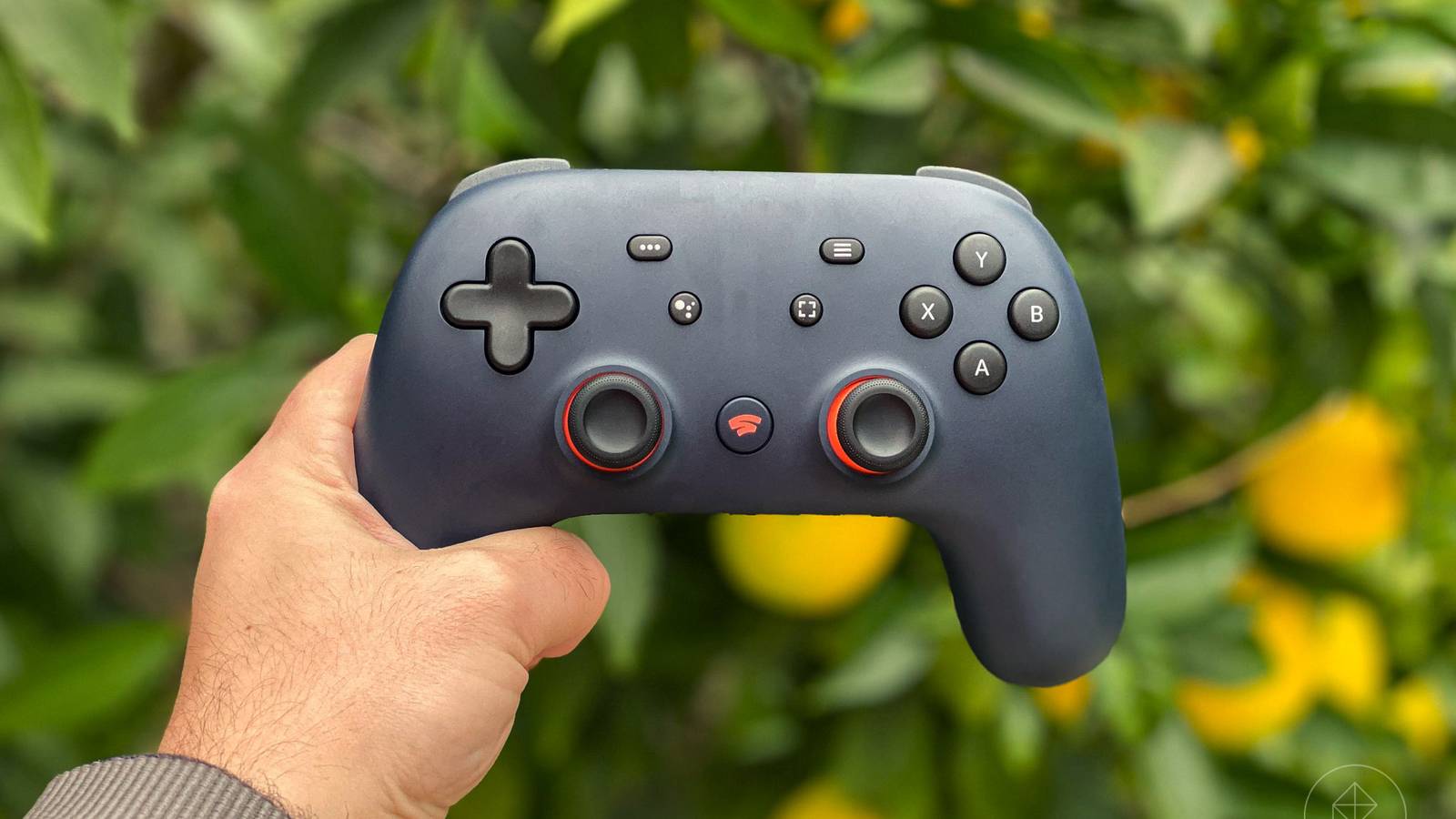
Credit: www.polygon.com
Troubleshooting Common Stadia Controller Issues
Resetting doesn’t always solve every problem. Sometimes, you need extra steps. Here are some common issues and how to fix them:
Controller Won’t Turn On
- Make sure the battery is charged.
- Try plugging the controller into a wall charger.
- Hold the Stadia button for 10 seconds.
- If nothing works, try a factory reset.
Controller Won’t Connect To Wi-fi
- Double-check your Wi-Fi password.
- Move closer to the router.
- Reset the controller and set up Wi-Fi again.
Bluetooth Pairing Fails
- Make sure Bluetooth is on in your device.
- Forget the controller in your device’s settings and pair again.
- Factory reset if pairing fails repeatedly.
Firmware Update Issues
- Plug the controller into your computer and update using the Stadia app.
- If updates fail, factory reset and try again.
Data Table: Common Errors And Solutions
| Error | Possible Cause | Solution |
|---|---|---|
| Controller won’t turn on | Dead battery, firmware bug | Charge, soft reset, factory reset |
| Can’t connect to Wi-Fi | Wrong password, outdated firmware | Check password, update firmware |
| Bluetooth won’t pair | Interference, old pairing info | Forget device, factory reset |
| Buttons not responding | Hardware issue, software crash | Soft reset, factory reset |
What To Do If Reset Doesn’t Work
There are rare cases where even a reset won’t fix the controller. Here’s what you can try:
- Check cables: Use official Stadia cables for charging and connection.
- Test on another device: Try connecting to a different computer or phone.
- Update firmware: Sometimes, updates solve hidden bugs.
- Contact support: If everything fails, reach out to Google Stadia support.
Most problems are solved by a reset, but hardware faults (like broken buttons) require repair or replacement.
Comparing Stadia Reset With Other Controllers
Stadia isn’t the only gaming controller. You might wonder how its reset process compares to other brands. Here’s a quick comparison:
| Controller | Soft Reset | Factory Reset | Special Steps |
|---|---|---|---|
| Stadia | Hold Stadia button | Hold Y + Stadia | Wi-Fi setup after reset |
| Xbox | Hold Xbox button | Press Sync + Power | Firmware updates via app |
| PlayStation | Hold PS button | Use reset pinhole | Pinhole reset tool needed |
| Nintendo Switch Pro | Hold Power button | Press Sync + Power | Joy-Con sync after reset |
Stadia’s reset is simpler than PlayStation’s, which requires a pin tool. However, after a factory reset, you must reconnect Wi-Fi, which is unique to Stadia.
Two Common Mistakes Beginners Make
Most beginners make these errors:
- Confusing soft and factory reset: Some users think holding the Stadia button is a factory reset. But you must hold the Y and Stadia buttons together for a real factory reset.
- Not re-pairing after reset: After a factory reset, you must set up Wi-Fi or Bluetooth again. Many forget this step and wonder why their controller won’t connect.
Avoid these mistakes to save time and frustration.
Safety Tips For Resetting Stadia Controller
Resetting is safe, but you should follow these tips:
- Charge the controller: Make sure the battery isn’t dead before resetting.
- Disconnect from devices: Unplug cables and turn off devices before reset.
- Don’t press random buttons: Only use the correct button combination.
- Backup settings: If you use custom mapping, write down your preferences before factory reset.
These steps protect your controller and your data.
Real-world Example
Let’s look at an example. Sarah’s Stadia Controller wouldn’t connect to Wi-Fi after an update. She tried a soft reset, but nothing changed. Then she performed a factory reset by holding Y and Stadia. After reconnecting to Wi-Fi, the controller worked perfectly.
This shows that a factory reset can fix major issues, but you need to set up everything again.
Tips For Maintaining Your Stadia Controller
Resetting is only part of controller care. Here are tips for keeping your Stadia Controller working well:
- Update firmware regularly: Check for updates in the Stadia app.
- Clean the controller: Wipe buttons and ports with a soft cloth.
- Store in a safe place: Avoid drops or water damage.
- Charge often: Don’t let the battery stay empty for long periods.
- Avoid extreme temperatures: Heat or cold can hurt electronics.
Proper care reduces the need for resets and extends the controller’s life.
The Future Of Stadia Controllers
Stadia was Google’s big step into cloud gaming. While the service itself has ended, many users still use Stadia Controllers with Bluetooth for PC or phone gaming. Resetting remains a key skill for these users.
The controller’s design makes it easy to reset and update, which is good for gamers who want reliable hardware. If Google releases new controllers, it’s likely they will keep these simple reset steps.
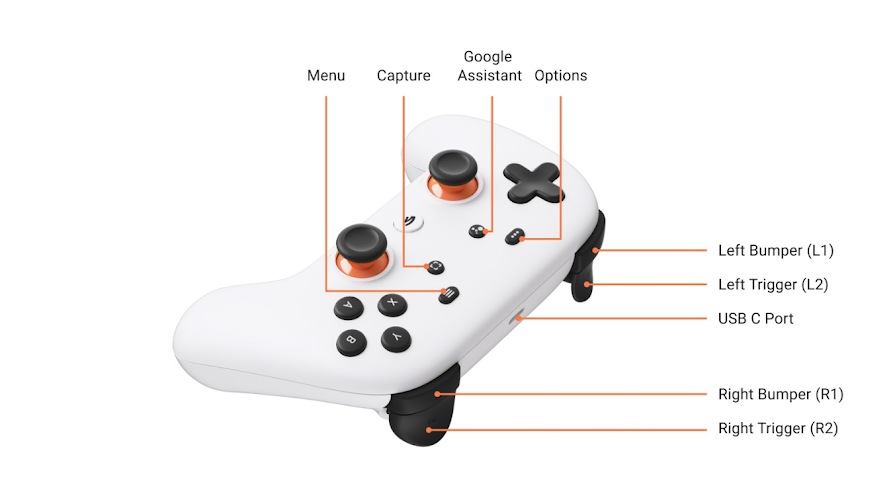
Credit: support.google.com
Frequently Asked Questions
How Often Should I Reset My Stadia Controller?
Reset only when you have a problem. Soft resets are safe to use as needed, but factory resets should be rare.
Will Resetting Erase My Game Data?
Factory reset erases controller settings, not game data. Your game progress is stored in your Google account, not on the controller.
Can I Reset Stadia Controller Without A Computer?
Yes, both soft and factory resets can be done with button combinations. No computer or app is needed.
What Should I Do If My Controller Still Doesn’t Work After Reset?
Try updating firmware, testing on another device, or contacting support. Hardware problems may need repair.
Is It Safe To Reset My Controller Often?
Soft resets are safe anytime. Factory resets should not be frequent, as they erase settings and require setup again.
Resetting your Stadia Controller is simple and effective for fixing most problems. With clear steps and smart tips, you can solve connection issues, firmware bugs, and more. Remember to choose the right reset method, avoid common mistakes, and take care of your controller for long-lasting performance. For official guidance, visit the Google Stadia Help Center.