
If you own an Astro A50 headset, you expect a premium audio experience—especially for gaming, streaming, or video calls. But what if your A50 mic stops working? Suddenly, teammates can’t hear you, meetings become awkward, or you lose connection with friends. This issue is more common than you might think, and it can be frustrating when you don’t know where to begin troubleshooting. Whether you use the headset on a PC, Xbox, or PlayStation, fixing the mic can seem complicated. However, most microphone issues have simple solutions once you know where to look. In this guide, you’ll learn 50 essential checks and fixes to get your Astro A50 mic working again, plus expert tips that many beginners miss.
Common Reasons Why The Astro A50 Mic Doesn’t Work
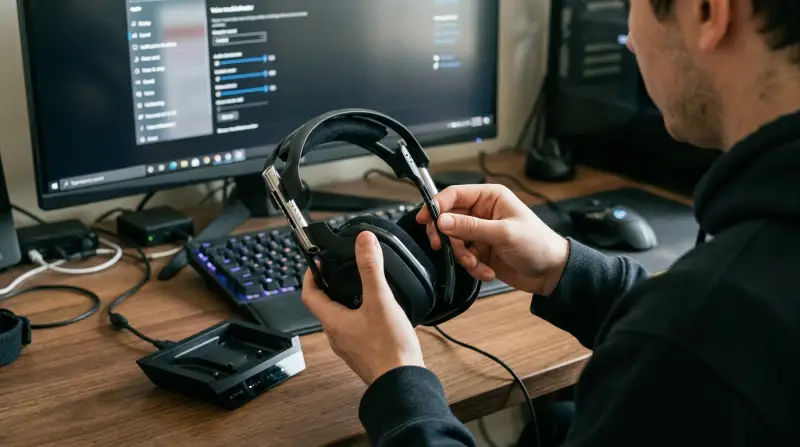
Before jumping into solutions, it helps to understand why the A50 microphone may stop working. Some of the most frequent causes include:
- Loose connections between headset and base station
- Incorrect audio settings on your device
- Firmware problems or outdated software
- Hardware issues (like physical damage)
- Wireless interference or battery problems
Knowing the root cause will help you find the right fix faster.
50 Essential Fixes And Checks For Astro A50 Mic Not Working
Let’s go through every key step you should try. Each item addresses a unique aspect, so don’t skip any—even the small ones can solve your problem.
1. Make Sure The Mic Is Not Muted
Sometimes, the mute button is accidentally switched on. Check the physical mute switch on your headset’s microphone boom.
2. Check The Mic Position
The mic only works if it’s fully pulled down into the active position. Make sure it clicks into place.
3. Confirm Headset Power
Ensure your headset is turned on and has enough battery power to operate the mic.
4. Re-seat The Headset On The Base Station
Remove the headset from the base, then place it back to ensure a solid connection.
5. Inspect The Base Station For Issues
Look for flashing lights or error indicators on the base station that could signal problems.
6. Reconnect Usb Cables
Disconnect and reconnect the USB cable between the base station and your PC or console.
7. Try A Different Usb Port
A faulty port can cause mic issues. Switch to another port, preferably one directly on your computer or console.
8. Update Astro Command Center Software
Download the latest version of Astro Command Center to ensure software compatibility.
9. Update Firmware
Use the Command Center to update your headset and base station firmware to the newest versions.
10. Restart Your Device
A simple reboot of your PC or console often resolves temporary glitches.
11. Set The A50 As Default Input Device
Go to your system’s audio settings and set Astro A50 as the default microphone.
12. Check Input Volume Levels
In your audio settings, confirm the input volume for the mic is not too low or muted.
13. Allow Microphone Access
On Windows, make sure apps are allowed to access the microphone in privacy settings.
14. Test Mic In Another Program
Try the mic in a different app (like Voice Recorder or Discord) to see if the issue is app-specific.
15. Inspect For Physical Damage
Check the mic boom and headset for visible damage like cracks or bent connectors.
16. Test On Another Device
Connect the A50 to a different computer or console to rule out device-specific issues.
17. Adjust Sidetone Settings
Sidetone lets you hear your own voice. If it’s set too low, you might think the mic isn’t working.
18. Clean The Microphone
Dust or debris can block sound. Gently wipe the mic with a dry, soft cloth.
19. Check For Interference
Other wireless devices can cause problems. Move wireless routers or phones away from your headset and base.
20. Reset The Headset
Power off the headset, then hold the Dolby and Game buttons for 15 seconds to reset.
21. Reset The Base Station
Unplug the base station for 30 seconds, then plug it back in to refresh the connection.
22. Use The Xbox Or Playstation Audio Settings
Console users: adjust mic settings in the console’s audio settings menu.
23. Re-pair The Headset And Base Station
Some issues require a fresh pairing. Follow Astro’s instructions to re-sync the headset and base.
24. Check Game Chat Settings
In-game audio settings may have separate mic controls. Make sure your mic is selected and enabled.
25. Test Without The Mixamp
If you use a MixAmp, try connecting the headset directly to your device to isolate the problem.
26. Use The Correct Audio Mode
Ensure your base station is in the right mode: PC or Console. The wrong mode may disable the mic.
27. Disable Exclusive Mode (windows)
In microphone properties, uncheck “Allow applications to take exclusive control of this device. ”
28. Try A Different User Profile
Corrupt user profiles can cause audio issues. Log in with another account and test the mic.
29. Remove Extra Audio Devices
Unplug other headsets or mics to avoid conflicts in your sound settings.
30. Reinstall Audio Drivers
Go to Device Manager, uninstall the current audio drivers, then reinstall or update them.
31. Use Windows Troubleshooter
Run the built-in audio troubleshooter for automatic fixes.
32. Check For Software Conflicts
Close apps like Skype, Teams, or Zoom that may “lock” the mic.
33. Disable Sound Enhancements
In mic properties, turn off all enhancements, as they sometimes cause distortion or silence.
34. Set The Correct Bitrate
Choose a standard 16-bit, 44100 Hz audio format for best compatibility.
35. Inspect Charging Contacts
Clean the metal contacts on the headset and base with a dry cotton swab for better connection.
36. Look For Firmware Rollback Options
If a recent update caused problems, try rolling back to an older firmware version.
37. Replace The Battery (if Possible)
If your headset is very old, a weak battery might cause the mic to fail.
38. Check For Astro A50 Gen Compatibility
Make sure you have the correct software and base station for your A50 generation (Gen 3 or Gen 4).
39. Test With Wired Connection (if Available)
Some versions let you use a 3. 5mm cable for testing—try this to see if the wireless link is the issue.
40. Check For Regional Audio Settings
Some regions have different audio settings—make sure your OS language and location match your headset model.
41. Inspect For Software Bugs
Check online forums for recent bugs after updates and report any new issues to Astro support.
42. Use The Astro A50 On Another Platform
If you use the headset on PC, test it on console (or vice versa) to see if the issue is platform-specific.
43. Disable Voice Activation Detection
In chat apps, disable “voice activation” and set your mic to always transmit while testing.
44. Adjust Mic Monitoring
Raise or lower mic monitoring settings to improve feedback and clarity.
45. Check For Usb Power Management Issues
Disable USB power saving in Device Manager to prevent ports from turning off your mic.
46. Try Using A Usb Hub
A powered USB hub can sometimes solve power or connection problems.
47. Remove Unnecessary Audio Software
Third-party audio tools may interfere. Uninstall them and test the mic again.
48. Check For Firmware Beta Versions
Avoid beta firmware unless you’re troubleshooting with Astro support, as it may be unstable.
49. Try A Different Base Station
If possible, borrow a base station from a friend to see if your hardware is faulty.
50. Contact Astro Support
If none of these steps work, reach out to Astro customer support for advanced help or possible hardware replacement. They may have access to repair services or further diagnostics.
How The Astro A50 Compares To Other Gaming Headsets
When troubleshooting, it’s useful to know how the Astro A50 stacks up against competitors in terms of microphone reliability, wireless performance, and software support.
| Feature | Astro A50 | SteelSeries Arctis Pro Wireless | HyperX Cloud II Wireless |
|---|---|---|---|
| Mic Clarity | Very Good | Excellent | Good |
| Wireless Range | Up to 30ft | Up to 40ft | Up to 20ft |
| Firmware Updates | Astro Command Center | SteelSeries Engine | NGenuity |
Real-world Example: Fixing A Persistent A50 Mic Issue
Let’s say your Astro A50 mic works on your PlayStation but not your PC. After checking all cables and updating drivers, you still have no luck. A common oversight is forgetting to switch the base station to PC mode and then selecting the A50 as the default device in Windows. This simple fix often solves the issue—yet many users miss it.
Another example: Some people reset their headset but skip resetting the base station. Both steps are needed for a full refresh. These small details make a big difference.

Data: Most Common Causes Of A50 Mic Problems
Based on community forums and tech support data, here’s a quick breakdown:
| Cause | Estimated Frequency (%) |
|---|---|
| Audio Settings Misconfigured | 45 |
| Firmware/Software Outdated | 20 |
| Hardware Issues | 15 |
| Wireless Interference | 10 |
| Other/Unknown | 10 |
Two Non-obvious Insights For Astro A50 Troubleshooting
- USB Port Power Settings Matter: Many users don’t realize that Windows can turn off USB ports to save power. This sometimes disconnects the base station briefly, causing the mic to stop working. Disabling USB power management fixes this rare but frustrating issue.
- Firmware Version Mismatch: The headset and base station must both be on compatible firmware versions. Mixing versions (like updating the base but not the headset) creates subtle communication problems, especially with mic input.

When To Consider Professional Repair Or Replacement
If you’ve tried every step, but your Astro A50 mic still isn’t working, the problem may be hardware-related. Look for warranty coverage or contact Astro’s support for advice. Sometimes, repair is possible, but if the headset is several years old, replacement could be a better investment. For more on official troubleshooting and warranty support, see Astro Gaming Support.
Frequently Asked Questions
Why Does My Astro A50 Mic Only Work On One Device?
This usually means your input settings are not correct or the base station is in the wrong mode (PC vs Console). Always check both.
Can I Use The Astro A50 Mic While Charging?
Yes, you can use the headset while charging, but make sure it remains connected to the base station and powered on.
How Do I Know If My A50 Mic Is Physically Damaged?
Inspect the mic boom for bends, cracks, or loose movement. If the mic feels wobbly or you see visible damage, it may need repair.
Does Updating Firmware Erase My Settings?
Firmware updates usually keep your profiles, but it’s a good idea to back up your settings in the Astro Command Center before updating.
What Should I Do If None Of The Fixes Work?
If all troubleshooting steps fail, contact Astro customer support. Hardware replacement or repair may be necessary.
Fixing a non-working Astro A50 mic can feel overwhelming, but most problems have clear solutions. By following these 50 checks and tips, you’ll cover every common cause, from settings to hardware. Stay patient, work step by step, and your headset should be back to delivering great voice quality in no time.