
If your Astro A10 headset is not working with your PC, it can be frustrating—especially if you use it for gaming, video calls, or listening to music. Many users face issues such as no sound, microphone problems, or poor audio quality. The good news is that most problems can be fixed with simple steps. This guide explains the most common reasons why your Astro A10 PC audio might not work and how to solve them. It covers 10 specific troubleshooting points, offers practical examples, and includes tables for comparison and quick reference. By the end, you’ll have a clear path to restore your headset’s audio and avoid future problems.
Incorrect Audio Jack Connection
One of the most common mistakes is plugging the Astro A10 into the wrong port. The headset uses a standard 3.5mm jack, but many PCs have separate jacks for headphones and microphones. If you plug it into the microphone port, you won’t hear any audio.
Check your PC’s ports. Usually, the headphone jack is marked with a headphone symbol, while the microphone jack is marked with a mic icon. If your PC has a combo jack, make sure you use that port. For desktops, the ports may be color-coded—green for headphones, pink for microphones.
Example: If you plug your Astro A10 into the pink port, you will not hear sound. Always use the green port or the combo jack.
Loose Or Damaged Cable
A loose or damaged cable can cause audio to cut out or not work at all. The Astro A10’s cable is detachable and can wear out with daily use. Sometimes, bending or pulling the cable can cause internal damage.
Inspect the cable for visible damage, such as fraying or kinks. Try unplugging and plugging it back in firmly. If you have another compatible cable, test it to see if the problem is with the cable or the headset.
Replacing the cable is often cheaper than buying a new headset. Always store your headset carefully to avoid cable strain.
Audio Settings Misconfiguration
Your PC’s audio settings may not be configured correctly. The headset might not be set as the default output device, or the volume may be too low.
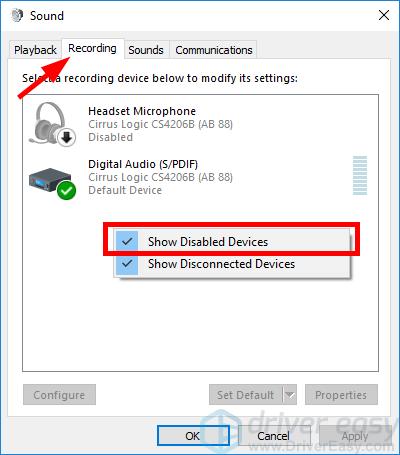
To check, right-click the speaker icon in the Windows taskbar and select “Sounds” or “Open Sound Settings.” Under “Output,” choose Astro A10 (or “Headphones” if that’s what appears). Make sure the volume is turned up and not muted.
Here’s a comparison of common audio device settings:
| Setting | Correct Value | Problematic Value |
|---|---|---|
| Output Device | Headphones (Astro A10) | Speakers, HDMI, or other |
| Volume Level | 50-100% | 0-10% or muted |
| Mute | Off | On |
Many beginners miss the importance of setting the right output device. Windows sometimes changes this after updates or when other devices are plugged in.
Outdated Or Missing Audio Drivers
Audio drivers are software that allow your PC to communicate with the headset. If they are missing or outdated, your headset might not work.
To update drivers, open Device Manager (search for it in Windows). Expand “Sound, video and game controllers,” right-click your sound card, and choose “Update driver.” Sometimes, Windows doesn’t find the latest driver, so visiting your motherboard or sound card manufacturer’s website can help.
Example: Realtek drivers are common for many PCs. If you have a Realtek sound card, download the latest drivers from their official site.
A key insight: Windows Update doesn’t always provide the newest drivers, so manual updates can solve stubborn audio problems.
Incorrect Sound Format Settings
Windows allows you to set the audio format (sample rate and bit depth). If this is set too high or incompatible, the headset may not produce sound.
Go to “Sound Control Panel,” select your headset, click “Properties,” and under “Advanced,” choose a format like 16 bit, 44100 Hz (CD Quality). Avoid selecting higher rates unless you know your headset supports them.
Here is a quick comparison of sound format settings:
| Format | Compatible | May Cause Issues |
|---|---|---|
| 16 bit, 44100 Hz | Yes | No |
| 24 bit, 192000 Hz | No | Yes |
Beginners often overlook this setting. If you have changed it for other devices, reset it for your Astro A10.
Audio Enhancements Or Effects
Windows and sound card software sometimes apply audio enhancements like bass boost, surround sound, or equalizer effects. These can cause distortion or mute the sound if not compatible with your headset.
To fix, open “Sound Control Panel,” select your headset, and click “Properties. ” Under the “Enhancements” tab, check “Disable all enhancements. ” Test your headset again.
Some gaming PCs have software (like Realtek Audio Console or Dolby) that adds effects. Turn these off if you experience audio problems.
An insight: Disabling enhancements often solves “no sound” issues after Windows updates, as new software sometimes applies unwanted effects.

Windows Update Or System Changes
Sometimes, a Windows Update or other system change causes your headset to stop working. Updates can reset settings, install new drivers, or conflict with audio devices.
If your Astro A10 worked before but stopped after an update, try rolling back the driver or uninstalling the update. Go to Device Manager, right-click your sound device, and choose “Properties. ” Click “Driver,” then “Roll Back Driver. ” For Windows updates, go to Settings > Update & Security > Windows Update > View update history.
Example: Many users report audio problems after major Windows updates. Rolling back or restoring previous settings often fixes the issue.
Third-party Software Conflicts
Some third-party programs, like audio managers, recording software, or gaming overlays, can take control of your audio devices. This may prevent your headset from working properly.
Check if you have programs like Discord, OBS, or SteelSeries Engine running. Close them and test your headset again. If it works, adjust the software settings to use the correct audio device.
Always set your Astro A10 as the default device in both Windows and the software you use. Conflicts can happen if one program uses a different device.
A non-obvious insight: Sometimes, uninstalling or disabling unused audio software solves persistent headset problems.
Hardware Incompatibility
While the Astro A10 is designed for many platforms, not all PCs support headsets with combined audio/mic jacks. Some older desktops only support separate jacks, so the microphone or audio may not work fully.
If your PC has separate jacks, you might need a Y-splitter adapter. This splits the headset’s single plug into two—one for audio, one for mic.
Here’s a comparison of headset compatibility:
| PC Type | Jack Type | Astro A10 Compatibility |
|---|---|---|
| Modern Laptop | Combo Jack | Full Audio & Mic |
| Older Desktop | Separate Jacks | Requires Y-Splitter |
Many users miss this adapter need. If your mic does not work, check your PC’s jack type before assuming the headset is broken.
Faulty Astro A10 Headset
If you have tried all other steps and your Astro A10 still does not work, the headset itself may be faulty. Common signs include:
- No sound on any device
- Microphone does not work anywhere
- Physical damage to the headset or cable
- Distorted audio even on other PCs or consoles
Test your headset on another device, like a smartphone or gaming console. If it does not work there, it is likely defective.
Astro offers warranty and support. Contact their official support if you believe your headset is faulty.
An insight: Even new headsets can have factory defects. Testing on multiple devices helps confirm if the headset is the problem.
Extra Tips For Reliable Audio
- Keep your PC’s audio drivers updated regularly.
- Store your headset safely to avoid cable damage.
- Use a surge protector for your PC to prevent hardware issues.
- Avoid using untested third-party audio software.
- Check your headset after every major Windows update.
When To Seek Professional Help
If your Astro A10 audio is still not working after trying all 10 steps, it may be time to seek professional help. Contact Astro’s support or visit an authorized repair center. Avoid opening the headset yourself, as it may void the warranty.
For official guidance, visit the manufacturer’s website: Astro Gaming Support.
Frequently Asked Questions
Why Does My Astro A10 Headset Have No Sound On Pc?
Usually, the problem is due to a wrong jack connection, audio settings, or driver issues. Check the cable, make sure the headset is set as the default output device, and update drivers.
How Do I Fix The Astro A10 Microphone Not Working On Pc?
Ensure your PC supports combo jacks, or use a Y-splitter if needed. Set the headset as the default input device in sound settings. Update audio drivers and test the mic on another device.
Can Windows Updates Break My Astro A10 Audio?
Yes, major updates can change settings or drivers, causing audio issues. Roll back drivers or uninstall the update if your headset stops working after an update.
Is My Astro A10 Compatible With All Pcs?
The headset works with most PCs, but older desktops with separate jacks need a Y-splitter. Check your PC’s port type for full compatibility.
What Should I Do If My Astro A10 Is Faulty?
Test your headset on other devices. If it does not work anywhere, contact Astro Gaming Support for warranty or repair options.
If you follow these steps, your Astro A10 PC audio should work reliably. Most issues can be solved with careful troubleshooting. Avoid common mistakes, keep your drivers updated, and check your hardware for compatibility. With the right setup, your headset will deliver clear sound for gaming, calls, and music.