
A quick power cycle is the most effective way to resolve your Comcast Router Wifi Not Working issue. Unplug the power cord, wait sixty seconds, and plug it back in. Allow ten minutes for the lights to stabilize. If the light remains red, a signal issue from the outside line is likely the culprit.
Why your Comcast router wifi stopped working
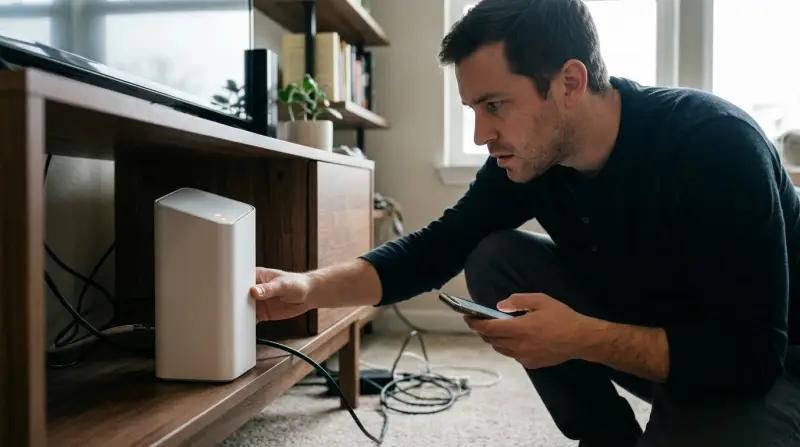
Connection failures generally stem from one of three areas: hardware errors, service outages, or signal interference. A hardware error often occurs when the router’s firmware becomes unresponsive or the memory buffer overflows, which prevents it from properly routing traffic to your devices. This is why a simple reboot is the first step; it clears the volatile memory and forces the device to re-authenticate with the Comcast network.
Service outages are another common cause. If the physical line running from the utility pole to your home is damaged or if there’s a local maintenance event, no amount of troubleshooting inside your home will restore the signal. You can verify the status of your local network by checking the Xfinity status center to see if there’s an active outage in your neighborhood.
Finally, signal interference or internal settings can block your access. If your router is placed inside a cabinet, behind a television, or near other electronics, the wireless signal can degrade significantly. Furthermore, if the router settings were changed to a different wireless channel that’s crowded by your neighbors’ networks, your devices may struggle to maintain a stable link. If you have confirmed the service is active and the hardware has been power-cycled, the issue is likely a physical connection failure at the wall jack or a fault in the router itself.
Check the physical cables
This fix is for users who have power but no internet access on any device. Start by checking every cable connected to your router. A loose coaxial cable is a common mistake that costs users hours of troubleshooting time. Ensure the screw-on connector at the wall and the back of the router is hand-tight. If it feels loose, twist it clockwise until it’s firm. Don’t use tools, as overtightening can damage the internal pins.
Next, inspect the Ethernet cables. If your computer is connected directly to the router via a yellow or blue cable, pull it out and click it back into the port. You should hear a distinct click. If you see damage to the plastic shielding or the copper wires inside, replace the cable immediately. A cable with a broken locking tab will often slip out just enough to lose connectivity while appearing to be plugged in.
This fix isn’t for people experiencing a total service outage. If your router shows a red light even after verifying the cables, the issue is with the external line, and you should contact Xfinity support. You’ll know this fix worked if the “Online” or “Internet” light on the front of your router turns solid white or green within five minutes of checking the connections.
If the light remains amber or red, you have a signal issue that requires professional repair. Use this decision rule: if the light is blinking, the hardware is searching for a signal; if the light is solid red, the signal is blocked or rejected. In the latter case, no amount of cable adjustment will resolve the fault.
Reset the network settings
This fix works when your router is online, but your devices refuse to connect or show “No Internet.” You can reset the gateway to its factory default state. This clears custom passwords, guest networks, and changed channel settings. To perform this, look for the small “Reset” hole on the back of the device. Use a paperclip to press and hold the button inside for thirty seconds. The router will restart, and all lights will flash.
This process isn’t for someone who needs to keep their custom Wifi name or password, as this will revert the device to the credentials printed on the bottom sticker. If you have a complex home network setup, ensure you back up your configurations first. Once the router finishes its restart, which takes about ten minutes, you must reconnect your devices using the original default password. If your devices connect successfully after this, the issue was a corrupted setting or a software conflict. If they still fail to connect, the wireless radio inside the router may be failing, and you should request a replacement device from your service provider. This varies by model — check the label on your specific device to see if it supports a physical reset or if you must use the app to manage settings.
Update the device software

This is for users whose internet is intermittent or slow. Sometimes, an outdated firmware version prevents the router from handling modern traffic demands. If you can access the router’s web interface by typing the gateway IP address into a browser, check the “Firmware” or “System” tab. If an update is available, follow the prompts to install it.
This requires a stable connection, so ensure your device is plugged into the router with an Ethernet cable during the update. Don’t disconnect the power while the update is in progress, as this can permanently brick the hardware. A single power flicker during the write process renders the device useless, costing you a full replacement fee.
If you aren’t comfortable navigating the admin portal, it isn’t worth the risk. Instead, use the Xfinity mobile app to run a system refresh, which automatically triggers a firmware check on the backend. If you’re unsure how to use the admin portal, stop and contact Xfinity customer support. They can push the update remotely, which is safer for the hardware and requires no technical knowledge on your part.
This fix isn’t for those with older, legacy hardware that no longer receives updates. If your router is aged, the manufacturer has likely ceased support, and no firmware patch will resolve your connectivity issues. Verify your model number against the Xfinity support list; if it’s marked as end-of-life, request a newer model.
What not to do
These devices often cause minor voltage drops that lead to constant, unexplained reboots.
Avoid placing your router in a closed cupboard or inside a metal box. These enclosures act as a Faraday cage, blocking radio waves and creating a total “dead zone” for your signal. If you must hide the device, use a non-metallic, ventilated shelf at least three feet off the ground.
Never attempt to disassemble the outer casing. This action immediately voids your warranty and exposes delicate electronic components to static discharge.
Don’t ignore a blinking red light for more than an hour. This indicates a physical signal fault that requires ISP intervention. If the light persists after a hard power cycle, call your provider; waiting longer only delays the necessary line repair.
How to stop it happening again
Keep your equipment in an open, elevated space to ensure adequate passive airflow. Airflow is the primary defense against thermal throttling, which slows your connection speed long before the hardware actually shuts down.
| If you’re doing this | Do this instead | Why |
|---|---|---|
| Hiding the router | Keep it in the open | Improves signal reach |
| Leaving cables loose | Tighten them by hand | Prevents signal noise |
| Ignoring firmware alerts | Run the app update | Fixes known bugs |
| Using old power strips | Use a wall outlet | Ensures steady voltage |
Most users make the mistake of tucking routers into cabinets to hide unsightly wires. This traps heat and can cause the processor to throttle, which may degrade performance. If your device feels hot to the touch, move it immediately. If the connection remains unstable, check the port for dust buildup and clear the vents regularly.
Frequently asked questions

Can I fix a red light on my router myself?
A solid or blinking red light indicates a signal issue requiring professional intervention. A persistent red light means the router can’t communicate with the Comcast headend. If checking the status page shows no local outages, contact Xfinity support for a line test or technician visit.
How long should I wait for the router to restart?
Wait at least ten minutes for the router to complete its full reboot cycle. During this time, the device performs a self-test and re-establishes a network handshake. If the lights are still flashing after ten minutes, there’s likely a problem with the signal quality reaching your home.
Is it safe to leave the router on all the time?
Yes, the router is designed to run twenty-four hours a day without needing to be turned off. It manages background maintenance tasks like firmware updates during low-usage hours. Only power-cycle the device if you’re experiencing specific connectivity issues that prevent you from reaching the internet.
What happens if I move my router to a different room?
Moving the router can cause connection failures if the new location lacks a high-quality coaxial cable connection. Not every wall jack is active or properly connected to the main service line. If you move the device, ensure the coaxial cable is securely tightened and the router has clear space for ventilation.
Why does my Wifi work on my phone but not my computer?
This is usually caused by a software setting on your computer rather than a fault with the router. If your phone connects, the router is broadcasting a valid signal. Try “forgetting” the network on your computer and re-entering the password to clear any saved, incorrect configurations. If that fails, check if your computer’s airplane mode is on or if the network adapter driver needs an update through your computer’s system settings.
Final Thoughts
If your connection doesn’t return after these efforts, don’t hesitate to reach out to their support team. They’ll check your area for outages or schedule a technician to visit your home. You shouldn’t have to deal with a spotty signal, so let them help you get back online today.