
A simple power cycle or checking your HDMI connection is the most likely way to resolve a Firecube Not Working when the device fails to show content or respond to input. Most issues stem from a temporary software glitch or a loose cable connection that prevents the device from communicating with your television. Before you assume the hardware is broken, perform a hard reset by unplugging the power cord from the back of the device, waiting for at least 60 seconds, and then plugging it back into the wall outlet.
Why your Firecube isn’t working
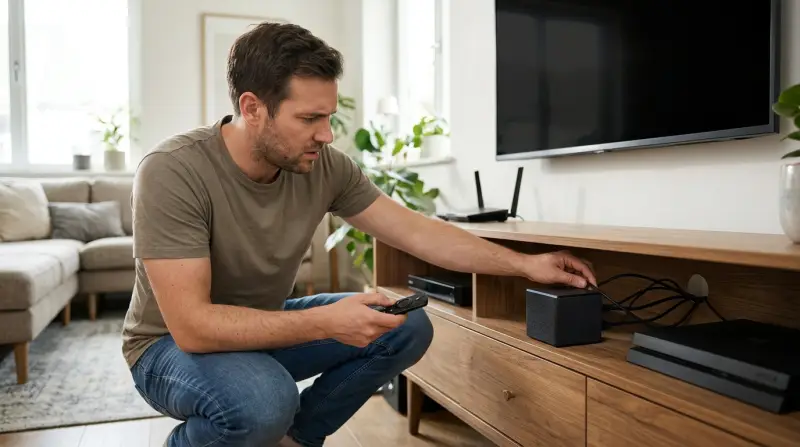
The primary reason for a device failure is a power supply interruption or a handshake error between the streaming hardware and your television. If the power cable isn’t seated firmly, the unit may receive just enough electricity to light up but not enough to process video signals. This varies by model — check the label on your power adapter to confirm you’re using the original cord, as using a third-party cable with insufficient voltage often causes the device to reboot in a loop.
Another common cause is an outdated or corrupted cache. Over time, the temporary data stored by apps can conflict with system updates, leading to a black screen or a frozen interface. If your internet speed drops below the required threshold, the device may appear unresponsive because it can’t load the home screen interface.
Finally, you must consider the HDMI connection. If you’re using an HDMI extender or an adapter, the signal may be blocked by a bad port or a damaged pin. If the television doesn’t support the specific HDCP (High-bandwidth Digital Content Protection) version that the device requires, you’ll see a black screen or a “no signal” error. You can verify your television’s compatibility with these security standards by reviewing the official Amazon Fire TV support pages. If the hardware remains cold or shows no light after a full power cycle, the internal power supply has likely failed.
Check the power source
This fix is for users who see no lights on the front of the unit or find that the device restarts randomly during use. Start by disconnecting the power adapter from the wall outlet rather than just pulling the cable from the device itself. If you’re using a power strip or a surge protector, move the plug directly into a wall socket to rule out a faulty strip. If the device remains unresponsive, inspect the power brick for any signs of physical damage or swelling.
If you have a spare micro-USB or USB-C power cable that matches the voltage specifications of your specific model, try swapping the cable while keeping the original power brick. If the device powers on, the old cable was the culprit. If the device still shows no sign of life, the power brick is likely faulty and needs replacement. This isn’t a task for home repair; attempting to open the power adapter is dangerous and risks electric shock or fire. If the unit is still under warranty, contact the manufacturer to request a replacement. This fix isn’t for those who see a logo or a frozen screen, as those issues indicate a software or signal problem rather than a power failure.
Reset the HDMI connection
This fix is for users who see a “No Signal” message or experience flickering video on their television screen. Begin by turning off both your television and the streaming device. Unplug the HDMI cable from both the back of the TV and the streaming device. Carefully inspect the ends of the cable for bent pins or debris inside the connector. If the cable appears undamaged, plug it back in, ensuring it clicks firmly into the port.
If the problem persists, try using a different HDMI port on your television. Many modern televisions have multiple inputs, and one port may be damaged or set to a different input standard. If you’re using an HDMI extension cable, remove it and plug the device directly into the television’s HDMI port. If the video returns, the extension cable is broken. If the screen remains blank, try a completely different HDMI cable that you know works with other devices, such as a game console or cable box. If you still have no picture, the issue may be with the television’s input settings. Use your TV remote to cycle through the input sources, ensuring you have selected the correct HDMI channel. This is the most effective way to isolate whether the issue lies with the cable, the port, or the streaming device itself.
Use the remote to force a restart
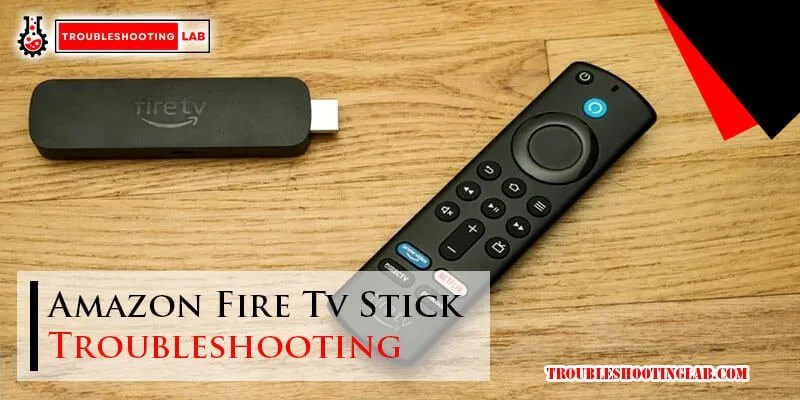
This fix is for users who have a frozen or unresponsive screen but know the device is receiving power. If the device is stuck on a static image or the remote isn’t responding, you can force a system-level restart using only the remote control. Press and hold the “Select” (the center circle) and “Play/Pause” buttons at the same time for at least 10 seconds. You’ll see the device screen flicker or go black as it initiates a hard reboot.
This method is useful when the software has encountered a critical error. If the device reboots but freezes again immediately, you may have a corrupted app. Once the device loads, navigate to the Settings menu, select “Applications,” and then choose “Manage Installed Applications.” Clear the cache for any apps you recently installed or updated. If you’re still unable to navigate the menus, you may need to perform a factory reset, which will erase all personal data and restore the device to its original state. This is a last resort; only do this if you have your account information ready to sign in again. If the device still doesn’t respond to remote commands after a forced restart, the remote itself may be low on battery or require a re-pairing process. If the remote doesn’t pair, the Bluetooth module inside the device might be the component that has failed.
What not to do
Don’t attempt to open the plastic housing of the device. Breaking the factory seal voids your warranty immediately and risks snapping the fragile ribbon cables connecting the motherboard to the chassis.
Never use unverified power adapters from other electronics. If you lose the original adapter, only replace it with a unit matching the exact amperage and polarity symbols printed on the device label.
Avoid spraying liquid cleaners directly into the HDMI ports or power socket. Moisture trapped inside these narrow channels can cause corrosion and short-circuit the delicate pins. Instead, dampen a microfiber cloth and wipe the exterior surfaces only.
Don’t leave the device in an enclosed, hot cabinet. Overheating forces the processor to throttle its clock speed, causing stuttering. If the unit feels hot to the touch, move it to an open, ventilated shelf.
How to stop it happening again
Keep your device in an open, well-ventilated area to ensure the processor doesn’t overheat during long streaming sessions.
| If you’re doing this | Do this instead | Why |
|---|---|---|
| Leaving it on 24/7 | Use the sleep mode | Prevents memory leaks and heat buildup |
| Using a crowded power strip | Plug directly into the wall | Ensures consistent voltage and power flow |
| Blocking the device | Mount it away from walls | Improves airflow and prevents thermal shutdown |
| Using cheap cables | Use high-speed certified HDMI | Prevents signal loss and handshake errors |
A common mistake is placing the unit inside an enclosed media cabinet. This creates a thermal loop where the device recirculates its own exhaust, leading to permanent hardware degradation. If your cabinet has a glass door, keep it open during heavy use. If the device feels hot to the touch after an hour, it’s already struggling. Move it to an open shelf immediately to prevent internal component failure.
Frequently asked questions
Can I fix a device that won’t turn on?
You can often fix power issues by checking the power source and ensuring the cable is fully seated. Testing with a known-good power adapter confirms if the issue is the cable or the device. If the unit remains unresponsive, the internal hardware has likely failed.
Why is my screen black?
A black screen is usually caused by a poor HDMI connection or a mismatch between the device and TV settings. Try unplugging the cable, cleaning the ports, and testing a different HDMI port. If the issue persists, test with a different cable to rule out a faulty wire.
How long should I wait for a reboot?
Wait at least 60 seconds after unplugging the device before reconnecting it to power. This delay allows internal capacitors to discharge, clearing temporary memory errors. If the device fails to load after two minutes, perform a forced remote restart to ensure a clean boot.
Is it safe to leave it plugged in?
It’s safe to leave the device plugged in, as it’s designed to enter a low-power sleep mode. However, unplugging it during storms is a wise precaution if you experience frequent power surges. Ensure the device has enough space around it for proper air circulation.
What happens if I perform a factory reset?
A factory reset deletes all installed apps, personal settings, and account logins, returning the software to its original state. You’ll need to reconnect to Wi-Fi and sign back into services afterward. Only choose this option if you have exhausted all other troubleshooting steps.
Final Thoughts
If these basic fixes don’t bring your screen back to life, it’s time to reach out to Amazon’s support team. They’ll help you determine if there’s a deeper technical fault or if you’re eligible for a replacement. Don’t worry, as they’re usually quick to help you get back to your favorite shows.