
Resetting your Eero Beacon can solve many network problems. Maybe your Wi-Fi is slow, your device keeps disconnecting, or you want to sell or give away your Beacon. Whatever the reason, knowing how to reset your Eero Beacon can be a lifesaver.
This guide explains every step, from simple reboots to full factory resets. You will learn when, why, and how to reset your Eero Beacon correctly, plus what to do after resetting.
If you’ve never done it before, don’t worry. The process is simple when you know what to do. But there are a few details that can trip up beginners—like the difference between a soft reset and a hard reset, or what happens to your network after you reset.
By the end of this guide, you’ll feel confident about handling your Eero Beacon, avoid common mistakes, and keep your home Wi-Fi running smoothly.
What Is An Eero Beacon?
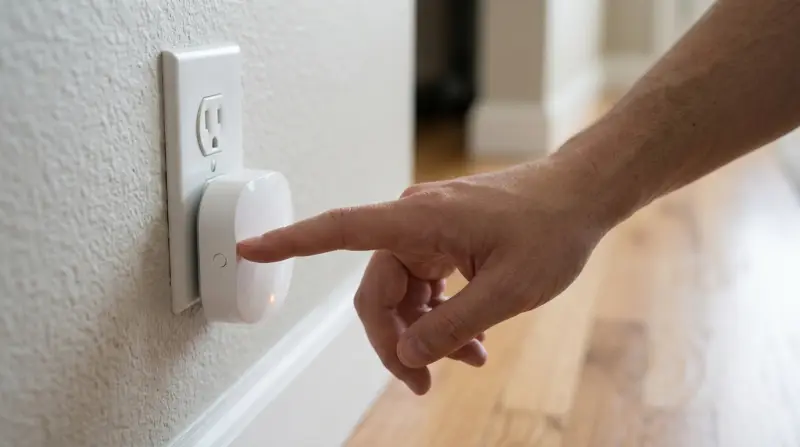
The Eero Beacon is a small Wi-Fi extender that plugs into a wall outlet. It works with your main Eero router to expand your Wi-Fi coverage, making sure every corner of your house gets a strong signal. Unlike traditional routers, Beacons don’t need cables—they’re easy to move and set up.
Key features of Eero Beacon:
- Dual-band Wi-Fi (2.4GHz and 5GHz)
- Nightlight with adjustable brightness
- Plugs directly into a wall outlet
- Works with the Eero app for control and setup
You might have several Beacons around your home. If one stops working or you want to reset your network, knowing how to reset an individual Beacon is important.
Reasons To Reset Your Eero Beacon
People reset their Eero Beacons for several reasons. Understanding why helps you decide which type of reset you need.
- Network Issues: If your Beacon isn’t connecting or your Wi-Fi is slow, a reset can often fix the problem.
- Device Replacement: If you’re selling, giving away, or moving your Beacon to a new home, a factory reset is needed to remove your personal information.
- Adding to New Network: When you want to add the Beacon to a different Eero network, a reset is required.
- Troubleshooting: Sometimes, support agents may ask you to reset as part of fixing a bigger problem.
Not all resets are the same. There are two main types: soft reset and factory reset. Each has a different purpose.
Soft Reset Vs Factory Reset: What’s The Difference?
Before you start, it’s important to know the difference between a soft reset and a factory reset. The right choice depends on your situation.
| Type of Reset | What It Does | When to Use |
|---|---|---|
| Soft Reset | Clears some settings but keeps your network name and password. | Minor issues or reconnecting to the same network. |
| Factory Reset | Deletes all settings. The Beacon forgets your network and returns to new condition. | Selling, gifting, or starting a new network. |
A soft reset is like restarting a computer—it solves many small problems. A factory reset erases everything and is needed if you want a fresh start.
Preparing To Reset Your Eero Beacon
Taking a few minutes to prepare can prevent data loss or wasted time. Here’s what to do before you reset:
- Check your Eero app. Make sure your phone has the latest version of the Eero app.
- Find your Beacon. Know which Beacon you want to reset. Each device shows up separately in the app.
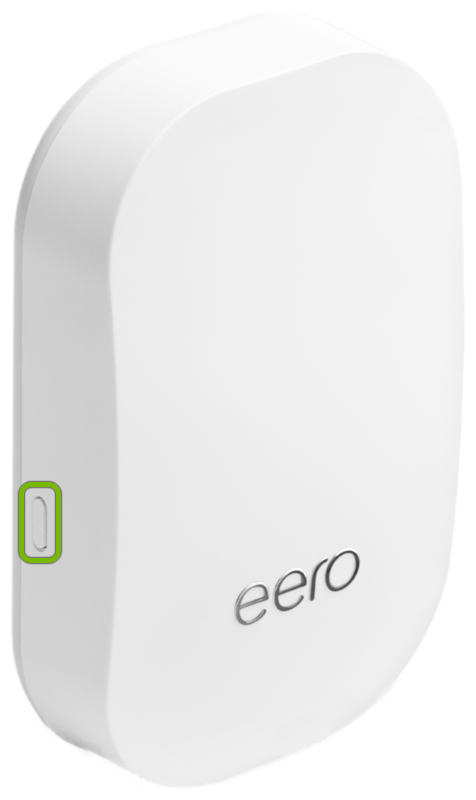
- Locate the reset button. On the Eero Beacon, the reset button is on the side, near the bottom.
- Backup settings. If you want to keep your network name and password, write them down or check the app.
- Warn users. If others are using the network, let them know—resetting will cause a temporary loss of connection.

Step-by-step: How To Soft Reset Eero Beacon
If your Beacon is acting up but you don’t want to erase all settings, a soft reset is usually enough. This is the quickest way to solve most minor issues.
- Plug in your Eero Beacon. Make sure it’s powered on and connected to your network.
- Find the reset button. On the side of the Beacon, you’ll see a small pinhole.
- Press and hold. Use a paperclip or similar object. Press and hold the reset button for about 7 seconds, then release.
- Watch the LED. The light will flash yellow, then white. When it’s solid white, the reset is complete.
The Beacon will reboot and try to reconnect to your network. Most of the time, this fixes connection issues without deleting your custom settings.
Non-obvious tip: If your Beacon is far from your main router, move it closer before resetting. Weak signals can slow down the reset and reconnect process.
Step-by-step: How To Factory Reset Eero Beacon
A factory reset is more serious. Only do this if you want to remove all settings or start from scratch.
- Keep the Beacon plugged in. It must have power during the whole process.
- Locate the reset button. Same as before, use a paperclip for the pinhole on the side.
- Press and hold. Hold the reset button for 15 seconds or more, then release.
- Watch the LED. The light will first flash yellow, then red. When the light turns off and then comes back on as flashing blue, the reset is finished.
At this point, your Beacon is just like new. You’ll need to set it up again using the Eero app, or add it to another Eero network.
Beginner mistake: Some people unplug the Beacon while resetting. This can cause problems. Always keep it plugged in until the process is complete.
What Happens After Resetting?
After a soft reset, your Beacon should reconnect to your network automatically. Devices may lose connection for a minute or two, then come back online. If it doesn’t reconnect, open your Eero app and follow the instructions to add it again.
After a factory reset, you’ll need to set up the Beacon again. Open the Eero app, tap “Add Eero Device,” and follow the steps. The app will guide you through connecting the Beacon to your network.
| Reset Type | Action Required After Reset | Data Lost |
|---|---|---|
| Soft Reset | Usually none; reconnect if needed | No |
| Factory Reset | Set up Beacon from scratch | Yes (all settings) |
Expert tip: If you have multiple Beacons, reset them one at a time. Resetting all at once can confuse the Eero app and make network setup harder.
Troubleshooting: When Things Don’t Go As Planned
Most resets go smoothly, but sometimes you hit a snag. Here’s what to check:
- LED doesn’t change color: Make sure you’re pressing the reset button long enough. For a factory reset, 15+ seconds is needed.
- Beacon won’t reconnect: Move it closer to your main Eero router and try again.
- Eero app doesn’t find the Beacon: Force-close the app and reopen it. Sometimes Bluetooth or Wi-Fi needs to be toggled off and back on.
- Beacon keeps flashing red: This means there’s a problem. Try a full factory reset again, and check your internet connection.
If you’re still stuck, visit the official Eero support page for detailed help.
After The Reset: Tips For A Stronger Network
Once you’ve reset your Beacon, take a few extra steps for the best results.
- Place your Beacon wisely. Beacons work best in open areas, away from microwaves or thick walls.
- Name your network clearly. Use a unique SSID to avoid confusion with neighbors’ Wi-Fi.
- Update firmware. Open the Eero app and check for updates—fresh software means better performance.
- Connect important devices first. After resetting, some smart home gadgets may need to be reconnected.
Hidden insight: Wi-Fi extenders like the Eero Beacon sometimes slow down if too many devices connect to one Beacon. Spread out your devices among several Beacons for smoother speeds.
Comparing Eero Beacon Resets With Other Eero Devices
While the Eero Beacon is easy to reset, other Eero models like the Eero Pro or Eero 6 may have different reset procedures. Here’s a quick comparison:
| Device | Reset Button Location | Reset Time (Factory) | Special Notes |
|---|---|---|---|
| Eero Beacon | Side, near bottom | 15 seconds | Plugs into wall, no Ethernet port |
| Eero Pro | Back, near Ethernet ports | 20 seconds | Has Ethernet ports for wired backhaul |
| Eero 6 | Back, near power port | 15 seconds | Supports Wi-Fi 6, different LED patterns |
Always check your specific model’s instructions before resetting. Some devices have small differences that can affect the reset process.
Avoiding Common Mistakes
When resetting Eero Beacons, people often make the same simple errors. Here’s how to avoid them:
- Not pressing the reset button long enough. A factory reset needs 15 seconds. Release too soon, and it may only soft reset.
- Unplugging during reset. Always keep the Beacon powered until the reset is complete.
- Forgetting to update the Eero app. Outdated apps can miss new features or bug fixes.
- Resetting the wrong device. Double-check in the app which Beacon you’re resetting—especially if you have several.
- Not reconnecting smart devices. After a factory reset, smart plugs, bulbs, and cameras may need to be added again.
Frequently Asked Questions
What Is The Difference Between A Soft Reset And A Factory Reset?
A soft reset clears some settings but keeps your network name and password. It’s useful for minor issues. A factory reset erases all settings and data, making your Beacon like new. Use this when giving away, selling, or setting up on a new network.
Will Resetting My Eero Beacon Delete My Wi-fi Network?
A soft reset will not delete your network. Your other devices will stay connected. A factory reset removes the Beacon from your network, but your main Eero network will still exist unless you reset all devices.
How Do I Know If My Eero Beacon Has Been Reset Successfully?
After a soft reset, the LED will return to solid white. After a factory reset, the LED will blink blue, ready for setup. If the light flashes red, try the reset process again.
Can I Reset My Eero Beacon Remotely Using The App?
No, you cannot reset the hardware using the app. You must press the physical reset button on the Beacon. However, you can remove the Beacon from your network using the app if needed.
What Should I Do If My Beacon Doesn’t Reconnect After Resetting?
First, move the Beacon closer to your main Eero router. Try adding it through the app again. If it still doesn’t work, check for firmware updates or contact Eero support for advanced help.
Resetting your Eero Beacon is simple when you follow these steps. Whether you’re fixing a stubborn connection or preparing your device for a new owner, taking the right actions can save time and frustration. With the information in this guide, you’ll avoid common mistakes and keep your Wi-Fi running at its best.
If you ever feel stuck, the Eero app and official support are always ready to help.