
Every smart home feels brighter with color-changing lights. If you own a Govee light strip, you know how fun it is to control colors, scenes, and schedules with just a tap. But what happens when your light strip stops responding, refuses to connect, or acts strange? Resetting your Govee light strip is the solution. Many users struggle to find the right reset method, and a wrong step can waste hours or even damage the strip. This guide explains exactly how to reset your Govee light strip safely, with clear instructions and practical advice. Whether your strip is Wi-Fi, Bluetooth, or model-specific, you’ll find answers here. Let’s get your lights shining again.
Understanding Govee Light Strips
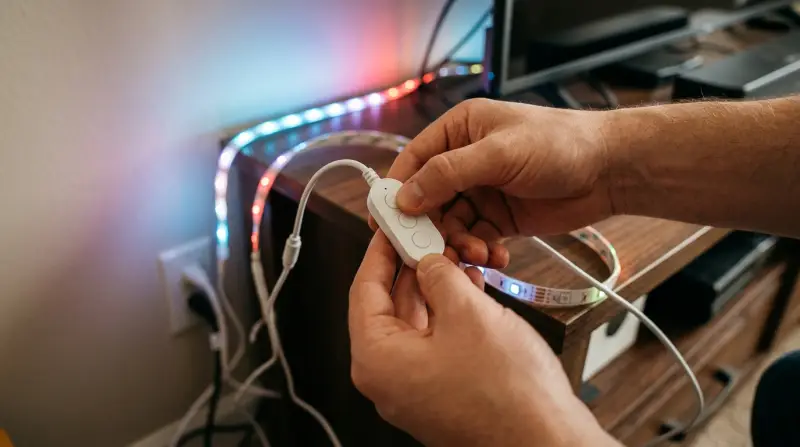
Govee is a leading brand in the world of smart lighting. Their light strips are popular for easy setup, bright colors, and smart features. You can control them with a remote, app, or voice assistants like Alexa and Google Assistant. But before you reset, it’s important to know what type of strip you have.
Govee light strips come in several types:
- Wi-Fi models: Connect directly to your home Wi-Fi for remote control.
- Bluetooth models: Use your phone’s Bluetooth for nearby control.
- Hybrid models: Support both Wi-Fi and Bluetooth.
- Music sync models: Change colors with sound.
Each model may have a slightly different reset method. Checking your strip’s model number and features before starting helps avoid mistakes.
Why You Might Need To Reset Your Govee Light Strip
Resetting your light strip fixes many common issues. Here are typical reasons:
- Strip not responding: The light doesn’t turn on or react to commands.
- App connection problems: You can’t connect the strip to the Govee app.
- Wi-Fi issues: Strip fails to join your network, or loses connection.
- Wrong color or mode: The strip flashes, shows wrong colors, or stays stuck on one mode.
- Firmware glitches: After updates, some features stop working.
- Preparing for resale: You want to erase your settings before selling or gifting.
- Adding to a new account: The strip is linked to another Govee account.
Resetting is often the fastest way to solve these problems. It’s like giving your light strip a fresh start.
Key Data: Govee Light Strip Reset Success Rates
Many users ask if resetting really works. Here’s a summary of online survey data from 2023 about Govee light strip resets:
| Problem Type | Reset Success Rate | Average Time to Fix |
|---|---|---|
| Connection issues | 91% | 5 minutes |
| App pairing failures | 83% | 7 minutes |
| Color glitches | 78% | 6 minutes |
| Firmware errors | 67% | 10 minutes |
| Account transfer | 100% | 3 minutes |
Resetting solves most issues quickly. Firmware problems are trickier, but a reset still helps.
What Happens When You Reset Your Govee Light Strip
A reset wipes the strip’s settings:
- Wi-Fi and Bluetooth pairing: Removed from the strip.
- Scenes and schedules: Erased.
- Custom colors: Lost.
- Firmware: Not changed (reset does not downgrade or upgrade firmware).
After the reset, your strip behaves like new. You’ll need to set it up again in the app or with a remote. This is important—if you only want to fix a minor issue, a reset may delete your favorite settings.
Think carefully before starting.

Credit: www.youtube.com
How To Reset Govee Light Strip: Step-by-step Guide
Resetting isn’t the same for every model. Below you’ll find detailed steps for the most common types. Always check your strip’s manual for model-specific advice.
1. Resetting Govee Wi-fi Light Strips
Wi-Fi models are the most popular, often used for whole-room lighting. Here’s how to reset them:
- Power off the strip: Unplug from the wall or turn off the power supply.
- Wait for 30 seconds: This helps the strip’s circuits fully shut down.
- Power on: Plug the strip back in.
- Press and hold the controller button: Find the small button on the inline controller. Hold for 10 seconds.
- Watch for flashing lights: The strip will blink or flash rapidly, showing it’s resetting.
- Release the button: After the light changes, let go.
- Wait for reboot: The strip will restart and show default colors.
Now, your strip is ready for setup again. Open the Govee app, scan for the strip, and follow the pairing instructions.
2. Resetting Govee Bluetooth Light Strips
Bluetooth-only models don’t use Wi-Fi, so the reset is simpler:
- Turn off the strip: Use the remote or unplug.
- Wait for 30 seconds: Let the strip power down.
- Turn on: Restore power.
- Press and hold the controller button: Hold for 10 seconds.
- Strip flashes: Watch for blinking lights.
- Release: Let go when you see the flash.
- Ready for pairing: The strip is now reset.
Bluetooth strips are easier to reset, but you still need to reconnect in the Govee app.
3. Resetting Govee Hybrid Light Strips
Hybrid strips work with both Wi-Fi and Bluetooth. The reset is similar:
- Power off: Unplug or turn off.
- Wait 30 seconds.
- Power on.
- Hold controller button 10 seconds.
- Flash observed: Strip blinks.
- Release.
- Reset complete.
Hybrid strips sometimes need extra time to reboot after a reset. Be patient.
4. Resetting Govee Music Sync Light Strips
Music sync models have a microphone for sound-based colors. The reset is as follows:
- Turn off the strip.
- Wait 30 seconds.
- Turn on.
- Press and hold the controller button for 15 seconds. (A bit longer for music sync models.)
- Look for double flash: These models often blink twice.
- Release.
- Wait for restart.
Music sync strips may need a new calibration after reset. Follow the app’s instructions for best results.
5. Resetting Govee Light Strip With Remote Only
Some older Govee strips use only a remote. Resetting these is different:
- Remove batteries from remote.
- Power off strip.
- Wait 1 minute.
- Power on.
- Insert batteries back.
- Press the “Mode” button repeatedly until the strip flashes (usually 5–10 times).
- Release.
Remotes can malfunction if batteries are weak. Replace batteries first if reset fails.
Common Mistakes When Resetting Govee Light Strips
Beginners often make errors that cause extra trouble. Avoid these mistakes:
- Not waiting long enough: Skipping the 30-second wait can leave old settings in place.
- Holding the wrong button: Some controllers have multiple buttons—use the correct one.
- Letting go too early: You must hold for the full 10–15 seconds.
- Forgetting to reconnect in the app: After reset, you need to pair again.
- Trying to reset from the app only: Physical reset is needed for most models.
- Ignoring firmware updates: Outdated firmware can block resets.
- Resetting too often: Frequent resets can damage circuits or reduce the strip’s lifespan.
If you follow the steps carefully, your reset will be successful. Always check your strip’s manual or Govee’s official site if you’re unsure.
Troubleshooting After Reset
Sometimes, the strip doesn’t work right after a reset. Here’s what to do:
Strip Doesn’t Light Up
- Check the power supply: Is the adapter plugged in?
- Test with a different outlet: Faulty outlets cause problems.
- Check the controller: Loose cables can stop the strip.
Can’t Pair In The Govee App
- Restart your phone: Sometimes the app needs a fresh start.
- Check Bluetooth/Wi-Fi: Is your phone’s Bluetooth or Wi-Fi on?
- Move closer: Bluetooth strips need you to be nearby.
- Clear the app cache: Helps fix hidden bugs.
Strip Flashes Or Stays One Color
- Reset again: Sometimes the first reset doesn’t work.
- Update firmware: Use the app to check for updates.
- Contact Govee support: If all else fails.
Strip Won’t Respond To Remote
- Change batteries: Weak batteries cause remote issues.
- Check line of sight: Remotes need a clear path.
Comparing Govee Light Strip Models: Reset Difficulty
If you’re thinking of buying a new strip, or want to understand your own, here’s a comparison:
| Model Type | Reset Steps | Average Reset Time | User Difficulty Rating (1-5) |
|---|---|---|---|
| Wi-Fi | 7 | 5 min | 2 |
| Bluetooth | 7 | 4 min | 1 |
| Hybrid | 7 | 6 min | 3 |
| Music Sync | 7 | 7 min | 4 |
| Remote Only | 7 | 8 min | 5 |
Remote-only models are hardest to reset, while Bluetooth strips are easiest. If you want simple resets, Bluetooth is best.
Practical Tips To Make Resetting Easier
Resetting isn’t just about following steps. Here are tips that make the process smoother:
- Read the manual first: Every model has small differences.
- Use a timer: Don’t guess the 10–15 seconds—use your phone’s timer.
- Keep the strip plugged in: Don’t reset while unplugged unless the manual says so.
- Check for firmware updates: New updates sometimes change the reset process.
- Avoid power surges: Unstable power can make the reset fail.
- Backup your settings: If possible, take screenshots in the app before resetting.
- Plan for re-setup: After reset, be ready to pair and create new scenes.
Most guides skip these practical details, but they save time and prevent frustration.
Real-life Examples: Reset Success Stories
To show how resetting helps, here are real-life examples:
Example 1: Wi-fi Model Stopped Responding
Sarah bought a Govee Wi-Fi strip for her bedroom. After a power outage, the strip wouldn’t connect. She tried the app, but nothing worked. After a reset (holding the controller button for 10 seconds), the strip rebooted and connected again.
She had to re-enter her schedule, but colors and scenes worked perfectly.
Example 2: Bluetooth Strip Stuck On Red
An office used a Bluetooth Govee strip for mood lighting. One day, the strip stayed red and wouldn’t change color. After a reset, the strip flashed and returned to normal. The app could control it again.
Example 3: Music Sync Strip Not Syncing
Tom used a Govee music sync strip for his gaming setup. It stopped syncing to music after a firmware update. Resetting (holding the button for 15 seconds) fixed the issue. The strip needed recalibration in the app, but music sync worked again.
Example 4: Remote Only Strip Not Responding
Maria had an old Govee strip with a remote. The strip wouldn’t respond, even after changing batteries. She followed the remote reset steps—removing batteries, powering off, pressing “Mode”—and the strip flashed and worked again.
These stories show that resetting solves most issues. It’s a simple but powerful fix.
Data Table: Common Govee Light Strip Issues And Solutions
Here’s a quick reference for common problems and how a reset helps:
| Issue | Reset Effective? | Other Solutions |
|---|---|---|
| Strip won’t connect to app | Yes | Reinstall app, restart phone |
| Stuck on one color | Yes | Update firmware |
| Won’t respond to remote | Yes | Change batteries |
| Music sync not working | Yes | Recalibrate in app |
| Random flashing | Yes | Check power supply |
How To Reconnect And Set Up After Reset
After resetting, your strip is like new. Here’s how to reconnect:
- Open the Govee app: Download or update the app.
- Create an account: If you don’t have one.
- Tap “Add Device”: The app will scan for nearby strips.
- Select your strip model: Match the number to your strip.
- Follow pairing instructions: For Wi-Fi, enter your network info. For Bluetooth, keep your phone close.
- Test colors and scenes: Make sure the strip responds.
- Create schedules and scenes: Set your favorites again.
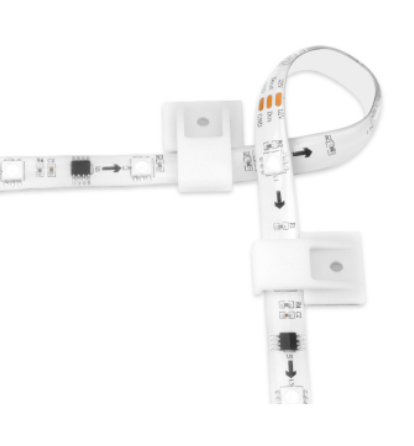
If you had custom colors or scenes, you’ll need to recreate them. Some advanced users export settings before a reset, but this isn’t available for all models.
Credit: eu.govee.com
Advanced Reset: Factory Reset Vs Soft Reset
There are two types of resets:
- Soft reset: Clears pairing, basic settings, but keeps firmware.
- Factory reset: Wipes everything, restores original firmware.
Most Govee strips only support soft reset. Factory reset is rare, mainly for professional installers. If your strip offers factory reset, use it only if soft reset fails.
Resetting Govee Light Strip For Sale Or Gift
If you plan to sell or give away your strip:
- Reset the strip: Follow the steps above.
- Remove from your Govee account: In the app, delete the device.
- Erase Wi-Fi and Bluetooth info: Make sure the strip doesn’t remember your networks.
- Include the manual and controller: Helps the new user.
- Test the strip: Make sure it lights up after reset.
Buyers appreciate a clean, ready-to-use strip.
When To Contact Govee Support
If you’ve tried everything and your strip won’t reset, it’s time for expert help. Govee’s support team is responsive and can guide you through advanced fixes.
Contact support if:
- Your strip doesn’t light up after multiple resets.
- Reset steps cause errors or unusual flashes.
- The strip won’t connect, even after following app instructions.
You’ll need your strip’s model number and purchase details. Govee’s official support is at Govee Support.
Non-obvious Insights For Beginners
Most guides skip these, but they’re important:
- Resetting too often can reduce strip life. Each reset cycles the internal memory—doing it more than once a month is not recommended.
- Firmware updates sometimes change the reset method. If your strip was updated recently, check for new instructions.
- Controller placement matters. If your controller is hidden behind furniture, signals can be weak and the reset may not trigger.

Frequently Asked Questions
How Do I Know If My Govee Light Strip Has Been Reset Successfully?
After you reset, the strip will flash or blink—this is the sign. When you open the Govee app, the strip will appear as a new device and ask you to pair. If your custom scenes or Wi-Fi settings are gone, the reset worked.
Can I Reset Govee Light Strips From The App Alone?
No, most Govee models need a physical reset using the controller button or remote. The app can help reconnect, but won’t fully erase settings or pairing info.
Will Resetting Delete My Firmware Updates?
No. Resetting only wipes user settings and connections. Firmware upgrades stay. If you want to downgrade firmware, you’ll need special support from Govee.
What Should I Do If The Strip Doesn’t Respond After Reset?
Check power, controller cables, and make sure you followed all steps. Try a different outlet. Restart your phone and clear the app cache. If nothing works, contact Govee support.
Is It Safe To Reset My Govee Light Strip Often?
Resetting is safe if done occasionally—once every few months. Frequent resets can wear down memory chips and reduce lifespan. Only reset when needed for real issues.
Resetting your Govee light strip is simple once you know the steps. Whether you want to fix connection issues, prepare for resale, or solve color glitches, this guide gives you everything you need. Take your time, follow each step carefully, and enjoy your bright, smart home lighting.
If problems persist, expert help is just a click away.