
A Samsung microwave is a reliable kitchen helper, but like all appliances, it can sometimes act up. Maybe your microwave’s buttons have stopped responding, the display is showing an error code, or your cooking settings are stuck. When this happens, resetting the microwave can often solve the problem without calling a technician. Learning how to reset your Samsung microwave is a valuable skill that saves time and money. This guide walks you through the process, shares expert tips, and helps you avoid common mistakes.
Why Reset A Samsung Microwave?
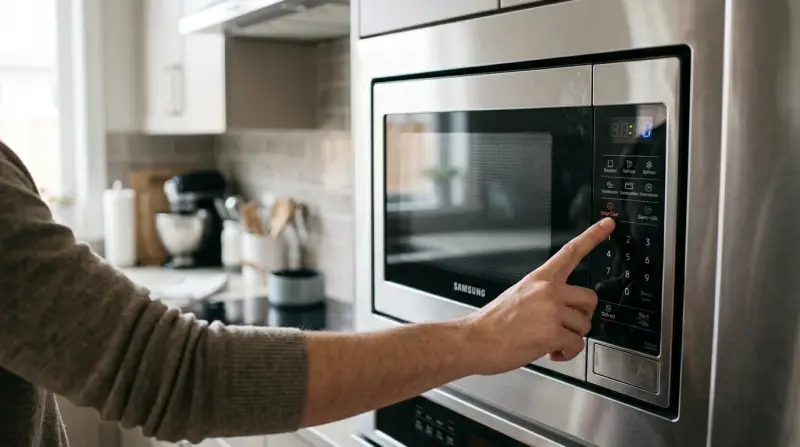
Sometimes, a microwave’s controls freeze or display errors. Power surges, interrupted cooking, or software glitches can cause these issues. Instead of panicking or rushing to buy a new appliance, try a reset.
A reset can:
- Clear minor electronic glitches
- Restore factory settings
- Unlock the control panel
- Fix many error codes
Resetting is often the first troubleshooting step before considering repairs.
Understanding Different Reset Types
There are different ways to reset a Samsung microwave, and each serves a unique purpose:
- Soft Reset: Clears current operations but does not erase stored data or settings.
- Hard Reset (Power Cycle): Fully restarts the microwave by disconnecting power.
- Factory Reset: Restores the microwave to its original settings, erasing customizations.
Not all Samsung microwaves have a factory reset option, but all models allow for soft and hard resets.
When Should You Reset Your Microwave?
Knowing when to reset helps you solve problems efficiently. Consider a reset if:
- The control panel is unresponsive
- Error messages or codes appear
- The clock or timer malfunctions
- The child lock won’t turn off
- Buttons beep but nothing happens
- The microwave won’t start or stop as expected
However, if you see smoke, sparks, or smell burning plastic, unplug the microwave immediately and contact support—do not attempt a reset.
How To Soft Reset A Samsung Microwave
A soft reset is simple and safe. It clears the current program and returns the microwave to standby mode. Here’s how:
- Press the Stop/Cancel Button: Most Samsung microwaves have this button. Press it once or twice to clear the display and cancel cooking.
- Check the Display: The screen should return to the clock or a blank state.
- Try Again: If the microwave is still unresponsive, move on to a hard reset.
Soft resets are useful for canceling accidental programming or clearing small errors.
How To Perform A Hard Reset (power Cycle)
A hard reset—also called a power cycle—removes power from the microwave and restarts its internal circuits. This step solves deeper glitches.
Follow these steps:
- Unplug the Microwave: Pull the plug from the wall outlet. If your microwave is built-in or over the range, you may need to switch off the circuit breaker.
- Wait: Leave the microwave unplugged for at least 2–5 minutes. This allows residual electricity to discharge.
- Plug Back In: Restore power by plugging in the cord or switching on the breaker.
- Check Operation: Test the microwave by using basic functions or reheating a cup of water.
Important tip: Don’t skip the waiting period. Some microwaves need time to fully reset their memory.
Factory Reset: Is It Possible?
Some advanced Samsung models (especially with touchscreens or smart features) have a factory reset option in the menu. This erases all user settings, including clock, presets, and child lock.
To Perform A Factory Reset (if Available):
- Open the Settings Menu: On the microwave’s control panel, look for a Menu or Settings button.
- Navigate to Factory Reset: Use the arrow or number keys to find the reset option.
- Confirm Reset: Select yes/OK when prompted.
Not all models include this feature. If you can’t find it, stick to the hard reset.

Credit: www.youtube.com
Using The Child Lock And Deactivating It
Samsung microwaves include a child lock to prevent accidental use. Sometimes, users accidentally activate it and think the microwave is broken.
To turn off child lock:
- Press and hold the “Stop/Cancel” or “Start” button for 3–5 seconds.
- Listen for a beep and watch for the lock icon to disappear.
If child lock remains, try a hard reset.
What To Do When The Display Shows Error Codes
If your microwave shows an error code (such as SE, 5E, or C-d0), a reset might clear it. However, some codes indicate hardware faults.
Below is a comparison of common error codes and what they mean:
| Error Code | Meaning | Reset Solution? |
|---|---|---|
| SE/5E | Stuck touchpad button | Try hard reset, may need service |
| C-d0 | Stuck button or control issue | Try hard reset, check buttons |
| E-83 | Sensor error | Try hard reset, may persist |
| C-20 | Communication error | Try hard reset |
If a code remains after resetting, contact Samsung support.
Resetting Different Samsung Microwave Models
Samsung makes several types of microwaves: countertop, over-the-range, and built-in. Resetting steps are similar, but plug access can differ.
- Countertop models: Easy to unplug directly.
- Over-the-range models: May require you to flip the kitchen’s circuit breaker if the plug is hard to reach.
- Built-in models: Usually hardwired; use the breaker to cut power.
If you’re unsure, check the microwave’s manual for model-specific steps.
How Resetting Differs From Repair
People sometimes confuse resetting with repairing. Resetting only fixes software glitches or minor electronic hiccups. It will not solve:
- Broken door switches
- Magnetron failures (no heating)
- Damaged control panels
If the microwave stays dead after a reset, or the same error keeps coming back, professional repair is needed.

Credit: www.wikihow.com
Resetting Vs. Power Outages: What’s The Difference?
A microwave may need a reset after a power outage. But there’s a difference:
- Power outage: The microwave loses power and may flash an error or reset clock.
- Manual reset: You intentionally unplug or reset to fix a problem.
After an outage, reset the clock and test functions. If errors persist, do a hard reset.
Maintaining Your Microwave After Reset
After a reset, you’ll need to set up some features again:
- Reset the clock: Most Samsung microwaves require you to set the current time after a hard reset.
- Re-enter custom settings: If you had preset cooking programs or custom power levels, you may need to input them again.
- Check the child lock: Make sure it’s off if you need daily access.
Keep your user manual handy for specific instructions.
Two Common Mistakes To Avoid
Many users make simple errors when resetting their microwaves:
- Not unplugging long enough: Some users reconnect power too quickly, which doesn’t allow a full reset.
- Overlooking a tripped breaker: If your microwave won’t turn on after a reset, check your circuit breaker or fuse box.
Remember, patience and careful observation prevent unnecessary repairs.
When To Call For Service
Resetting solves most minor issues, but you should call a professional if:
- The microwave displays the same error repeatedly
- There’s smoke, sparks, or a burning smell
- The microwave stays dead after a reset
- Buttons are physically stuck or broken
Don’t try to open or repair your microwave if you’re not trained. Microwaves store high voltage and can be dangerous.
Example: Troubleshooting A Frozen Touchscreen
Some newer Samsung microwaves have digital touchscreens. If the screen is frozen:
- Try a soft reset by pressing Stop/Cancel.
- If this fails, unplug the microwave for 5 minutes.
- On restart, check if the screen responds. If not, look for a “Reset” option in the settings menu.
If the problem persists, the touchscreen may need professional attention.
Comparison: Resetting Vs. Other Troubleshooting Methods
How does resetting compare to other common fixes? Here’s a look:
| Method | What It Does | When to Use |
|---|---|---|
| Soft Reset | Cancels current operation | Minor errors, accidental programming |
| Hard Reset | Reboots electronics, clears memory | Frozen controls, error codes |
| Factory Reset | Restores original settings | Major glitches, after repairs |
| Manual Repair | Fixes hardware faults | Broken parts, repeated errors |
Resetting is usually the safest first step.
The Importance Of Using The Right Power Source
Sometimes, electronic glitches are caused by unstable power. Make sure your Samsung microwave is plugged into a grounded outlet, away from other heavy appliances. Avoid extension cords, as they can cause voltage drops and errors.
Safety Tips For Resetting
- Always unplug the microwave before attempting a hard reset.
- Never open the microwave’s case—internal parts store dangerous electricity.
- Avoid wet hands when handling plugs or outlets.
- If the plug or cord is damaged, don’t attempt a reset—call a professional.
These steps protect both you and your appliance.

Credit: www.youtube.com
Practical Insights Most People Miss
- Residual energy lingers: Even after unplugging, the microwave’s capacitors can hold a charge. Wait a full five minutes before plugging back in for a proper hard reset.
- Error patterns can reveal deeper problems: If you notice the same error code returning at the same time of day or after specific events (like storms or heavy use), this may signal an issue with your home’s electrical supply, not just the microwave.
Where To Find Official Support
If you need more help, check the official Samsung Microwave Support page. You’ll find manuals, troubleshooting guides, and direct contact options.
Frequently Asked Questions
How Do I Reset The Clock On My Samsung Microwave?
After a hard reset or power outage, press the Clock button, enter the current time using the number pad, and press Start or OK. Refer to your model’s manual for exact steps.
What Does Se Or 5e Error Mean And Will Resetting Fix It?
SE or 5E indicates a stuck touchpad button. A hard reset may temporarily clear the code, but if it returns, the keypad may need repair.
How Do I Turn Off The Child Lock On My Samsung Microwave?
Press and hold the Stop/Cancel or Start button for 3–5 seconds until the lock icon disappears and you hear a beep.
Can I Factory Reset All Samsung Microwaves?
No. Only some smart or touchscreen models have a factory reset option in their menu. Most models allow for soft and hard resets only.
Is It Safe To Reset My Microwave Often?
Occasional resets are safe and helpful for fixing glitches. If you need to reset your microwave often, there may be a deeper electrical or hardware problem.
Resetting your Samsung microwave is a simple process that can resolve many common issues. By following these steps and tips, you can keep your microwave running smoothly and avoid unnecessary service calls. For persistent problems, don’t hesitate to seek professional help.