
When you invest in a Kohler generator, you expect reliable backup power and easy monitoring. Kohler Oncue is the online platform designed for remote management and real-time alerts. But many users face connection problems that make Oncue frustrating. If you are struggling with Oncue setup, lost connections, or confusing error messages, you’re not alone. This guide will help you understand, diagnose, and fix common Oncue connection problems with clear, practical advice.
What Is Kohler Oncue And Why Connection Matters
Kohler Oncue allows you to monitor your generator remotely. You can check status, view alerts, and control settings from your phone or computer. The system depends on a stable internet connection between your generator and Oncue servers.
If Oncue fails to connect, you lose:
- Real-time alerts for generator faults
- Remote monitoring and control
- Automatic maintenance reminders
For homes, businesses, and critical locations, a lost connection can mean missing important updates, delayed repairs, or even downtime during a power outage.
Common Kohler Oncue Connection Problems
Understanding the most frequent issues helps you troubleshoot faster. Here are the top connection problems users experience:
- No Internet Detected: The generator’s controller cannot find a network.
- Server Unreachable: Oncue cannot reach Kohler’s servers.
- Frequent Disconnects: Connection drops and reconnects randomly.
- Wrong Credentials: Passwords or device IDs fail during setup.
- Firewall Blocking: Network security blocks Oncue traffic.
- Slow Response: Oncue dashboard loads slowly or times out.
Each of these problems can have several causes. Let’s dive deeper into solutions.

Diagnosing Connection Issues: Step-by-step
Before you fix, you need to diagnose. Follow these steps for a clear diagnosis:
- Check Physical Connections: Inspect Ethernet cables, Wi-Fi adapters, and ports.
- Verify Network Settings: Ensure correct SSID, passwords, and IP addresses.
- Test Local Network: Try connecting another device (like a laptop) to the same network.
- Ping Kohler Servers: Use a command prompt to ping the Oncue server address.
- Review Generator Logs: Look for error codes or warning messages.
- Update Firmware: Outdated controller software can cause issues.
If these steps show a network or server problem, move on to specific solutions.
How Kohler Oncue Connects: Technical Overview
Understanding how Oncue links your generator to the cloud helps you find hidden issues. Here’s a simplified overview:
| Component | Role in Connection | Common Issues |
|---|---|---|
| Controller | Manages generator and network settings | Outdated firmware, wrong settings |
| Network Adapter | Connects generator to local network | Physical damage, weak signal |
| Router | Provides local internet access | Firewall, DHCP errors |
| Oncue Server | Receives status and sends alerts | Server outages, DNS errors |
If any part breaks, Oncue may lose connectivity.
Solutions For Specific Kohler Oncue Connection Problems
No Internet Detected
The most basic issue is when the generator cannot find your network.
- Check cables and adapters: Loose connections or damaged wires can cause this.
- Restart router: A simple reboot often fixes temporary glitches.
- Update network settings: Re-enter SSID and password carefully.
- Move closer to router: For Wi-Fi, physical obstacles can weaken the signal.
Server Unreachable
If Oncue cannot reach Kohler’s servers, it could be a network or server issue.
- Check DNS settings: Wrong DNS can block server access.
- Ping server address: If ping fails, try changing DNS to Google (8.8.8.8).
- Contact Kohler support: Sometimes the server is down for maintenance.
Frequent Disconnects
Unstable connections waste time and cause lost alerts.
- Upgrade router firmware: Outdated routers can cause dropouts.
- Check for interference: Microwave ovens, cordless phones, or thick walls can disrupt Wi-Fi.
- Use wired connection: Ethernet is more stable than Wi-Fi for Oncue.
Wrong Credentials
Setup fails if device IDs or passwords are incorrect.
- Double-check device ID: Find this on the generator sticker or manual.
- Reset password: Use Kohler’s password recovery if needed.
- Avoid typos: Enter credentials slowly and accurately.
Firewall Blocking
Many business networks block new devices by default.
- Whitelist Oncue ports: Add exceptions for ports 443, 80, and Kohler-specific ports.
- Disable guest network restrictions: Guest Wi-Fi often blocks device communication.
- Consult IT staff: For large networks, get help from IT.
Slow Response
Oncue feels sluggish when there’s a slow network or overloaded server.
- Test internet speed: Use a speed test tool to check bandwidth.
- Limit device load: Too many devices on your network can slow Oncue.
- Try at off-peak hours: Sometimes local internet is faster at night.
Comparing Kohler Oncue Connection With Other Generator Monitoring Systems
How does Oncue stack up against other remote monitoring platforms? Here’s a quick comparison:
| Platform | Connection Stability | Setup Ease | Common Issues |
|---|---|---|---|
| Kohler Oncue | Good, but depends on network | Moderate | Network loss, credential errors |
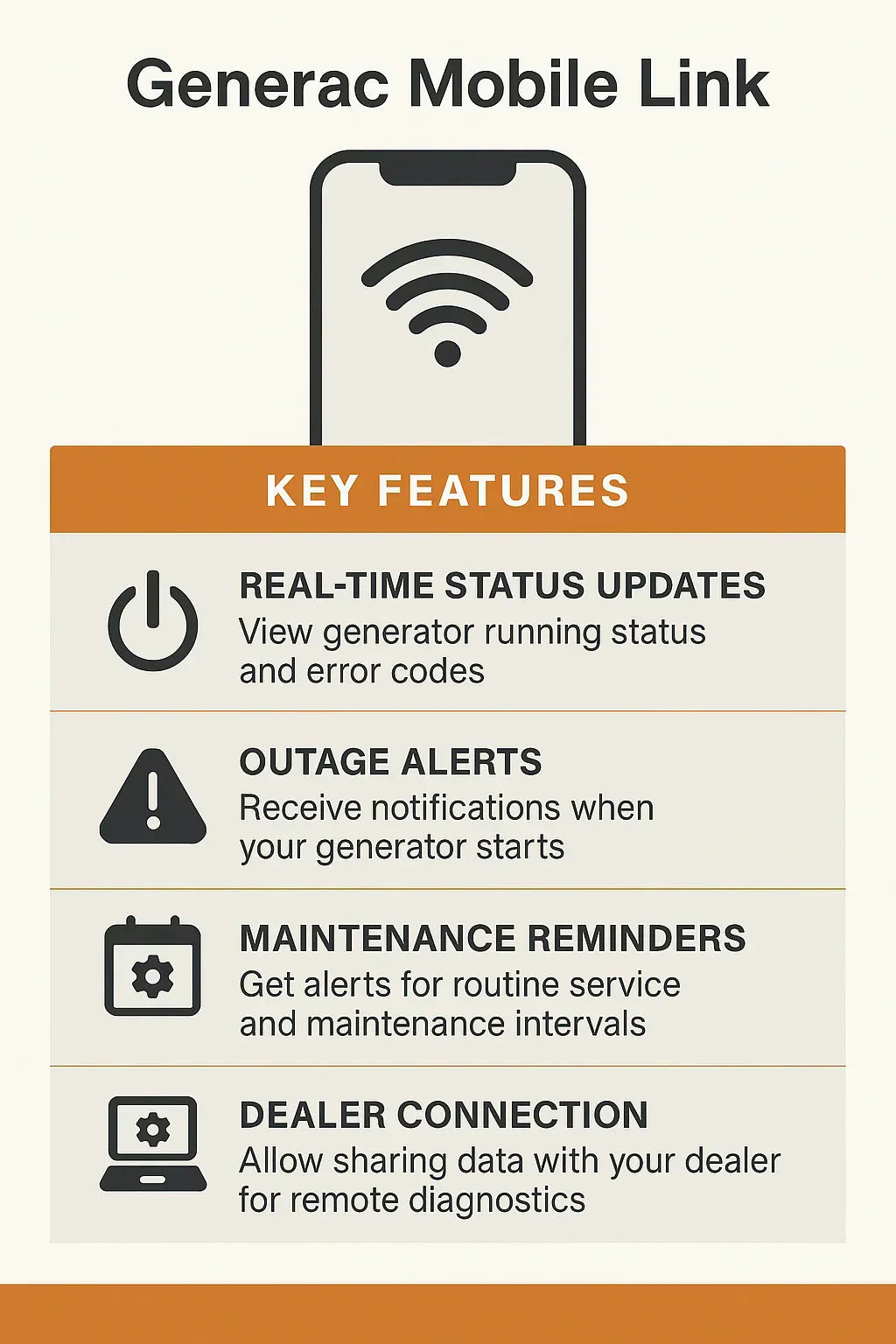
| Generac Mobile Link | Very stable (cellular option) | Easy | App bugs, device pairing |
| Briggs & Stratton InfoHub | Stable (Wi-Fi only) | Moderate | Wi-Fi dropouts |
One non-obvious insight: cellular options are often more stable, but cost extra. If your location struggles with Wi-Fi, consider a generator platform with cellular connectivity.
Real-world Examples: Kohler Oncue Connection Problems
Let’s look at a few real cases:
- A school in Ohio lost Oncue alerts during a storm. Cause: Router rebooted and failed to reconnect. Solution: Set router to auto-reconnect, add backup power.
- A small business in Florida faced frequent disconnects. Cause: Wi-Fi interference from metal shelving. Solution: Switched to Ethernet cable.
- A homeowner in Texas received “server unreachable” errors. Cause: ISP changed DNS settings overnight. Solution: Manually set DNS to Google.
These stories show that connection problems can come from many sources—not just the generator.
Advanced Troubleshooting: Hidden Causes
Some problems are less obvious. Here are two issues beginners often miss:
- IP Address Conflicts: If two devices on your network share an IP address, Oncue may disconnect. Assign a fixed IP to the generator controller.
- ISP Restrictions: Some internet providers block certain ports or devices. If Oncue connects at home but not at work, check with your ISP.
Another hidden issue: power surges can reset network adapters. If your generator sits outside, use a surge protector for the adapter and router.
How To Prevent Kohler Oncue Connection Problems
Prevention is always better than cure. Here are practical steps to reduce future problems:
- Schedule regular firmware updates: Both the generator and router.
- Use surge protection: For all network equipment.
- Assign static IP addresses: Avoid conflicts and easier troubleshooting.
- Label cables and ports: Makes diagnosis faster.
- Document network settings: Keep a written record for easy recovery.
Here’s a quick checklist for prevention:
- Update generator firmware every 6 months.
- Update router firmware every 6 months.
- Use surge protectors for network hardware.
- Set static IP for generator controller.
- Write down and store all network settings.
Kohler Oncue Connection Statistics
According to Kohler’s own support data (2023):
- 65% of Oncue connection issues are due to local network errors
- 20% are caused by server outages
- 10% result from wrong credentials
- 5% are due to hardware failures (adapters, cables)
This means most problems can be solved without replacing generator parts.
When To Call Kohler Support
If you have tried all basic troubleshooting steps and Oncue still fails, it’s time to call support. Kohler’s technical team can:
- Check server-side issues
- Guide you through advanced setup
- Help with warranty replacements
Keep these details handy when you call:
- Generator model and serial number
- Oncue device ID
- Error messages and codes
- Network setup details
You can find official Kohler support at Kohler Power Support.
Essential Kohler Oncue Connection Tips
- Always use high-quality Ethernet cables for wired connections.
- Double-check your Wi-Fi password—many issues are simple typos.
- Schedule generator tests to confirm Oncue alerts are working.
- If your router supports Quality of Service (QoS), prioritize generator traffic.
- Avoid guest networks; they often block device access.
Here’s a quick comparison of Ethernet vs Wi-Fi for Oncue:
| Connection Type | Stability | Setup Complexity | Best Use Case |
|---|---|---|---|
| Ethernet | Very stable | Moderate (requires cable) | Permanent installations |
| Wi-Fi | Variable | Easy (no cable) | Temporary or hard-to-wire locations |
Frequently Asked Questions
Why Does My Kohler Oncue Keep Disconnecting?
Frequent disconnects usually mean weak Wi-Fi signal, router issues, or interference. Try moving your generator closer to the router, use Ethernet, or update router firmware.
What Ports Does Kohler Oncue Need Open On My Firewall?
Oncue requires ports 443 (HTTPS), 80 (HTTP), and sometimes Kohler-specific ports. Make sure your firewall allows outbound traffic for these ports.
Can I Use Cellular Data For Kohler Oncue?
Currently, Kohler Oncue is designed mainly for Wi-Fi or wired Ethernet. Some setups allow cellular routers, but you must check compatibility and data plans.
How Do I Reset My Oncue Password?
Visit the Kohler Oncue login page and use the “Forgot Password” option. You’ll need your device ID and email address linked to your account.
What Happens If Kohler’s Server Is Down?
If the server is unreachable, Oncue cannot send alerts or update data. Wait for Kohler to restore service, and check their support page for outage updates.
Solving Kohler Oncue connection problems is often a matter of careful diagnosis and small adjustments. With the right steps, you can restore reliable monitoring and peace of mind—whether you are protecting your home, business, or critical facility. Remember, most issues are local network errors, not hardware failures.
Keep your firmware updated, document your settings, and use quality cables. If you ever feel stuck, Kohler support is ready to help. With these solutions, you can make Oncue work for you and avoid surprises when the power goes out.