
If you own a MyQ camera, you probably enjoy the convenience and security it brings. You can check your garage door status, see live video, and get alerts all from your smartphone. But what happens when your MyQ camera suddenly stops working? Maybe the live video doesn’t load, the app won’t connect, or you see error messages you don’t understand. These problems can be frustrating, especially when you need to monitor your home’s safety.
This guide is here to help you solve the most common MyQ camera issues. Whether your camera won’t turn on, keeps disconnecting, or has blurry video, you’ll find clear explanations and practical solutions. You’ll also learn what to do if basic troubleshooting doesn’t work, plus when it’s time to contact support or consider a replacement.
Let’s get your MyQ camera back in action quickly and confidently.
Understanding Myq Camera Basics
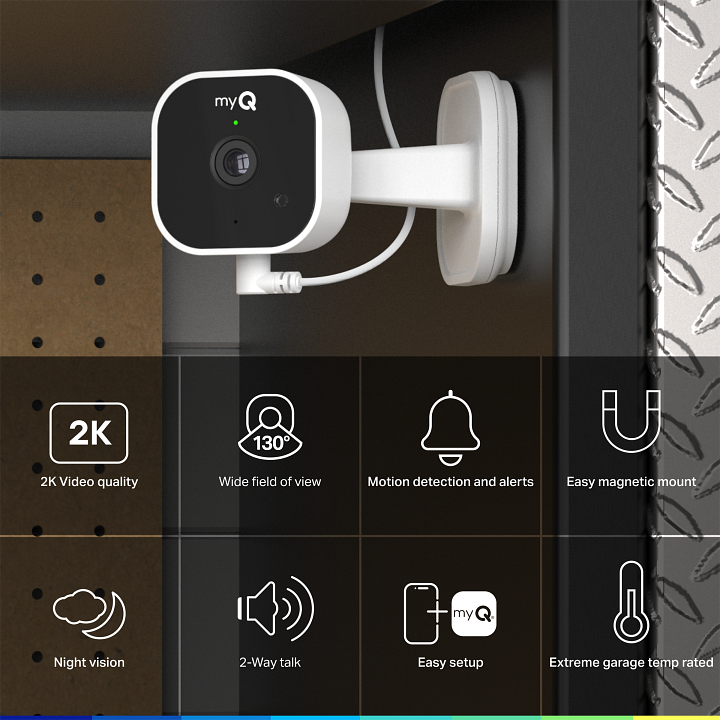
Before you start troubleshooting, it helps to know how your MyQ camera works. The MyQ camera is usually part of a smart garage system. It connects to your home Wi-Fi and lets you see and hear what’s happening in your garage using the MyQ app. Some models even include two-way audio and night vision.
Most MyQ cameras need:
- A stable Wi-Fi connection (2.4GHz, not 5GHz)
- The latest MyQ app on your smartphone or tablet
- A working power source (often a USB or wall adapter)
- Registration with a MyQ account
Many camera issues are caused by simple things—like weak Wi-Fi or outdated apps. By understanding these basics, you can fix problems faster and avoid common mistakes.
Why Myq Cameras Stop Working
When a MyQ camera isn’t working, the cause usually fits one of these categories:
- Power Issues: The camera isn’t getting power or keeps restarting.
- Wi-Fi Problems: The camera can’t connect to your home network or keeps dropping the connection.
- App Issues: The MyQ app is outdated, crashing, or not showing live video.
- Camera Hardware Faults: Physical damage, overheating, or hardware failure.
- Software/Firmware Bugs: The camera or app needs an update, or there’s a glitch.
- Account or Setup Errors: Problems with your MyQ account, permissions, or initial setup.
Understanding which type of problem you have is the first step to fixing it.
Quick Checklist: Is It Really Not Working?
Before deep troubleshooting, double-check these basics:
- Is the camera’s power light on?
- Does the camera show up in your MyQ app?
- Are you connected to the internet on your phone?
- Is your Wi-Fi working for other devices?
Many times, just restarting your camera or Wi-Fi router solves the issue. If the answer to any of the above is “no,” start there.
Common Power And Connection Problems
Let’s look at the most frequent issues and how to fix them.
Camera Won’t Power On
If your MyQ camera seems completely dead (no lights, no sound), try these steps:
- Check the power cable and adapter. Make sure they’re plugged in securely. Try a different outlet or USB charger.
- Look for visible damage. Frayed wires, bent pins, or burn marks can prevent power.
- Try a reset. Most MyQ cameras have a reset button—hold it for 10 seconds, then release.
- Test with another device. Plug a phone charger into the same outlet to confirm it works.
Non-obvious tip: Many users overlook USB power adapters. Some cheap or old adapters can’t deliver enough power (MyQ cameras need at least 1A output). Always use the one that came with your camera, or a high-quality replacement.
Camera Won’t Connect To Wi-fi
If you see errors like “Can’t connect to network” or your camera keeps dropping offline:
- Confirm your Wi-Fi is 2.4GHz. MyQ cameras don’t support 5GHz networks.
- Move the camera closer to your router. Thick walls or metal garages can block signals.
- Restart your Wi-Fi router. Unplug for 30 seconds and plug back in.
- Check your Wi-Fi password. Re-enter it in the MyQ app.
- Limit network traffic. Too many devices streaming or downloading can slow your network.
Example: If your phone works fine on Wi-Fi but your camera doesn’t, it may be a range issue. Try moving both closer to the router and reconnect.
Non-obvious insight: Some routers have “Guest” or “AP isolation” modes that block devices from communicating. Make sure your camera isn’t connected to a guest network.
Myq App Won’t Show Live Video
You open the MyQ app, but the camera feed is blank or stuck loading. Here’s what to try:
- Update the MyQ app to the latest version from the App Store or Google Play.
- Force close and reopen the app.
- Restart your phone or tablet.
- Try using mobile data instead of Wi-Fi (or vice versa) to see if it’s a network issue.
- Check app permissions. The MyQ app needs access to your phone’s storage and network.
If the video works on one device but not another, it’s probably an app or device issue—not the camera itself.
Camera Frequently Disconnects
Frequent disconnects are often caused by weak Wi-Fi or interference. Possible fixes:
- Change your router’s Wi-Fi channel. Other networks nearby can cause problems.
- Reduce the distance between your camera and router.
- Remove physical obstacles (metal shelves, thick doors).
- Upgrade your router if it’s old or overloaded.
Troubleshooting Table: Common Issues And Solutions
Here’s a quick reference for common MyQ camera problems and what usually solves them.
| Problem | Likely Cause | Solution |
|---|---|---|
| No power/light | Faulty cable, adapter, or outlet | Check/replace cable and adapter; try another outlet |
| Can’t connect to Wi-Fi | Wrong network, weak signal, wrong password | Ensure 2.4GHz Wi-Fi; move closer; re-enter password |
| App won’t show video | Outdated app, phone network issue | Update app; restart phone; check permissions |
| Frequent disconnects | Wi-Fi interference, range issues | Change channel; move camera/router; upgrade router |
| Blurry or dark video | Dirty lens, low light, settings | Clean lens; check night vision; adjust position |
Advanced Troubleshooting Steps
If the basic fixes don’t work, try these deeper troubleshooting steps.
Resetting Your Myq Camera
A full reset can clear software glitches and reconnect your camera.
- Locate the reset button (usually a small hole on the back or bottom).
- Use a paperclip to press and hold for 10 seconds.
- Wait for the camera to restart (indicator lights usually blink).
- Set up the camera again in the MyQ app, following the prompts.
Resetting erases Wi-Fi and app settings, so you’ll need to reconnect the camera as if it’s new.
Firmware Updates
Sometimes, outdated firmware causes connection or video problems.
- Open the MyQ app and check for firmware update notifications.
- Follow the on-screen steps to update your camera.
- Don’t unplug the camera during the update—this can cause permanent damage.
Insider tip: Not all firmware updates happen automatically. If you haven’t checked in a while, a manual update can solve strange bugs.
Checking Internet Speed
Slow or unstable internet affects live video more than you might think.
- Test your upload speed (not just download speed) using a service like Speedtest.net.
- MyQ recommends at least 2 Mbps upload for smooth video.
If your speed is much lower, try pausing other downloads or upgrading your internet plan.
Inspecting For Physical Damage
Sometimes, the problem is hardware-related:
- Look for cracks, dents, or water damage on the camera body.
- Check the lens for dirt, fog, or scratches.
- Feel for overheating—if the camera is hot to the touch, unplug it and let it cool.
Physical damage often means you’ll need repair or replacement.

Myq App And Account Problems
Sometimes the issue isn’t the camera itself, but the app or your MyQ account.
Logging Out And In
- Open the MyQ app.
- Go to account settings.
- Log out and log back in.
- This refreshes your session and can clear minor glitches.
Clearing App Cache (android)
- Go to your device’s Settings > Apps > MyQ.
- Tap Storage > Clear Cache.
- Restart the app.
Reinstalling The App
- Delete the MyQ app from your phone.
- Restart your device.
- Download and reinstall the latest version.
Account Permission Issues
Make sure your MyQ account has the right permissions, especially if you share devices with family members. Only the main account holder can control certain settings.
Video Quality And Audio Problems
A camera that connects but has poor video or audio is still frustrating. Here’s how to improve it.
Blurry Or Pixelated Video
- Clean the lens with a soft, dry cloth.
- Improve lighting in your garage or entryway.
- Check video settings in the MyQ app—choose “HD” if available.
- Reduce network congestion by pausing large downloads.
Night Vision Not Working
- Make sure night vision is enabled in the app settings.
- Avoid pointing the camera at glass—reflections can confuse the sensor.
- Check for obstructions near the camera (cobwebs, dust).
Two-way Audio Issues
- Test your phone’s microphone with another app.
- Make sure app permissions allow microphone access.
- Speak clearly and avoid loud background noise near the camera.
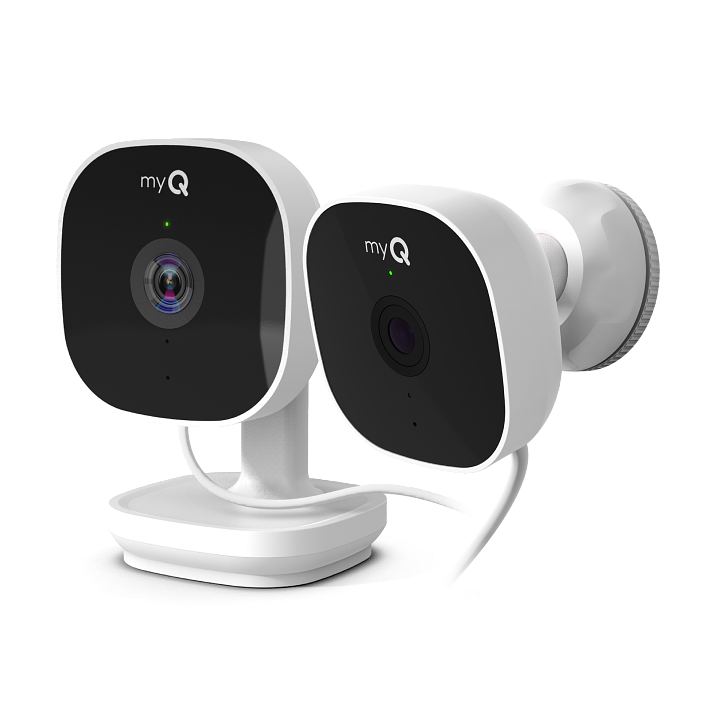
Table: Comparison Of Myq Camera Models And Features
Choosing the right MyQ camera can also affect performance. Here’s a comparison of common models.
| Model | Resolution | Night Vision | Two-Way Audio | Wi-Fi Band |
|---|---|---|---|---|
| MyQ Smart Garage Camera | 1080p | Yes | Yes | 2.4GHz |
| Chamberlain Secure View | 1080p | Yes | No | 2.4GHz |
| LiftMaster Smart Camera | 720p | No | Yes | 2.4GHz |
Insight: If you have an older model (like 720p), video may look less sharp, especially in low light. Newer models with HD and night vision perform better—but they also need stronger Wi-Fi.
Security And Privacy Considerations
Smart cameras offer peace of mind, but they also raise privacy concerns. Here’s what you should know:
- Change default passwords if your camera has one.
- Enable two-factor authentication on your MyQ account.
- Check device sharing settings—only let trusted users access your camera.
- Update firmware regularly to patch security holes.
Practical tip: Set up motion alerts only for times you need them, to avoid notification overload.
When To Contact Myq Support
If you’ve tried all the steps above and your camera still isn’t working, it’s time to get help.
- Contact MyQ support through the MyQ app or their official website.
- Have your camera’s serial number, model, and purchase date ready.
- Describe the problem and steps you’ve already tried.
Support can walk you through advanced diagnostics or offer repair/replacement if your camera is under warranty.
Preventing Future Problems
Once your MyQ camera is working again, keep it running smoothly with these habits:
- Check for app and firmware updates monthly.
- Clean the lens and body every few months.
- Restart your Wi-Fi router if you notice slowness.
- Test video and audio once a month to catch problems early.
- Secure your account with strong passwords and two-factor authentication.
Expert tip: If you move or change your Wi-Fi password, always update your camera settings right away to avoid unexpected disconnections.
Table: Myq Camera Error Codes And What They Mean
Understanding MyQ camera error codes can save you time. Here are some common ones:
| Error Code | Meaning | What to Do |
|---|---|---|
| 201 | Wi-Fi not found | Check router, move camera closer |
| 202 | Wrong Wi-Fi password | Re-enter password in app |
| 203 | Camera not registered | Re-add camera in MyQ app |
| 301 | Firmware update failed | Retry update, check internet |
| 401 | Account permission error | Log out and back in; check main account |
Myq Camera Alternatives
If you continue to have problems, or your camera is outdated, you might consider alternatives. Other smart camera brands can work with your garage or home. Some popular options:
- Ring Stick Up Cam: Works inside or outside, with strong app support.
- Nest Cam Indoor: High video quality, but needs a Google account.
- Arlo Essential Indoor: Good privacy controls, but more expensive.
Before switching, check compatibility with your smart home system and MyQ app.
Real-world Examples
Let’s look at a few real-life scenarios and how users solved them.
Case 1: Wi-Fi Drops in the Garage
A user’s MyQ camera worked fine in the living room but kept dropping in the garage. The problem? The garage was at the edge of the Wi-Fi range. Solution: The user installed a Wi-Fi extender near the garage, and the camera stayed online.
Case 2: App Shows “Camera Offline”
The MyQ app kept showing “Camera Offline,” even after a restart. The fix was updating the app and then logging out and back in. The camera reappeared without needing a full reset.
Case 3: Blurry Night Vision
Another user noticed blurry images at night. Cleaning the lens helped, but the real problem was a bright light near the camera. Turning off the light fixed the night vision focus.
How To Set Up A Myq Camera After Reset
If you reset your camera or buy a new one, follow these steps for setup:
- Plug in your camera near your Wi-Fi router for the first setup.
- Download the MyQ app and log in or create an account.
- Select “Add Device” and choose your camera model.
- Follow the on-screen instructions to connect to Wi-Fi and name your camera.
- Test the video feed before moving the camera to its final spot.
Setting up close to the router helps avoid connection errors during the process.
When To Replace Your Myq Camera
While many problems can be fixed, sometimes replacement is best. Consider replacing your camera if:
- It’s several years old and out of warranty.
- The video is always blurry, even after cleaning.
- It gets hot or smells like burning plastic.
- It won’t power on after trying new cables and outlets.
Newer cameras have better video, more features, and improved app support.
Resources For Further Help
For more information, visit the official Chamberlain Group Support. They offer live chat, manuals, and troubleshooting guides.
You can also find video tutorials on YouTube or community forums for detailed tips from other users.
Frequently Asked Questions
Why Does My Myq Camera Say “offline” Even Though The Power Light Is On?
This usually means the camera has power but isn’t connected to your Wi-Fi. Check your router, make sure you’re using 2. 4GHz Wi-Fi, and try restarting both the camera and router. If the problem continues, reset the camera and reconnect using the MyQ app.
How Do I Update The Firmware On My Myq Camera?
Open the MyQ app and look for a firmware update notification. Follow the on-screen instructions. It’s important to keep your camera plugged in during the update process. If you don’t see an update option, your camera may already be up to date.
What Does The Blinking Red Light On My Myq Camera Mean?
A blinking red light usually means there’s a connection problem often with Wi-Fi. Move your camera closer to the router, restart your network, and check your Wi-Fi password. If the red light stays on, try a full reset.
Can I Use Myq Cameras With Other Smart Home Systems?
Most MyQ cameras are designed to work with the MyQ app and Chamberlain/LiftMaster garage door openers. Some models can be integrated with other smart home systems using IFTTT or Google Assistant, but not all features may work. Check compatibility before buying new devices.
Is There A Monthly Fee To Use Myq Cameras?
Basic live video and notifications are usually free, but some advanced features (like video recording or cloud storage) may require a subscription. Check the MyQ app or official website for the latest pricing and features.
Keeping your MyQ camera running smoothly doesn’t have to be hard. With the right troubleshooting steps and regular maintenance, you can enjoy peace of mind and full control over your smart garage. If you ever get stuck, don’t hesitate to reach out to official support or explore alternative solutions that fit your needs.