
Setting up WiFi on your LG refrigerator can feel like a high-tech task, but it’s easier than you might think. Many of LG’s latest smart refrigerators come with WiFi features that let you control settings, receive alerts, and even see inside your fridge using your smartphone. If you want to get the most from your appliance, connecting it to your home network is a smart move. This guide will walk you through every step, clear up common confusion, and share expert tips for a smooth setup.
Why Connect Your Lg Refrigerator To Wifi?
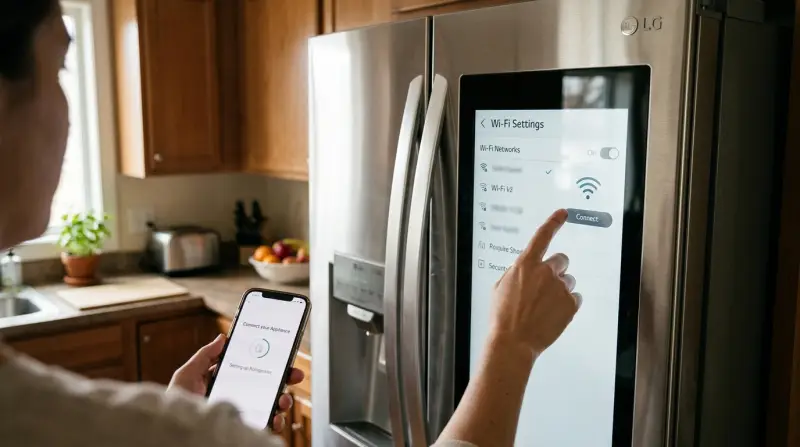
Modern LG refrigerators use WiFi to give you extra control and convenience. When your fridge is online, you can use the LG ThinQ app to:
- Change temperature settings remotely
- Get maintenance alerts (like open door warnings)
- See energy usage statistics
- Run diagnostics to spot problems early
- Update your fridge’s software for new features
These benefits help you save time, energy, and sometimes money. For busy families or tech lovers, WiFi connectivity turns a basic refrigerator into a smart home device.
What You Need Before You Start
Before you begin, check that you have the following:
- A compatible LG refrigerator – Most models made after 2017 support WiFi, but check your user manual.
- A home WiFi network – 2.4GHz WiFi is usually required (not 5GHz).
- A smartphone or tablet – iOS (Apple) or Android, with the latest version of the LG ThinQ app installed.
- A stable internet connection – A weak signal can cause setup problems.
- Your WiFi password – You’ll need to enter this during setup.
Step-by-step Guide: How To Setup Wifi On Lg Refrigerator
Connecting your LG fridge to WiFi only takes a few minutes if you follow these steps carefully.
Prepare Your Devices
- Make sure your smartphone or tablet is connected to your home WiFi.
- Turn on Bluetooth (many LG refrigerators use Bluetooth to help with pairing).
Download And Install The Lg Thinq App
- Search for “LG ThinQ” in the App Store (iOS) or Google Play (Android).
- Download and open the app.
- Create an LG account if you don’t already have one. You’ll need a valid email address.
Register Your Refrigerator In The App
- Tap the “+” or “Add a device” button.
- Select “Refrigerator” from the list of appliances.
- The app may ask for permission to use Bluetooth and location services – allow these for best results.
- Follow the on-screen prompts. The app will search for nearby LG refrigerators.
Put Your Refrigerator In Wifi Pairing Mode
- On the control panel of your fridge, look for the WiFi or Smart Grid button.
- Press and hold this button for 3–5 seconds until you see a WiFi icon blinking on the fridge display.
- Some models use a “Freezer” or “Lock” button instead; check your manual if you’re not sure.
Connect The Refrigerator To Your Wifi Network
- The app will prompt you to select your WiFi network and enter the password.
- Make sure you choose a 2.4GHz WiFi network. Many LG refrigerators won’t connect to 5GHz bands.
- Wait for the app to finish connecting. This can take up to 2 minutes.
- When you see a steady WiFi icon on the fridge’s display, you’re connected.
Complete Setup In The App
- The app will ask you to name your refrigerator (e.g., “Kitchen Fridge”).
- You may be asked to confirm your location and agree to privacy settings.
- Once finished, you’ll see your fridge in the app’s device list.
If the connection fails, try restarting your router and repeating the process. Make sure your phone is close to the refrigerator during setup.
Troubleshooting Common Wifi Setup Problems
Even with good instructions, sometimes things go wrong. Here’s how to solve the most frequent issues:
Wifi Network Not Found
- Check that your router is broadcasting a 2.4GHz signal.
- Move the refrigerator closer to the router if possible.
- Restart your router to refresh the network.
App Can’t Find The Refrigerator
- Make sure Bluetooth and location services are enabled on your phone.
- Ensure the refrigerator is in pairing mode (look for the blinking WiFi icon).
- Restart the ThinQ app and try again.
Incorrect Password Or Connection Fails
- Double-check your WiFi password (case-sensitive).
- Avoid special characters or spaces in your WiFi name or password, as some devices have trouble with these.
Refrigerator Disconnects Frequently
- Check for interference from microwaves or cordless phones.
- Update your router firmware if it’s old.
- Try assigning a fixed IP address to your refrigerator in your router settings.

Table: Lg Refrigerator Wifi Setup Quick Reference
Here’s a summary of key steps and what to expect during each part of the process.
| Step | Action | Typical Time | Common Issues |
|---|---|---|---|
| 1 | Download ThinQ App | 2 minutes | App not compatible |
| 2 | Register Appliance | 3 minutes | Bluetooth off |
| 3 | Enter Pairing Mode | 1 minute | Wrong button used |
| 4 | Enter WiFi Details | 2 minutes | Wrong password |
| 5 | Complete Setup | 2 minutes | App freezes |
Features Unlocked By Wifi On Lg Refrigerators
After setup, your smart refrigerator can do much more. Here are some key features you’ll unlock:
- Remote temperature control – Adjust fridge/freezer settings from anywhere.
- Door open alerts – Get a phone notification if the door is left open.
- Energy monitoring – See real-time power usage and tips to save energy.
- Smart diagnosis – Run tests and send error reports to LG support.
- Software updates – Get the latest features and security patches.
Some high-end models even offer an interior camera so you can check what’s inside your fridge while you’re at the store.
Table: Common Lg Refrigerator Models With Wifi
Not all LG refrigerators support WiFi. Here’s a comparison of popular models:
| Model Name | Year Released | WiFi Support | ThinQ App Features |
|---|---|---|---|
| LFCS28768S | 2021 | Yes | Full |
| LMXS28596S | 2019 | Yes | Full |
| LSXS26366S | 2017 | No | N/A |
| LFXS28968S | 2020 | Yes | Partial |
Always check your specific model number for WiFi compatibility before starting.
Real-world Example: Connecting The Lg Instaview Door-in-door
One of the most popular LG smart fridges is the InstaView Door-in-Door. Here’s a quick look at the setup process using this model:
- Press and hold the “Freezer” button for 3 seconds to activate WiFi pairing.
- Open the ThinQ app, tap the “+” button, and choose “Refrigerator.”
- Select your WiFi network and enter your password.
- Wait for the connection and name your fridge.
Users report that setup usually takes under 10 minutes. If you have trouble, unplug the fridge for 30 seconds and try again—this often solves connection glitches.
Advanced Tips Most Users Miss
Setting up WiFi is only the first step. Here are two advanced insights to get more from your LG refrigerator’s smart features:
- Custom Notifications: In the ThinQ app, you can set which alerts you want to receive—such as when the water filter needs changing or if the temperature rises. Most people overlook these customizations, but they can prevent spoiled food or expensive repairs.
- Smart Home Integration: If you use Amazon Alexa or Google Assistant, link your ThinQ account for voice controls. For example, you can ask, “Alexa, what’s the temperature in my fridge?” This feature isn’t enabled by default, but it’s easy to add from the app’s settings.
Table: 2.4ghz Vs 5ghz Wifi For Lg Refrigerators
Choosing the right WiFi band is important for a successful connection. Here’s a comparison:
| WiFi Band | Speed | Range | LG Compatibility |
|---|---|---|---|
| 2.4GHz | Lower | Wider | Yes |
| 5GHz | Higher | Shorter | No (most models) |
Most LG refrigerators will only connect to 2.4GHz networks. If your router has “smart connect” or combines both bands, split them into separate network names for easier setup.
Keeping Your Refrigerator’s Wifi Secure
With any smart device, privacy and security matter. Here are simple ways to keep your fridge—and your home network—safe:
- Use a strong WiFi password (avoid “12345678” or simple words).
- Update your fridge’s software when prompted by the ThinQ app.
- Only share app access with trusted family members.
- Keep your router’s firmware up to date.
For more on smart device security, see this resource from Consumer Reports.
When To Contact Lg Support
If you’ve tried everything and your refrigerator still won’t connect, it’s time to get help. LG’s customer support can walk you through advanced fixes, and may be able to send a technician if there’s a hardware issue. Have your model number, serial number, and WiFi details ready when you call.
Frequently Asked Questions
How Do I Know If My Lg Refrigerator Supports Wifi?
Check for a WiFi logo on the control panel or look up your model number in the user manual. Most LG fridges made after 2017 with “ThinQ” branding support WiFi.
Can I Connect My Lg Refrigerator To A 5ghz Wifi Network?
No, most LG refrigerators only support 2.4GHz WiFi. You may need to log into your router and create a separate 2.4GHz network.
What Can I Do If The Refrigerator Won’t Connect To Wifi?
Restart your router and fridge, double-check your WiFi password, and make sure you’re using the ThinQ app. If issues continue, move the router closer or contact LG support.
Is The Thinq App Free To Use?
Yes, the LG ThinQ app is free for both iOS and Android. However, some advanced smart home integrations may require a separate subscription.
Will My Refrigerator Work If Wifi Is Not Set Up?
Absolutely. The fridge will keep food cold and work as normal without WiFi. WiFi features are optional but add convenience and extra control.
Connecting your LG refrigerator to WiFi is a simple way to unlock more features and make your kitchen smarter. With the right setup, you’ll have peace of mind, more control, and a modern appliance that fits into your connected home.
If you follow these steps and use the tips above, you’ll be online and enjoying all the smart benefits in no time.