
When your Blink camera refuses to connect to the Sync Module, it’s more than just a small hassle. It means you lose access to live footage, motion alerts, and even basic security features. For homeowners and renters who rely on these cameras for peace of mind, this can feel like a critical failure. The good news? Most connection issues have clear causes and solutions. Let’s dive into why your Blink camera might not connect to the Sync Module, practical troubleshooting steps, and how to get your security system running smoothly again.
Understanding How Blink Cameras Connect
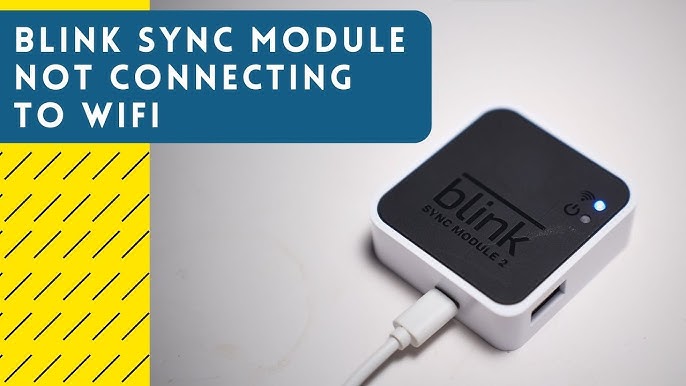
Blink systems use a Sync Module as a central hub. This module connects to your Wi-Fi and acts as the bridge between your cameras and the Blink app on your phone. When cameras can’t connect, you lose live view, notifications, and cloud storage. Knowing this basic flow helps you spot where things go wrong.
Common connection steps:
- The Sync Module connects to your home Wi-Fi.
- Each camera pairs wirelessly with the Sync Module.
- The Blink app communicates through the cloud, using your Sync Module as the anchor.
If any part of this chain fails—especially the link between camera and Sync Module—you’ll see errors like “Camera Offline” or “Unable to Connect. ”
Why Blink Cameras Fail To Connect
Several factors can interrupt the connection between your Blink camera and Sync Module. Here are the most frequent causes:
- Weak Wi-Fi signal at the Sync Module or camera location
- Sync Module too far from the camera (or blocked by walls)
- Low camera battery
- Outdated firmware on the camera or Sync Module
- Network changes (e.g., new router, password update)
- Interference from other devices (microwaves, cordless phones)
- Account issues or app bugs
Knowing these root causes helps you troubleshoot with purpose, not just guesswork.

Quick Troubleshooting Checklist
Before diving deep, check these basics:
- Is the Sync Module plugged in and showing a solid green light?
- Are the camera batteries fresh and installed correctly?
- Is your Wi-Fi working for other devices nearby?
- Did you recently move the camera or Sync Module?
Fixing these simple issues solves over half of all connection problems.
Step-by-step Solutions To Reconnect Your Blink Camera
Let’s look at proven ways to fix a Blink camera that will not connect to the Sync Module.
Check Sync Module Status
The Sync Module uses lights to show its state:
| Light Color | Status | What It Means |
|---|---|---|
| Solid Green | Ready | Connected to Wi-Fi and working |
| Blinking Blue/Green | Connecting | Trying to connect to Wi-Fi |
| Solid Red | Error | Not connected or major fault |
If you see a red light, unplug the Sync Module, wait 30 seconds, and plug it back in. Sometimes, a simple reboot fixes the problem.
Move Devices Closer
Distance matters for wireless signals. Try placing the camera and Sync Module within 10-20 feet of each other, at least during setup. Avoid thick walls or metal barriers between them. Even a microwave running nearby can block signals.
If you set up far from the router, try moving the Sync Module closer—even temporary moves can make setup possible.
Replace Camera Batteries
Blink cameras run on AA lithium batteries, not regular alkaline ones. Low or old batteries can prevent cameras from connecting—even if the LED still blinks.
Install fresh, high-quality lithium AA batteries. Avoid rechargeable batteries unless Blink specifically supports them for your model.
Reset The Sync Module
If the camera still won’t connect, a Sync Module reset often helps:
- Find the small reset button on the Sync Module (next to the USB port).
- Press and hold for 5 seconds with a paperclip.
- Wait for the lights to blink red and then green.
- Re-add the Sync Module in the Blink app and reconnect your cameras.
Resetting removes all camera associations, so you’ll need to re-add each camera.
Check And Update Wi-fi
Network issues are a top reason for connection failure. Make sure your Wi-Fi:
- Is 2.4 GHz (Blink does not support 5 GHz networks)
- Has a strong signal where the Sync Module sits
- Allows new devices (some routers block new devices by default)
If you recently changed your Wi-Fi password, update it in the Blink app. Reboot your router if unsure.
Update Firmware
Old firmware can break connections or cause bugs. Open the Blink app and check for any updates for both your cameras and Sync Module. Updates usually install automatically, but sometimes a manual check is needed.
Remove And Re-add The Camera
Sometimes, the link between camera and Sync Module gets corrupted. Remove the camera from your Blink system in the app, then re-add it as a new device. Follow on-screen instructions carefully.
Minimize Interference
Other wireless devices (like baby monitors, cordless phones) can interfere with the Blink signal. Try turning these off during setup or move them further away from your camera and Sync Module.
Check For Account Or App Issues
Log out and back into your Blink app. If problems continue, uninstall and reinstall the app. Sometimes, a bug or outdated app version is the culprit.

Comparing Solutions: What Works Best?
Here’s a quick look at the most effective solutions based on user feedback and Blink support data:
| Solution | Success Rate | Time to Fix | Difficulty |
|---|---|---|---|
| Restart Devices | High | 5 min | Easy |
| Replace Batteries | Medium | 10 min | Easy |
| Reset Sync Module | High | 15 min | Medium |
| Update Firmware | Medium | 10 min | Easy |
| Move Devices Closer | High | 10 min | Easy |
Common Mistakes To Avoid
Even experienced users sometimes make these errors:
- Using standard alkaline batteries instead of lithium
- Trying to connect over a 5 GHz Wi-Fi network
- Placing the Sync Module inside a metal cabinet or behind thick walls
- Forgetting to update the Blink app
- Overlooking interference from nearby electronics
Avoid these pitfalls to save time and frustration.
Advanced Tips For Reliable Connection
Most issues are solved with the steps above, but here are extra tips for more reliable performance:
- Assign a static IP to your Sync Module in your router settings. This prevents the module from losing its network address during router restarts.
- Use a dedicated Wi-Fi channel for your Blink system if your router allows it. This reduces interference from other smart devices.
- Label your cables and devices during setup. If you have multiple modules or cameras, this prevents confusion when adding or moving devices.
Non-obvious insight: Some users report better results using a Wi-Fi range extender placed between the router and Sync Module, especially in large homes. However, make sure the extender supports 2.4 GHz and is set up properly.
When To Contact Blink Support
If you’ve tried every solution and your Blink camera still won’t connect, it might be time for expert help. Contact Blink Support if:
- The Sync Module lights never turn green
- Cameras still won’t add after multiple resets
- Your network works for other devices, but not for Blink
- You see hardware damage or water exposure
Keep your device serial numbers and purchase details handy—they speed up the support process.
Real-world Example
Maria, a homeowner in Texas, found her Blink Outdoor camera would not reconnect to the Sync Module after a power outage. She checked Wi-Fi, replaced the batteries, and even moved the Sync Module closer—nothing worked. The fix? A full reset of the Sync Module and re-adding all cameras, which took about 20 minutes.
Maria also realized her router had switched to 5 GHz only after a firmware update. Switching back to a mixed 2. 4/5 GHz network solved future problems.
Key Differences: Blink Camera Vs. Competitors
How does Blink’s connection system compare to others like Arlo or Ring?
| Brand | Connection Method | Battery Life | Setup Difficulty |
|---|---|---|---|
| Blink | Sync Module + Wi-Fi | Up to 2 years | Easy |
| Arlo | Direct Wi-Fi/Base Station | 3-6 months | Medium |
| Ring | Direct Wi-Fi | 6-12 months | Easy |
Blink’s use of the Sync Module means longer battery life, but it can add an extra point of failure compared to direct Wi-Fi systems.
Frequently Asked Questions
Why Does My Blink Camera Say “unable To Connect To Sync Module”?
This message usually means the camera cannot find the Sync Module’s wireless signal. Check if the Sync Module has a green light, ensure both devices are close, and confirm you’re on a 2. 4 GHz Wi-Fi network. Weak signals or dead batteries are common causes.
Can I Use My Blink Camera Without A Sync Module?
Most Blink cameras require a Sync Module to function. The only exception is the Blink Mini, which connects directly to Wi-Fi. Other models need the Sync Module for setup, scheduling, and cloud features.
How Far Can My Blink Camera Be From The Sync Module?
The ideal range is 10-100 feet depending on your home layout and walls. Thick brick or metal walls reduce the range. If you have connection problems, try moving devices closer during setup, then slowly move them farther apart to test the limits.
Will Changing My Wi-fi Password Affect My Blink System?
Yes. If you change your Wi-Fi password or router, your Sync Module and cameras will lose connection. Update your network info in the Blink app and reconnect all devices. Otherwise, they will remain offline.
Where Can I Find Official Help For Persistent Problems?
Visit the Blink Support website for live chat, troubleshooting guides, and firmware updates. They offer step-by-step help for even complex issues.
A working Blink camera system means more than just technology—it brings safety and peace of mind. With the right steps, you can solve most connection problems on your own. If all else fails, Blink’s support team stands ready to help you protect your home.