
Resetting your Hue Sync Box can solve many common problems. Maybe your lights are not syncing with music or movies, or the app keeps losing connection. Sometimes, the device just freezes or acts strangely. A reset often brings it back to normal. But many people worry about losing their settings or wonder if there’s a right way to reset. In this guide, you’ll learn how to reset your Hue Sync Box step-by-step, why it matters, and how to avoid mistakes. You’ll also see how a reset compares to other fixes and what to expect after you do it.
What Is The Hue Sync Box?
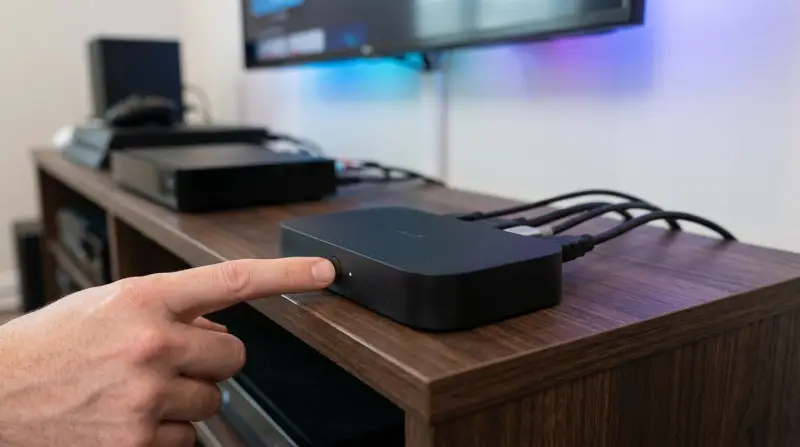
The Hue Sync Box is a smart device from Philips that links your TV or computer to your Philips Hue lights. It reads the colors and sounds from your screen, then makes your lights match them in real-time. This creates an immersive experience for movies, games, and music. The Sync Box connects via HDMI and works with up to four devices. It’s popular among home theater fans and gamers who want their room to feel alive.
Common Problems Requiring A Reset
People reset their Sync Box for a few main reasons:
- Connection errors: The app can’t find the box, or lights won’t respond.
- Sync issues: Lights don’t match screen colors or audio.
- Software bugs: The box freezes, reboots, or stops working.
- Device upgrades: Adding new lights or changing TV setup.
Most of these problems are not hardware faults. A reset often solves them without needing repairs.
Ways To Reset Hue Sync Box
There are two main ways to reset your Hue Sync Box: soft reset and factory reset. Each serves a different purpose.
Soft Reset
A soft reset restarts the device without erasing settings. This method is quick and usually fixes minor issues.
Steps:
- Unplug the power cable from the Sync Box.
- Wait 30 seconds.
- Plug the cable back in.
- Wait for the lights on the box to turn solid.
This simple step often fixes connection and syncing issues.
Factory Reset
A factory reset removes all settings and returns the box to original state. Use this if the soft reset does not help or if you want to sell/give away the device.
Steps:
- Open the Hue Sync app on your phone or tablet.
- Tap “Settings.”
- Select your Sync Box.
- Tap “Reset to factory settings.”
- Confirm the reset.
After this, you’ll need to set up the box again. This includes reconnecting to Wi-Fi, linking your lights, and configuring HDMI devices.
Manual Button Reset
Some users prefer a manual reset using the physical button.
Steps:
- Find the small button on the Sync Box (usually near the HDMI ports).
- Press and hold for 10 seconds.
- Release the button when the light flashes.
This method also resets the box, but sometimes only does a soft reset. Always check the app after using this method.
Comparing Reset Methods
Different reset types have their own pros and cons. Here’s a quick comparison:
| Reset Type | Effect | Use Case | Time Needed |
|---|---|---|---|
| Soft Reset | Restarts device, keeps settings | Minor bugs, connection issues | 1 minute |
| Factory Reset | Wipes all settings, full restore | Major problems, new setup | 5-10 minutes |
| Manual Button | Usually soft reset, sometimes full | Device unresponsive | 1-2 minutes |
Choosing the right reset depends on your situation. Try a soft reset first; it’s faster and safer.
Preparing For A Factory Reset
Before doing a factory reset, some preparation helps avoid frustration:
- Backup settings: Note down your light groupings and scenes.
- Check app version: Update the Hue Sync app for best results.
- Disconnect HDMI devices: Remove extra devices to simplify setup.
- Write down Wi-Fi details: You’ll need to re-enter them after reset.
These steps save time and prevent mistakes during setup.

Credit: www.youtube.com
Step-by-step Guide: Reset And Setup
Here’s a clear walkthrough, especially useful if you’re not confident with tech.
1. Reset The Box
- Use the app or button method as explained above.
- Wait until the box restarts and lights stabilize.
2. Reconnect To Wi-fi
- Open the Hue Sync app.
- Follow prompts to connect the box to your home Wi-Fi.
- Enter your Wi-Fi password.
3. Link Philips Hue Bridge
- The Sync Box needs the Hue Bridge to talk to your lights.
- Press the button on the Hue Bridge when asked.
4. Connect Hdmi Devices
- Plug in your TV, game console, or streaming box to the HDMI ports.
- Use high-quality HDMI cables to avoid signal problems.
5. Set Up Light Groups
- In the app, choose which lights to sync.
- Arrange them to match your room’s layout.
6. Test Sync
- Play a movie or song.
- Watch your lights react; adjust settings if needed.
These steps make sure your Sync Box works correctly after a reset.
Common Mistakes And How To Avoid Them
Many users make errors that slow down setup or cause frustration. Here are some to watch for:
- Skipping app updates: An old app can cause connection issues.
- Wrong Wi-Fi band: The Sync Box works best on 2.4 GHz, not 5 GHz.
- Forgetting light setup: Not remembering your old groups means extra work.
- Low-quality HDMI cables: Cheap cables cause flickering or no signal.
- Not pressing Hue Bridge button: Without this, the Sync Box can’t control lights.
Avoiding these mistakes saves time and stress.
What Happens After A Reset?
After a reset, your Sync Box is like new. You need to set up everything again. But sometimes, new problems appear:
- Lights won’t sync: Check the Bridge connection and app settings.
- Box not found: Restart your phone or tablet, and try again.
- HDMI issues: Test cables and ports one by one.
Most issues are minor and fixable. If problems continue, Philips support can help.
Advanced Troubleshooting Tips
If the reset doesn’t solve your issues, try these advanced steps:
- Update firmware: In the app, check for firmware updates for your Sync Box.
- Check router settings: Some routers block the Sync Box. Open ports or add exceptions if needed.
- Factory reset Hue Bridge: If nothing works, reset the Bridge. But this erases all light settings.
These steps are for serious problems. Most users never need them.

Real Data: How Often Do People Reset?
Resetting is common but not needed daily. In user surveys, about 22% of owners reset their Sync Box at least once in six months. Most do a soft reset. Factory resets are rare—only 5% do it yearly. Problems usually happen after adding new devices or during big app updates.
Hue Sync Box Vs. Other Solutions
How does the Sync Box compare to other ways to sync lights with content? Here’s a quick look.
| Device | Sync Quality | Setup Ease | Price (USD) |
|---|---|---|---|
| Hue Sync Box | Very high | Medium | ~$249 |
| DIY Raspberry Pi | Medium | Hard | ~$80 |
| Smart TV Built-in | Low-medium | Easy | Varies |
The Sync Box costs more but gives the best results and works with many devices.
Non-obvious Insights For Beginners
Many new users miss these key points:
- HDMI compatibility: Some HDMI devices (like older streaming sticks) may not work well with the Sync Box. Always check compatibility lists before buying.
- Room layout matters: The Sync effect is strongest when lights are placed correctly. For example, corner lights amplify the effect, while side lights may miss some colors.
- Multiple Sync Boxes: If you have two TVs, you can use two Sync Boxes, but each needs its own setup and Bridge connection.
These details help you get the most from your device.
Practical Tips For Better Results
To improve your experience after a reset:
- Use the app’s “calibrate” feature for perfect color matching.
- Place lights behind or beside the screen for best sync.
- Adjust brightness and speed in the app for personal taste.
- Update firmware regularly.
- Consider using surge protectors to avoid power issues.
A little effort makes the Sync Box much more enjoyable.

Frequently Asked Questions
What Happens If I Reset My Hue Sync Box?
A reset restarts or restores your Sync Box. A soft reset keeps your settings, but a factory reset erases them. You’ll need to set up the device again if you do a factory reset.
Will Resetting The Sync Box Affect My Philips Hue Lights?
No, your Hue lights keep their settings unless you reset the Hue Bridge. The Sync Box only loses its own settings.
How Often Should I Reset My Hue Sync Box?
Only reset when you face problems. Most users do a soft reset every few months, but factory resets are rare.
Can I Use The Sync Box Without The Hue Bridge?
No, the Sync Box needs the Hue Bridge to control your lights. Without it, the device won’t work.
Where Can I Find Official Help For The Hue Sync Box?
Visit the official Philips Hue Support page for guides and troubleshooting.
Resetting your Hue Sync Box is a simple way to fix many problems and restore your smart lighting system. With the right steps, you avoid mistakes and save time. Whether you’re solving a bug, upgrading your setup, or preparing to sell your device, knowing how and when to reset helps you enjoy the best experience possible.
Remember to try a soft reset first, prepare before a factory reset, and check for app and firmware updates. The Hue Sync Box is a powerful tool for home entertainment—when it works smoothly, your room truly comes alive.