
If you use Gmail to manage your Hotmail account, you probably expect your emails to always be up-to-date. But sometimes, Gmail stops syncing your Hotmail messages. New emails don’t show up, old messages are missing, and important communication can be delayed. This problem is frustrating, especially if you rely on one inbox for all your accounts.
Understanding why Gmail and Hotmail sometimes fail to sync—and how to fix it—can save you hours of stress. This guide will help you solve Gmail not syncing Hotmail step by step. You’ll learn why syncing breaks, how to fix common issues, and discover expert tips most users miss. If you want your emails to work smoothly, keep reading.
Why Gmail And Hotmail Syncing Matters
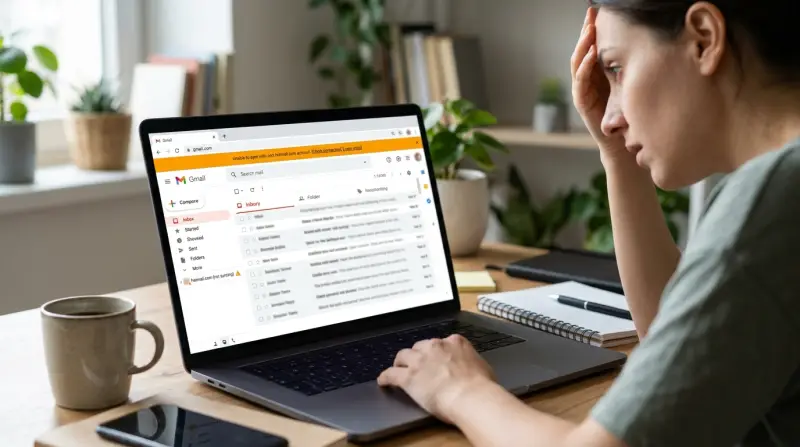
Many people use Gmail’s “Check mail from other accounts” feature to access Hotmail emails in one inbox. This setup is convenient:
- You avoid switching between apps.
- All your messages are searchable in one place.
- Labels and filters help organize emails faster.
However, Gmail connects to Hotmail using a process called POP3 (Post Office Protocol 3). It checks Hotmail for new messages at intervals and copies them to your Gmail inbox. If syncing fails, you might not see important emails until much later—or never at all.
Common Reasons Gmail Fails To Sync Hotmail
Gmail and Hotmail are both complex email platforms. Syncing can break for several reasons:
- Incorrect login details: If your Hotmail password changes or two-step verification is on, Gmail can’t connect.
- POP access disabled: Hotmail’s POP3 service must be enabled, or Gmail can’t fetch emails.
- Server issues: Sometimes Hotmail’s servers are down or overloaded.
- Gmail settings errors: A typo in the server name or port number can block syncing.
- Security blocks: Hotmail may block access if it detects unusual activity or considers Gmail a risky app.
- Account limits: Gmail only checks POP accounts every 60 minutes or so, not instantly.
- Storage full: If your Gmail or Hotmail inbox is full, syncing can stop.
These issues can happen alone or together. Diagnosing the correct cause saves a lot of trial and error.
How To Check If Gmail Is Syncing Your Hotmail
Before fixing, confirm if syncing is really broken. Here’s how:
- Send a test email to your Hotmail address from another account.
- Wait 10–15 minutes (since Gmail checks POP accounts about every hour).
- Refresh your Gmail inbox. If the email does not appear, syncing may be broken.
- Go to Gmail Settings > Accounts and Import > Check mail from other accounts. If you see error messages like “Authentication failed” or “Server not responding,” Gmail can’t connect.
Sometimes, Gmail simply syncs slowly, not fails completely. But if you see errors or missing emails, something is wrong.
Step-by-step Fixes For Gmail Not Syncing Hotmail
Let’s walk through solutions, from simple to advanced.
1. Check Your Login Credentials
Gmail needs the right Hotmail email address and password to sync. If you changed your Hotmail password, update it in Gmail.
- In Gmail, go to Settings > Accounts and Import.
- Find your Hotmail account under “Check mail from other accounts.”
- Click “Edit info.”
- Enter the new password and save.
If you use two-step verification with Hotmail, you might need an app password instead of your normal password. You can generate this in your Microsoft account security settings.
2. Enable Pop In Hotmail
Gmail only fetches emails if POP is enabled in Hotmail. Here’s how to check:
- Sign in to your Hotmail (now Outlook.com) account.
- Click the gear icon > View all Outlook settings.
- Go to Mail > Sync email.
- Under “POP and IMAP,” make sure Let devices and apps use POP is turned on.
If you skip this, Gmail cannot collect new messages.
3. Correct Gmail Pop Settings
When you add a Hotmail account to Gmail, you must enter the correct POP server details. Here are the official settings:
| Setting | Value |
|---|---|
| Username | Your Hotmail email address |
| Password | Your Hotmail password or app password |
| POP Server | pop-mail.outlook.com |
| Port | 995 |
| Requires SSL | Yes |
A common mistake is using the wrong server name or port. Double-check every field.
4. Review Security Settings
Microsoft may block Gmail if it thinks it’s a risky sign-in. To fix:
- Go to your Microsoft account’s Security page.
- Check for any “Unusual activity” alerts.
- Approve Gmail as a trusted app if asked.
- If you have two-step verification, generate and use an app password.
Also, Gmail will sometimes block external accounts if it thinks your account is at risk. Check for warnings in Gmail under Security.
5. Free Up Storage
If your Gmail or Hotmail inbox is almost full, new messages might stop syncing. Google gives 15 GB free, shared with Drive and Photos. Microsoft gives 15 GB for free Hotmail/Outlook accounts.
- Delete old emails with big attachments.
- Empty spam and trash folders.
- Check storage in Gmail (bottom left) and Hotmail (Settings > Storage).
6. Manual Sync And Troubleshooting
Gmail only checks Hotmail every hour (or longer if you have multiple POP accounts). To force Gmail to sync:
- Go to Gmail Settings > Accounts and Import.
- Click “Check mail now” next to your Hotmail account.
If this does not work, remove and re-add the Hotmail account in Gmail. Sometimes, a fresh connection clears hidden errors.
7. Advanced: Use Imap Instead Of Pop3
POP3 only downloads new emails. If you delete or move messages in Gmail, changes don’t reflect in Hotmail. For two-way syncing (reading, moving, deleting), IMAP is better. But Gmail’s “Check mail from other accounts” only supports POP.
Instead, you can set up your Hotmail account as a Send mail as account in Gmail. Or, use an email app like Outlook or Thunderbird, which supports IMAP for both Gmail and Hotmail.
Here’s a quick comparison of POP3 vs IMAP:
| Feature | POP3 | IMAP |
|---|---|---|
| Download only new emails | Yes | No (syncs all emails) |
| Two-way sync | No | Yes |
| Works in Gmail “Check mail” | Yes | No |
| Best for multiple devices | No | Yes |
If you use multiple devices or want changes to sync everywhere, consider switching to an email app with IMAP support.

Non-obvious Insights Most Users Miss
- Gmail’s POP checking is not instant: Many users expect new Hotmail emails to appear in Gmail right away. In reality, Gmail checks external POP accounts about once per hour. If you need instant delivery, you’ll need to use forwarding in Hotmail (Settings > Forwarding) to send all mail to your Gmail address directly.
- Only Inbox syncs by default: Gmail’s POP fetch only grabs emails from your Hotmail Inbox. If you use folders or rules in Hotmail to sort emails, those messages won’t sync unless you move them back to the Inbox.
- Some emails may be lost or duplicated: If you delete your Hotmail account from Gmail and re-add it, Gmail might re-download old emails, creating duplicates.
- Third-party app passwords are essential: With two-step verification on Hotmail, you can’t use your main password for POP access. This is a common reason syncing fails after a password change.
- Gmail spam filters can hide Hotmail emails: Sometimes, emails synced from Hotmail land in Gmail’s Spam folder. Always check there if a message is missing.
When To Contact Support
If you’ve tried all the steps above but Gmail still won’t sync Hotmail, the problem might be on Microsoft’s or Google’s side. Both companies have support pages and forums where you can check for outages or known issues. For official help, visit Gmail Help Center.

Credit: 9to5google.com
Alternatives To Gmail’s Pop Sync
If all else fails, consider these alternatives:
- Forward Hotmail emails directly to Gmail using Hotmail’s forwarding feature.
- Use an email client (like Outlook, Apple Mail, or Thunderbird) that supports both Gmail and Hotmail with IMAP.
- Set up a Gmailify connection (available for some Hotmail/Outlook accounts), which links your Hotmail to Gmail for better syncing and spam protection.
Here’s a quick look at the differences:
| Method | Speed | Setup Difficulty | Two-way Sync |
|---|---|---|---|
| POP in Gmail | Slow | Easy | No |
| Forwarding | Instant | Easy | No |
| Email Client (IMAP) | Instant | Medium | Yes |
| Gmailify | Instant | Medium | Yes |
Keeping Your Gmail And Hotmail In Sync: Pro Tips
- Check your sync every few months. Password changes, security updates, or provider changes can break syncing without warning.
- Clean up your inboxes regularly to avoid storage limits.
- Label Hotmail emails in Gmail so you can quickly filter and check if syncing is working.
- Don’t delete your Hotmail account if you want to keep old emails accessible in Gmail. Once deleted, Gmail can’t fetch them again.
- If you travel or use public Wi-Fi, keep your accounts protected with strong, unique passwords and two-step verification.
Credit: www.gadgetbridge.com
Frequently Asked Questions
Why Is There A Delay When Gmail Syncs My Hotmail Emails?
Gmail checks POP accounts like Hotmail only once an hour (sometimes less if you have several accounts). This means new Hotmail emails can take up to 60 minutes to appear in Gmail. For faster delivery, set up Hotmail forwarding to your Gmail address.
Can I Sync Hotmail Folders With Gmail?
No. Gmail’s POP feature only syncs the Inbox from Hotmail. If you want folder syncing, use an email client that supports IMAP, or try Gmailify if your Hotmail account is eligible.
What Should I Do If I See An “authentication Failed” Error?
Double-check your Hotmail password in Gmail settings. If you use two-step verification, generate an app password in your Microsoft account and use that in Gmail instead of your regular password.
Will Deleting My Hotmail Account From Gmail Remove Old Emails?
No. Emails already fetched from Hotmail stay in Gmail even if you remove the account. But new emails won’t sync until you add the account back and fix any issues.
Is It Safe To Let Gmail Access My Hotmail Account?
Yes, if you use strong passwords and enable two-step verification on both accounts. Only add your Hotmail account to Gmail from a secure device and keep your recovery info updated. For extra safety, review recent activity in your Microsoft account.
Getting Gmail and Hotmail to work together isn’t always simple, but with the right steps, you can solve most syncing problems. If you follow these tips, you’ll keep your emails organized, secure, and always within reach. For more details on email syncing technology, visit the Wikipedia Email page.