
Citrix Workspace is a popular platform for remote work, allowing users to access applications, desktops, and files from anywhere. But sometimes, a simple function like copy and paste stops working. This issue can slow down your productivity and cause frustration—especially if you need to move text, images, or data between your local device and Citrix Workspace. If you face this problem, you’re not alone. Many users, from beginners to IT experts, struggle with copy-paste limitations in Citrix environments.
Understanding why copy-paste fails, and how to fix it, will save you time and prevent unnecessary stress. In this article, you’ll learn the main reasons behind the issue, practical solutions, and tips to avoid common mistakes. We’ll also cover differences between platforms, compare settings, and share real-world examples. By the end, you’ll have a clear roadmap to restore copy-paste functionality and keep your workflow smooth.
Why Does Copy Paste Stop Working In Citrix Workspace?
Copy-paste issues in Citrix Workspace can come from several sources. Most commonly, the problem is related to settings, security policies, or software bugs. Sometimes, it’s about how Citrix handles clipboard redirection between your local device and the remote session. Here are the most frequent causes:
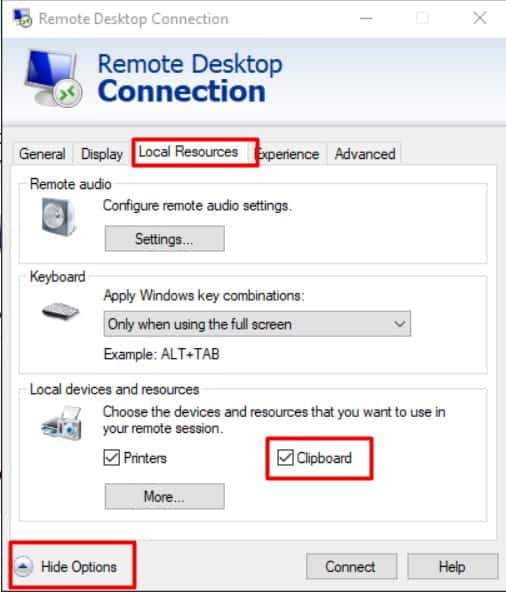
- Clipboard Redirection Disabled: Citrix uses clipboard redirection to allow copy-paste between devices. If this is turned off, copy-paste won’t work.
- Group Policies: IT administrators often set policies to restrict clipboard sharing for security. These rules can block copy-paste.
- Outdated Citrix Receiver/Workspace App: Older versions may have bugs or lack proper clipboard support.
- Session Hangs or Bugs: Sometimes, the Citrix session itself gets stuck, causing clipboard features to break.
- Operating System Conflicts: Windows, macOS, and Linux handle clipboards differently. Incompatibility can cause failures.
- Third-party Software: Antivirus, security tools, or clipboard managers can interfere with Citrix functions.
Knowing which cause affects you is the first step. Often, users overlook policy settings or forget to update their apps—two simple fixes.
How Clipboard Redirection Works In Citrix
Clipboard redirection is the process that enables copy-paste between your local device and the remote Citrix session. Citrix uses a service that passes clipboard data back and forth. If this service fails or is blocked, copy-paste won’t work.
Let’s compare clipboard redirection on different platforms:
| Platform | Clipboard Redirection Support | Typical Issues |
|---|---|---|
| Windows | Full support | Policy restrictions, session hangs |
| macOS | Partial support | App version mismatch, OS updates |
| Linux | Limited support | Clipboard manager conflicts |
Citrix recommends running the latest Workspace app and checking clipboard settings. For Windows, clipboard redirection is usually enabled by default, unless blocked by group policy. On macOS and Linux, you may need to adjust system permissions or install extra components.
Common Mistakes When Troubleshooting
Many users try random fixes without understanding the root cause. Here are mistakes to avoid:
- Restarting only the Citrix session, but not the local device.
- Ignoring group policy settings—these control most clipboard features.
- Updating Citrix Workspace but skipping OS updates.
- Using outdated browser or web client versions.
- Assuming that copy-paste works for all file types (some formats are blocked by default).
- Not checking for third-party security software interference.
To save time, always check settings and policies first. Most problems are solved by fixing these two areas.
Step-by-step Solutions
Restoring copy-paste in Citrix Workspace can be easy if you follow a structured approach. Here are the main steps:
Check Clipboard Redirection Settings
- Open Citrix Workspace app.
- Go to Preferences or Settings.
- Look for Clipboard or Redirection options.
- Make sure Clipboard Redirection is enabled.
For Windows, clipboard settings are often managed by group policy. Ask your IT admin if you don’t see the option.
Update Citrix Workspace App
- Download the latest version from the official Citrix site.
- Install updates for both the Workspace app and the Citrix server (if you manage the server).
- Restart your device after updating.
Older versions often have bugs. Updates fix most clipboard problems.
Review Group Policy Settings
If you work in a corporate environment, IT may block clipboard sharing for security. These policies are set in Windows Group Policy Editor:
- Press Windows + R, type `gpedit.msc`, and hit Enter.
- Navigate to: Computer Configuration > Administrative Templates > Citrix Components > Citrix Workspace > Client Clipboard Redirection.
- Ensure policies are set to Enabled.
If you don’t have access, ask your IT admin to check.
Restart Citrix And Local Device
- Close all Citrix sessions and the Workspace app.
- Restart your local computer.
- Log back into Citrix Workspace.
This resets clipboard services and often restores copy-paste.
Check For Third-party Interference
- Disable antivirus or security tools temporarily.
- Close any clipboard managers or utilities.
- Test copy-paste in Citrix again.
If copy-paste works, re-enable tools one by one to find the culprit.
Try Copy-paste Within Citrix Session
Sometimes, copy-paste works inside the Citrix session but not between your device and Citrix. Test both scenarios:
- Copy text from local device to Citrix app.
- Copy from Citrix app to local device.
- Copy between two Citrix apps.
This helps narrow down the issue.
Use Web Client Vs. Desktop App
Citrix offers both a web-based client and a desktop app. If copy-paste fails in one, try the other:
| Client Type | Copy-Paste Reliability | Best Use Case |
|---|---|---|
| Desktop App | High | Full-featured remote work |
| Web Client | Medium | Quick access, light tasks |
Switching clients can bypass temporary bugs.
Advanced Fixes For Persistent Issues
If basic steps don’t work, try these advanced solutions:
Reset Citrix Profile
Corrupt user profiles can block clipboard features.
- Log out of Citrix Workspace.
- Delete local Citrix profile folders (usually found in `AppData`).
- Log back in and test copy-paste.
Reinstall Citrix Workspace
- Uninstall Citrix Workspace app completely.
- Remove leftover files from `Program Files` and `AppData`.
- Restart your computer.
- Reinstall the latest Workspace app.
This removes hidden bugs and resets settings.
Update Server-side Components
If you’re an admin, update Citrix server software and enable clipboard redirection for all users.
- Check Citrix server version.
- Install latest patches and updates.
- Review security policies for clipboard sharing.
Use Clipboard Synchronization Tools
Some companies use third-party tools to sync clipboards between devices and remote sessions. If your IT team allows, you can install these for extra reliability.
Security Considerations
Citrix blocks copy-paste in many setups to protect sensitive data. This is common in banks, healthcare, and government offices. Clipboard redirection can be used to leak confidential information, so admins often disable it.
A smart balance is to allow copy-paste for safe file types (like text) but block it for risky formats (like images or documents). If you need to copy sensitive data, always follow company policy.
Here’s a quick comparison of common security policies:
| Policy Type | Effect on Copy-Paste | Typical Use Case |
|---|---|---|
| Block All Clipboard | No copy-paste allowed | High-security offices |
| Allow Text Only | Copy-paste text, block files/images | Standard business |
| Full Clipboard Access | All formats allowed | Remote work, creative teams |
Never try to bypass security restrictions without permission. It could lead to disciplinary action.
Real-world Examples And Insights
Many users report copy-paste issues after a software update or policy change. For example, in 2023, a major bank restricted clipboard sharing for all Citrix users. Employees could no longer copy client data between apps, leading to workflow delays. The IT team solved this by allowing text-only clipboard access.
Another common scenario: A freelancer uses Citrix Workspace from a MacBook. After updating macOS, copy-paste fails. The fix was to update Citrix Workspace and re-enable clipboard permissions in system settings.
A non-obvious insight: Some clipboard formats (like rich text or images) require extra Citrix components. If you copy a picture and it fails, try copying plain text instead. Many beginners don’t realize that clipboard type matters.
Another tip: Clipboard history tools (like Windows Clipboard Manager) can block Citrix’s own clipboard service. Always disable these tools when troubleshooting.
Preventing Copy Paste Issues In The Future
To avoid copy-paste problems later, follow these best practices:
- Keep Citrix Workspace app and OS updated.
- Check clipboard settings after every update.
- Use only approved security tools.
- Avoid running multiple clipboard managers.
- Communicate with your IT team about policy changes.
- Test copy-paste regularly, especially after system upgrades.
If you’re an IT admin, educate users about clipboard policies and provide clear guidance.

Where To Get Official Help
If you can’t solve the issue, visit the official Citrix support site or contact your IT department. Citrix has detailed guides and forums. You can find troubleshooting steps and policy explanations here: Citrix Workspace Documentation.
Frequently Asked Questions
Why Can’t I Copy And Paste Between My Device And Citrix Workspace?
Most likely, clipboard redirection is disabled or blocked by group policy. Check your Citrix Workspace settings and ask your IT admin to review security policies.
Does Copy-paste Work For All File Types In Citrix Workspace?
No. Some formats, like images or documents, may be blocked. Usually, plain text works best. Company policies often restrict certain file types to protect sensitive data.
How Do I Fix Copy-paste Issues After Updating Citrix Workspace?
Restart both the Citrix app and your local device. Check clipboard settings in the app and your OS. If the problem persists, reinstall Citrix Workspace or contact your IT admin.
Can Third-party Software Block Copy-paste In Citrix?
Yes. Antivirus, security tools, and clipboard managers can interfere. Disable these tools temporarily to test copy-paste. If it works, re-enable tools one by one to find the culprit.
Is It Safe To Enable Clipboard Redirection In Citrix?
Enabling clipboard redirection can expose sensitive data. Always follow your company’s policy. Ask your IT team before changing settings, especially in high-security environments.
Fixing copy-paste in Citrix Workspace is often straightforward if you follow the right steps. By understanding the causes, checking settings, and avoiding common mistakes, you’ll keep your workflow efficient and secure. Remember, staying updated and communicating with your IT team is key to preventing future issues.