
Every office or home workspace with a paper shredder knows how important this small machine can be. It keeps your information safe, helps you stay organized, and gives peace of mind. But what happens when your paper shredder stops working, jams, or starts acting strangely? Many people worry the shredder is broken, but often, a simple reset can bring it back to life. Resetting your shredder is easier than you think, but it does require some basic steps and safety tips. If you want to avoid a service call or buying a new machine, learning how to reset a paper shredder is a skill worth having.
Why Paper Shredders Need Resetting
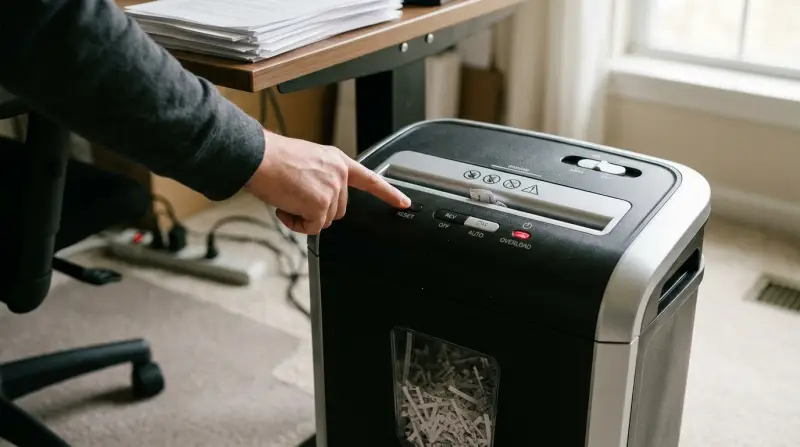
Paper shredders are built with safety and function in mind. When something goes wrong—like a jam, overheating, or a sensor issue—the shredder may stop working or show error lights. These are common reasons to reset your shredder:
- Paper jams: The most frequent problem. Too much paper or wrong material can cause the blades to stop.
- Overheating: Continuous use can make the motor too hot, triggering a safety shutdown.
- Sensor errors: Dust or paper bits can block sensors, making the shredder think it’s full or jammed.
- Power surges: A sudden loss or spike in power can cause the internal electronics to freeze.
Resetting clears these errors, allowing your shredder to start fresh. Many people don’t realize most shredders have a built-in reset function or a sequence to follow for a manual reset.
Safety First: Before You Reset
Before you touch the shredder, think about safety. Shredders have sharp blades and moving parts. Here’s what you should always do:
- Unplug the shredder from the wall. This prevents accidents while you are working on it.
- Let the shredder cool down if it feels hot. Overheated motors need 30–60 minutes to rest.
- Wear protective gloves if you need to remove jammed paper by hand.
- Never put fingers or tools near the blades when plugged in.
- Make sure the bin is empty to avoid more jams after the reset.
A surprising number of accidents happen because people skip these steps. Taking a few seconds to prepare makes the process safer and easier.
Step-by-step: How To Reset A Paper Shredder
Every shredder brand is a bit different, but most follow similar steps to reset. Here’s a practical approach that works for the majority of consumer and office shredders:
1. Unplug And Inspect
- Unplug the shredder.
- Look for any obvious blockages in the feed slot or around the blades.
- Remove the bin and check for stuck paper or debris.
2. Clear Jams Manually
- If you see jammed paper, gently pull it out using tweezers or pliers. Don’t use your fingers close to the blades.
- For stubborn jams, some shredders have a reverse switch. Turn the switch to reverse for a few seconds to loosen paper.
3. Check For Overheating
- If the shredder has been running for a long time, it may have a built-in thermal cutoff.
- Let it cool for at least 30 minutes before continuing.
4. Locate The Reset Button Or Sequence
Some shredders have a reset button (often on the back or bottom). Others require a sequence, like holding the power switch or plugging in while pressing a button.
- Check your user manual for reset instructions. If you don’t have the manual, search for your shredder’s model number online.
- If you find a reset button, press and hold it for 5–10 seconds while the shredder is plugged in.
- If there’s no button, try this universal method: Plug in the shredder, turn the switch from “auto” to “reverse” and back three times.
5. Plug In And Test
- Reconnect the shredder to power.
- Try shredding a single sheet of paper to see if it’s working.
- If the shredder runs normally, the reset worked.
6. Advanced: Resetting Shredder Sensors
If your shredder still shows error lights after a basic reset, the paper sensors might be dirty or blocked.
- Use a can of compressed air to blow dust out of the sensor area.
- For optical sensors, gently wipe with a dry, soft cloth.
- Make sure the bin is seated correctly, as some shredders won’t run if the bin isn’t in place.
Shredder Reset Methods: Brand Comparison
Different brands use different reset methods and features. Here’s a quick comparison of how leading brands handle resets:
| Brand | Reset Method | Common Extra Steps |
|---|---|---|
| Fellowes | Manual reset button or power cycle | Bin alignment check |
| Amazon Basics | Unplug, wait, replug, use reverse switch | Sensor cleaning |
| Royal | Hold power switch in “off” for 10 seconds | Thermal cool-down |
| HSM | Press reset on control panel | Oil blades before restart |
Always consult your model manual for the most accurate instructions.

When A Reset Does Not Work
Sometimes, resetting does not solve the problem. Here’s when you should consider further action:
- Strange noises: Grinding or clicking may mean broken gears.
- No power at all: Check the outlet and cord. If both are fine, the internal fuse or motor may have failed.
- Repeated jams: Worn blades might need replacement or sharpening.
- Burning smell: Stop using the shredder immediately—this can mean an electrical issue.
In these cases, contact a professional or the manufacturer for repair options. Some brands offer phone support or service centers.
Common Mistakes To Avoid
Resetting a paper shredder is usually simple, but beginners make some avoidable errors:
- Forcing jammed paper: This can bend or break the blades. Use reverse mode and patience.
- Ignoring the cooling period: Overheated motors can be damaged if forced to run before cooling.
- Using liquid cleaners: Never spray liquids into the shredder—use only dry cloth or compressed air for cleaning.
- Skipping bin alignment: Many shredders have a sensor that won’t allow operation if the bin isn’t perfectly in place.
- Not reading the manual: Each shredder can have unique features or reset steps.
Tips To Prevent Future Resets
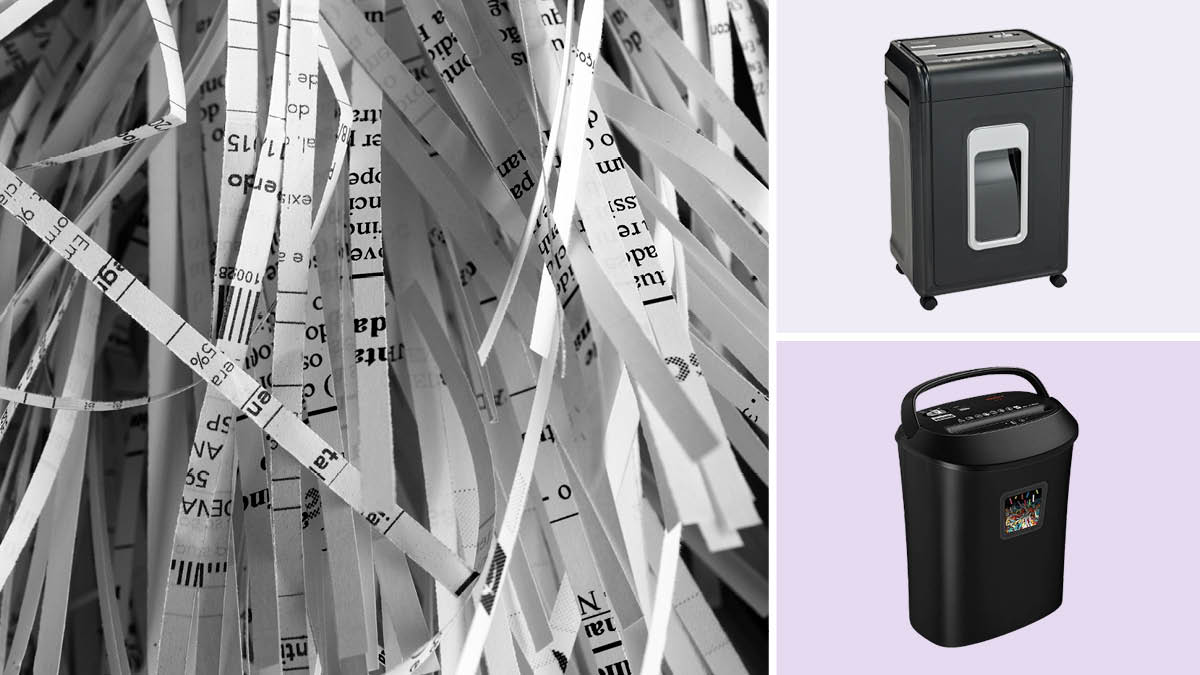
A few simple habits can make your shredder last longer and avoid repeated resets:
- Feed only the recommended number of sheets at a time.
- Remove staples and paper clips before shredding.
- Empty the bin regularly to prevent overfilling.
- Oil the blades if your model recommends it (about every 30 minutes of use).
- Store the shredder in a dry, dust-free area.
Here’s a helpful comparison of sheet capacity and recommended run time for common shredder types:
| Shredder Type | Sheet Capacity | Continuous Run Time | Cool Down Time |
|---|---|---|---|
| Home Basic | 5–8 sheets | 2–5 minutes | 30–60 minutes |
| Office Medium | 10–18 sheets | 10–20 minutes | 30 minutes |
| Heavy Duty | 20+ sheets | 30 minutes+ | 15–30 minutes |
Knowing your shredder’s limits is a simple way to prevent shutdowns and the need for frequent resets.
Non-obvious Insights Most Users Miss
Most beginners think shredders only jam because of too much paper. But fine paper dust and static can also trigger sensor errors or overheat the motor. Regular cleaning with compressed air can prevent this. Another overlooked tip: Many shredders have a hidden fuse or circuit breaker accessible from the bottom or back. If your shredder won’t reset, check the manual for a fuse location and try replacing it before calling for repairs.
When To Replace Instead Of Reset
If your shredder is old and needs resetting often, it may be time for a replacement. Frequent resets, loud noises, or slow shredding speed are signs of worn parts. Most home models last 3–5 years with normal use. If repairs cost more than half the price of a new shredder, buying a new one is usually the smarter choice. For trusted product reviews and more detailed repair guides, you can visit Consumer Reports.
Frequently Asked Questions
How Often Should I Reset My Paper Shredder?
You should only reset your shredder when it stops working due to a jam, sensor error, or overheating. If you need to reset it often, check for deeper issues like worn blades or dirty sensors.
Is It Safe To Reset A Shredder Myself?
Yes, as long as you unplug the machine first and follow safety steps. Never reset or clear jams with the power on. Always consult your shredder’s manual for model-specific instructions.
What If My Shredder Does Not Have A Reset Button?
Many models do not have a labeled reset button. Instead, use the method of unplugging, waiting, clearing jams, and cycling the power or switches as described above.
Can I Use Oil Or Lubricants During The Reset Process?
Only use shredder-specific oil if your manual recommends it, and apply after the reset is complete. Never use household oils or spray lubricants inside the shredder.
Why Does My Shredder Keep Jamming Even After A Reset?
Frequent jams may be caused by feeding too much paper, dull blades, or dirty sensors. Try shredding fewer sheets at a time and cleaning the sensors. If problems continue, the blades or motor may need service or replacement.
Resetting a paper shredder is not complicated, but knowing how to do it correctly can save you time, money, and frustration. With these steps, tips, and safety checks, you can keep your shredder running smoothly for years to come.