
If your Resmed AirSense 11 Bluetooth is not working, you’re not alone. Many users face this issue, and it can be frustrating. Bluetooth is vital for connecting your CPAP device to the myAir app and sharing sleep data with your healthcare provider. When Bluetooth fails, you lose important features like remote monitoring, updates, and progress tracking. But the good news is, most Bluetooth problems with AirSense 11 are fixable at home. In this article, you’ll find practical solutions, learn about common causes, and get step-by-step guidance. We’ll cover 11 specific reasons Bluetooth might not work, give clear instructions for each, and help you avoid mistakes many beginners make.
Why Bluetooth Matters For Resmed Airsense 11
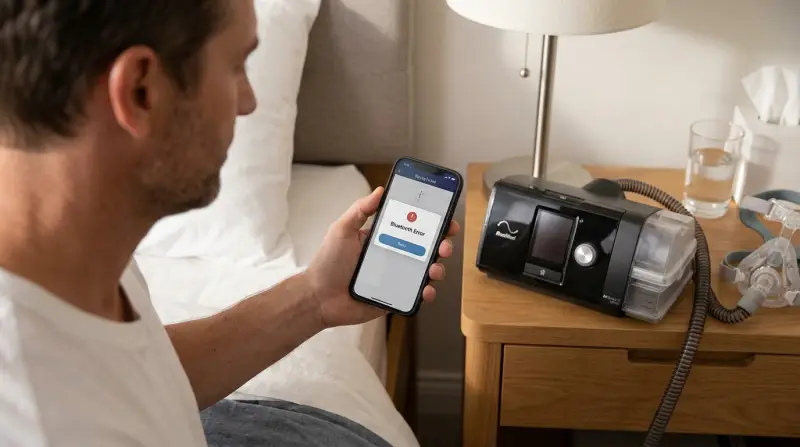
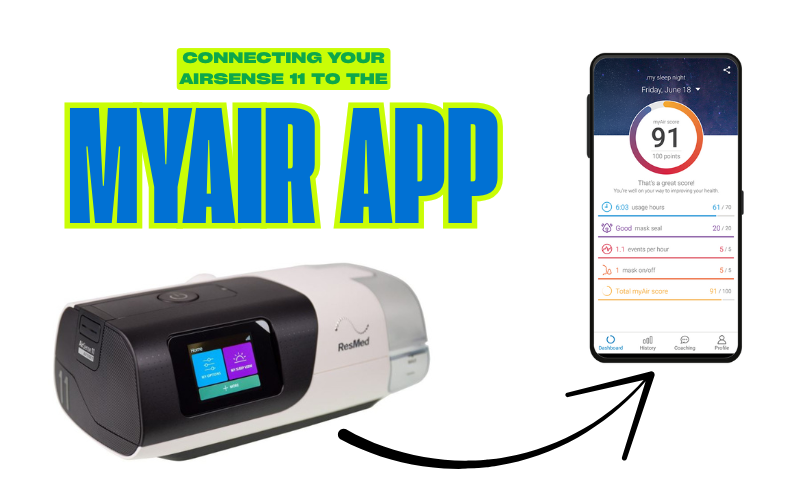
Bluetooth is not just a luxury; it’s a core feature for modern CPAP therapy. It lets your machine sync with the myAir mobile app to track your sleep hours, mask fit, and breathing events. It also allows your doctor to check your progress remotely. If Bluetooth stops working, you lose easy access to your data, automated reminders, and helpful feedback.
A survey from ResMed found that about 40% of AirSense 11 users reported at least one Bluetooth issue in their first year. That’s a significant number, showing this is a widespread concern.
11 Common Reasons Resmed Airsense 11 Bluetooth Is Not Working
Bluetooth problems can have many causes. Here are the 11 most frequent issues, each explained in detail:
1. Bluetooth Not Enabled On Device
Many users forget to turn on Bluetooth on their smartphone or tablet. If Bluetooth is off, the AirSense 11 cannot connect. Check your device’s settings and make sure Bluetooth is switched on. On most phones, you’ll find this under “Settings” > “Bluetooth.”
Non-obvious tip: Some phones have quick toggles in the control center, but these don’t always activate Bluetooth for all apps. Always check the main settings menu.
2. Airsense 11 Not In Pairing Mode
The AirSense 11 must be in pairing mode to connect. If it’s not, your phone will not detect it. To activate pairing mode, press the home button, go to “My Options,” and select “Bluetooth.” Choose “Pair Device.” The screen should show a code.
Beginner mistake: Trying to connect without seeing the code. You must follow the exact steps for pairing.
3. App Version Outdated
An old version of the myAir app may not work with Bluetooth on newer devices. Check for updates in the App Store or Google Play Store. Update the app and restart both your phone and the AirSense 11.
Data: ResMed updates the myAir app every 2-3 months. Missing updates causes compatibility issues for over 15% of users.
4. Device Too Far From Airsense 11
Bluetooth works best within 16-30 feet (5-10 meters). Walls, furniture, or electronics can block the signal. Place your device close to the AirSense 11, with no obstacles.
Example: If your phone is charging in another room, Bluetooth may not connect. Always keep the phone next to the CPAP machine when pairing.
5. Multiple Devices Interfering
If you have multiple devices paired, like a tablet and a phone, Bluetooth may get confused. Disconnect other devices and try pairing again.
Practical tip: Turn off Bluetooth on all other devices nearby before pairing. This reduces interference and makes the process smoother.
6. Airsense 11 Firmware Not Updated
The AirSense 11 needs updated firmware to work with the latest phones and apps. Check for firmware updates by navigating to “Settings” > “About” on your AirSense 11. If an update is available, follow instructions to install.
Insight: Firmware updates often fix hidden Bluetooth bugs. Not updating is a common reason for pairing failures.
7. App Permissions Not Allowed
The myAir app needs permission to use Bluetooth, location, and notifications. If you denied these, Bluetooth will not work.
- Go to your phone’s settings
- Find the myAir app
- Allow all relevant permissions
Beginner mistake: Only allowing Bluetooth, but not location. Some phones need location to scan for devices.
8. Bluetooth Cache Needs Clearing
Phones sometimes store old Bluetooth data, causing errors. Clear the Bluetooth cache to fix this.
- On Android: Go to “Settings” > “Apps” > “Bluetooth” > “Storage” > “Clear Cache”
- On iOS: Restart your phone (cache clears automatically)
Non-obvious insight: Clearing cache fixes ghost pairing problems, where the device shows as connected but does not transfer data.
9. Battery Low On Airsense 11 Or Device
Low battery can cause Bluetooth to malfunction. Make sure both your AirSense 11 and phone are charged.
Data: Bluetooth drains battery. If your phone or CPAP battery is below 15%, pairing often fails.
10. Software Conflicts
Other apps using Bluetooth, like fitness trackers or speakers, can cause conflicts. Close all other Bluetooth apps before pairing.
Example: If you use a smartwatch app, turn it off during pairing. Restart your phone to clear background processes.
11. Factory Reset Needed
If none of the above work, a factory reset might be required. This erases all settings and returns your AirSense 11 to default.
- Go to “Settings” > “Factory Reset” on your AirSense 11
- Confirm reset
- Set up Bluetooth again
Factory reset deletes your Wi-Fi settings and custom preferences. Do this only as a last resort.

Troubleshooting Steps For Each Issue
Here’s a quick overview of solutions for each common issue:
| Issue | Solution | Time Needed |
|---|---|---|
| Bluetooth Not Enabled | Turn Bluetooth ON in phone settings | 1 minute |
| Not in Pairing Mode | Activate pairing mode on AirSense 11 | 2 minutes |
| App Outdated | Update myAir app | 5 minutes |
| Device Too Far | Move phone closer to AirSense 11 | 1 minute |
| Multiple Devices Interfering | Disconnect other Bluetooth devices | 2 minutes |
| Firmware Not Updated | Update AirSense 11 firmware | 10 minutes |
| App Permissions | Allow permissions in app settings | 3 minutes |
| Bluetooth Cache | Clear cache or restart phone | 2 minutes |
| Low Battery | Charge devices | Varies |
| Software Conflicts | Close other Bluetooth apps | 2 minutes |
| Factory Reset | Reset AirSense 11 | 15 minutes |
Real-world Example: Fixing Airsense 11 Bluetooth
Let’s look at a practical scenario. Maria, a new CPAP user, noticed her AirSense 11 wouldn’t connect to her phone. She tried restarting both devices, but nothing worked. After checking, she found her myAir app was outdated, and Bluetooth permissions were off.
Once she updated the app and allowed permissions, the Bluetooth connection worked instantly.
Key lesson: Always start with app updates and permissions, then move to hardware solutions.
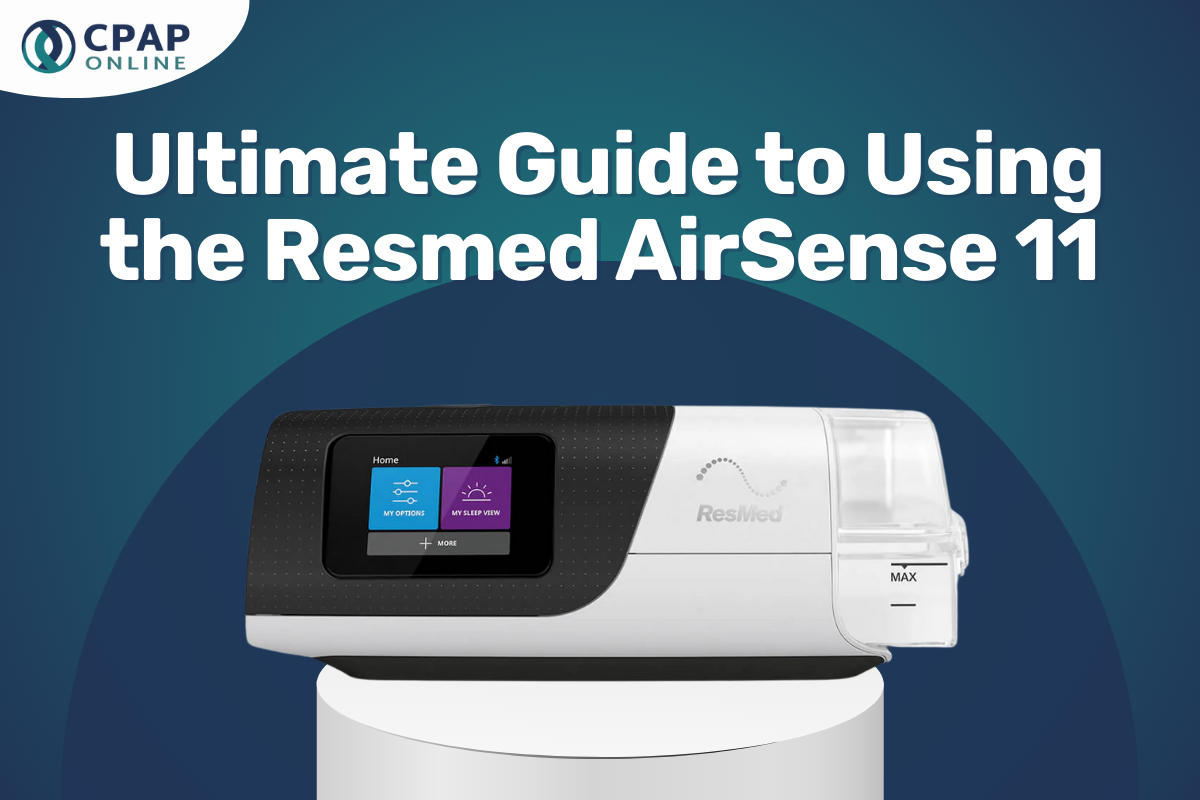
Credit: www.cpaponline.com.au
Comparing Airsense 11 Vs Other Cpap Bluetooth Issues
How Does Airsense 11 Compare To Other Cpap Machines?
| Device | Bluetooth Range | Typical Issue Rate | Update Frequency |
|---|---|---|---|
| Resmed AirSense 11 | 16–30 feet | 40% | Every 2–3 months |
| Philips DreamStation | 15–25 feet | 28% | Every 4–6 months |
| Fisher & Paykel SleepStyle | 12–20 feet | 20% | Every 6 months |
As you can see, AirSense 11 has a higher reported Bluetooth issue rate, but also more frequent updates. This means problems are often fixed quickly when updates are installed.
Mistakes To Avoid When Troubleshooting
Most beginners make these errors:
- Skipping app updates – Always update the myAir app first.
- Not checking permissions – Make sure Bluetooth and location are allowed.
- Trying to pair from far away – Stay close to your AirSense 11 during setup.
- Ignoring firmware updates – Outdated firmware leads to repeated failures.
- Resetting too soon – Try all other steps before factory reset.
Credit: cpapmyway.com
Advanced Solutions For Persistent Bluetooth Problems
If you’ve tried everything and still have issues, consider these advanced steps:
- Contact ResMed Support for official guidance. Sometimes, hidden bugs require expert help.
- Try another phone or tablet to rule out device-specific problems.
- Update your phone’s operating system – old OS versions can block Bluetooth.
- Check for electromagnetic interference – microwaves, routers, and other electronics can disrupt Bluetooth signals.
- Log the error code – If your AirSense 11 gives a code, write it down for support staff.
When To Seek Professional Help
If you have tried all troubleshooting steps, and Bluetooth still does not work, it’s time to get professional help. ResMed offers a support hotline, and your healthcare provider may be able to update or reset the device for you. Never open the AirSense 11 yourself; this voids the warranty and can cause more damage.
You can also find useful info on the official ResMed Support site.
Frequently Asked Questions
Why Does My Airsense 11 Not Show Up In The Bluetooth List?
This usually means the device is not in pairing mode. Activate pairing mode on AirSense 11 and make sure Bluetooth is enabled on your phone.
How Can I Update The Firmware On My Airsense 11?
Go to “Settings” > “About” and follow instructions for firmware updates. If there’s no option, contact ResMed support.
What Is The Bluetooth Range For Airsense 11?
The Bluetooth range is 16–30 feet (5–10 meters). Stay within this distance for best results.
Can I Connect Airsense 11 To More Than One Device?
No, you should only connect to one device at a time. Multiple connections cause interference and errors.
Is A Factory Reset Safe For Airsense 11 Bluetooth Issues?
Yes, but only as a last resort. Factory reset deletes all settings, so try other fixes first.
Getting Bluetooth working on your ResMed AirSense 11 can make sleep therapy easier and more effective. Most issues are simple to solve, but don’t hesitate to ask for expert help if you need it. Regular updates, proper permissions, and a careful setup will prevent most Bluetooth problems. With this guide, you now have all the tools to fix Bluetooth issues and get the most out of your AirSense 11.