
A cartridge error on an HP printer can stop your work right away. You press print, but instead of your document, the printer shows a message about the cartridge. This problem can be annoying, especially if you need to print something urgently. But you’re not alone—millions of people face this issue every year. Understanding why cartridge errors happen and how to fix them can save you time, money, and frustration. Let’s break down what causes cartridge errors, how to solve them, and how to prevent them in the future.
What Is A Cartridge Error On Hp Printer?
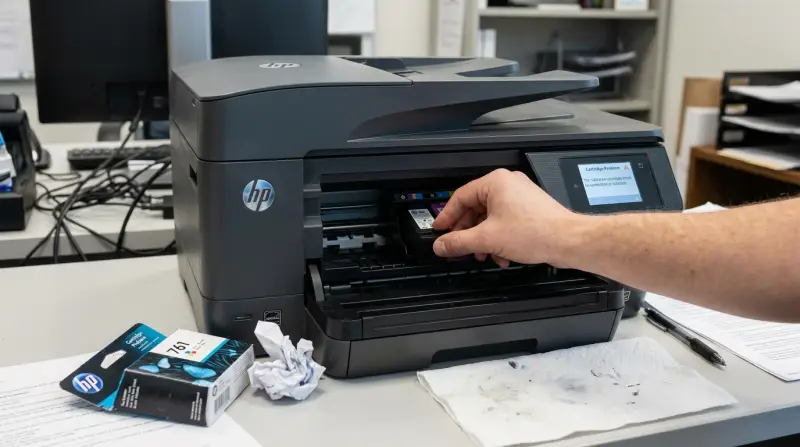
A cartridge error means the printer cannot recognize or use the ink or toner cartridge. The error message may say “Cartridge not detected,” “Incompatible cartridge,” or “Cartridge missing or damaged.” Sometimes, the error has a code like 0x6100004a or 0xc19a0003. The printer stops printing and asks you to fix the cartridge.
Common Error Messages
- “Ink Cartridge Problem”
- “Cartridge Not Detected”
- “Used or Counterfeit Cartridge Installed”
- “Cartridge Missing or Damaged”
These messages can appear on the printer’s screen or your computer. Not all errors mean the cartridge is broken—sometimes, it’s just a simple fix.
Why Cartridge Errors Happen
Cartridge errors are common, but the reasons can vary. Here are some causes:
- Dirty contacts: The gold or copper contacts on the cartridge or inside the printer are dirty or blocked.
- Wrong cartridge: You installed a cartridge not made for your printer model.
- Low ink levels: The cartridge is empty or almost empty.
- Expired cartridge: Some cartridges have a chip that stops working after a certain date.
- Third-party cartridge: Non-HP cartridges may not be recognized.
- Firmware updates: The printer software may block unofficial cartridges after an update.
- Physical damage: The cartridge or printer has broken parts.
Many people assume the cartridge is bad, but sometimes, the issue is with the printer itself.
How To Fix Cartridge Errors On Hp Printer
Solving a cartridge error usually takes a few simple steps. Here’s a practical guide:
Step 1: Check Cartridge Placement
Remove the cartridge and check if it’s placed correctly. Put it back in firmly until it clicks.
Step 2: Clean Contacts
Use a lint-free cloth and a little rubbing alcohol. Gently clean the gold contacts on the cartridge and inside the printer. Wait until dry before reinstalling.
Step 3: Restart The Printer
Turn off the printer. Unplug it from the wall for 60 seconds. Plug it back in and turn it on.
Step 4: Update Printer Firmware
Go to HP’s official website and download the latest firmware for your printer model. Install it and restart the printer.
Step 5: Try Another Cartridge
If possible, use a new HP cartridge. If the error disappears, your old cartridge was faulty.
Step 6: Reset The Printer
Some HP printers let you reset with a button or menu option. Look for “Restore Defaults” or “Factory Reset” in your printer’s menu.
Step 7: Contact Hp Support
If none of these steps work, contact HP support. They may offer replacement cartridges or more advanced solutions.
Types Of Hp Printer Cartridge Errors
Different HP printers may show different errors. Here are a few examples:
| Error Code | Meaning | Common Fix |
|---|---|---|
| 0xc19a0003 | Ink system failure | Restart printer, clean contacts |
| 0x6100004a | Cartridge jam | Remove jammed cartridge, reinstall |
| Cartridge not detected | Unrecognized cartridge | Replace with genuine HP cartridge |
| Used or counterfeit cartridge | Third-party cartridge installed | Use official HP cartridge |
Knowing the error code helps you find the right solution faster.
Genuine Vs. Third-party Cartridges
Many people use third-party cartridges because they cost less. But HP printers sometimes block them. Here’s a comparison:
| Cartridge Type | Pros | Cons |
|---|---|---|
| Genuine HP | Reliable, supported by HP, fewer errors | More expensive |
| Third-party | Cheaper, easy to find | May cause errors, not always recognized, warranty issues |
HP updates their firmware to block some third-party cartridges, especially after 2020. If you use non-HP cartridges, you risk more errors and less support.
Preventing Cartridge Errors
You can avoid cartridge errors with simple habits:
- Buy genuine HP cartridges: They work better and last longer.
- Store cartridges properly: Keep them in a cool, dry place.
- Install cartridges carefully: Avoid touching gold contacts.
- Update firmware only if needed: Sometimes updates block third-party cartridges.
- Print regularly: This keeps the ink from drying up.
- Check expiration dates: Old cartridges may stop working.
An insight many people miss: Sometimes, cartridge errors happen because the printer hasn’t been used for months. Dust can build up inside, causing contact problems.
Real Data: How Common Are Cartridge Errors?
HP printers are popular—over 35% of US households use HP printers. Cartridge errors are among the top three most-reported printer issues, according to HP’s own customer support reports. In 2023, HP received over 1. 2 million support requests related to cartridge errors.
A study from Printer Research Group showed that 17% of HP printer owners experience cartridge errors at least once a year. Most errors are fixed by cleaning contacts or replacing the cartridge.
Cartridge Error: Hidden Causes Most People Miss
Many beginners think only the cartridge matters. But some less obvious causes include:
- Electrical surges: A sudden power surge can confuse the printer’s cartridge chip.
- Printer memory issues: The printer’s memory may keep old error codes. A full reset can clear these.
- Misleading error messages: Sometimes, the message says “cartridge error” but the real issue is paper jam or low ink.
It’s important to check for other problems if the usual fixes don’t work.

How Hp Firmware Updates Affect Cartridge Compatibility
HP releases firmware updates to protect their printers. These updates can change how cartridges are detected. For example, in 2022, HP released a firmware update that blocked some older and third-party cartridges. If you update your printer’s firmware, make sure your cartridges are genuine and compatible.
| Firmware Update | Year | Effect on Cartridges |
|---|---|---|
| HP 2022 Update | 2022 | Blocked many third-party cartridges |
| HP 2020 Update | 2020 | Improved detection of genuine cartridges |
| HP 2018 Update | 2018 | Minor bug fixes, fewer cartridge changes |
Before updating, check if your current cartridges will still work after the update.
When To Replace The Printer
If your HP printer shows cartridge errors often and nothing fixes it, it may be time for a new printer. Printers usually last 3–5 years. If yours is older, repairs may cost more than buying a new one. New HP printers have improved cartridge detection and fewer errors.

Professional Tips For Smooth Printing
A few expert tips can help you avoid cartridge errors and keep your printer running smoothly:
- Print a test page after installing a new cartridge
- Keep your printer covered when not in use
- Use your printer’s cleaning cycle every few months
- Avoid refilling cartridges unless you know the risks
Printing regularly helps prevent ink from drying and keeps the cartridge working.

Frequently Asked Questions
Why Does My Hp Printer Say “cartridge Error” After Installing A New Cartridge?
This often happens if the cartridge is not placed correctly, the contacts are dirty, or the cartridge is not genuine. Try removing and reinstalling the cartridge, cleaning the contacts, and restarting the printer.
Can I Use Third-party Cartridges In My Hp Printer?
You can use them, but HP printers may reject them, especially after firmware updates. Third-party cartridges are cheaper, but they may cause more errors and void your warranty.
How Do I Clean Cartridge Contacts Safely?
Use a lint-free cloth and rubbing alcohol. Wipe the gold contacts gently. Let them dry fully before reinstalling. Avoid touching the contacts with your fingers.
Is It Safe To Update My Hp Printer Firmware?
Updating firmware is safe if you use genuine HP cartridges. If you use third-party cartridges, updates may block them. Check HP’s website for compatibility before updating.
What Should I Do If Cartridge Errors Keep Coming Back?
If cartridge errors happen often and you’ve tried all fixes, it may be time to replace your printer. If your printer is new, contact HP support for help.
Dealing with cartridge errors on HP printers can be frustrating, but knowing the causes and solutions makes things easier. Remember, most errors are easy to fix by cleaning contacts, reinstalling cartridges, or updating firmware. If you use genuine HP cartridges and take care of your printer, you’ll face fewer problems. For more in-depth information on HP cartridge compatibility, visit HP Official Support.
With these practical tips, your printing experience will be smoother and more reliable. Stay patient, follow the steps, and you’ll solve most cartridge errors in just a few minutes.