
When your Apple TV refuses to connect to WiFi, it can turn an evening of entertainment into a frustrating experience. Instead of watching your favorite shows or exploring new apps, you find yourself staring at error messages and a blank screen. This problem is surprisingly common, but the reasons behind it—and the solutions—can vary. Whether you use Apple TV for streaming, gaming, or smart home control, a reliable internet connection is essential.
This guide helps you understand why your Apple TV might not be connecting to WiFi and what you can do about it. We’ll look at common causes, step-by-step fixes, and advanced troubleshooting. You’ll learn how to spot the real problem, avoid wasting time on random resets, and get your device back online.
Even if you’re not a tech expert, you’ll find practical advice, clear instructions, and real-world tips that make the process easier.
Understanding Apple Tv’s Network Needs
Apple TV uses WiFi to stream video, download apps, and receive updates. It depends on a stable, fast connection. Problems can happen for many reasons: network interference, software bugs, outdated hardware, or even simple mistakes in settings. Before you start fixing things, it helps to know what your device needs to work properly.
Apple TV (HD and 4K) supports both 2.4GHz and 5GHz WiFi networks. For best performance, Apple recommends a broadband connection with at least 8 Mbps for HD and 25 Mbps for 4K streaming. If your network speed or signal is weak, you might experience buffering, slow app downloads, or total loss of connection.
Some newer models support Ethernet as well. But most users rely on WiFi because it’s easier and avoids extra cables.
Common Reasons Apple Tv Won’t Connect To Wifi
If your Apple TV won’t connect, the cause usually falls into a few categories:
- Network Issues: Problems with your router, modem, or internet service provider.
- WiFi Interference: Signal problems caused by walls, other electronics, or distance from the router.
- Software Glitches: Bugs in the Apple TV’s operating system or outdated firmware.
- Incorrect Settings: Wrong password, network name, or region settings.
- Hardware Failure: Issues with Apple TV’s WiFi antenna or mainboard.
- Account or Service Problems: Restrictions from parental controls, expired Apple ID, or service outages.
Understanding these categories helps you target your troubleshooting, rather than trying random fixes.
Quick Checks Before You Start Troubleshooting
Before you dive into detailed steps, a few quick checks can save time:
- Restart your Apple TV: Sometimes a simple reboot solves temporary glitches.
- Restart your router and modem: Unplug them for 30 seconds, then plug back in.
- Check other devices: If your phone or laptop also can’t connect, the issue is with your network—not the Apple TV.
- Move Apple TV closer to the router: Distance and walls can weaken the signal.
- Double-check the WiFi password: A single wrong character will block the connection.
These basic actions solve many problems in minutes. If your Apple TV is still offline, it’s time for deeper troubleshooting.
Step-by-step Troubleshooting For Apple Tv Wifi Problems
Check Wifi Network Status
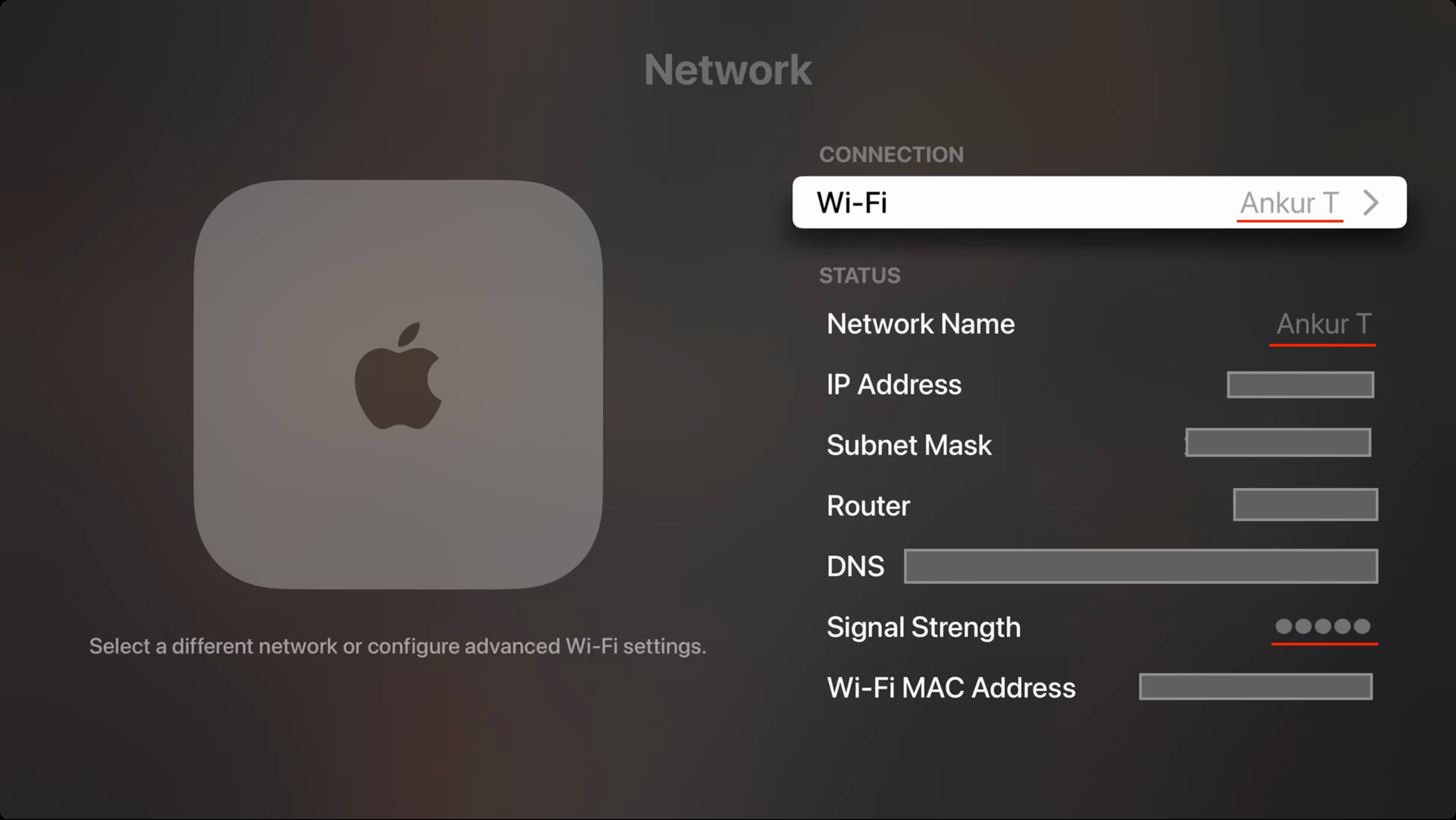
Go to Settings > Network on your Apple TV. Look for your WiFi network name. If it’s missing or says “No network detected,” the device isn’t seeing your router. Try these steps:
- Make sure your router is turned on and broadcasting (check the lights).
- Confirm the network is not hidden or restricted (some routers hide network names).
- Try connecting a phone or laptop to the same network in the same room.
Forget And Reconnect To The Network
Sometimes, saved settings get corrupted. To reset:
- Go to Settings > Network > Wi-Fi.
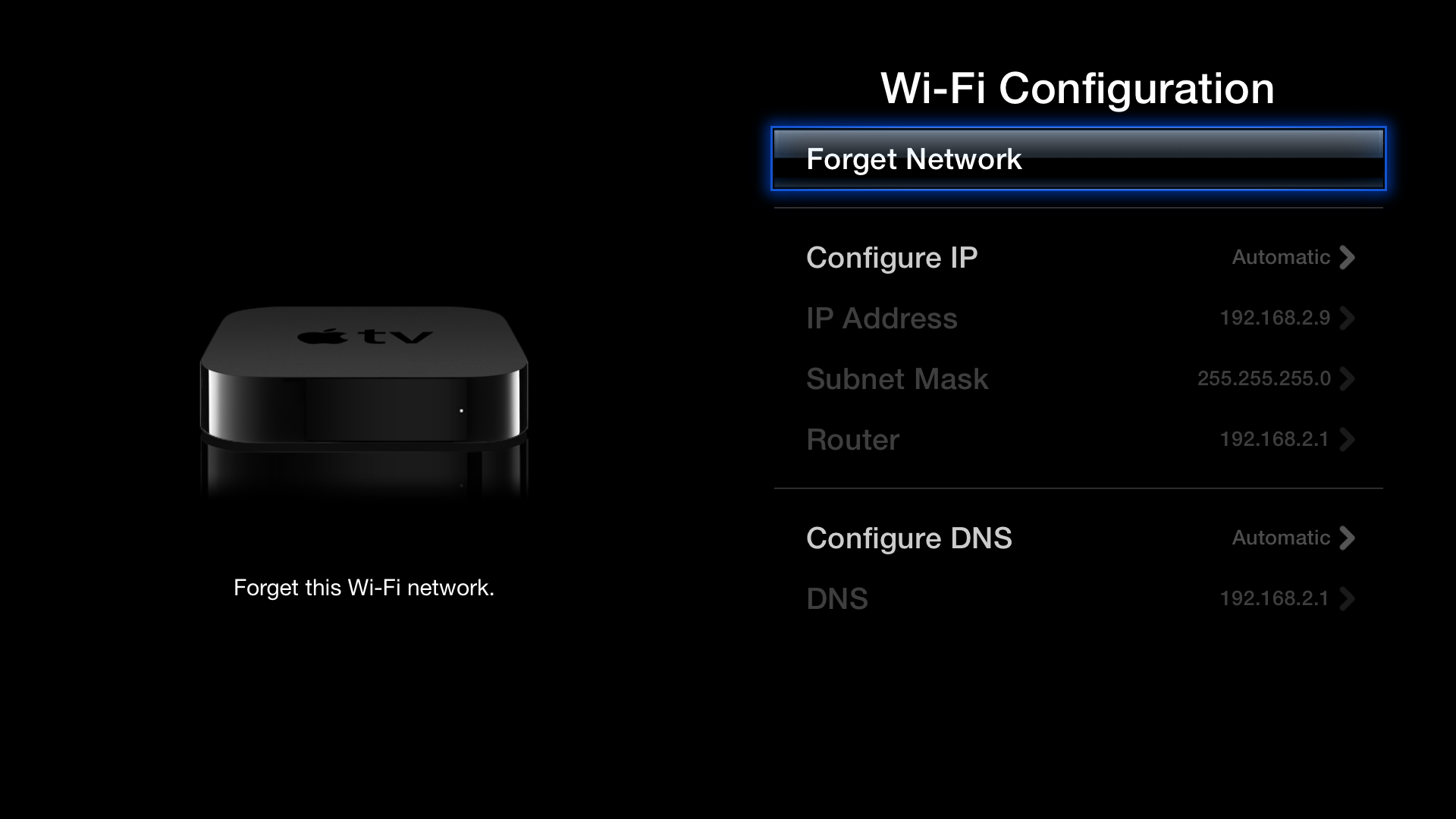
- Select your network, then choose Forget Network.
- Re-select your network and re-enter the password.
This often fixes problems caused by password changes or minor glitches.
Update Apple Tv Software
Outdated software can create connection problems. To update:
- Go to Settings > System > Software Updates.
- Select Update Software.
- If an update is available, install it.
A successful update can resolve bugs and improve network compatibility.
Check Router Settings
Some router settings can block Apple TV. Look for:
- MAC address filtering: If enabled, add your Apple TV’s MAC address (found in Settings > General > About).
- Parental controls: Make sure the device isn’t blocked.
- Guest networks: Some guest networks don’t allow devices to see each other or connect to the internet fully.
If you’re unsure, log into your router’s admin page (see the sticker on your router for the address, often 192. 168. 1. 1 or 192. 168. 0. 1) and review connected devices and restrictions.
Reset Network Settings On Apple Tv
If all else fails, you can reset network settings:
- Go to Settings > System > Reset.
- Select Reset Network Settings (not “Reset All Settings,” which erases everything).
You’ll need to reconnect to WiFi from scratch, but this clears out any saved errors.
Try Ethernet (wired) Connection
If possible, connect your Apple TV directly to your router using an Ethernet cable. If it works, your WiFi hardware or settings may be the problem. If not, the issue could be with your Apple TV or the internet service.
Factory Reset As A Last Resort
A full reset erases all data and returns your Apple TV to factory condition:
- Go to Settings > System > Reset.
- Choose Reset and Update.
Only do this if all other steps fail, and make sure you back up important information (like app logins or settings).
Advanced Troubleshooting And Uncommon Causes
If your Apple TV still can’t connect, it’s time to consider less obvious issues. Here are some advanced strategies:
Router Firmware And Compatibility
Old router firmware can cause connection drops or block new devices. Visit your router manufacturer’s website and check for updates. Some routers also have compatibility problems with Apple products—search for your router model and “Apple TV” online to see if others have the same issue.
Wifi Channel Overlap And Interference
In dense areas (apartments, offices), many WiFi networks use the same channel. This can cause interference and dropped connections. Use your router’s settings to switch to a less crowded channel (try channels 1, 6, or 11 for 2. 4GHz).
Microwave ovens, cordless phones, and Bluetooth devices can also interfere. Try turning off or moving these devices.
Static Ip Or Dns Settings
Rarely, custom network settings can block access. Try switching your Apple TV’s IP and DNS settings to automatic:
- Go to Settings > Network.
- Select your WiFi network.
- Set “Configure IP” and “Configure DNS” to “Automatic.”
If you need to use custom DNS (for parental controls or region changes), use public DNS servers like 8.8.8.8 (Google) or 1.1.1.1 (Cloudflare).
Check For Service Outages
Sometimes, Apple’s own services or your internet provider may be down. Check the Apple System Status page or your ISP’s status tool. Outages are rare, but they do happen.
Hardware Issues
If your Apple TV has suffered a drop or spill, the internal WiFi antenna may be damaged. In this case, only repair or replacement will help. Test with Ethernet to confirm.
How To Avoid Wifi Issues In The Future
Solving the problem is great, but preventing it is even better. Here’s how you can reduce WiFi headaches:
- Place your Apple TV and router in open, central locations—away from thick walls or metal objects.
- Update software and firmware regularly (both Apple TV and router).
- Use a modern router with support for 5GHz WiFi and at least 802.11ac.
- Change your WiFi password occasionally and remove old devices from your network.
- Limit the number of devices streaming at the same time (especially in busy homes).
Comparing Apple Tv Models: Wifi Features
Not all Apple TV models have the same networking abilities. Here’s a quick comparison:
| Model | WiFi Standard | Ethernet Port | Max Resolution |
|---|---|---|---|
| Apple TV HD | 802.11ac | Yes (100 Mbps) | 1080p |
| Apple TV 4K (1st Gen) | 802.11ac | Yes (Gigabit) | 4K HDR |
| Apple TV 4K (2nd/3rd Gen) | WiFi 6 (802.11ax) | Yes (Gigabit) | 4K HDR |
| Apple TV (3rd Gen) | 802.11n | Yes (100 Mbps) | 1080p |
If you use older Apple TV hardware, you may experience more WiFi problems. Upgrading can sometimes be a solution, especially if your home network is modern.
Apple Tv Vs Other Streaming Devices: Network Reliability
How does Apple TV compare to other popular devices like Roku, Amazon Fire TV, or Google Chromecast when it comes to WiFi connection reliability? Here’s a quick look:
| Device | WiFi Standards Supported | Ethernet Option | Known Connection Issues |
|---|---|---|---|
| Apple TV 4K | WiFi 6 (802.11ax) | Yes | Occasional software bugs, rare hardware faults |
| Roku Ultra | WiFi 5 (802.11ac) | Yes | Occasional interference, less frequent updates |
| Amazon Fire TV Cube | WiFi 6 (802.11ax) | Yes | App crashes, some DNS issues |
| Google Chromecast w/ Google TV | WiFi 5 (802.11ac) | No (adapter sold separately) | Overheating, occasional disconnects |
Apple TV’s network reliability is generally strong, especially with updates and newer models. But all streaming devices can face WiFi problems due to home network factors.

Real-world Examples: What Causes The Most Trouble?
Many users report that their Apple TV disconnects when:
- A new device joins the network (like a smart speaker or camera).
- The router is updated or replaced.
- They move the Apple TV to a different room.
- The WiFi password is changed but not updated on the device.
- There’s a temporary service outage from the ISP.
One overlooked insight: power-saving features on some routers can cause devices to disconnect after a period of inactivity. Check your router settings for options like “WiFi Power Save” and try disabling them if you see frequent drops.
Another common mistake is using public WiFi (like in hotels or apartments) that requires a web login. Apple TV can’t always show these pages, so connection fails. If possible, use a travel router or hotspot that you log into with another device first.
Diagnosing With The Apple Tv Network Test
Apple TV has a built-in Network Test. To use it:
- Go to Settings > Network > Test Network.
- Follow the on-screen prompts.
This test checks signal strength, speed, and connection to Apple’s servers. If you see poor results, try moving your device or router, or switching to Ethernet.
When To Contact Apple Support
If you’ve tried every step and your Apple TV still won’t connect, it’s time to get help. Contact Apple Support if:
- Your Apple TV can’t see any WiFi networks (but other devices can).
- The device connects but drops after a few minutes, even in different locations.
- You see hardware errors or overheating warnings.
- The device was recently dropped, exposed to water, or shows physical damage.
Apple Support can run remote diagnostics, help with warranty claims, or suggest repair options. Sometimes, issues are due to hardware defects not fixable at home.
Tips For Large Homes And Complex Networks
If you have a large home, thick walls, or many devices, consider these solutions:
- Mesh WiFi Systems: Replace your single router with a mesh system for better coverage.
- WiFi Extenders: Place extenders between your router and Apple TV to boost signal strength.
- Wired Backhaul: If possible, use Ethernet for Apple TV and other streaming devices.
- Network Segmentation: Put smart home gadgets on a separate network to reduce interference with streaming.
These upgrades can prevent repeat problems and improve performance for all your devices.
Data: How Common Are Apple Tv Wifi Problems?
According to a 2023 survey by Statista, about 8% of smart TV owners in the US report regular streaming issues due to WiFi problems. Among Apple TV users, support forums show that network issues are one of the top three reasons for help requests, alongside app crashes and remote pairing.
Most WiFi problems are caused by local network factors, not by Apple TV hardware itself.
Security And Privacy: Are There Risks?
WiFi problems can sometimes be caused by security features. For example:
- Network isolation: Some routers block devices from seeing each other for security. This can break AirPlay or HomeKit.
- VPNs or Proxies: If you use a VPN on your router, streaming services may block access.
- Firmware exploits: Outdated routers can be vulnerable to attacks that slow down or block devices.
Always keep your router and Apple TV updated. Use strong, unique passwords. If you use smart home features, make sure your router allows device discovery (sometimes called “AP Isolation” or “Client Isolation”).
Should You Buy A New Router?
If your router is more than 5 years old, or does not support 5GHz WiFi, upgrading can solve many problems. Modern routers offer faster speeds, better coverage, and improved compatibility with devices like Apple TV.
When choosing a new router, look for:
- Support for WiFi 6 (802.11ax) or at least 802.11ac
- Dual-band or tri-band capabilities
- Simple setup and good parental controls
- Positive reviews for streaming performance
A good router improves the experience for every device, not just Apple TV.
Troubleshooting Checklist
Before calling for support, make sure you’ve tried these steps:
- Restart Apple TV, router, and modem
- Re-enter WiFi password
- Move Apple TV closer to router
- Update Apple TV and router firmware
- Forget and re-add WiFi network
- Test with Ethernet (if possible)
- Reset network settings
- Check for outages or restrictions
- Run Apple TV’s network test
If none of these work, hardware failure is likely.
Frequently Asked Questions
Why Does My Apple Tv Disconnect From Wifi After A Few Minutes?
This can be caused by WiFi interference, power-saving features on the router, or a weak signal. Try moving your Apple TV closer to the router, switching WiFi channels, or disabling router power-saving options. Also, update your Apple TV and router software.
Can Apple Tv Connect To Hidden Wifi Networks?
Yes, but you must enter the network name (SSID) manually. Go to Settings > Network > Wi-Fi > Other, type the name and password. If you make a typo, connection will fail. Hidden networks can be harder to troubleshoot.
Will Using Ethernet Fix Wifi Problems On Apple Tv?
Often, yes. A wired connection avoids most wireless issues. Plug an Ethernet cable from your router to Apple TV. If it works, your WiFi hardware or signal is the problem. If not, the issue may be with your device or ISP.
Do I Need A Specific Router For Apple Tv 4k?
No special router is required, but for the best experience, use a model with WiFi 5 (802.11ac) or WiFi 6 (802.11ax). Older routers may work, but can be slower or less reliable with 4K streaming.
Where Can I Find More Help With Apple Tv Network Problems?
Visit the official Apple TV Support page for guides, forums, and contact options. This source is updated regularly with tips and troubleshooting for all Apple TV models.
Getting your Apple TV back online doesn’t have to be a mystery or a source of stress. By understanding the possible causes and following a structured troubleshooting approach, you can solve most WiFi problems yourself. Remember: start simple, stay patient, and use the built-in tools to diagnose and fix issues. With the right steps, you’ll return to streaming, gaming, and enjoying your Apple TV in no time. If all else fails, support and repair options are available to help you get back to what matters most your entertainment.