
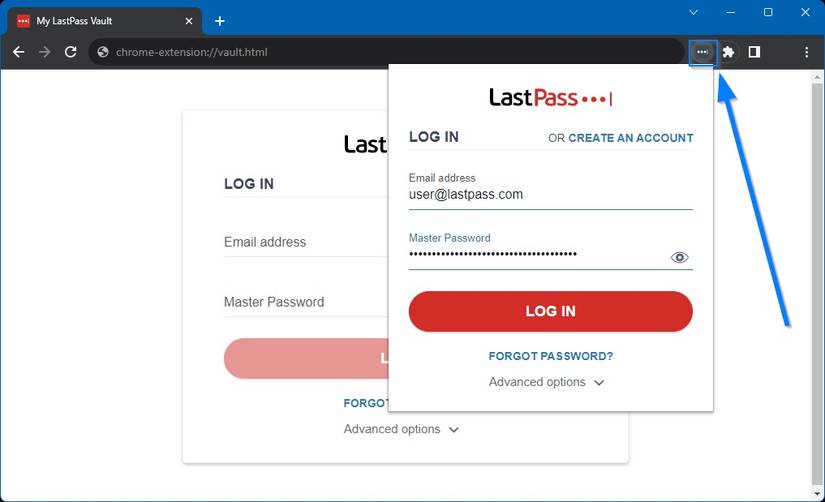
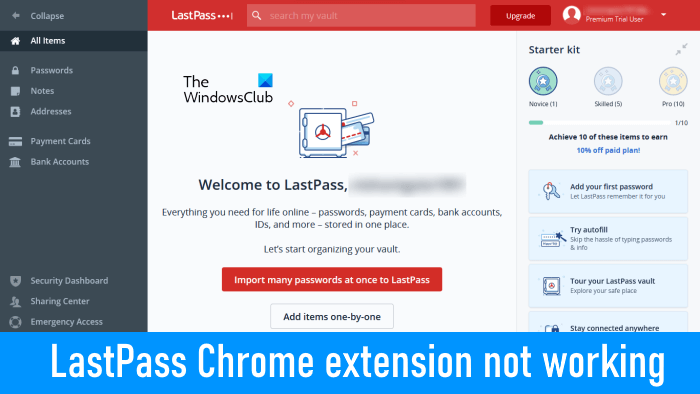
If you use LastPass to manage your passwords, having the Chrome extension stop working can be a huge headache. Suddenly, you can’t auto-fill passwords, save new logins, or access your vault easily. For many, this means lost time, extra stress, and even trouble logging in to important accounts. The good news? Most problems with the Chrome LastPass extension can be fixed with a few practical steps. This guide explains why the extension fails, how to troubleshoot it, and what you can do to prevent future issues.
Why The Chrome Lastpass Extension Stops Working
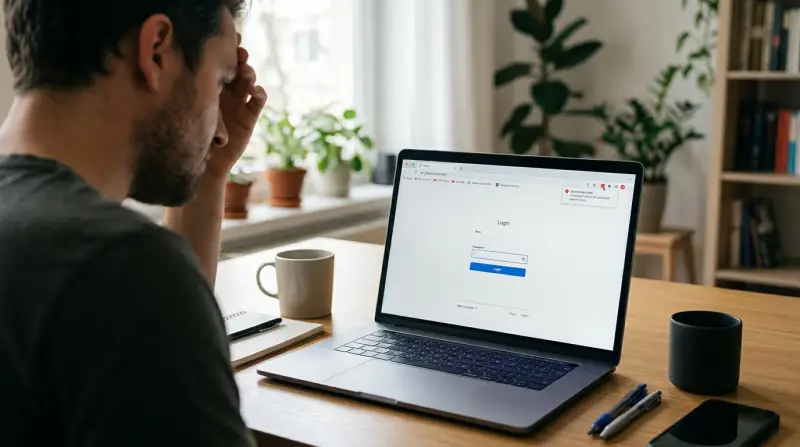
The LastPass extension for Chrome lets you access and manage passwords securely from your browser. Sometimes, it just doesn’t work as expected. Common signs include the icon turning gray, not filling passwords, or refusing to open. Understanding the reasons is the first step to fixing the problem.
Main Causes
- Browser updates: Chrome updates can break compatibility with extensions, especially if LastPass hasn’t updated yet.
- Corrupted extension data: Over time, extension files can become corrupted.
- Conflicting extensions: Other Chrome extensions (like ad blockers or privacy tools) might block LastPass from working.
- Cache and cookies: Old or corrupted browser data can interfere with extension behavior.
- LastPass account issues: Problems with your login or sync settings can cause errors.
- Internet connection: The extension needs an internet connection to sync your vault.
Real-world Example
Sarah, a freelance designer, noticed her LastPass icon was gray after a Chrome update. She couldn’t auto-fill logins and had to reset several account passwords. After disabling a new ad blocker and clearing her cache, LastPass started working again. Her experience is common—multiple factors can combine to cause issues.
Quick Checks Before Advanced Troubleshooting
Before diving into technical fixes, it’s smart to try a few basic steps. Many users find that these quick checks solve the problem.
- Refresh Chrome: Close all tabs, then quit and reopen Chrome.
- Check your internet connection: Make sure you’re online.
- Restart your computer: This can resolve temporary glitches.
- Update Chrome: Go to Menu > Help > About Google Chrome to check for updates.
- Log out and back in: Sign out of LastPass, then sign in again.
If these don’t help, move on to more specific solutions.

How To Fix The Chrome Lastpass Extension Not Working
When basic steps fail, you need to dig deeper. Here’s a practical, step-by-step guide for fixing the Chrome LastPass extension.
Update Lastpass Extension
Extensions need regular updates to stay compatible with Chrome. If your LastPass is outdated, you may see errors.
- Open Chrome.
- Click the three dots (menu) > More tools > Extensions.
- Enable “Developer mode” (top right).
- Click “Update.”
After updating, restart Chrome and check if LastPass works.
Disable Conflicting Extensions
Some extensions block or interfere with LastPass. Privacy-focused tools, script blockers, and some antivirus add-ons are common culprits.
- Go to chrome: //extensions/
- Disable all other extensions except LastPass.
- Restart Chrome.
If LastPass works, enable your other extensions one by one to find the conflict.
Clear Cache And Cookies
Old browser data can cause many extension errors. Clearing it can fix unexpected problems.
- Click the three dots > More tools > Clear browsing data.
- Select “Cookies and other site data” and “Cached images and files.”
- Choose “All time,” then click “Clear data.”
You’ll be logged out of websites, but this often solves LastPass issues.
Remove And Reinstall Lastpass
Sometimes, files become corrupted and a fresh install is needed.
- Open chrome: //extensions/
- Find LastPass and click “Remove.”
- Go to the Chrome Web Store and search “LastPass.”
- Click “Add to Chrome.”
Log in to your LastPass account again. Reinstalling fixes most stubborn problems.
Check Extension Permissions
LastPass needs permission to read site data and run on specific sites.
- Go to chrome: //extensions/
- Find LastPass and click “Details.”
- Make sure “Allow in incognito” and “Site access” are set correctly.
If permissions are limited, LastPass might not work on all websites.
Reset Chrome Settings
If nothing else works, try restoring Chrome’s settings to default.
- Open Chrome settings > Advanced > Reset and clean up.
- Choose “Restore settings to their original defaults.”
You won’t lose bookmarks or saved passwords, but you’ll need to re-enable your extensions.
Common Error Messages And What They Mean
Understanding error messages makes troubleshooting easier. Here’s a handy reference:
| Error Message | Possible Cause | Solution |
|---|---|---|
| “This extension may have been corrupted.” | Corrupted files or update failure | Remove and reinstall LastPass |
| “Couldn’t load extension.” | Broken Chrome profile | Reset Chrome or create new profile |
| “Network Error” | No internet or firewall blocks | Check connection, disable VPN/firewall |
| “Session timed out” | Auto-logout settings or inactivity | Log in again, adjust timeout settings |
Preventing Future Lastpass Extension Problems
Fixing LastPass once is good—but preventing issues is even better. Here’s how to keep it running smoothly.
Keep Everything Up To Date
- Update Chrome and LastPass regularly.
- Enable auto-update for extensions when possible.
Limit Extension Use
The more extensions you have, the higher the chance for conflicts. Only keep what you really need.
Use A Strong Internet Connection
A weak or unstable connection can cause sync errors. If you use LastPass on public Wi-Fi, consider a VPN for security.
Back Up Your Vault
Export your passwords occasionally. If something goes wrong, you’ll have a backup.
Monitor Account Security
Set up alerts for unusual login attempts on your LastPass account. This prevents unauthorized access and helps spot problems early.
Advanced Troubleshooting
If you’ve tried everything above and LastPass still doesn’t work, you may need to check deeper system or account settings.
Create A New Chrome Profile
Sometimes, your Chrome user profile becomes corrupted and breaks extensions.
- Click your profile icon > Add > Create a new profile.
- Install LastPass only, and test it.
If it works, move your bookmarks and settings to the new profile.
Check For Enterprise Or Antivirus Blocks
Company-managed devices often have policies that block password managers. Some antivirus tools do the same.
- Ask your IT admin if LastPass is allowed.
- Check antivirus logs or settings for blocked extensions.
Test On Another Device
Try installing LastPass on a different computer or Chrome browser. If it works elsewhere, the problem is with your current setup.
Contact Lastpass Support
If all else fails, reach out to LastPass support. Provide detailed information and screenshots. They can check for account-specific issues or bugs.
How Chrome Extensions Can Conflict: Examples
Understanding how extensions can clash helps you avoid problems. Let’s look at some real examples:
| Extension Type | How It Conflicts with LastPass | What to Do |
|---|---|---|
| Ad Blockers | Block scripts used by LastPass | Whitelist LastPass or disable ad blocker |
| Script Blockers (e.g. NoScript) | Stop LastPass from running on some pages | Allow scripts for LastPass |
| Privacy Extensions | Block cookies or local storage | Enable cookies for LastPass |
| Other Password Managers | Compete for auto-fill | Disable other managers |
Many users don’t realize that even “safe” extensions can block LastPass from working. Whenever you install something new, check if LastPass still works as expected.
When To Consider Alternatives
Sometimes, persistent extension problems mean it’s time to consider another password manager. If LastPass consistently fails or lacks features you need, look at alternatives like 1Password, Dashlane, or Bitwarden. Each has its pros and cons.
Here’s a quick comparison:
| Password Manager | Main Features | Free Plan? | Chrome Extension Stability |
|---|---|---|---|
| LastPass | Easy sharing, good autofill, family plan | Yes | Generally good, sometimes buggy after updates |
| Bitwarden | Open-source, strong security, cross-device | Yes | Very stable |
| 1Password | Travel mode, watchtower, family sharing | No | Very stable |
| Dashlane | VPN, dark web monitoring, simple UI | Yes (limited) | Stable |
Switching is a big decision. Always export your data securely and check privacy policies before moving.
Essential Tips For Non-native English Users
Many LastPass users are non-native English speakers. Here are some key points to help you fix problems more easily:
- Use simple English in support searches.
- Take screenshots of errors to show support teams.
- Use Chrome’s built-in Translate feature to read support pages in your language.
- Watch video tutorials—visual guides often help more than written instructions.
Proactive Security: Don’t Wait For Problems
Password security is essential. Don’t wait for an extension issue to review your safety. Here are two insights many users miss:
- Backup Codes: LastPass offers one-time backup codes. Save them in a safe place. If you lose access, these codes can help you restore your vault.
- Multi-factor Authentication (MFA): Enable MFA for your LastPass account. Even if the extension is broken, MFA protects your passwords from hackers.
When To Seek Professional Help
If your work depends on secure, fast access to accounts, don’t hesitate to seek help from IT professionals. Sometimes, extension problems reveal deeper system issues, malware infections, or security breaches. An expert can check your device for hidden threats.
Frequently Asked Questions
Why Does The Lastpass Chrome Extension Keep Logging Me Out?
This usually happens because of auto-logout settings or browser policies that clear cookies. Open LastPass settings and adjust “Idle Logout” time. Also, check Chrome’s privacy settings to avoid clearing cookies for LastPass.
Does Lastpass Work In Chrome Incognito Mode?
By default, LastPass is disabled in Incognito for privacy. To enable, go to chrome://extensions/, find LastPass, and turn on “Allow in incognito.” Remember, Incognito mode clears cookies after you close the window.
Can Antivirus Software Block Lastpass?
Yes, some antivirus tools block browser extensions for safety reasons. Check your antivirus logs or settings for blocked add-ons. Try whitelisting LastPass if you suspect this is the case.
Is It Safe To Reinstall The Lastpass Extension?
Reinstalling is safe and often fixes problems. Your vault stays on LastPass servers, not your local device, so you don’t lose passwords. Always log in from the official site after reinstalling.
Where Can I Get Official Support For Lastpass?
Visit the LastPass Support Center for help articles, chat, and contact options. This is the best place for up-to-date solutions and official advice.
Fixing the Chrome LastPass extension doesn’t have to be overwhelming. By following these steps, you can solve most problems quickly and get back to secure, stress-free browsing. Stay proactive, keep everything updated, and remember: password security is worth the effort.