
Resetting your Ring Base Station can solve many problems with your security system. Maybe you forgot your PIN, your device won’t connect, or you plan to sell it. No matter the reason, a reset can clear errors and give your system a fresh start. But it’s important to know that resetting wipes your settings, so you should try other troubleshooting steps first. In this guide, you’ll learn when to reset, how to do it safely, and what to expect before and after. This way, you can avoid common mistakes and keep your home secure.
What Is The Ring Base Station?
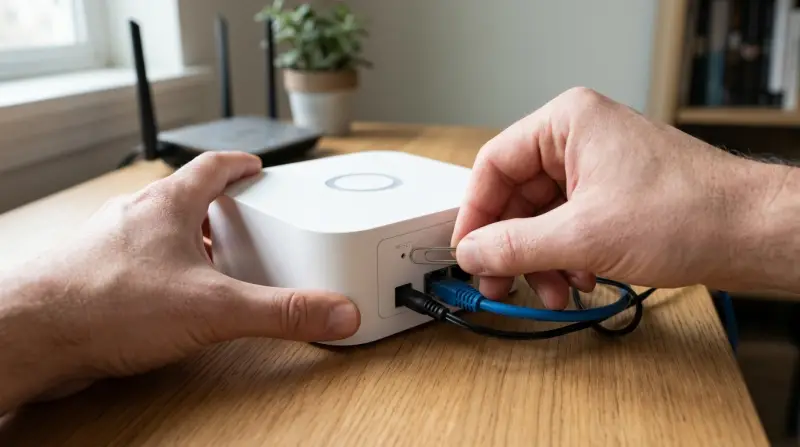
The Ring Base Station is the heart of the Ring Alarm system. It connects all your sensors, motion detectors, and cameras. When something triggers an alarm, the base station sends alerts to your phone and can contact emergency services if you have a monitoring plan. The base station uses Wi-Fi or Ethernet, and has a built-in battery and cellular backup. This means it keeps working even if your power or internet goes down.
Reasons To Reset Your Ring Base Station
Most people reset their base station for a few key reasons:
- Device Not Responding: Sometimes the system stops working or won’t connect to the app.
- Network Changes: If you change your Wi-Fi or move to a new home, a reset might be needed.
- Selling or Giving Away: Resetting removes your personal data so the new owner can set it up.
- Troubleshooting Persistent Errors: If basic fixes don’t help, a reset can clear out deeper problems.
- Lost Admin Access: If you forget your PIN or login, a reset lets you start over.

Credit: www.youtube.com
Types Of Reset: Soft Vs Hard Reset
There are two main ways to reset a Ring Base Station: a soft reset and a hard (factory) reset. Understanding the difference is important.
| Type of Reset | What It Does | When to Use |
|---|---|---|
| Soft Reset | Reboots the device, keeps your settings | Minor glitches, device frozen |
| Hard Reset (Factory Reset) | Erases all data, returns to factory settings | Major issues, selling, lost access |
A soft reset is like restarting your phone—it’s quick and doesn’t erase your settings. A hard reset wipes everything, so only use it if you must.
Preparing To Reset Your Ring Base Station
Before you begin, take these steps to protect your data and avoid headaches:
- Backup Important Info: Save your PIN, device names, and any custom settings.
- Charge the Device: Make sure your base station is plugged in or has battery power.
- Check Your App: Sync the latest data on the Ring app, so you don’t lose event history.
If you’re planning to keep using your base station after the reset, write down your Wi-Fi details and device locations. After a reset, you’ll need to set up everything from scratch.
How To Soft Reset The Ring Base Station
A soft reset is simple and often solves basic issues. Here’s how to do it:
- Unplug the Power: Remove the power cable from the back of the base station.
- Disconnect the Battery: Open the battery cover underneath and slide out the battery.
- Wait 30 Seconds: This gives the device time to fully power down.
- Reconnect the Battery and Power: Slide the battery back in, close the cover, and plug in the power cable.
- Wait for Reboot: The base station light will turn white, then blue, showing it’s restarting.
This soft reset keeps your devices, sensors, and settings. If your problem is gone, you’re done. If not, you may need a hard reset.
How To Hard (factory) Reset The Ring Base Station
A hard reset is more serious and erases all your data. Only use this if you’re selling the device, lost access, or nothing else works.
Steps For A Hard Reset
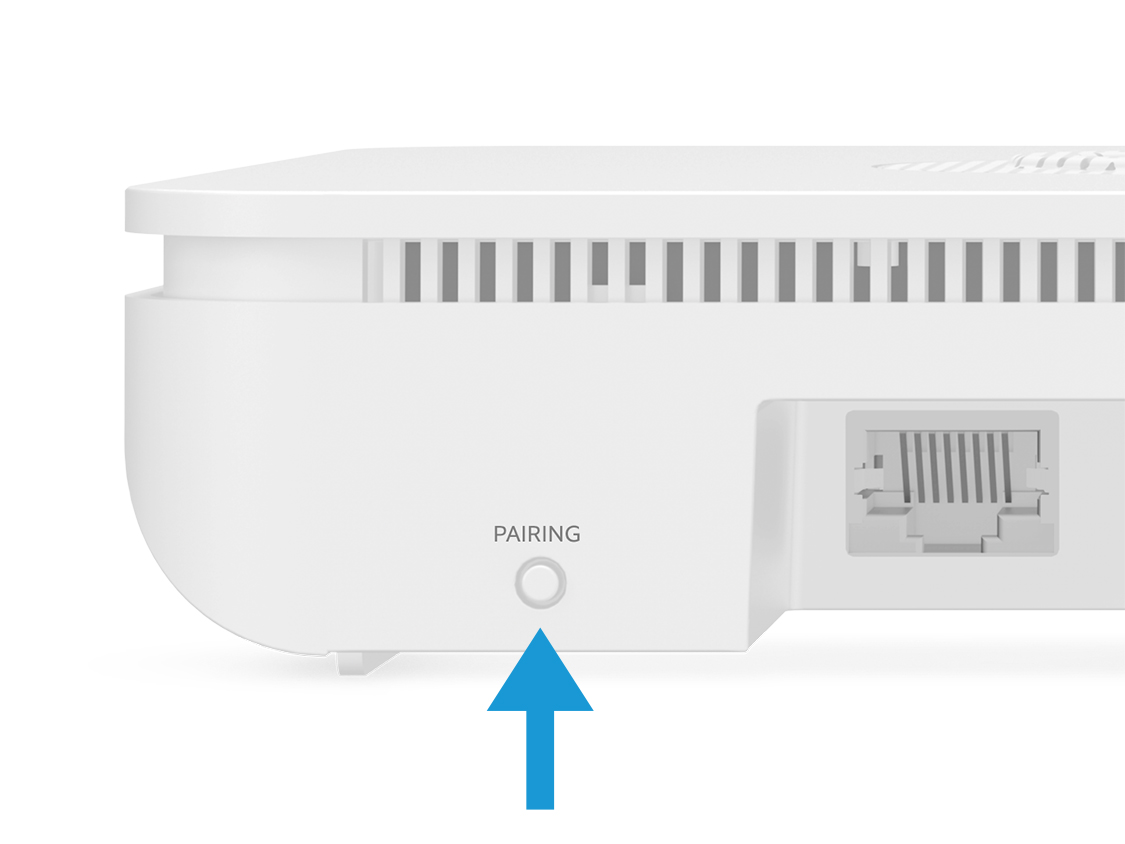
- Locate the Reset Button: Find the small pinhole reset button on the back of the base station.
- Prepare a Tool: Use a paperclip or similar object to press the button.
- Press and Hold: Hold the button for at least 10 seconds. The light ring will flash red.
- Release the Button: When the light turns off, release the button.
- Wait for Reboot: The device will restart. The light turns white, then blue when ready.
What Happens After A Hard Reset?
- All Devices Removed: Sensors, keypads, and other accessories are unpaired.
- Settings Wiped: Wi-Fi, PIN, and custom settings are deleted.
- App Unlinked: The device is removed from your Ring account.
After a hard reset, you must set up the base station like new. If you’re giving it away, the new owner can add it to their account.
Re-adding The Ring Base Station To The App
If you plan to keep using your base station, you’ll need to set it up again in the Ring app after a factory reset. Here’s how:
- Open the Ring App: Log in with your credentials.
- Tap “Set Up a Device”: Choose “Base Station” from the menu.
- Scan the QR Code: The code is on the device or in the box.
- Follow On-Screen Steps: Connect to Wi-Fi, name your location, and add accessories.
- Test Devices: Make sure sensors and alarms connect.
Some users forget to reconnect all their sensors, so double-check each device. Also, update your emergency contacts if you use professional monitoring.
Common Problems After Reset And How To Fix Them
Resetting the base station can solve many problems, but sometimes new issues appear. Here’s how to handle the most common ones:
1. Sensors Not Connecting
Some sensors may not pair right away. Try these steps:
- Remove the sensor battery, wait 10 seconds, then replace it.
- Move the sensor closer to the base station during setup.
- Use the Ring app to add devices one at a time.
2. Wi-fi Connection Issues
If the base station won’t connect to Wi-Fi:
- Check your Wi-Fi password and network name.
- Move the base station closer to your router.
- Restart your router if needed.
3. Device Not Showing In App
If your base station is missing from the app after reset:
- Make sure you’re logged into the correct Ring account.
- Try closing and reopening the app.
- Repeat the setup process.
4. Monitoring Not Working
If you use Ring Protect Plus or another plan, you may need to re-enable monitoring. Go to the app settings and check your subscription status.
5. Light Ring Problems
If the light on your base station stays red or won’t change:
- Unplug and plug in the device again.
- Check for firmware updates in the app.
- Contact Ring support if the problem continues.
Credit: ring.com
Data Privacy And Security After A Reset
After a factory reset, your personal data—including event history, device names, and emergency contacts—are erased from the base station. However, some info may remain on Ring’s servers for a short time, depending on their policies. If you’re selling or giving away your device, always do a hard reset to protect your privacy.
If you want to be extra safe, log out of your Ring account on all devices and change your password. For more on Ring’s privacy practices, check their official privacy page.
Real-world Example: Resetting For A Home Move
When moving to a new house, resetting your base station can help avoid confusion. Imagine you leave sensors in your old home, but don’t reset the base station. The new owner can’t add their own devices, and you get alerts from a place you don’t own.
Doing a factory reset before you move keeps both homes secure and makes setup smoother for everyone.
Comparing Ring Base Station Reset With Other Smart Hubs
How does resetting a Ring Base Station compare to other popular systems? Here’s a quick look:
| Device | Soft Reset | Factory Reset | Ease of Reset |
|---|---|---|---|
| Ring Base Station | Yes | Yes | Medium (uses pinhole tool) |
| SimpliSafe Base Station | Yes | Yes | Easy (uses keypad menu) |
| ADT Smart Hub | Yes | Yes | Medium (button + code) |
Ring’s reset process is not the hardest, but you do need a tool and patience for a factory reset. Unlike some hubs, you cannot reset everything from the app—you need physical access to the device.
Tips To Avoid Needing A Reset In The Future
Resetting should be your last option. Here’s how to avoid it:
- Keep Firmware Updated: Use the Ring app to check for updates often.
- Maintain Good Wi-Fi: Place your base station near your router.
- Test Your System Monthly: Run checks so you catch small problems early.
- Document Changes: Write down your PINs and device names in a safe place.
A common mistake is ignoring minor errors until they become big problems. Fix small issues right away to avoid resets later.
When To Contact Ring Support
If you’ve tried all the steps above but your base station still doesn’t work, it’s time to contact Ring Support. They can help with:
- Devices not pairing after reset
- Error messages in the app
- Repeated setup failures
- Problems with professional monitoring
Having your device’s serial number and your Ring account info ready will speed up the process.
Cost And Warranty Concerns After Reset
Resetting your base station does not cancel your warranty or subscription. If your device is still under warranty and fails after a reset, you can request a replacement. Keep your proof of purchase and serial number handy.
If you pay for a Ring Protect plan, make sure to re-link your base station in the app, or you might lose monitoring services.

Credit: www.youtube.com
Frequently Asked Questions
Why Would I Need To Reset My Ring Base Station?
You might need to reset if your system is not responding, you’re moving, selling the device, or you’ve lost access to your admin account. It can also solve persistent problems after other troubleshooting steps fail.
Will Resetting Delete All My Security Footage And Device Settings?
A factory reset deletes all settings and disconnects devices from your base station. However, video footage stored in the Ring cloud remains until it expires or you delete it manually. Always download important videos before resetting.
Can I Reset My Ring Base Station From The App?
No, you must press the physical reset button on the device. The app does not offer an option to factory reset the base station for security reasons.
What Should I Do If My Sensors Don’t Reconnect After A Reset?
Try removing and reinserting the sensor batteries, and add them one by one using the Ring app. If sensors still won’t connect, move them closer to the base station during setup or contact Ring support for help.
Does A Reset Affect My Ring Protect Subscription?
Resetting the base station does not cancel your subscription. However, after a reset, you need to set up the base station again in the app to restore monitoring and alerts.
Resetting your Ring Base Station is a powerful tool for solving stubborn problems or preparing your device for a new owner. By following the steps here, you can make the process smooth and avoid losing important data. Remember to try simple fixes first, and only reset when you need to. With the right approach, your Ring Alarm system will keep your home protected and your privacy safe.