
A Corsair Void Wireless V2 mic not working is usually caused by software settings or a muted hardware switch rather than a broken device. First, check the physical mute button on the left ear cup; a solid red light indicates the mic is muted. If the light is off but the software detects no sound, the issue is likely an incorrect input selection in your operating system or iCUE.
| Cause | How common | How to confirm it | Fix it yourself? |
|---|---|---|---|
| Muted hardware switch | Very common | Check for red light | Yes |
| Wrong input device | Common | Check system sound settings | Yes |
| iCUE software conflict | Common | Restart the iCUE app | Yes |
| Outdated firmware | Occasional | Check device manager status | Yes |
| USB dongle port issue | Occasional | Try a different USB port | Yes |
| Damaged internal cable | Rare | Inspect mic arm movement | No |
Check if your Corsair Void is muted
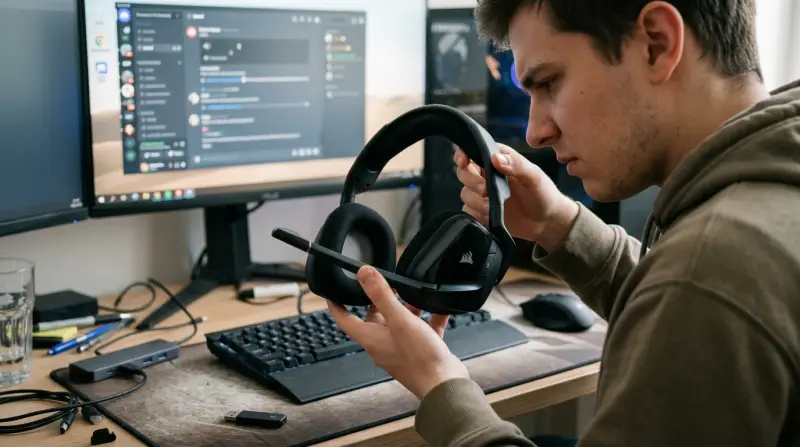
The most frequent reason for this issue is an accidental press of the mute button located on the left ear cup. When the microphone is muted, the headset typically plays two low beeps, and the LED at the end of the microphone boom glows red. If you don’t see this light, you must verify that the headset is actually powered on and paired with its wireless USB receiver.
To test this, press the power button once to ensure it’s active. If the headset connects but remains silent, check if the red light is on. If it is, press the mute button again to toggle it off. A common mistake users make is assuming the software controls the hardware mute switch. In reality, the physical button operates independently of the computer. If the button is stuck or unresponsive, you can test the hardware by connecting the headset to a different USB port or a secondary device. If it works elsewhere, your computer’s driver is the culprit, not the headset.
If the red light isn’t on, but the system still doesn’t hear you, check the physical position of the boom arm. It must be pulled down into the active position. If the arm is pushed all the way up, it may trigger an internal cutoff switch designed to mute the device automatically.
Listen for a faint mechanical click as the arm reaches the bottom of its travel. If you move the arm down and the system still shows no input, the issue has moved from a simple physical switch to a configuration problem within your computer. At this stage, verify that your operating system hasn’t defaulted to a different audio input device, such as a webcam microphone.
Software and input device selection
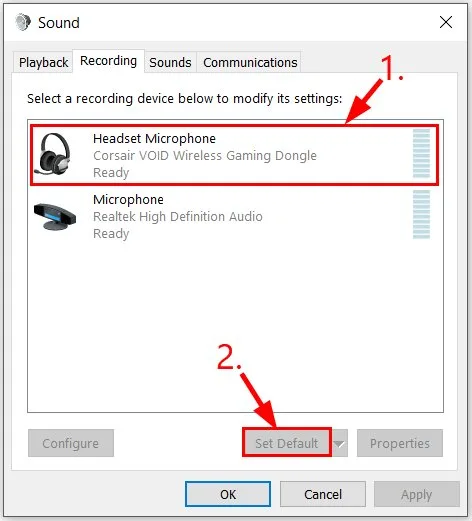
The second most common cause involves your computer selecting the wrong device for voice input. Operating systems often default to a webcam or a monitor’s built-in microphone instead of your wireless headset.
To confirm this, open your sound settings and look at the input device list. If you see “Corsair Void Wireless” in the list, select it and speak into the mic while watching the volume meter. If the meter moves, your hardware is fine, and the issue was simply a software selection error.
If you select the headset and the meter stays flat, verify that the iCUE software is running. This software manages the connection between the USB dongle and the headset. If iCUE shows the device as “inactive” or “disconnected,” the headset isn’t talking to the computer properly.
A common mistake is assuming the headset is paired just because the lights are on. If the software fails to recognize the hardware, close the application completely and restart it. If the headset still fails to show up, unplug the USB dongle, wait ten seconds, and plug it back into a different USB port on the back of your computer.
Always use motherboard-integrated ports rather than front-panel headers or USB hubs. These secondary ports often provide inconsistent power, which causes the wireless signal to drop intermittently.
If the device appears in the software but the input volume is set to zero, move the slider to maximum to test the sensitivity. If the meter remains flat after this, the issue is likely a hardware failure rather than a setting. This process takes about five minutes of trial and error but resolves most software-based input failures.
Firmware and driver compatibility issues

Outdated firmware or corrupted drivers can stop the microphone from communicating with your system. If the physical switch is off and the software detects the headset, but the mic remains dead, check for a firmware update within the iCUE interface. An outdated driver may cause the OS to ignore the mic input entirely.
To confirm this, open the Device Manager and look under “Sound, video and game controllers.” If you see a yellow triangle next to the Corsair entry, the driver is corrupted. Right-click the device, select “Uninstall device,” and unplug the USB dongle. Restart your computer and plug the dongle back into the same port to force Windows to reinstall the necessary drivers. This fix is essential if you have recently performed a major system update or changed your main hardware configuration.
Many users mistakenly attempt to reinstall the entire iCUE software suite when only the driver is at fault. This costs time and often leaves the underlying driver conflict unresolved. If the device appears as “Unknown USB Device,” the dongle itself may be failing.
Test the hardware by moving the dongle to a different computer. If the mic works on the second machine, the issue is your local Windows configuration, likely a registry conflict or a USB power management setting. If it fails on both, the receiver or the headset hardware is likely at fault. In that case, stop attempting software repairs and contact support.
Always check the label on your USB dongle to ensure you’re using the correct receiver for your specific headset version. Using a mismatched dongle from an older model will result in a detected device that can’t transmit audio, regardless of driver status.
The less likely causes
-
USB port power limits: Passive hubs often split current across multiple devices, leaving high-draw receivers starved. If your audio cuts out during spikes, move the receiver directly to a rear motherboard port. These ports provide a stable 5V supply, bypassing the voltage drops common in front-panel cases.
-
Microphone sensitivity: If your voice sounds distant, check the gain levels in your OS sound panel. Many users mistakenly blame hardware when the input volume is simply capped at 50%. Aim for 80% to ensure clarity without introducing excessive background hiss.
-
Privacy settings: Modern OS updates often reset app-level permissions. If your mic works in a test recording but fails in a browser, navigate to your privacy dashboard. Toggle the master microphone switch off and on to force a permission refresh.
-
Internal wiring damage: Constant tension on the boom arm causes fatigue in the copper leads. If the signal only returns when you hold the cable at a specific angle, the internal wire is frayed. This is a permanent hardware failure; stop bending the arm to prevent a short circuit.
What a fix usually involves
Fixing this issue typically requires only your time and a few configuration changes. If the problem is software-based, the fix is free and takes roughly ten to fifteen minutes of your time. If the issue is a damaged internal cable or a faulty USB dongle, you’re likely looking at the cost of a new dongle or a replacement headset. Hardware repairs on this specific model are rarely worth the expense, as the cost of professional labor usually exceeds a large portion of the price of a new unit.
Before you decide to replace the device, check the official documentation for your specific model to see if there’s a known hardware reset sequence. You can find this information on the product page on the manufacturer’s website. If you have tried all the steps above and the microphone still doesn’t work, contact the manufacturer’s support team. They can determine if your device is still covered under warranty. Never attempt to open the headset housing yourself, as this will immediately void your warranty and could cause permanent damage to the delicate internal components.
Most users make the mistake of assuming a hardware failure when the issue is actually a driver conflict. If your device appears in the Device Manager with a yellow exclamation mark, uninstall the driver and restart your computer to force a clean reinstall. If the device doesn’t appear at all, test it on a different USB port. If it works there, your original port is likely failing or underpowered.
Can I use the headset while it’s charging?
Yes, you can use the headset while it’s charging. The USB cable provides power to the battery while the wireless signal continues to transmit audio. If the microphone stops working while you’re charging, simply unplug the cable to see if the interference was caused by a faulty USB power source.
Is it safe to update the firmware?
Yes, it’s safe to update the firmware using the official software. Ensure your computer doesn’t lose power during the update process, as this could corrupt the headset’s internal memory. If the update fails, the software will usually prompt you to retry or perform a forced recovery.
What happens if I lose the USB dongle?
If you lose the USB dongle, the headset won’t function because it can’t pair with your computer. You must purchase a replacement receiver that matches your specific model version. You can confirm the compatibility by checking the part number on your headset’s label against the items listed on the manufacturer’s official support store.
How long does the battery usually last?
The battery life varies by model—check the label or the official manual for your specific version. Generally, these headsets provide several hours of use on a single charge. If you notice the battery life dropping significantly over time, it’s a normal result of lithium-ion aging and not related to the microphone functionality.
Does the microphone work on consoles?
Yes, the microphone is designed to work on many consoles, but the functionality varies by model—check the official compatibility list on the manufacturer’s website. Some features, like the iCUE software customization, aren’t available on consoles. You may need to adjust the microphone levels directly through the console’s system audio settings menu.
Why is the mic light blinking red?
A blinking red light usually indicates a low battery or a failed connection attempt. Connect the headset to a power source to rule out a low battery. If it continues to blink after a full charge, the headset has lost its pairing with the USB dongle and needs to be re-paired through the official software.
Final Thoughts
If you’ve tried these fixes and still can’t hear yourself, don’t worry. Sometimes a simple driver update or a different USB port is all it takes to get things running smoothly. Reach out to Corsair’s support team if you’re still having trouble; they’ll help you figure out if it’s a hardware defect.
Related guides
- Airtalk Wireless Check Status Not Working
- Verizon Wireless Visual Voicemail Not Working
- Airtalk Wireless Data Not Working Android: Quick Fix Guide