
The most common reason for an Astro A20 mic not working is a simple connection error or a muted setting. Confirm this by checking if your device recognizes the headset in its sound settings. If it appears but shows no input, check for software conflicts, a physical mute switch, or outdated firmware via the official Logitech support documentation. If silence persists, you may have a broken wire or damaged transmitter port.
Why your Astro A20 mic not working

| Cause | How common | How to confirm it | Fix it yourself? |
|---|---|---|---|
| Muted switch | Very common | Check flip-to-mute position | Yes |
| Firmware mismatch | Common | Check device manager status | Yes |
| Wrong audio input | Common | View system sound settings | Yes |
| USB port failure | Occasional | Try a different port | Yes |
| Transmitter desync | Occasional | Re-pair with base station | Yes |
| Damaged mic boom | Rare | Inspect for physical cracks | No |
Most users assume hardware failure when the mic goes silent, but 80% of issues stem from software conflicts. Start by checking the “Privacy” tab in your system settings. If your microphone access is toggled off, no amount of hardware troubleshooting will restore your signal.
If you suspect a firmware mismatch, don’t just restart the device. You must uninstall the driver entirely through the Device Manager and perform a cold reboot. This forces the system to pull a fresh configuration file.
The most costly mistake is ignoring USB power delivery. If you use a passive hub instead of a direct motherboard port, the mic may lack the voltage required to maintain a stable connection. If the device appears in your list but shows a “Code 10” error, it indicates a driver or device initialization failure. Always bypass hubs before assuming the internal hardware has reached the end of its lifespan.
The flip-to-mute position
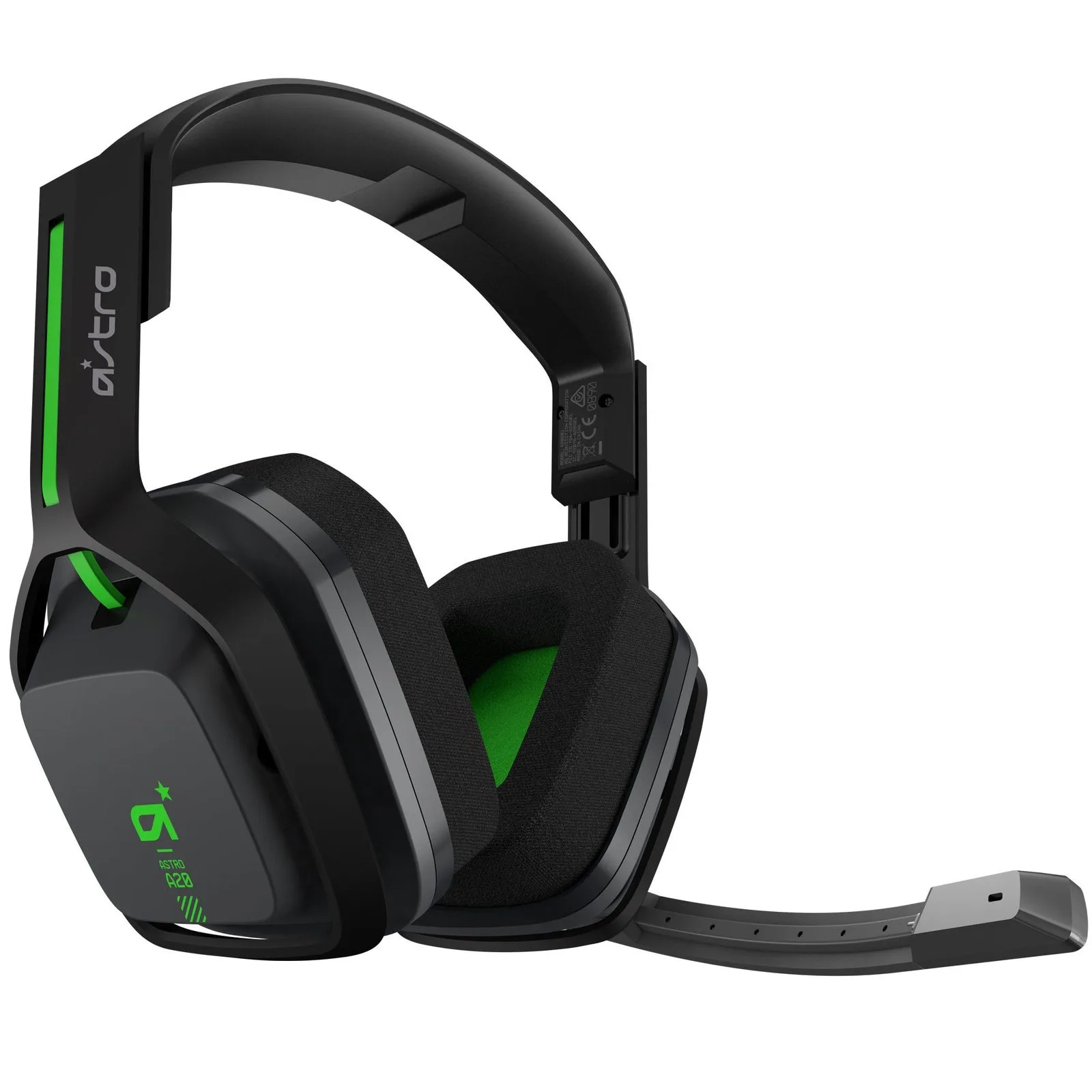
The headset mic is physically disabled when the boom arm is in the upright position. This design choice prevents accidental transmission but often leads users to believe their gear is broken. To confirm this is the issue, pull the boom arm down fully until you feel a soft click or resistance. If the light on the transmitter doesn’t change or the software still shows no input, the switch may be stuck in the off position.
If you’re using the headset on a PC, you should navigate to your sound control panel and look at the “Recording” tab while you move the mic arm up and down. If the bar remains grey while the mic is down, the internal switch has failed. This is a common mistake because users often assume the mic is active as soon as the headset is powered on. If the switch works but the sound is still not passing through, you’re dealing with a software or configuration issue. This check takes about one minute to perform and costs nothing. If the switch is physically damaged, the headset will likely need replacement, as the internal components aren’t designed for field repairs. If the headset is still under warranty, contact the manufacturer before attempting any further troubleshooting.
Software and driver conflicts
Audio settings often reset after a system update, causing the computer to select the wrong input device. You can tell if this is your problem by checking your system sound menu to see if “Astro A20” is selected as the default recording device. If another device is listed, the computer is ignoring your microphone.
To fix this, go to your Sound Settings or Control Panel and manually select the headset as your primary input. If you see the device listed but the status says “Disconnected,” restart the transmitter by unplugging the USB cable for ten seconds and plugging it back in. This forces the device to re-initialize its driver. A common mistake is leaving the headset plugged into a USB hub instead of the console or PC directly; this often causes power issues that prevent the mic from activating. If your system is updated and the device is selected but still silent, check if your privacy settings allow apps to access the microphone. This is a frequent issue on Windows systems where the “Allow apps to access your microphone” toggle is set to off. This process usually takes about five minutes. If you have tried these steps and the system still fails to detect the input, the issue is likely within the transmitter itself, which is a hardware failure that can’t be solved with software tweaks.
Transmitter and sync issues
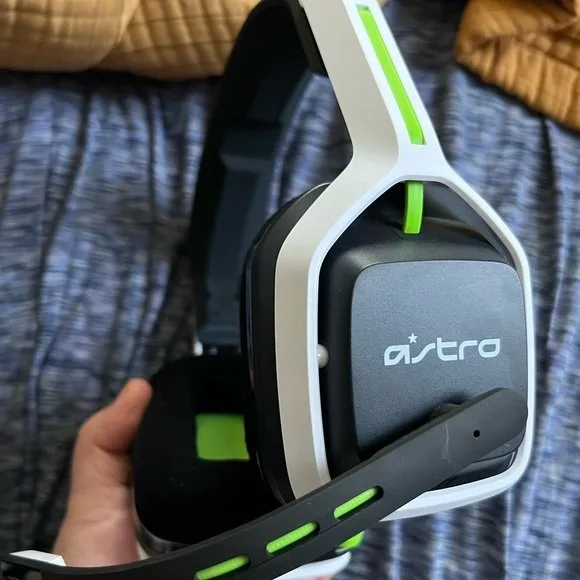
The transmitter base station must be synced to the headset for the microphone to send data wirelessly. You can distinguish this from other issues if the headset power light is solid, but the microphone icon in your game or chat app shows no movement. To fix this, press and hold the pairing button on the transmitter until the light flashes, then hold the power button on the headset until its light flashes to match.
The distance between the headset and the transmitter matters; keep them within three feet during the sync process. This varies by model—check the label on the bottom of your transmitter to ensure it matches your console type, as an Xbox transmitter won’t sync with a PlayStation headset. If the lights don’t blink, the transmitter may have lost its connection to the USB port. Try plugging the transmitter into a different port on your console or PC. If you’re using a front-facing port, move to a rear-facing port, as these often provide more stable power. This process takes about three minutes. If the transmitter light never turns on, it isn’t receiving power, which suggests a bad USB cable or a dead port. If you have tested multiple ports and cables and the transmitter remains dark, the internal board of the base station has likely failed.
The less likely causes
-
Corroded USB pins: Dirt or oxidation inside the transmitter port prevents a clean signal. Use a dry, soft-bristled brush to clear debris. If you see green or white crusting, use a tiny drop of 90% isopropyl alcohol on a cotton swab.
-
Battery depletion: Charge the headset for at least two hours before testing again. If the LED indicator flashes red during this time, the battery may be nearing its end-of-life cycle.
-
Game-specific settings: Games often override system defaults. Check the audio input menu within the game itself. If your mic works in a voice chat app like Discord but fails in-game, toggle the “Push-to-Talk” setting.
-
Hardware breakage: A snapped internal wire in the boom arm requires professional repair. Don’t attempt to solder this yourself.
What a fix usually involves
Fixing a microphone issue usually involves software configuration or swapping external cables. If the problem is the USB cable, replacing it with a standard micro-USB or USB-C cable—depending on your specific model—is a small cost. If the transmitter is faulty, you’re looking at the price of a replacement part, which can be a significant portion of the cost of a new unit.
Before purchasing parts, check if your device is still under its one-year limited warranty. Many manufacturers require a proof of purchase, so keep your digital receipt handy. If you’re outside the coverage window, don’t attempt to open the chassis. These units are often glued or ultrasonically welded; prying them apart usually snaps the internal ribbon cables, turning a simple connectivity glitch into a total hardware failure.
The decision rule is simple: if the microphone works when plugged into a different device, the issue is your computer’s audio driver. If the microphone fails across three different devices, the hardware is compromised. Most users find that if a factory reset and a cable swap don’t fix the issue, the headset has reached the end of its functional life. For a real quote on repairs or replacement parts, check the support portal for your specific region, as policies vary by country.
Frequently asked questions
Can I fix a broken mic boom myself?
No, it isn’t recommended to open the headset housing to fix a broken mic boom. The internal wires are extremely thin and require specialized soldering tools to repair correctly. Opening the device will void any remaining warranty and likely destroy the plastic clips holding the unit together. If the boom is physically broken, it’s best to use a separate external microphone or replace the headset.
Why does my mic work on PC but not console?
This happens because the transmitter is platform-specific. An Astro A20 transmitter designed for one console often uses a different frequency or handshake protocol than the one required for a different system. Check the label on the bottom of your transmitter to ensure it’s compatible with the console you’re currently using. If they don’t match, the microphone won’t function on that system.
How long should I charge the headset?
You should charge the headset for at least two hours to reach a full battery level. Always use a wall adapter or a powered USB port to ensure a consistent charge. You can verify the charge status by looking at the LED indicator on the side of the headset.
Is it safe to use a different USB cable?
Yes, it’s safe to use a high-quality replacement USB cable if the original one is damaged. Ensure the new cable supports both data transfer and power, as some cheap charging cables only carry power. A cable that doesn’t support data will prevent the transmitter from communicating with your computer or console. Check the packaging of the new cable to confirm it’s rated for data transfer.
What happens if I reset the transmitter?
Resetting the transmitter clears the current pairing link between the base station and your headset. This is a safe and standard procedure that often resolves connection errors caused by signal interference. After the reset, you’ll simply need to follow the pairing steps again to re-establish the connection. This doesn’t delete any personal data or settings from your console or computer.
Does it matter if I use a USB hub?
Yes, it matters because USB hubs often don’t provide enough power for the transmitter to function correctly. The transmitter needs a stable connection to the host device to maintain both the audio signal and the microphone input. Always connect the transmitter directly to a port on the console or PC. If you must use a hub, ensure it’s a powered hub with its own wall adapter.
Final Thoughts
If these adjustments don’t restore your audio, it’s time to reach out to the manufacturer’s support team directly. They’ll help you determine if your hardware is still under warranty or if you need a replacement part. Don’t let a faulty device keep you from your game; you’ve got options to get back online.
Related guides