
When you find your Arteck keyboard not working, the most likely cause is a depleted battery or a lost wireless connection that needs to be reset. If the keys don’t register or the device doesn’t wake up, first plug it into a known-working USB power source to rule out power issues. If the keyboard shows no lights when switched on, the internal battery is likely dead or the charging cable is faulty. Always check that the power switch is in the “on” position before troubleshooting software settings.
Fixing an Arteck Keyboard Not Working
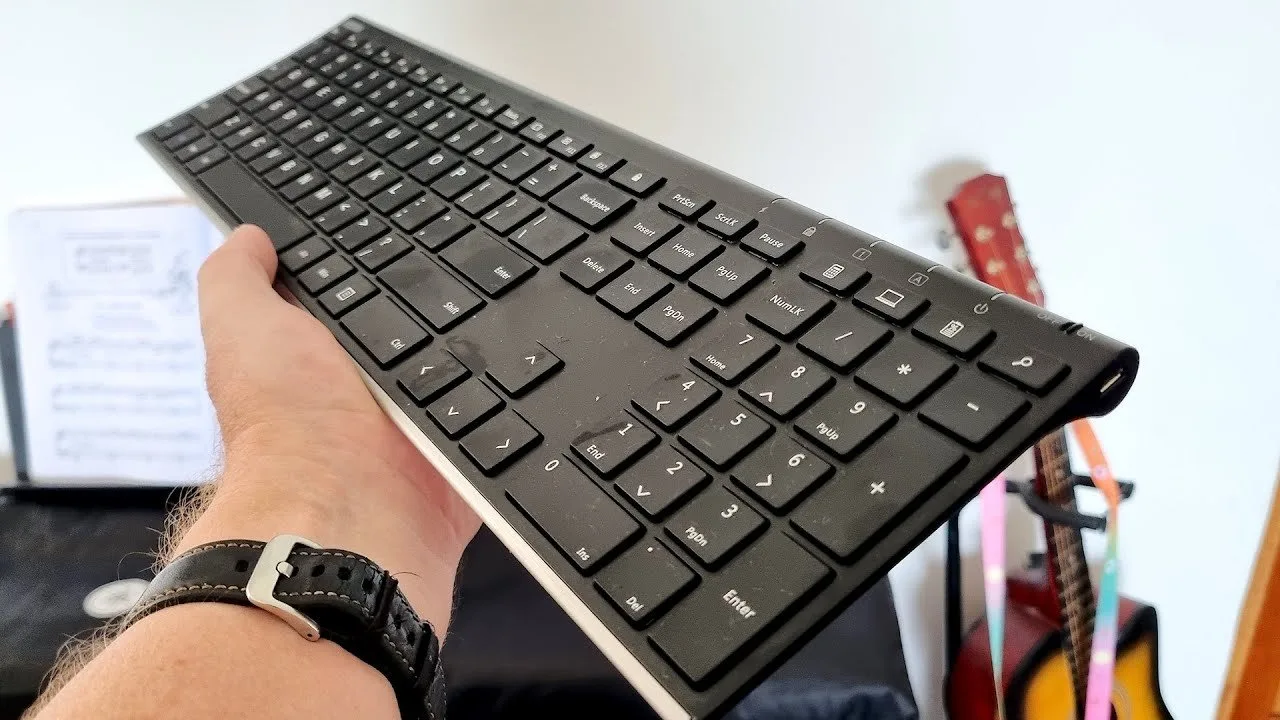
The most common reason for a connection failure is that the Bluetooth or 2.4GHz receiver has lost its handshake with the computer. This happens if the computer performed a major OS update, if the keyboard went into deep sleep mode, or if there’s signal interference from other nearby wireless devices.
A common mistake is assuming the device is broken when it’s simply experiencing signal saturation. If you have a Wi-Fi router or a high-speed external hard drive sitting within six inches of your USB dongle, move them immediately. These devices emit electromagnetic noise that can drown out the low-power signal of a keyboard.
Another frequent cause is a drained battery. Because these keyboards use lithium-ion cells, they eventually lose the ability to hold a charge. If you leave the keyboard unused for months, the battery may fall below the voltage threshold required to power the internal Bluetooth chip.
You must leave the keyboard charging for at least four hours before attempting a reset.
Finally, the issue may stem from the USB port itself. If you use a 2.4GHz USB dongle, it might be blocked by a thick computer case or other cables that create electromagnetic shielding. If the keyboard works when plugged directly into the PC with a wire but fails wirelessly, the issue is almost certainly the receiver or the wireless settings on your device.
Check the battery and power
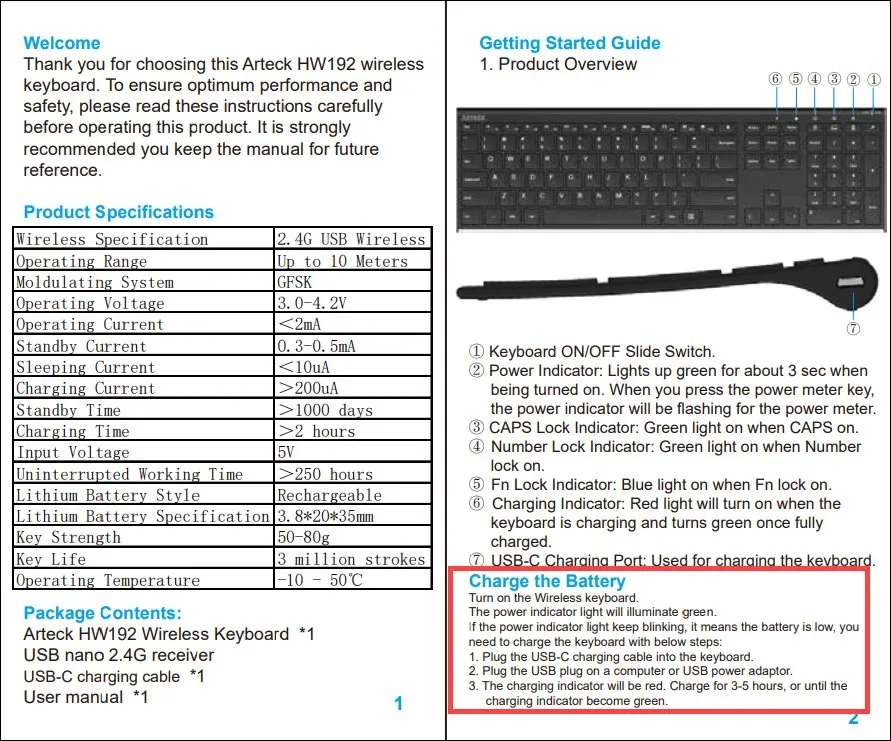
This fix is for users who see no lights on the keyboard when they flip the power switch. Start by connecting the provided micro-USB or USB-C cable to the keyboard and a wall adapter instead of your computer. Wall adapters provide a steady flow of power that computers sometimes struggle to supply when the keyboard is completely dead. Leave it charging for at least two hours. If the indicator light remains dark after this time, try a different cable that you have confirmed works with a smartphone or tablet.
If the light turns on but the keyboard still doesn’t type, it’s time to check the switch. Some models have a physical toggle that’s easy to bump into the off position. If you have a model with a battery-saving mode, try pressing any key once to wake it up before typing. If you use a mechanical keyboard with a high-capacity battery, this varies by model — check the label on the back for specific voltage requirements. If you don’t see any life after using a known-good cable and a wall charger, the internal battery has likely reached its end of life and can’t be replaced by the user.
Reset the wireless connection
This fix is for users who have power but can’t get the computer to recognize the device. Start by removing the keyboard from your computer’s Bluetooth settings list entirely. On Windows, go to Settings, then Bluetooth & Devices, and click “Remove device” for the Arteck keyboard. On a Mac, go to System Settings and do the same. Once it’s removed, turn the keyboard off and back on. Put the keyboard into pairing mode by holding the specific Bluetooth button or the key combination indicated in your manual, usually until a light blinks rapidly.
If you’re using the 2.4GHz USB dongle, unplug the dongle from the USB port and plug it into a different port, preferably one directly on the motherboard rather than a USB hub. USB hubs often struggle to provide enough power to wireless receivers. After moving the dongle, wait for the computer to chime, indicating it has recognized a new device. If you find the keyboard is still unresponsive, try pairing it with a different computer. If it connects to a second device, the problem is likely your primary computer’s drivers. If it fails on both, the receiver or the internal transmitter is likely faulty.
Update the system drivers
This fix is for users who have confirmed the hardware is working but the computer refuses to accept input. Sometimes, the HID (Human Interface Device) drivers in your operating system become corrupted after a major security update. This is worth the time if you have already tried the steps above and the keyboard works on other devices but not your main PC.
Open the Device Manager and expand the “Keyboards” category. If you see a yellow exclamation mark next to any entry, right-click it and select “Update driver.” If that fails, select “Uninstall device” and restart your computer. The system will automatically reinstall the driver upon reboot. This process is safe and doesn’t delete your personal files.
A common mistake is uninstalling the “HID Keyboard Device” when multiple entries exist. If you see several, uninstall all of them to clear out potential conflicts. If your mouse also stops working during this process, use the Tab and Enter keys to navigate the menus.
If you aren’t comfortable navigating the Device Manager, ask a friend for help. Deleting the wrong driver—specifically those listed under “System devices”—can stop other hardware from functioning.
Use this decision rule: If the keyboard works in the BIOS menu but not in Windows, the issue is definitely a driver conflict. If it fails in both, the hardware is likely beyond repair. In most cases, the system restores functionality automatically after a restart. If the keyboard still fails after a driver refresh, you have successfully ruled out software as the culprit.
What not to do
Don’t attempt to open the plastic housing to fix the battery or circuit board. This voids your warranty immediately and risks a fire if the lithium-ion cell is punctured.
Avoid “driver update” software found in random pop-up ads. These are almost always malware designed to harvest your data, which will make your computer slower and significantly less secure.
Never submerge the keyboard in water or use harsh liquid cleaners to fix sticky keys. Moisture inevitably destroys the sensitive membrane circuits inside. If a key sticks, use a dry, soft-bristled brush to clear debris instead.
Finally, don’t ignore a flashing red light. This is a specific firmware signal that the battery is critically low.
How to stop it happening again
Routine maintenance keeps your wireless peripherals connected and functional for their entire expected lifespan. Neglecting these small habits often leads to “ghosting” or sudden connection drops that mimic hardware failure.
| If you’re doing this | Do this instead | Why |
|---|---|---|
| Leaving the keyboard on | Turn it off when not in use | Prevents deep battery discharge |
| Plugging into a USB hub | Plug directly into the PC | Ensures constant power delivery |
| Using an old cable | Use a high-quality cable | Prevents intermittent charging |
| Ignoring firmware updates | Run OS updates regularly | Keeps HID drivers compatible |
Most users mistake a dying battery for a broken sensor.
Use this decision rule: if the device works wired but fails wirelessly, replace the battery. If it fails in both states, reinstall the HID driver. This simple diagnostic saves you from replacing perfectly good hardware.
Frequently asked questions
Can I use my Arteck keyboard while it’s charging?
Yes, you can use the keyboard while it’s plugged in. Most models are designed to function as a wired device while the battery charges. If it fails to work, ensure the cable is fully inserted into the port.
How long does an Arteck keyboard battery last?
Most models last between two and six months on a single charge with moderate use. This estimate assumes you aren’t using the backlight at high brightness levels. If your battery lasts less than a week, it may have reached its cycle limit.
Is it safe to leave my keyboard plugged in all the time?
No, it’s better to unplug the device once it’s fully charged to protect battery health. Only plug it in when the battery indicator light begins to blink.
Why does my keyboard disconnect when I move it?
This usually happens because the 2.4GHz signal is being blocked by physical objects or wireless interference. Ensure there’s a clear line of sight between the keyboard and the receiver. Moving the receiver to a front-facing port often solves this connection drop immediately.
What happens if I lose the USB receiver?
You generally can’t buy a replacement 2.4GHz USB receiver because they’re factory-paired to the specific device. If your model supports Bluetooth, you can continue using the keyboard by switching modes in your settings. If it only supports the dongle, you’ll likely need a new keyboard.
Final Thoughts
If your device still won’t connect after these checks, don’t worry. It’s possible the internal hardware has a deeper fault that needs professional attention. Reach out to the manufacturer’s support team through their website; they’ll help you determine if you’re eligible for a replacement so you can get back to typing.