
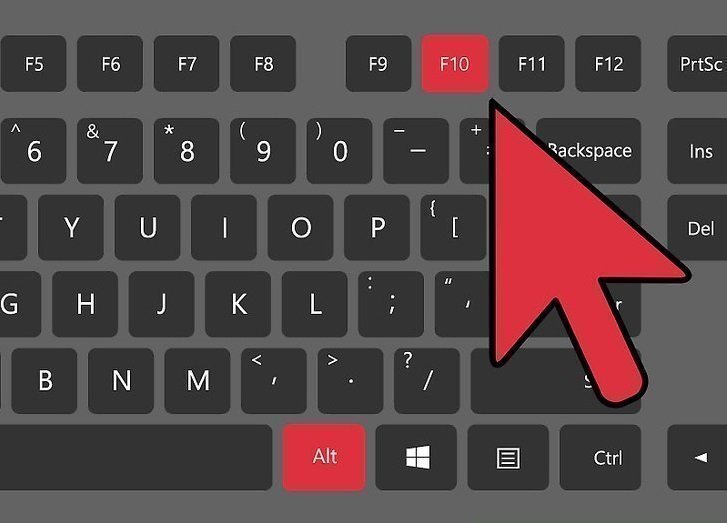
When you need to factory reset your Acer laptop, pressing Alt + F10 at startup is the usual shortcut. But what if this key combination doesn’t work? Many people get stuck here, unsure how to proceed. In this guide, you’ll discover why Alt F10 may fail, and—more importantly—ten different ways to reset your Acer laptop even when the normal shortcut is broken. Whether you lost your password, your system is unstable, or you’re preparing your device for resale, you’ll find practical solutions below. Let’s get your laptop back to factory settings, fast.
Why Alt + F10 May Not Work On Acer Laptops
The Alt + F10 shortcut is designed to launch the Acer recovery environment at startup. However, it doesn’t always work. Here are some reasons:
- Recovery partition missing: If the recovery partition was deleted or damaged, the shortcut won’t start recovery.
- Changed boot mode: Switching from Legacy BIOS to UEFI (or vice versa) can block the shortcut.
- Fast Boot enabled: This skips some checks, so the keypress isn’t detected.
- Corrupted boot files: System updates or malware can break the link.
- Keyboard issues: Non-US keyboards or faulty keys might not register the command.
- Password protection: Some companies lock recovery for security.
- Third-party OS installs: Installing Linux or another Windows can overwrite recovery tools.
Not all hope is lost. Let’s look at the ten best ways to factory reset your Acer laptop when Alt F10 is not working.
Use Acer Care Center In Windows
If your laptop still boots into Windows, try Acer Care Center. This app comes preinstalled on many Acer devices.
- Open Acer Care Center from the Start menu.
- Go to Recovery Management.
- Select Restore or Reset.
- Follow the on-screen instructions.
This method is simple, user-friendly, and keeps drivers up to date after the reset. Many users overlook this built-in app, but it often works even when Alt + F10 does not.

Reset Via Windows Settings
Windows 10 and 11 have a built-in reset tool.
- Go to Settings > Update & Security > Recovery.
- Under Reset this PC, click Get Started.
- Choose either Keep my files or Remove everything.
- Follow prompts to complete the process.
This uses Microsoft’s system image, not Acer’s original, but it does return your laptop to a clean state. For many, this is the fastest way to reset, especially if you don’t need the exact factory setup.
Use A Recovery Drive (usb)
If your system won’t boot, you can use a USB recovery drive.
- On another computer, download the Windows Media Creation Tool from Microsoft.
- Create a bootable USB drive.
- Plug the USB into your Acer laptop.
- Restart and press F12 (or Esc/F2 for some models) to enter the boot menu.
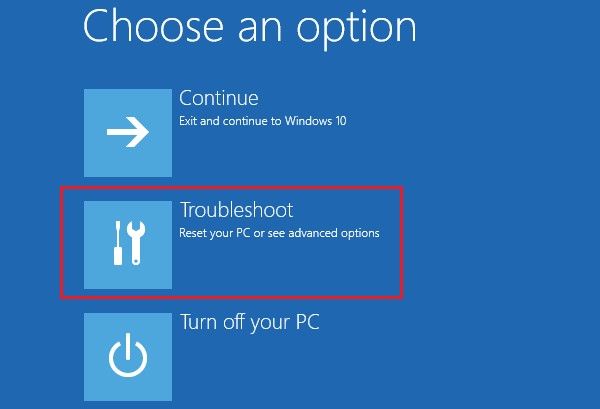
- Boot from the USB and select Repair your computer > Troubleshoot > Reset this PC.
Some people forget you need at least 8GB on the USB stick. This method is a lifesaver when Windows won’t load.
| Reset Method | Requires Windows Login? | Restores Acer Software? |
|---|---|---|
| Acer Care Center | Yes | Yes |
| Windows Settings | Yes | No |
| Recovery Drive (USB) | No | No |
Restore From A System Image Backup
If you made a system image backup before problems started, you can restore your laptop to that point.
- Connect the external drive with your backup.
- Boot from a Windows recovery disk or USB.
- Go to Troubleshoot > Advanced options > System Image Recovery.
- Follow the steps to restore.
This method is often missed by beginners because creating a system image is not common practice. But it’s the best way to get your exact programs and files back.
Reinstall Windows From Scratch
If nothing else works, you can do a clean install of Windows.
- Download the Media Creation Tool from the official Microsoft website.
- Create a Windows installation USB.
- Boot from the USB.
- Choose Custom: Install Windows only.
- Delete all partitions (be careful—this erases everything).
- Install Windows.
You’ll lose Acer’s special apps and recovery tools, but you’ll have a fresh start. Remember to back up your files before doing this.
Access Recovery Through Bios/uefi
Some Acer laptops let you launch recovery from the BIOS/UEFI menu.
- Restart and press F2 (or Del) to enter BIOS.
- Look for a Recovery or Boot tab.
- If you see a recovery option, select it.
On newer models, the recovery option might be hidden until you set F12 Boot Menu to Enabled. Always check your BIOS carefully; sometimes recovery is just a menu away.
Use Command Prompt To Trigger Recovery
Advanced users can sometimes start recovery from the Command Prompt.
- Boot into Windows Recovery Environment (WinRE) using a USB or by holding Shift while clicking Restart.
- Choose Troubleshoot > Advanced options > Command Prompt.
- Type:
reagentc /boottore
And press Enter.
- Reboot your laptop. It should start the recovery environment.
This trick is rarely mentioned but can unlock recovery if the normal shortcuts are broken.
Order Official Acer Recovery Media
If your recovery partition is missing or corrupted, you can order Acer recovery media.
- Go to the official Acer support website.
- Enter your laptop’s serial number.
- Order the correct USB or DVD recovery set.
This will restore your laptop to original factory condition, including drivers and software. It’s especially useful if you plan to sell your laptop or need to comply with a warranty.
Use Third-party Recovery Tools
Some third-party tools can help if you’re locked out or can’t access recovery.
- Tools like EaseUS Todo Backup or AOMEI OneKey Recovery can create and restore system images.
- These tools often work even if Windows won’t boot, as they have their own recovery environment.
Be cautious: only use trusted software from official sources. Some free tools may include unwanted extras.
Ask Acer Support Or Visit A Service Center
When all else fails, contact Acer technical support or visit an authorized service center.
- They can guide you over the phone or chat.
- In some cases, they may reset your laptop remotely or in person.
- This is the safest option if your device is under warranty.
Many users skip this step, fearing long wait times. However, professionals have access to resources and tools that aren’t available to the general public.
| Method | Difficulty Level | Time Required |
|---|---|---|
| Acer Care Center | Easy | 15–30 min |
| Windows Settings | Easy | 20–40 min |
| Recovery Drive (USB) | Medium | 30–60 min |
| System Image Restore | Medium | Varies |
| Clean Windows Install | Advanced | 45–90 min |
| BIOS/UEFI Recovery | Medium | 15–30 min |
| Command Prompt | Advanced | 10–20 min |
| Official Recovery Media | Easy | Varies (shipping) |
| Third-Party Tools | Medium | 20–60 min |
| Acer Support/Service | Easy | Varies |
Two Insights Beginners Often Miss
- Back up your data before any reset. Factory resets erase everything—including photos, documents, and installed programs. Many people forget and lose important files. Always save your files to an external drive or the cloud first.
- Recovery partitions can disappear after installing a new version of Windows or repartitioning your drive. If you plan to reset in the future, check that the recovery partition still exists using Disk Management.
What If You Forgot Your Password?
If you can’t log in to Windows, you can still reset your Acer laptop using a recovery USB, official recovery media, or by reinstalling Windows. The Reset this PC tool on the Windows login screen (click Power > Restart while holding Shift) can sometimes let you reset without logging in.
Preventing Future Recovery Problems
- Create a recovery drive as soon as you get your laptop.
- Back up important files regularly.
- Avoid deleting partitions unless you know what they are.
- Keep your Windows and Acer utilities updated.
By following these tips, you’ll always have options if you need to reset your laptop again.
External Resource
For official recovery media and support, visit the Acer US Support page.
Frequently Asked Questions
How Do I Create A Recovery Drive For My Acer Laptop?
Plug in a USB drive (at least 8GB), search for Create a recovery drive in Windows, and follow the instructions. This drive will help you reset your laptop if Windows fails.
Can I Reset My Acer Laptop Without Losing Personal Files?
Yes. In Windows Settings, choose Keep my files when you select Reset this PC. This keeps your documents and pictures, but removes apps and settings.
What Should I Do If My Acer Laptop Won’t Boot At All?
Try using a recovery USB or official Acer recovery media. Boot from the USB by pressing F12 at startup. If this fails, contact Acer support or a service center.
Does A Factory Reset Remove Viruses And Malware?
A true factory reset (removing everything) deletes most malware. However, if malware is in the recovery partition, it may survive. Doing a clean Windows install is the safest way to erase all threats.
Will Factory Resetting My Laptop Remove Pre-installed Acer Software?
Resetting via Windows Settings usually removes Acer’s extra apps. Using Acer Care Center or official recovery media restores your laptop to the original factory setup with all pre-installed software.
A factory reset can feel complicated when shortcuts like Alt + F10 don’t work. But as you’ve seen, there are many other ways to restore your Acer laptop—even if Windows is broken or the recovery partition is missing. With careful preparation and the right tools, you can solve almost any reset problem and get your device running like new again.