
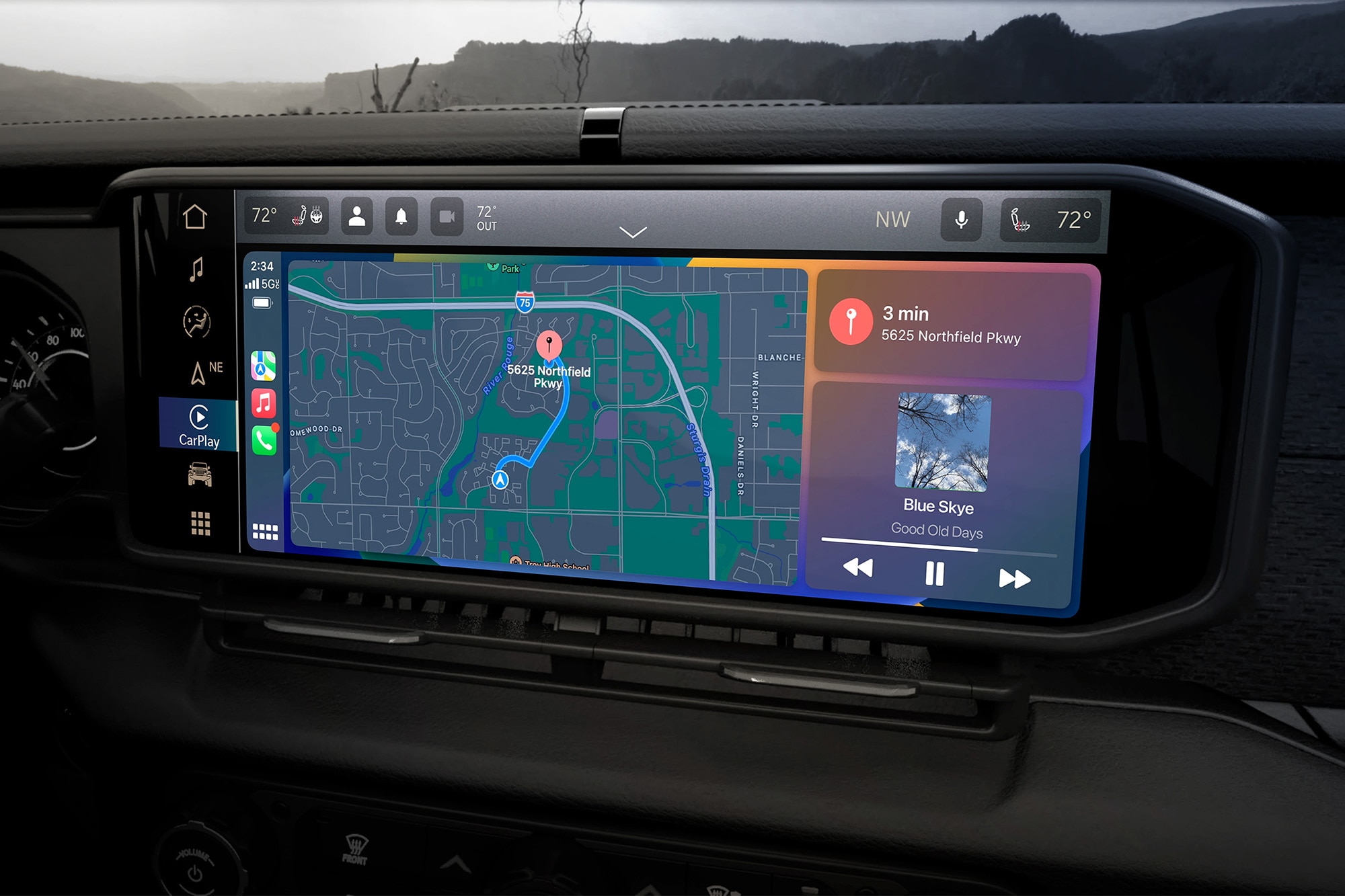
If you drive a Chrysler Pacifica and love connecting your iPhone with Apple CarPlay, it can be frustrating when CarPlay stops working. Many Pacifica owners depend on CarPlay for navigation, music, hands-free calls, and messaging. So, when the system fails, daily routines and even safety can be affected.
This guide will help you understand why CarPlay might not work in your Chrysler Pacifica, how to fix it, and how to prevent future issues.
Why Carplay Matters In The Chrysler Pacifica
Apple CarPlay brings the iPhone experience right to your car’s touchscreen. It makes driving safer by reducing the need to touch your phone. You can use Siri to send texts, get directions, or play music with simple voice commands. For families, CarPlay in the Pacifica is a key part of long trips, helping everyone stay entertained and organized. But like any technology, it’s not perfect.
Common Reasons Carplay Fails In The Pacifica
There are several typical reasons why CarPlay might stop working in your Chrysler Pacifica. Understanding these can help you fix the problem faster.
Loose Or Faulty Cable
CarPlay needs a solid connection. If your USB cable is damaged or loose, it can cause interruptions or no connection at all.
Software Issues
Both the iPhone and the Pacifica’s infotainment system need up-to-date software. Outdated versions often cause compatibility problems.
Bluetooth Or Wi-fi Interference
Sometimes, wireless connections interfere with CarPlay, especially if your Pacifica supports wireless CarPlay.
Settings Problems
CarPlay can be accidentally disabled in the phone’s settings or in the vehicle’s system.
App Or Restriction Conflicts
Screen Time or other restrictions on your iPhone may block CarPlay.
Hardware Malfunction
Rarely, the USB port or the infotainment system itself may be faulty.
Let’s look at how you can identify and fix these issues.
Step-by-step Solutions For Carplay Not Working
Check The Basics First
Before diving into complex fixes, start with simple checks:
- Make sure your iPhone is unlocked and powered on.
- Use an Apple-certified USB cable. Third-party cables often cause problems.
- Try a different USB port in your Pacifica.
- Disconnect and reconnect your phone.
- Restart your iPhone and the Pacifica’s infotainment system.
Update Software
Both your iPhone and the Pacifica’s Uconnect system need current software. Here’s a quick comparison of update steps:
| Device | How to Update | Common Issues if Not Updated |
|---|---|---|
| iPhone | Settings > General > Software Update | Compatibility errors, app crashes |
| Uconnect (Pacifica) | Settings > System Information > Check for Updates | Connection drops, display glitches |
Some Pacifica models need updates done by a dealer. If you’re unsure, check your owner’s manual or contact your dealership.
Inspect Usb Cables And Ports
A faulty cable is one of the most common (and overlooked) reasons for CarPlay failure. Check for:
- Frayed or damaged wires
- Loose connectors
- Dirt or debris in the USB port
Try using another Apple-certified cable. If possible, test your cable in another car or device to see if the problem follows the cable.
Double-check Carplay And Phone Settings
On your iPhone:
- Go to Settings > General > CarPlay
- Ensure your Pacifica is listed under “My Cars”
- If not, reconnect by plugging your phone in and following on-screen prompts
Also, check:
- Settings > Screen Time > Content & Privacy Restrictions
- Make sure CarPlay is allowed
- Disable any restrictions that might block CarPlay
On your Pacifica:
- Open the Uconnect system
- Check for CarPlay or Smartphone Projection settings
- Make sure CarPlay is enabled
Restart Everything
Sometimes, a simple restart solves hidden glitches:
- Restart your iPhone (hold power, slide to power off)
- Shut off your Pacifica, wait a minute, then restart
This can clear minor bugs in both systems.
Reset Network And Carplay Settings
If CarPlay still doesn’t connect, try resetting settings:
On iPhone:
- Go to Settings > General > Transfer or Reset iPhone > Reset > Reset Network Settings
- This will remove all saved Wi-Fi, Bluetooth, and VPN settings. Reconnect to your car after.
If you use wireless CarPlay, also try:
- Settings > General > CarPlay > [Your Car] > Forget This Car
- Then set up CarPlay again as if it’s a new connection.
Test With Another Iphone
If possible, try connecting a different iPhone to your Pacifica. If CarPlay works, your original iPhone might have a deeper software problem.
Check For Hardware Issues
If none of these fixes help, you might have a hardware problem. Signs include:
- USB port not charging any device
- Infotainment system freezing often
- Physical damage to the dashboard
At this point, visiting your dealer or a certified repair shop is the next step.
Real-world Examples: What Chrysler Pacifica Owners Report
Many Chrysler Pacifica owners have shared their experiences with CarPlay. Here are some patterns:
- After iOS updates, CarPlay sometimes stops working until the Pacifica’s system is updated, too.
- Wireless CarPlay is more likely to disconnect than wired, especially with multiple Bluetooth devices nearby.
- Some users found CarPlay stopped working after using public charging cables instead of their own.
- Factory resets of the Uconnect system have fixed CarPlay for some, but this also wipes all personalized settings.
Common Mistakes To Avoid
- Using cheap, uncertified cables
- Ignoring software updates
- Forgetting to check phone restrictions
- Not restarting both devices before more complex steps
How To Prevent Future Carplay Problems
Keeping CarPlay working smoothly in your Chrysler Pacifica means being proactive.
- Always use Apple-certified cables
- Keep both your iPhone and Uconnect system up-to-date
- Avoid connecting to multiple Bluetooth devices at the same time
- Clean your car’s USB ports regularly
Pro Tip:
If you often drive with multiple people, set each iPhone up in CarPlay separately. This can reduce connection confusion, especially if different users have different Siri or language settings.
Comparing Carplay Experience: Pacifica Vs. Other Minivans
To see how the Chrysler Pacifica stacks up, here’s a look at CarPlay performance compared to other popular minivans.
| Minivan | CarPlay Type | Reported Issues | Unique Features |
|---|---|---|---|
| Chrysler Pacifica | Wired & Wireless | Occasional drops, cable sensitivity | Uconnect Theater, multiple USB ports |
| Toyota Sienna | Wired | Less frequent drops, limited ports | Hybrid tech, available AWD |
| Honda Odyssey | Wired | Stable, but slower response | CabinWatch camera |
| Kia Carnival | Wired & Wireless | App compatibility issues | VIP lounge seating |
The Pacifica is one of the few minivans with both wired and wireless CarPlay. Wireless is convenient, but wired connections tend to be more reliable.
When To Seek Professional Help
Some issues can’t be solved at home. Contact your Chrysler dealer if:
- CarPlay never appears, even after all resets and updates
- The USB port won’t charge any device
- The Uconnect system is unresponsive or crashes often
Dealers have diagnostic tools to check for hidden software errors or hardware failures. If your Pacifica is still under warranty, repairs may be covered.
Essential Tips For A Smooth Carplay Experience
- Use the shortest possible cable for wired CarPlay—long cables can cause signal loss.
- If you’re using wireless CarPlay, keep your iPhone close to the infotainment system.
- Avoid using public or third-party charging ports, as these can introduce connection problems.
- Regularly restart your iPhone and Uconnect system to clear temporary bugs.
- Periodically check for software updates—even small updates can fix compatibility issues.
Data: Pacifica Carplay Issues By Model Year
Some Pacifica model years report more CarPlay issues than others. Here’s a look at the frequency of complaints:
| Model Year | CarPlay Issues Reported (per 1000 vehicles) | Notes |
|---|---|---|
| 2017 | 38 | First year with Uconnect 4, teething issues |
| 2018 | 29 | Software updates improved stability |
| 2019 | 22 | Fewer hardware complaints |
| 2020 | 17 | Wireless CarPlay introduced |
| 2021–2023 | 12 | Most stable, but still some wireless dropouts |
Insight: Older Pacificas are more likely to have CarPlay issues, but even newer models see occasional problems especially with wireless connections.
Frequently Asked Questions
Why Does Carplay Disconnect Randomly In My Pacifica?
Random disconnects are usually caused by faulty USB cables, outdated software, or interference from other Bluetooth devices. Try using a different cable, updating your systems, and disconnecting other devices.
Can I Use Carplay Wirelessly In Every Chrysler Pacifica?
No, only 2020 and newer Pacifica models support wireless CarPlay. Older models require a USB cable. Check your owner’s manual or settings to confirm.
What Should I Do If Carplay Is Not Showing Up At All?
First, check that your iPhone is unlocked and connected with an Apple-certified cable. Restart both your phone and the car’s system. If CarPlay still doesn’t appear, check your settings and update your software.
Will A Factory Reset Delete My Carplay Settings?
Yes, a full factory reset of the Uconnect system will erase all personalized settings, including CarPlay pairings. Back up important info before resetting.
Where Can I Get Official Help For Persistent Carplay Issues?
You can visit your local Chrysler dealership or read the official guide at Chrysler Uconnect for troubleshooting and updates.
Keeping CarPlay working in your Chrysler Pacifica is usually a matter of regular maintenance, using the right cables, and staying up to date. If you follow these steps and tips, you’ll enjoy a more reliable and enjoyable driving experience free from tech headaches.