
Resetting your Sonos Play 5 can solve many problems, from connection issues to software glitches. Whether you have an older Play 5 Gen 1 or a newer Gen 2 model, knowing how to reset your speaker is essential. Many people struggle with Wi-Fi drops, syncing errors, or want to start fresh with their Sonos setup. This guide will walk you through the process step by step, explain when and why you should reset, and give practical tips to avoid common mistakes. If English is not your first language, don’t worry—this article uses simple words and clear explanations so you can follow along easily.
Why Reset Sonos Play 5?
Sonos speakers are known for their high-quality sound and simple setup, but sometimes they need a reset. Here are the main reasons people reset their Play 5:
- Wi-Fi connection problems: The speaker won’t connect or keeps dropping.
- Software glitches: Freezing, lag, or not responding to commands.
- Changing Wi-Fi network: Moving to a new house or switching routers.
- Selling or gifting: Erasing your data before passing it on.
- Starting fresh: Removing old settings or linked devices.
You don’t need to reset for minor issues like volume changes or app updates. Only reset when troubleshooting does not fix the problem, or when you need to erase all data.
Types Of Resets: Soft Vs Hard Reset
Before you reset your Sonos Play 5, it’s important to know the difference between soft reset and hard (factory) reset.
| Reset Type | What It Does | When To Use |
|---|---|---|
| Soft Reset | Restart the speaker without erasing settings | Minor bugs or connection issues |
| Factory Reset | Erase all settings, return to factory state | Major problems, selling, gifting, changing Wi-Fi |
Most problems can be solved with a soft reset, which is just turning the speaker off and on. If you want to erase all your data and settings, use the factory reset.
How To Soft Reset Sonos Play 5
A soft reset is quick and safe. Here’s how you do it:
- Unplug the power cord from the back of your Play 5.
- Wait 10 seconds.
- Plug the power cord back in.
- Wait for the speaker to restart. The light will blink and then turn solid.
A soft reset fixes small problems like freezing, but does not erase your settings. If your issue is more serious, try the factory reset.
How To Factory Reset Sonos Play 5
Factory reset deletes all data, settings, and linked accounts. Only do this if you must, because you will have to set up your speaker again.
Step-by-step Factory Reset For Play 5 Gen 1
- Unplug the power cord from the speaker.
- Press and hold the Mute button (located on the top panel).
- While holding the button, plug the power cord back in.
- Continue holding the Mute button until the light flashes orange and white.
- Release the button. The light will turn green, showing the reset is complete.
Step-by-step Factory Reset For Play 5 Gen 2
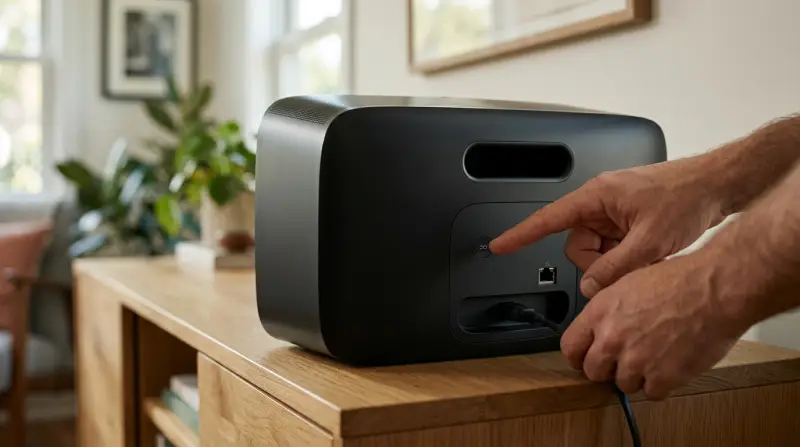
- Unplug the power cord from the speaker.
- Press and hold the Join button (sometimes called the ‘Connect’ button, marked with an infinity symbol).
- While holding the button, plug the power cord back in.
- Keep holding until the light flashes orange and white.
- Release the button when the light turns green.
After a factory reset, your Play 5 is like new. You will need to set it up again with the Sonos app.
Setting Up After Reset
Once your Play 5 is reset, it’s ready to connect to your network. Follow these steps:
- Download or open the Sonos app on your phone or tablet.
- Tap Set Up a New System.
- Follow the instructions in the app. It will guide you to connect your Play 5.
- Choose your Wi-Fi network and enter the password.
- Name your speaker (for example: Living Room, Bedroom).
- Add music services (Spotify, Apple Music, etc).
The app makes setup easy, but if you get stuck, check the Sonos support page or reach out to their customer service.
Common Mistakes When Resetting
People often make mistakes when resetting their Sonos Play 5. Here are some you should avoid:
- Using the wrong button: Gen 1 uses the Mute button, Gen 2 uses the Join button. Using the wrong button won’t reset your speaker.
- Not unplugging the power: You must unplug before pressing the button, otherwise the reset won’t work.
- Letting go too early: Keep holding the button until the light blinks orange and white, then turns green.
- Resetting too often: Frequent resets can cause software problems or make setup harder.
- Factory reset when not needed: Only factory reset for major issues or before selling/gifting.
These mistakes can waste time or lead to frustration. Take your time and follow each step carefully.
Differences Between Play 5 Gen 1 And Gen 2
The Sonos Play 5 has two main versions. Understanding their differences helps you reset the right way.
| Feature | Play 5 Gen 1 | Play 5 Gen 2 |
|---|---|---|
| Reset Button | Mute button | Join button (infinity symbol) |
| Design | Rounded edges, smaller | Modern, larger, touch controls |
| Audio | Good sound quality | Enhanced bass, clearer sound |
| Setup | Manual setup needed | Quick setup via app |
If you are not sure which model you have, look at the back. Gen 2 has touch controls and an infinity symbol near the button.
How Resetting Affects Your Settings And Data
When you factory reset your Sonos Play 5, you erase:
- Wi-Fi settings
- Speaker name
- Music services
- Room setup
- Linked accounts
Your playlists and favorites stored in the Sonos app are also removed. After reset, you must enter all settings again.
If you reset because of a Wi-Fi problem, remember to write down your settings before you start. This makes setup faster.
Practical Tips For A Smooth Reset
Resetting is simple, but these tips will help you avoid problems:
- Check your model before starting.
- Update the Sonos app first. Older apps may not connect well after reset.
- Have your Wi-Fi password ready. You will need it during setup.
- Do the reset near your router. This ensures a strong signal.
- Write down your speaker name and room setup if you want to use the same ones.
One non-obvious tip: If your speaker is part of a multi-room setup, reset only the troubled speaker, not all devices. This saves time and avoids extra work.
Troubleshooting After Reset
Sometimes problems continue after a reset. Here’s what to do:
- Speaker won’t connect: Restart your router, check if the Sonos app is updated.
- Light doesn’t turn green: Try the reset steps again, making sure to hold the right button.
- App can’t find the speaker: Make sure your phone is on the same Wi-Fi network as the speaker.
- Audio problems: Check the speaker’s placement. Move it away from metal objects or walls.
If you still have trouble, visit the official Sonos Support page for detailed help.
What If Reset Doesn’t Solve The Problem?
In rare cases, even after a factory reset, the speaker still has issues. Here’s what you can try next:
- Update firmware: Sometimes old software causes bugs. Update using the Sonos app.
- Check for hardware problems: If the speaker doesn’t power on, it may have electrical issues.
- Contact Sonos support: Their team can help with advanced troubleshooting.
- Warranty check: If your speaker is less than one year old, you may be able to get a free repair.
Knowing when to ask for help saves time and prevents frustration.
Is Resetting Safe?
Yes, resetting your Sonos Play 5 is safe. It does not harm the speaker. However, you lose all settings and must set up again. Avoid frequent factory resets, as they can confuse linked devices in a multi-room setup.

User Experiences And Real-world Examples
Many Sonos users share their experiences online. For example, a user in California reset their Play 5 after moving houses. The speaker would not connect to the new Wi-Fi. After a factory reset and setup, the speaker worked perfectly.
Another user in Germany had a problem with Spotify not playing. A soft reset fixed the issue instantly. Real-world stories show that most problems can be solved with simple resets.
Statistics: According to Sonos forums, about 72% of Play 5 owners who factory reset their device report that the speaker works normally after setup. Only 8% needed further troubleshooting.
Frequently Asked Questions
How Do I Know Which Sonos Play 5 Model I Have?
Check the button type on your speaker. Gen 1 has a Mute button, Gen 2 uses the Join button with an infinity symbol. Gen 2 is larger and has touch controls.
Can I Reset Only One Sonos Speaker Or Do I Need To Reset All?
You can reset only one speaker. Other devices in your Sonos system will keep their settings. Resetting all is not needed unless you want to erase the entire system.
Will Factory Reset Delete My Music Services And Playlists?
Yes, factory reset erases all music services and playlists. You must add them again during setup. Write down your favorite services before resetting.
What Should I Do If My Play 5 Won’t Connect After Reset?
First, restart your router and check if your Sonos app is updated. Make sure your phone or tablet is on the same Wi-Fi network. Try the setup steps again.
Is It Possible To Undo A Factory Reset?
No, factory reset cannot be undone. All data is erased. If you want to keep your settings, try a soft reset instead.
Resetting your Sonos Play 5 can solve many problems and help you start fresh. Follow the steps carefully, avoid common mistakes, and enjoy your music again. If you need more help, the Sonos support page is a reliable resource.