
Unlocking a Samsung microwave can sound simple, but many people get stuck when their device suddenly refuses to open or work normally. Maybe your child lock is on, or the control panel is frozen. Sometimes the door just won’t open.
If you’re struggling with these problems, you’re not alone. Samsung microwaves come with modern safety features, but these can confuse users who aren’t familiar with the controls. This guide will walk you through the steps to unlock your Samsung microwave, explain common issues, and help you avoid mistakes that can cost time or money.
You’ll find practical advice, real examples, and clear instructions—even if English isn’t your first language.
Understanding Samsung Microwave Locks
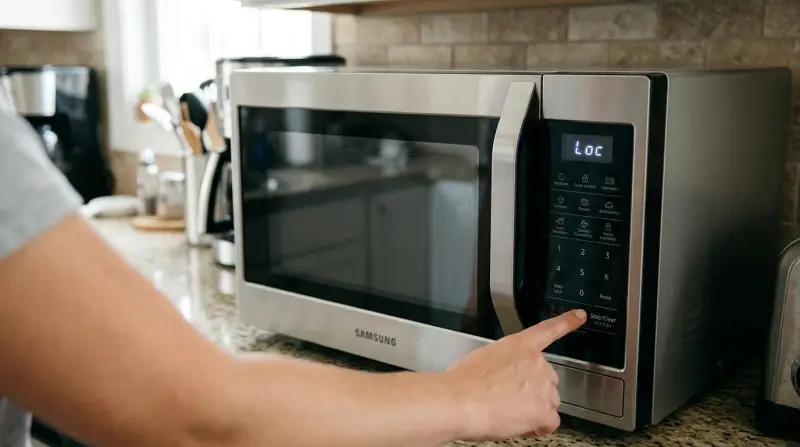
Samsung microwaves have different lock features to keep your device safe. The most common is the child lock—this prevents kids from turning on the microwave or changing settings. Another type is the door lock, which stops the microwave from running if the door isn’t closed correctly. Sometimes, the control panel can freeze or become unresponsive, making it feel like the microwave is locked.
Types Of Locks
- Child Lock: Stops accidental use, especially by children.
- Door Lock: Ensures the door is closed before starting.
- Control Panel Lock: Prevents changes to settings during cooking.
Knowing which lock is active helps you unlock your microwave quickly. If the control panel shows a padlock icon or you see “LOC” or “LOCKED” on the display, your child lock is likely on.
Why Locks Activate
- Safety: Protects children and prevents accidents.
- Cooking Process: Some locks turn on during cooking.
- Malfunction: Rare, but can happen if the electronics fail.
Locks are helpful for safety but can cause frustration if you don’t know how to disable them.
How To Unlock Child Lock On Samsung Microwave
The child lock is the most common lock. It’s easy to turn on by mistake—sometimes by pressing the wrong button or holding a key too long. Unlocking it is straightforward if you know the steps.
Step-by-step Guide
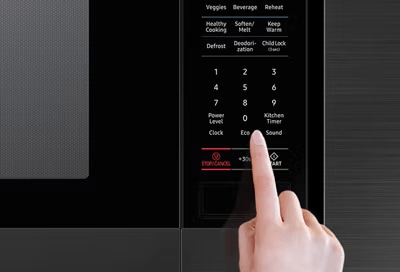
- Find the “STOP/CANCEL” Button: Most Samsung microwaves use this button for unlocking.
- Press and Hold: Press and hold the “STOP/CANCEL” button for 3–5 seconds.
- Wait for the Beep: The microwave will beep or the padlock icon will disappear.
- Check Display: The screen should now show the usual clock or timer.
If your model uses another button, check your manual. Sometimes the “START” or “ECO” button is used.
Example
A Samsung MS23K3513AK microwave shows a padlock icon. Pressing and holding “STOP/CANCEL” for five seconds unlocks the device.
Common Mistakes
- Not holding the button long enough.
- Pressing the wrong button (like “START” instead of “STOP/CANCEL”).
- Trying to unlock while the microwave is running.
Be patient. If it doesn’t work, unplug the microwave for 30 seconds and try again.
Unlocking The Door: What To Do When It Won’t Open
Sometimes the microwave door won’t open, even when the cooking is done. This can be due to a mechanical lock or a sticky latch. It’s important not to force the door, as you might break the handle or damage the latch.
Steps To Unlock The Door
- Check for Child Lock: If child lock is on, unlocking it will allow the door to open.
- Press the Door Release Button: If your model has one, press firmly.
- Gently Pull the Handle: Don’t use too much force.
- Power Cycle: Unplug the microwave for 1 minute, then plug it back in.
- Inspect the Latch: Look for food debris or objects blocking the latch.
Practical Example
If your Samsung microwave door is stuck after cooking, unplug it. Wait a minute, then plug back in. Try opening the door again. If it remains stuck, inspect the latch area for dirt or food.
When To Call For Help
If the door still won’t open, or you hear strange noises, it’s best to contact Samsung support or a qualified technician. Never try to open the microwave by removing screws or panels yourself.
Unlocking A Frozen Control Panel
A frozen control panel makes it impossible to change settings or start cooking. This can happen after a power surge or if you press too many buttons at once.
Steps To Unlock
- Unplug the Microwave: Remove the plug from the wall for at least 30 seconds.
- Plug Back In: Reconnect and wait for the display to turn on.
- Reset Settings: If needed, set the clock again.
- Try Key Buttons: Press “STOP/CANCEL” to clear any error messages.
If the control panel remains frozen, check if the child lock is on, or look for error codes.
Example
A Samsung microwave suddenly stops responding. After unplugging for 30 seconds, the panel works normally.
Non-obvious Insights
- Sometimes the control panel freezes if the microwave is placed near other electronics causing electrical interference.
- If you use extension cords or multi-plug adapters, unstable power can cause locking issues.

Comparing Samsung Microwave Lock Features
Different Samsung microwaves have different lock features. Here’s a quick comparison to help you identify your model’s system:
| Model | Child Lock | Door Lock | Panel Lock | Unlock Method |
|---|---|---|---|---|
| MS23K3513AK | Yes | Yes | No | STOP/CANCEL (3-5 sec) |
| ME21M706BAS | Yes | Yes | Yes | ECO (5 sec) |
| MG402MADXBB | Yes | Yes | No | START (3 sec) |
Always check your model number. The unlock steps can be different.
Preventing Accidental Lock Activation
You can avoid accidentally locking your Samsung microwave by knowing which buttons activate the lock. Here are practical tips:
- Read the Manual: Know your model’s lock features.
- Avoid Long Presses: Only press buttons as needed.
- Keep the Panel Clean: Dirt can cause buttons to stick.
- Watch for Display Icons: “LOC,” padlock, or “LOCKED” means lock is active.
If you have children, the lock feature is useful, but remember how to unlock it quickly.
Credit: www.samsung.com
What To Do If Unlock Methods Fail
Sometimes, standard unlocking steps don’t work. This usually means a deeper problem with the microwave. Here’s what to do:
- Check Power Supply: Make sure the outlet is working.
- Inspect for Error Codes: Look for codes like “E-11,” “E-21,” or “E-27.” These mean there’s a technical issue.
- Reset the Microwave: Unplug for 5 minutes.
- Contact Support: If nothing works, contact Samsung customer service.
Common Errors And Solutions
| Error Code | Meaning | Action |
|---|---|---|
| E-11 | Door sensor problem | Check door latch |
| E-21 | Control panel malfunction | Reset, then call technician |
| E-27 | Internal error | Contact support |
If you see these codes, don’t try to fix the microwave yourself. Professional help is best.
Samsung Microwave Lock Features Vs Other Brands
Samsung microwaves often have more advanced lock features than basic models from other brands. Here’s how they compare:
| Brand | Child Lock | Unlock Method | Door Safety |
|---|---|---|---|
| Samsung | Yes | Button hold | High |
| LG | Yes | Button hold | Medium |
| Panasonic | Yes | Button combo | Medium |
| Whirlpool | Limited | Button tap | Low |
Samsung’s lock system is considered reliable, but can be confusing if you don’t read the manual.
Practical Tips For Unlocking Samsung Microwaves
Unlocking your microwave is usually easy, but sometimes small details make a big difference.
- Check the Manual Online: If you lost your manual, Samsung’s official website has PDFs for most models.
- Don’t Use Force: Forcing the door can break the latch.
- Look for Sticky Buttons: Spills or food can cause buttons to stick and activate locks.
- Unplug Regularly: If you notice the panel acting strange, unplug for a few minutes.
Non-obvious Advice
- If your microwave is in a small kitchen, heat and humidity can cause buttons to malfunction. Keep the area dry.
- After unlocking, always check that the clock and settings are correct. Sometimes, unlocking resets everything.
When To Contact Samsung Support
If you’ve tried all steps and your microwave still won’t unlock, it’s time to get expert help. Samsung has customer service teams who can walk you through advanced troubleshooting.
- Warranty: If your microwave is under warranty, repairs are often free.
- Model Number: Have your model and serial number ready when you call.
- Describe the Problem Clearly: Mention any error codes, strange noises, or display messages.
You can find Samsung support numbers in your manual or on their official website.
For more information about Samsung microwave features, visit Samsung Support.

Credit: www.youtube.com
Frequently Asked Questions
How Do I Know If My Samsung Microwave Is Locked?
Look for a padlock icon or the word “LOC” or “LOCKED” on the display. If buttons don’t respond or the door won’t open, a lock is probably active.
Can I Unlock My Microwave Without Unplugging It?
Yes, most locks can be disabled by holding the correct button for a few seconds. Unplugging is only needed for frozen panels or when the standard method doesn’t work.
What Should I Do If The Child Lock Won’t Turn Off?
Try holding the “STOP/CANCEL” button for 5 seconds. If it doesn’t work, unplug the microwave for 30 seconds and try again. If still locked, check your manual for your specific model’s method.
Why Does My Microwave Door Stay Locked After Cooking?
This can happen due to a mechanical issue or safety feature. Wait a few seconds after cooking. If the door is still locked, unplug the microwave and try opening again. Inspect for dirt or debris around the latch.
Is It Safe To Fix A Locked Microwave Myself?
You can unlock basic locks yourself. But for mechanical or error code issues, it’s best to contact Samsung support or a qualified technician. Don’t open the microwave’s panels; there’s a risk of electric shock.
Unlocking your Samsung microwave is simple if you know the right steps and understand the lock features. Whether it’s a child lock, door lock, or control panel issue, careful troubleshooting can solve most problems. Remember to check your manual, avoid forcing the door, and keep your microwave clean.
If you face technical errors or persistent locks, Samsung support is always ready to help. With these practical tips, your microwave will stay safe and easy to use—no matter what challenges come up.