
The HP Deskjet 3700 is popular for its compact size and affordable price. Many people use it for basic printing at home or in small offices. But sometimes, users face problems with poor print quality. This can be frustrating, especially when you need clear documents or photos. In this article, you’ll learn why these issues happen, how to fix them, and what to do if your printouts still look bad. With practical advice and real examples, you’ll be able to improve your Deskjet 3700’s performance without wasting time or money.
Common Causes Of Poor Print Quality
Many things can affect the quality of prints on the HP Deskjet 3700. Understanding these causes helps you find solutions faster.
- Low Ink Levels: When ink is almost empty, prints may look faded, streaky, or missing colors.
- Clogged Printhead: Ink dries up and blocks the printhead, leading to gaps or blurry prints.
- Incorrect Paper Type: Using the wrong paper can cause smudges or unclear images.
- Printer Settings: If you select “Draft” mode or wrong paper size, prints may lack detail.
- Dirty Rollers or Interior: Dust inside the printer can interfere with the printing process.
- Damaged Cartridges: Old or damaged cartridges may leak or fail to deliver ink properly.
- Software Issues: Outdated drivers or wrong settings affect output quality.
Real Example
A user printed a school project and noticed the text was missing in some areas. Checking the ink showed low levels. After replacing the cartridge, the print improved. Another user found streaks in photos and learned the printhead was clogged after not using the printer for months.
How To Fix Hp Deskjet 3700 Poor Print Quality
You can solve most print quality issues by following a few steps. Here’s what you should do:
Step 1: Check Ink Levels
Open your printer software or look at the printer screen. If levels are low, replace the cartridges. Use genuine HP cartridges for best results.
Step 2: Clean The Printhead
The printer has a built-in cleaning tool. Run the cleaning cycle from the software. If prints don’t improve, run the cycle again. But avoid running it too many times – it uses extra ink.
Step 3: Select The Right Paper
Use recommended paper types. For photos, choose glossy photo paper. For documents, use standard printer paper. Avoid wrinkled or damp sheets.
Step 4: Adjust Printer Settings
Go to “Print Settings” and select “Best” or “Normal” quality. Make sure the paper size matches what you’re using.
Step 5: Clean The Printer Interior
Turn off the printer and unplug it. Gently wipe rollers and surfaces with a soft, lint-free cloth. Don’t use water near electronics.
Step 6: Update Drivers
Visit HP’s official site and download the latest drivers. Updates often fix bugs or improve print quality.
Step 7: Replace Damaged Cartridges
If you see ink leaking or the cartridge is old, replace it. Generic cartridges may work, but can sometimes cause issues.
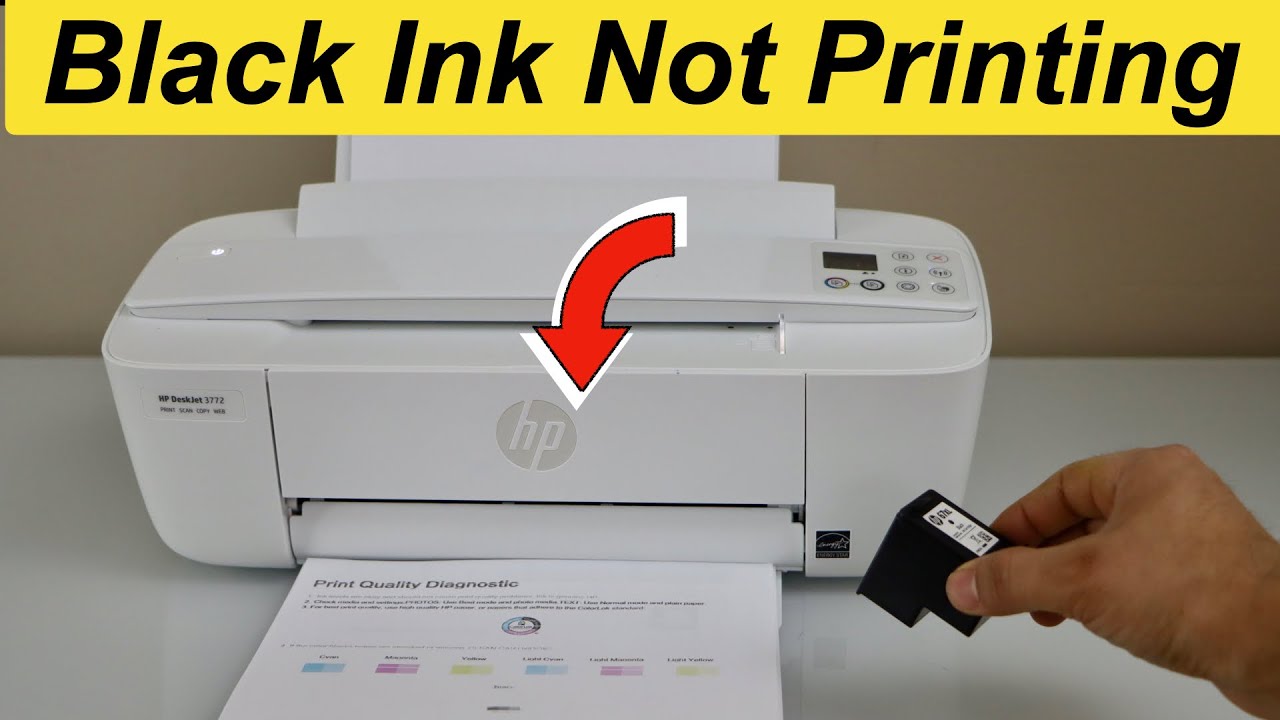
Comparing Print Quality: Hp Deskjet 3700 Vs Other Printers
To see how the Deskjet 3700 performs compared to other popular models, check this data:
| Printer Model | Print Resolution (dpi) | Average Print Quality (User Ratings) | Common Issues |
|---|---|---|---|
| HP Deskjet 3700 | 4800 x 1200 | 3.7/5 | Fading, streaks |
| Canon PIXMA MG3620 | 4800 x 1200 | 4.1/5 | Paper jams |
| Epson EcoTank ET-2720 | 5760 x 1440 | 4.3/5 | Slow printing |
The Deskjet 3700’s print quality is good for simple tasks, but sometimes falls behind other models when printing photos or graphics.
Non-obvious Insights For Beginners
Many beginners overlook these points:
- Let Printed Pages Dry: If you print photos or color documents, let them dry for a few minutes. Handling them too soon can cause smudges.
- Store Cartridges Properly: If you don’t use the printer often, remove cartridges and store them in a cool, dry place.
- Align the Printer: Running the alignment tool fixes skewed or fuzzy prints. This step is often skipped but improves quality.
- Use Maintenance Mode: HP printers have maintenance tools. Using them monthly prevents printhead clogging.
Hp Deskjet 3700 Technical Specifications
Understanding your printer’s specs helps you know its limitations.
| Feature | Specification |
|---|---|
| Print Resolution | Up to 4800 x 1200 dpi |
| Print Speed | Up to 8 ppm (black), 5.5 ppm (color) |
| Supported Paper Types | Plain, Photo, Brochure, Envelopes |
| Connectivity | Wi-Fi, USB |
| Cartridge Types | HP 65 Black, HP 65 Tri-color |
Practical Tips To Prevent Poor Print Quality
You can avoid most issues by following these tips:
- Print Regularly: Printing once a week keeps ink flowing and prevents clogs.
- Keep Printer Covered: Dust can enter the printer and affect rollers or printheads.
- Don’t Overfill Paper Tray: Too much paper can cause jams and uneven printing.
- Avoid Extreme Temperatures: Keep your printer in a room with stable temperature. Heat or cold affects ink and paper.
- Use Genuine Supplies: Genuine HP paper and cartridges give better results.
Signs That Your Printer Needs Professional Help
Some print quality problems cannot be fixed at home. Look for these signs:
- Repeated streaks or missing colors after cleaning and cartridge changes.
- Error messages about hardware or ink system failures.
- Strange noises during printing.
- Physical damage to the printhead or interior.
If you see these signs, contact HP support or visit an authorized service center.
What To Do If Nothing Works
If you’ve tried all steps and print quality remains poor:
- Reset the Printer: Unplug, wait 60 seconds, then restart.
- Try Another Device: Print from a different computer or phone to rule out software issues.
- Reinstall Software: Remove and reinstall HP printer software.
- Check Warranty: If your printer is still under warranty, HP may replace parts or offer a new printer.
- Consider Upgrading: If your needs grow, consider a printer with higher resolution or features.
User Experiences And Real Feedback
Many users share their experiences online. Some say the Deskjet 3700 worked well for a year, then started printing faded pages. Others report that using generic cartridges caused more problems than genuine HP cartridges. A few mention that regular cleaning and using “Best” print mode improved quality.
One user found that connecting via Wi-Fi sometimes caused errors, so they switched to USB for better results.
Comparing Ink Usage And Print Quality
Ink usage affects both print quality and costs. Let’s compare:
| Cartridge Type | Pages per Cartridge | Print Quality Score |
|---|---|---|
| HP 65 Original | 120 pages | 4.2/5 |
| HP 65 XL | 300 pages | 4.4/5 |
| Generic Cartridge | 100 pages | 3.2/5 |
As shown, original HP cartridges last longer and provide better quality. Generic cartridges may save money but often lead to more problems.

Frequently Asked Questions
Why Does My Hp Deskjet 3700 Print Blurry Images?
Blurry prints are usually caused by dirty printheads, low-quality paper, or incorrect settings. Try cleaning the printhead and using the recommended paper.
How Often Should I Clean The Printhead?
Clean the printhead every 1-2 months or when you notice print quality drops. Regular cleaning prevents clogs.
Can I Use Third-party Ink Cartridges?
You can use them, but quality may suffer. Genuine HP cartridges are designed for the Deskjet 3700 and usually perform better.
What Should I Do If My Printer Prints Blank Pages?
Check ink levels and replace cartridges if needed. Run the printhead cleaning tool. If the issue continues, update drivers or contact HP support.
Where Can I Find The Latest Drivers For The Deskjet 3700?
Visit the official HP website or use this link: HP Deskjet 3700 Drivers for updated software and support.
The HP Deskjet 3700 offers reliable printing for basic needs. But poor print quality can be annoying. With the right steps and regular maintenance, you can enjoy clear, sharp prints. If problems continue after following all advice, don’t hesitate to seek professional help or consider upgrading.
With this guide, you now know how to solve and prevent poor print quality and make the most of your Deskjet 3700.