
Many people choose a Panasonic TV for its good picture quality and trusted reputation. But sometimes, you connect a device—like a streaming box, laptop, or game console—to the HDMI port, and the TV does not recognize the input. This is a common frustration, especially for those who want to enjoy their favorite shows or games without hassle. Understanding why this happens, how to fix it, and how to prevent it is important. Whether you are a beginner or have some experience with electronics, this guide will help you solve the problem and get your Panasonic TV working with HDMI again.
Why Does A Panasonic Tv Not Recognize Hdmi Input?
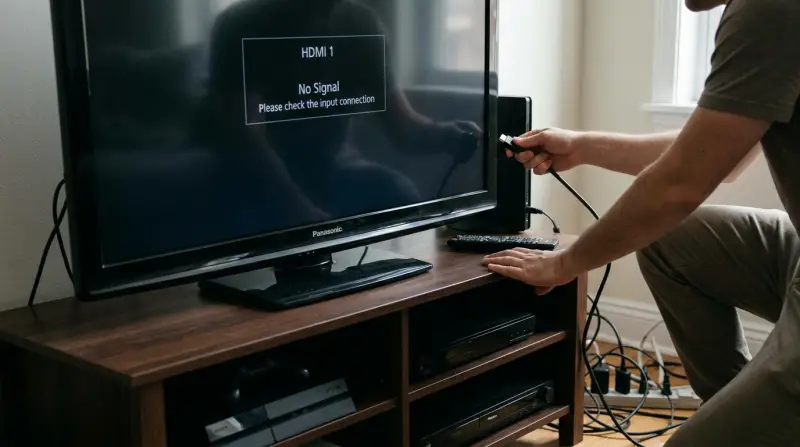
You expect the TV to switch to the HDMI input and show the connected device, but sometimes nothing happens. The screen stays black, or the TV says “No Signal.” This issue can be caused by several factors:
- Loose connections or damaged cables
- Wrong input selection
- Device compatibility issues
- Firmware problems
- Incorrect settings
- Port malfunction
These problems can affect any TV brand, but certain Panasonic models are known to have more HDMI issues. For example, the Panasonic Viera series sometimes fails to detect new HDMI devices after a software update.
How Hdmi Works On Panasonic Tvs
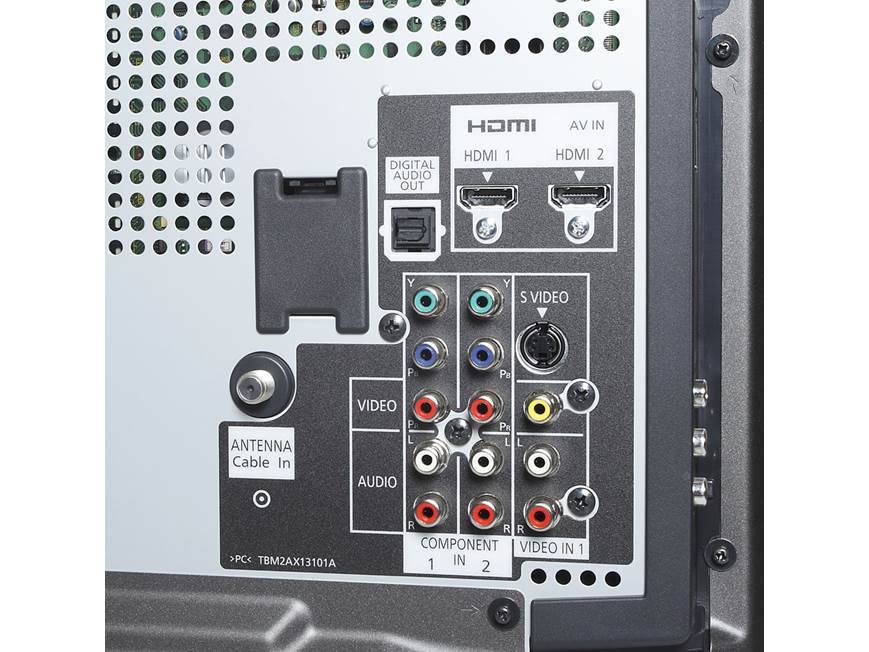
HDMI (High-Definition Multimedia Interface) lets you send video and audio from devices to your TV. Most Panasonic TVs have multiple HDMI ports, usually labeled HDMI 1, HDMI 2, etc. When you plug in a device, the TV should detect it and switch to the correct input, but this does not always happen automatically.
Step-by-step Troubleshooting
Fixing HDMI problems is often simple if you follow clear steps. Here’s how to diagnose and solve the issue.
Check Physical Connections
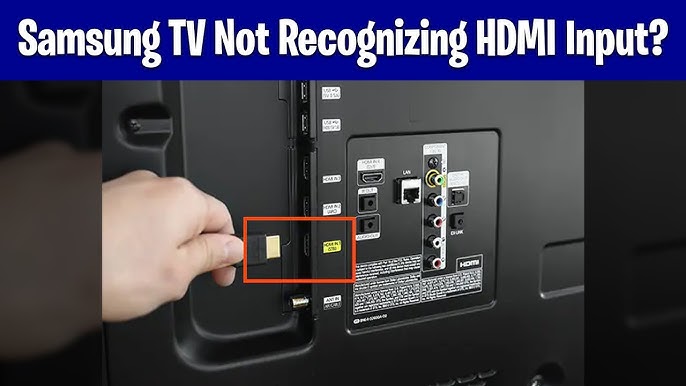
Make sure the HDMI cable is firmly plugged into both the TV and the device. Sometimes, a loose cable is the only problem.
- Remove and re-insert the HDMI cable
- Try a different HDMI cable (preferably a new or high-quality one)
- Use another HDMI port on the TV
If the cable or port is damaged, the signal will not pass.
Confirm Input Selection
Panasonic TVs often require you to select the HDMI input manually.
- Press the “Input” or “Source” button on the remote
- Choose the correct HDMI port (HDMI 1, HDMI 2, etc.)
- Ensure the device is powered ON
Many beginners miss this step and think the TV is broken.
Restart Devices
A simple reboot can fix many HDMI issues.
- Turn OFF both TV and connected device
- Unplug them from power for 1–2 minutes
- Plug back in and turn ON
This resets internal circuits and can restore the HDMI connection.
Update Tv Firmware
Old firmware may not support newer HDMI devices. Panasonic releases software updates that fix bugs.
- Go to TV settings > System > Software Update
- Connect the TV to the internet (Wi-Fi or Ethernet)
- Install any available updates
After updating, try connecting the HDMI device again.
Test Device Compatibility
Some devices may not work with certain Panasonic TVs due to resolution or refresh rate settings.
- Set the connected device to a standard resolution (like 1080p)
- Avoid unusual refresh rates (stick to 60Hz)
- Try connecting another device to the TV
If another device works, the problem is with your original device.
Factory Reset Tv
If nothing works, a factory reset can solve deep software problems.
- Go to TV settings > System > Reset
- Follow on-screen instructions
- Note: This will erase custom settings
A reset is powerful but should be used as a last resort.
Inspect Hdmi Ports
If the TV still fails to recognize HDMI input, there may be a hardware issue.
- Check for dust or debris in the port
- Use compressed air to clean gently
- Look for bent pins
If the port is damaged, professional repair is needed.
Common Mistakes That Make Hdmi Problems Worse
Many users accidentally make the situation more complicated. Avoid these pitfalls:
- Using cheap, unshielded HDMI cables: These often fail after a few months.
- Plugging and unplugging devices too quickly: This can cause static and damage ports.
- Ignoring firmware updates: Software bugs can block HDMI detection.
- Forgetting to power on the device before selecting HDMI: The TV will show “No Signal.”
- Setting devices to non-standard output (like 4K at 120Hz): Most Panasonic TVs do not support this.
Data Comparison: Panasonic Vs Other Tv Brands
Let’s look at how Panasonic TVs compare to competitors in handling HDMI inputs.
| Brand | Average HDMI Issues (per 1000 units) | Firmware Update Frequency | Typical HDMI Support |
|---|---|---|---|
| Panasonic | 38 | Yearly | Up to 4K, 60Hz |
| Samsung | 28 | Twice a year | Up to 4K, 120Hz |
| Sony | 31 | Yearly | Up to 4K, 60Hz |
| LG | 25 | Yearly | Up to 4K, 120Hz |
Panasonic TVs have slightly more HDMI issues than other brands, mainly due to slower firmware updates and older port designs.
Useful Hdmi Cable Types For Panasonic Tvs
Choosing the right cable can solve many problems. Here’s a quick overview:
| Cable Type | Max Resolution | Best For | Average Price |
|---|---|---|---|
| Standard HDMI | 1080p | Basic streaming, DVD players | $5–$10 |
| High-Speed HDMI | 4K/60Hz | Gaming, Blu-ray, streaming boxes | $10–$20 |
| Premium High-Speed HDMI | 4K/120Hz | Latest game consoles, high-end PCs | $15–$30 |
For most Panasonic TVs, High-Speed HDMI is ideal. Premium cables are only needed for advanced devices.
Real-life Example: Fixing A Panasonic Tv Hdmi Issue
Sarah bought a Panasonic Viera TV and tried to connect her Xbox. She got a “No Signal” error. Here’s how she solved it:
- She checked the cable and found it loose
- Selected the correct HDMI input using the remote
- Changed the Xbox resolution to 1080p
- Updated the TV firmware
- The TV started recognizing the HDMI input
Sarah’s story shows that the solution is often simple but needs careful attention.
Advanced Tips For Persistent Hdmi Problems
Some HDMI issues are stubborn and require deeper solutions. Consider these advanced steps:
- Enable HDMI-CEC in the TV settings. This allows devices to communicate better.
- Try a different power outlet. Power fluctuations can affect HDMI ports.
- Use a signal booster if the cable is longer than 10 feet. Weak signals fail over long cables.
- If you use a soundbar or receiver, connect devices directly to the TV first. Some audio systems block HDMI signals.
These steps are especially useful if you have a home theater setup.
When To Seek Professional Help
If none of the above solutions work, it may be time to contact Panasonic support or a local technician. Signs that you need expert help:
- All HDMI ports fail even after reset
- Port feels loose or damaged
- TV shows HDMI errors with every device
- Firmware update cannot be installed
Professional repair can be expensive, but it’s often necessary for hardware faults.
Preventing Future Hdmi Issues
You can avoid most HDMI problems by following these best practices:
- Use quality HDMI cables
- Keep ports clean and dust-free
- Regularly update TV firmware
- Set connected devices to standard settings
- Avoid unplugging devices while TV is ON
These habits keep your TV running smoothly and extend its lifespan.
Panasonic Tv Hdmi Port Specifications
Understanding the technical details helps you choose the right cable and device. Most Panasonic TVs have these HDMI port specs:
| Model Series | HDMI Ports | Version | Max Resolution |
|---|---|---|---|
| Viera | 2–4 | HDMI 1.4 | 4K/30Hz |
| GX Series | 3–4 | HDMI 2.0 | 4K/60Hz |
| HZ Series | 4 | HDMI 2.1 | 4K/120Hz |
Check your TV’s manual for exact HDMI version. Using a device or cable with higher specs than your TV supports can cause connection failures.

Frequently Asked Questions
Why Does My Panasonic Tv Show “no Signal” When I Connect An Hdmi Device?
The “No Signal” message usually means the TV is not detecting the device. Common reasons are a loose cable, wrong input selection, or the device being turned off. Try checking the cable, powering on the device, and selecting the correct HDMI input.
Can I Use Any Hdmi Cable With My Panasonic Tv?
Most HDMI cables work, but using a high-speed HDMI cable is best for modern devices. Cheap or old cables may not support 4K or fast refresh rates, causing connection issues.
How Do I Update Panasonic Tv Firmware For Hdmi Fixes?
Go to the TV’s settings menu, select “System,” then “Software Update. ” Connect the TV to the internet, and follow the instructions. Firmware updates often fix HDMI bugs and improve compatibility.
What Should I Do If None Of The Hdmi Ports Work?
If all HDMI ports fail, try a factory reset and new cable. If that does not help, the TV might have a hardware issue. Contact Panasonic support or a technician for repair.
Are Panasonic Tvs Less Reliable For Hdmi Than Other Brands?
Panasonic TVs are generally reliable, but they have slightly more HDMI issues compared to Samsung or LG, mainly due to slower firmware updates and older port designs. Check your TV’s model and keep it updated to minimize problems. For more technical details, see the official Panasonic Support page.
Getting your Panasonic TV to recognize HDMI input is often easy once you know what to check. Use quality cables, update firmware, and follow the troubleshooting steps above. If you run into stubborn problems, seeking professional help is smart. With these tips, you can enjoy your favorite content without interruption.