
When you try to print something and see an error like “Spooler Service Not Working,” it can be frustrating. This common issue stops printers from working on Windows computers. The spooler service is a key part of printing—it manages print jobs and connects your computer to the printer. If the spooler fails, nothing prints and you may see confusing error messages.
Understanding why the spooler service stops working can help you fix the problem quickly. Whether you use a printer for home or business, knowing how the spooler works and how to troubleshoot it is essential. Let’s explore what causes this issue, how to fix it, and what you can do to prevent it from happening again.
What Is The Spooler Service?

The spooler service is a software process in Windows. Its main job is to organize print jobs and send them to the printer one by one. When you print a document, the spooler puts it in a queue and communicates with the printer hardware. This allows you to keep working while your document prints in the background.
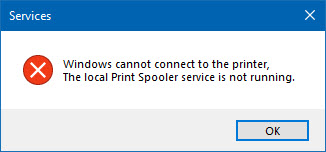
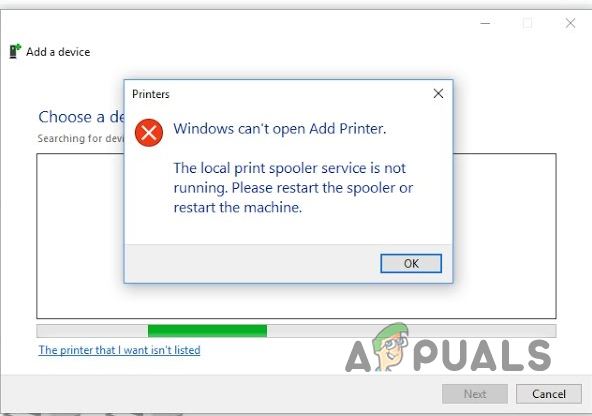
If the spooler service stops, your computer cannot send documents to the printer. Errors like “Spooler Service Not Working” or “Print Spooler Error 0x800706b9” may appear. These errors mean the spooler service has crashed, is stuck, or cannot communicate with the printer.
Common Causes Of Spooler Service Failure
Several factors can cause the spooler service to stop working. Understanding these causes helps you fix and prevent problems.
- Corrupt Printer Drivers: Bad or outdated drivers can confuse the spooler.
- Too Many Print Jobs: A long queue can overload the spooler and make it crash.
- Malware or Viruses: Some malware targets system services, including the spooler.
- Windows Updates: Updates sometimes change spooler settings or files.
- Faulty Printer Connections: USB or network connection problems can stop the spooler.
- Conflicting Software: Other programs, especially security software, can block the spooler.
Here’s a quick comparison of the top causes:
| Cause | Effect on Spooler | How Often |
|---|---|---|
| Corrupt Drivers | Frequent crashes | Common |
| Too Many Print Jobs | Queue overload | Occasional |
| Malware | Service stops unexpectedly | Rare |
| Windows Updates | Configuration errors | Moderate |
| Faulty Connections | Spooler cannot communicate | Moderate |

Credit: www.youtube.com
Signs The Spooler Service Is Not Working
You can spot spooler problems by certain signs:
- Print jobs stay in queue and never print.
- Error messages like “Spooler service not running.”
- Printer disappears from Devices and Printers.
- Printing stops after Windows updates.
- Cannot add or remove printers.
If you notice these signs, your spooler service may be down. Sometimes, restarting your computer fixes the issue, but often more steps are needed.
How To Fix The Spooler Service Not Working
Solving spooler issues usually requires a few steps. Let’s walk through the most common solutions.
1. Restart The Spooler Service
Restarting is the fastest fix. Here’s how:
- Press Windows Key + R and type `services.msc`.
- Find Print Spooler in the list.
- Right-click and choose Restart.
If restart fails, try Stop and then Start.
2. Clear The Print Queue
A stuck print job can block the spooler.
- Open Control Panel > Devices and Printers.
- Right-click your printer and choose See what’s printing.
- Cancel all print jobs.
You can also clear the queue manually:
- Stop the spooler service (as above).
- Go to `C: WindowsSystem32spoolPRINTERS`.
- Delete all files in this folder.
- Start the spooler service again.
3. Update Printer Drivers
Outdated drivers are a top cause.
- Visit your printer manufacturer’s website.
- Download the latest driver for your model.
- Install the driver and restart your computer.
4. Run Windows Troubleshooter
Windows has a built-in tool:
- Go to Settings > Update & Security > Troubleshoot.
- Select Printer and run the troubleshooter.
- Follow prompts to fix errors.
5. Check For Malware
Malware can block or crash system services.
- Run a full system scan with your antivirus.
- Remove any threats found.
- Restart the computer.
6. Remove Unneeded Printers
Too many installed printers can confuse the spooler.
- Go to Devices and Printers.
- Remove printers you don’t use.
- Restart the spooler service.
7. Check Usb/network Connections
Make sure your printer is properly connected.
- Unplug and reconnect USB cables.
- For network printers, check Wi-Fi or Ethernet.
- Restart both computer and printer.
8. Reinstall The Printer
- Remove the printer from Devices and Printers.
- Restart the computer.
- Add the printer again.
9. Repair Windows System Files
Corrupt system files can affect the spooler.
- Open Command Prompt as administrator.
- Type `sfc /scannow` and press Enter.
- Wait for the scan to finish.
10. Change Spooler Startup Type
Make sure the spooler starts automatically:
- Open `services.msc`.
- Double-click Print Spooler.
- Set Startup type to Automatic.
If you follow these steps, most spooler issues can be fixed. For rare or complex cases, you may need expert help.
Credit: www.drivereasy.com
Advanced Solutions For Persistent Spooler Problems
Sometimes, basic fixes are not enough. If the spooler service keeps failing, advanced troubleshooting may help.
Editing Registry Settings
If spooler errors continue, registry tweaks can solve them. But be careful—mistakes can harm your system.
- Open Registry Editor (`regedit`).
- Go to `HKEY_LOCAL_MACHINESYSTEMCurrentControlSetServicesSpooler`.
- Make sure values like ImagePath are correct.
- Backup the registry before making changes.
Checking Event Viewer Logs
Event Viewer shows detailed error logs.
- Press Windows Key + X and choose Event Viewer.
- Look under Windows Logs > System for spooler-related errors.
- Use this information to find the cause.
Clean Boot Troubleshooting
Other programs can block the spooler.
- Press Windows Key + R, type `msconfig`.
- Under Services, check Hide all Microsoft services.
- Disable all others.
- Restart and test printing.
Using System Restore
If the problem started recently, system restore can help.
- Open Control Panel > Recovery.
- Select Open System Restore.
- Pick a date before the issue began.
These advanced steps are best for users comfortable with computers. If unsure, ask for help from IT or a technician.
Preventing Spooler Service Issues
Prevention saves time and trouble. Here’s how to keep the spooler service healthy.
- Update drivers regularly.
- Clear print queues often.
- Remove unused printers and software.
- Scan for viruses monthly.
- Apply Windows updates, but check printer compatibility.
- Avoid installing unknown or untrusted software.
Here’s a simple table comparing prevention steps:
| Prevention Step | Frequency | Effectiveness |
|---|---|---|
| Driver Updates | Monthly | High |
| Virus Scans | Weekly | Moderate |
| Print Queue Clearing | As Needed | High |
| Remove Unused Printers | Every 6 months | Moderate |
| Windows Updates | Monthly | Moderate |
Non-obvious Insights: What Beginners Often Miss
- The spooler service can be affected by remote printers. If your computer tries to connect to network printers that no longer exist, the spooler may crash or freeze. Always remove printers you no longer use.
- Some PDF or image files can cause spooler errors. Large, corrupted, or unusual print jobs (like big PDFs) can block the spooler. If you notice problems after printing a specific file, try printing a simple document first.
Real-world Example
A small office had “Spooler Service Not Working” errors on several computers. After checking, they found one old printer was still installed on all machines, but disconnected. Removing the old printer and updating drivers solved the issue for everyone. This shows the importance of managing printer devices and keeping drivers up to date.
Credit: appuals.com
Data: How Common Are Spooler Issues?
According to Microsoft, printer spooler errors are one of the top five printing issues for Windows users. In 2021, after a Windows update, thousands of users reported spooler problems, especially in offices with many printers. This highlights how updates and device management are linked to spooler health.
When To Seek Professional Help
Some cases are complex. If you have tried all solutions and the spooler service still fails, call a technician. This is important if:
- The spooler crashes repeatedly.
- You see system errors or blue screens.
- Printing problems affect many computers in your office.
IT experts can check for deeper issues like hardware faults or system corruption.
Frequently Asked Questions
Why Does The Spooler Service Keep Stopping?
Frequent stops can be caused by corrupt drivers, too many print jobs, malware, or conflicts with other software. Start by updating drivers and clearing print queues.
How Can I Fix “spooler Service Not Working” On Windows 10?
Restart the spooler service, clear the print queue, update drivers, and run the Windows printer troubleshooter. If these steps fail, check for malware and remove unused printers.
Is It Safe To Delete Files In The Spooler Folder?
Yes, deleting files in `C:WindowsSystem32spoolPRINTERS` is safe when the spooler service is stopped. This clears stuck print jobs and often fixes spooler errors.
Can Windows Updates Cause Spooler Problems?
Sometimes. Updates may change printer settings or drivers. If you notice spooler errors after an update, reinstall printer drivers or use System Restore.
Where Can I Find More Help On Spooler Service Issues?
The official Microsoft support page offers guides and troubleshooting steps. For more details, visit Microsoft Support.
Dealing with spooler service not working can be stressful, but with these steps, you can solve most problems yourself. Good device management, regular updates, and smart troubleshooting keep your printer and spooler healthy. If issues persist, don’t hesitate to seek expert help—printing should be simple and reliable.