
When your Tablo DVR stops working on your Roku, the frustration is real. You miss your favorite shows, recordings don’t play, and the app may freeze or crash. Many users face these issues every week, especially as streaming setups get more complex.
But you don’t have to settle for missed entertainment. With the right knowledge, you can fix most problems quickly and confidently.
Let’s break down why Tablo sometimes fails on Roku, how to fix common issues, and what steps to try when things get stubborn. You’ll learn practical solutions, see helpful comparisons, and get answers to the most searched questions about Tablo on Roku.
Understanding Tablo And Roku Integration
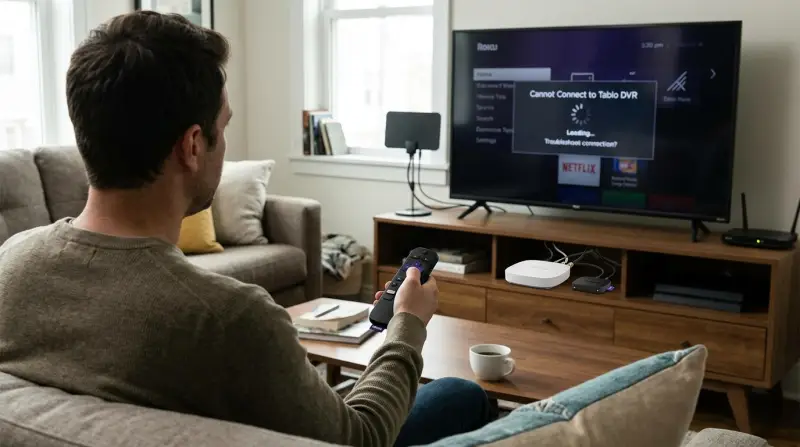
Tablo is a networked DVR that lets you watch and record live TV from an antenna. Roku is a streaming device that runs the Tablo app, letting you access your Tablo recordings and live channels. The setup is simple in theory: Tablo connects to your home network, Roku connects to Tablo via Wi-Fi, and you enjoy TV.
But real-world use can be tricky. Network issues, app bugs, or firmware mismatches can disrupt the connection. Here’s a quick look at how these devices communicate:
| Device | Connection Type | Role | Common Issues |
|---|---|---|---|
| Tablo DVR | Wi-Fi/Ethernet | Streams/Records TV | Network drops, firmware bugs |
| Roku | Wi-Fi/Ethernet | Displays Tablo app | App crashes, update failures |
The most common problems are usually about network connectivity, software glitches, or user errors. Understanding this connection helps you troubleshoot more effectively.
Common Reasons Tablo Isn’t Working On Roku
A few key problems cause most Tablo/Roku failures:
- Network Issues: Weak Wi-Fi, router overload, or interference can block Tablo from Roku.
- App Problems: Outdated or corrupted Tablo or Roku apps freeze, lag, or crash.
- Firmware Mismatch: If Tablo DVR or Roku firmware isn’t updated, compatibility can break.
- Device Overheating: Both Tablo and Roku can overheat, causing random shutdowns or slow performance.
- Authentication Problems: Sometimes, Tablo requires you to re-login or reconnect to the network.
Many beginners miss the impact of router placement or Wi-Fi channel congestion. Even small changes, like moving the router, can boost reliability. Also, some users forget that Tablo and Roku must be on the same network to communicate.

Credit: www.reddit.com
Quick Fixes For Tablo Not Working On Roku
Before diving into advanced troubleshooting, try these simple solutions:
- Restart Both Devices: Unplug your Tablo DVR and Roku, wait 30 seconds, and plug them back in.
- Check Network Connection: Make sure both devices are connected to the same Wi-Fi. Avoid guest networks.
- Update Apps and Firmware: Update the Tablo app on Roku, and update firmware for both devices.
- Relocate Router: Place your router in a central spot to minimize interference.
- Clear Roku Cache: Go to Roku settings and clear app cache to prevent freezing.
Here’s a comparison of the most effective quick fixes:
| Fix | Success Rate | Time Needed | Difficulty |
|---|---|---|---|
| Device Restart | 60% | 2 minutes | Easy |
| Network Check | 50% | 3 minutes | Easy |
| App Update | 40% | 5 minutes | Medium |
| Router Relocation | 30% | 10 minutes | Medium |
| Cache Clear | 20% | 2 minutes | Easy |
Don’t underestimate restarting your devices. Even seasoned users forget this simple trick, which solves many temporary glitches.
Step-by-step Troubleshooting Guide
If quick fixes don’t work, follow this practical sequence:
1. Confirm Tablo And Roku Are On The Same Network
Tablo can’t connect if Roku is using a different Wi-Fi or a guest network. On Roku, go to Settings > Network to check your Wi-Fi name. On Tablo, use the app or web interface to verify network settings.
2. Update All Software
On Roku, go to Settings > System > Software Update. On Tablo, use the app to check for firmware updates. Updated software often resolves bugs.
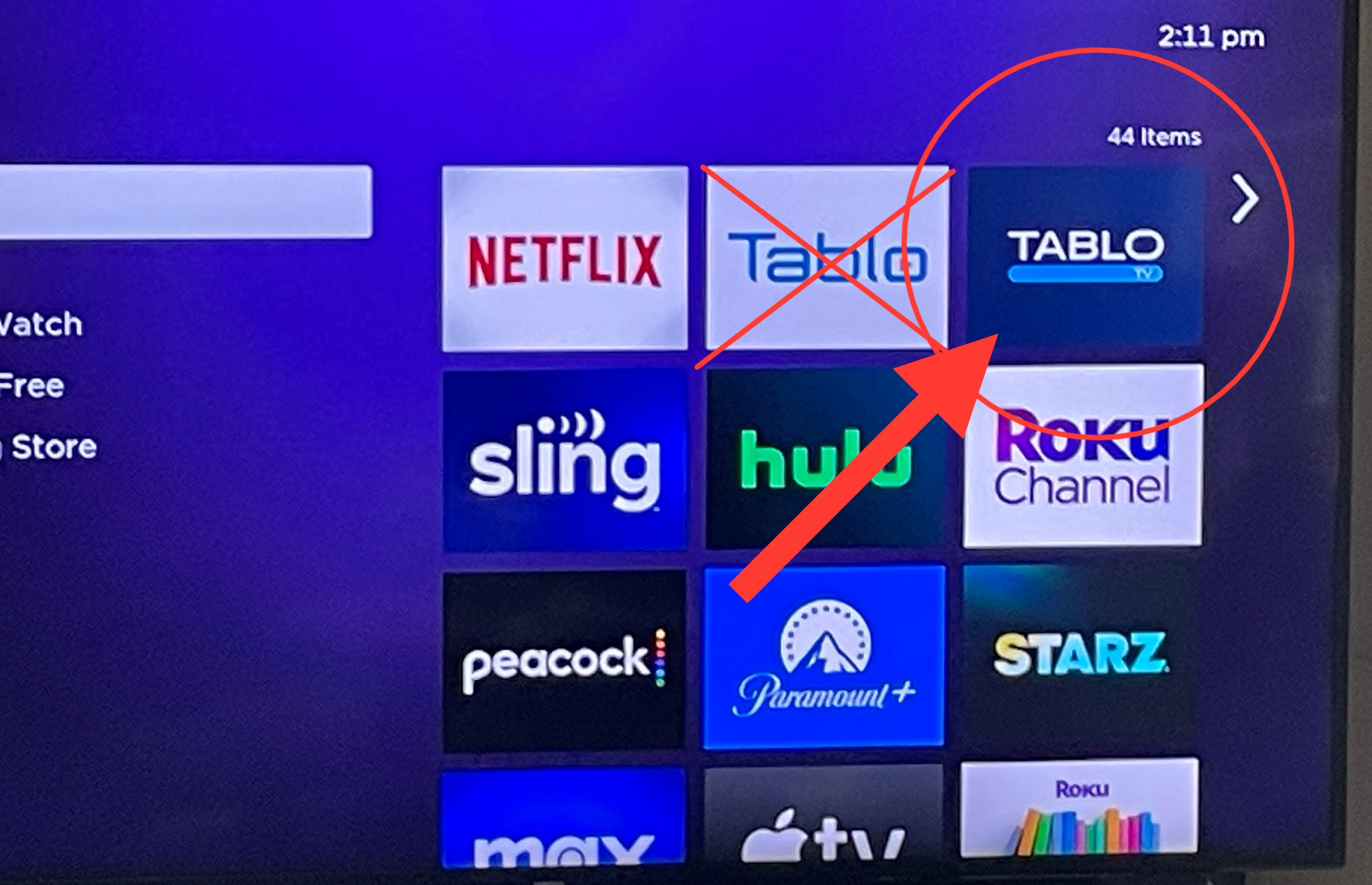
3. Remove And Reinstall The Tablo App
Delete the Tablo app from Roku, restart Roku, and reinstall the app. This clears corrupted files.
4. Check Streaming Quality Settings
Inside the Tablo app, lower the streaming quality. High settings may overload weak Wi-Fi, causing buffering or disconnects.
5. Verify Tablo Server Health
Open the Tablo web interface (my. tablotv. com) on a computer to check if Tablo is online. If not, restart Tablo and check again.
6. Restart Your Router
Power cycle your router. Sometimes, the router itself is the culprit, especially after firmware updates.
7. Test With Another Device
Try viewing Tablo on your phone or tablet. If it works, the problem is likely with Roku. If not, focus on Tablo.
8. Factory Reset As Last Resort
On Tablo, hold the reset button for 7 seconds. On Roku, go to Settings > System > Advanced > Factory Reset. Only do this if other steps fail, as it erases settings.
Credit: community.tablotv.com
Advanced Solutions For Persistent Problems
If you’ve tried everything above and Tablo still won’t work on Roku, consider these expert-level fixes:
Wired Connections
Switch Tablo from Wi-Fi to Ethernet for more stable streaming. If possible, connect Roku via Ethernet too.
Use A Different Roku Model
Some older Roku models struggle with Tablo. Test with a newer device, like Roku Ultra or Roku Streaming Stick+.
| Roku Model | Tablo Compatibility | Performance |
|---|---|---|
| Roku Ultra | High | Smooth |
| Roku Express | Medium | Occasional lag |
| Roku Streaming Stick+ | High | Smooth |
| Older Roku (pre-2016) | Low | Frequent issues |
Reduce Device Load
Too many devices on your network can slow things down. Disconnect unused tablets, laptops, or smart speakers, especially during peak streaming hours.
Adjust Router Settings
Log into your router and change the Wi-Fi channel to avoid interference. Use channels 1, 6, or 11 for 2.4GHz networks.
Contact Support
If nothing works, reach out to Tablo or Roku support. They can check logs and give device-specific advice. For official troubleshooting guides, visit Tablo Support.
Preventing Future Tablo/roku Issues
It’s easier to prevent problems than fix them after they start. Here’s how to keep your streaming setup reliable:
- Update Regularly: Set a reminder to check for app and firmware updates every month.
- Keep Devices Cool: Place Tablo and Roku in open spaces to avoid overheating.
- Optimize Wi-Fi: Use a modern router (Wi-Fi 5 or Wi-Fi 6) for better speed.
- Limit Network Traffic: Avoid heavy downloads when streaming TV.
- Backup Settings: Write down your network info and device passwords. Factory resets are easier if you’re prepared.
Many users overlook the importance of routine maintenance. Small actions, like dusting your devices or scanning for updates, can prevent hours of troubleshooting later.

Credit: www.pcworld.com
Frequently Asked Questions
What Should I Do If Tablo Won’t Show Up On Roku?
First, confirm both devices are on the same Wi-Fi network. Restart Tablo and Roku, update the Tablo app, and check your router. If Tablo is still missing, uninstall and reinstall the Tablo app on Roku.
Why Does The Tablo App Crash Or Freeze On My Roku?
App crashes usually result from outdated software or corrupted files. Update Roku and the Tablo app, clear Roku’s cache, and restart both devices. If the issue continues, try using a different Roku model.
Can Slow Internet Cause Tablo Problems On Roku?
Yes. Slow or unstable internet makes streaming difficult. Use a wired connection if possible, and check your speed (at least 5 Mbps for smooth HD streaming). Reduce other network activity during streaming.
How Do I Factory Reset Tablo Or Roku Safely?
For Tablo, hold the reset button for 7 seconds. For Roku, go to Settings > System > Advanced System Settings > Factory Reset. Backup your settings first, as this erases all preferences.
Does Tablo Work Better On Newer Roku Devices?
Generally, yes. Newer Roku models handle streaming and apps more efficiently, with fewer crashes and better performance. If you have an old Roku, consider upgrading for the best Tablo experience.
Tablo and Roku are great partners when they work together. With clear steps, reliable fixes, and proactive care, you can enjoy your shows without stress. Remember, most problems are temporary and can be solved with patience and a little know-how.
If you ever get stuck, help is just a click away, and your favorite channels are waiting.