
If your Verizon remote suddenly stops working, it can feel frustrating. You might miss your favorite shows or struggle to change channels. Many people deal with this issue every year, and often, the fix is simple. But sometimes, the problem is deeper and needs careful troubleshooting. This article will guide you step-by-step, explain common causes, share real examples, and help you understand what to do if your Verizon remote is not working. Whether you use a basic remote or the latest voice control model, you’ll find practical solutions and useful tips here.
Common Reasons Why Verizon Remotes Stop Working
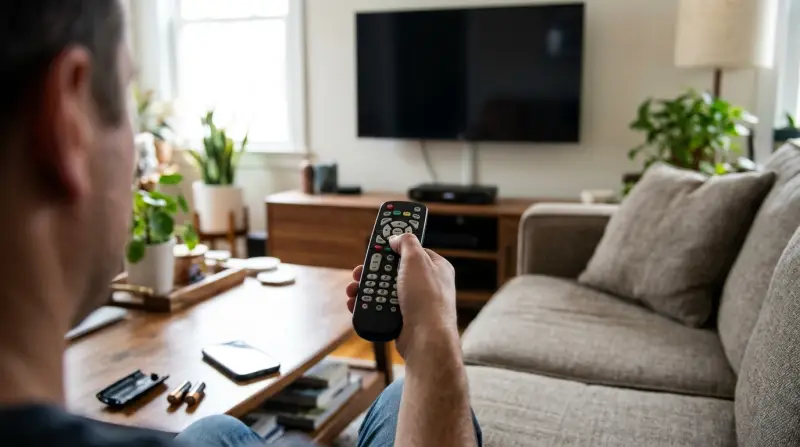
The first step is to know what causes the problem. A remote can fail for many reasons, not just dead batteries. Here are some of the most common:
- Battery issues: Most remotes need two AA or AAA batteries. Weak batteries are the number one reason for remote failure.
- Signal interference: Objects between the remote and the device can block the signal. Even thick curtains or glass can reduce performance.
- Pairing problems: Some remotes need to be paired with the device. If pairing is lost, the remote won’t work.
- Physical damage: Dropping the remote can break internal parts or loosen buttons.
- Software glitches: Updates or errors in the device software can cause remotes to stop responding.
- Faulty receiver: The device’s IR or Bluetooth receiver can fail.
It’s important to check these factors before replacing your remote or calling support.
Quick Fixes For Verizon Remote Problems
Many remote issues have easy solutions. Try these steps first:
- Replace the batteries: Use new, quality batteries. Cheap batteries may not provide enough power.
- Remove obstacles: Clear any objects between the remote and the device.
- Restart your device: Turn off your set-top box or TV, wait 30 seconds, then turn it on.
- Check for signal: Aim the remote directly at the device and press a button. Look for a blinking light on the device.
- Clean the remote: Dust or sticky buttons can block signals. Use a dry cloth or gentle cleaner.
- Re-pair the remote: For voice remotes or Bluetooth models, follow the pairing instructions in the manual.
If these steps do not work, move to deeper troubleshooting.
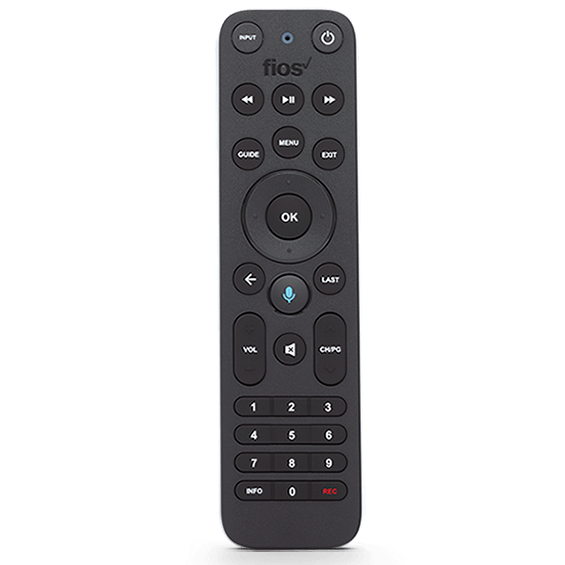
Credit: www.verizon.com
Troubleshooting Different Types Of Verizon Remotes
Verizon offers several remote types, each with unique features. Let’s compare them:
| Remote Type | Connection | Main Features | Common Issues |
|---|---|---|---|
| Basic IR Remote | Infrared | Channel, volume, menu | Signal blocked, battery |
| Voice Remote | Bluetooth | Voice control, pairing | Pairing, software |
| Universal Remote | Infrared/Bluetooth | Controls multiple devices | Programming, interference |
Basic Ir Remote
This remote uses infrared light. If you see the remote working with other devices, the problem is likely with your set-top box. Check for a blinking light when you press a button. If nothing happens, check the batteries and clean the sensor area.
Voice Remote
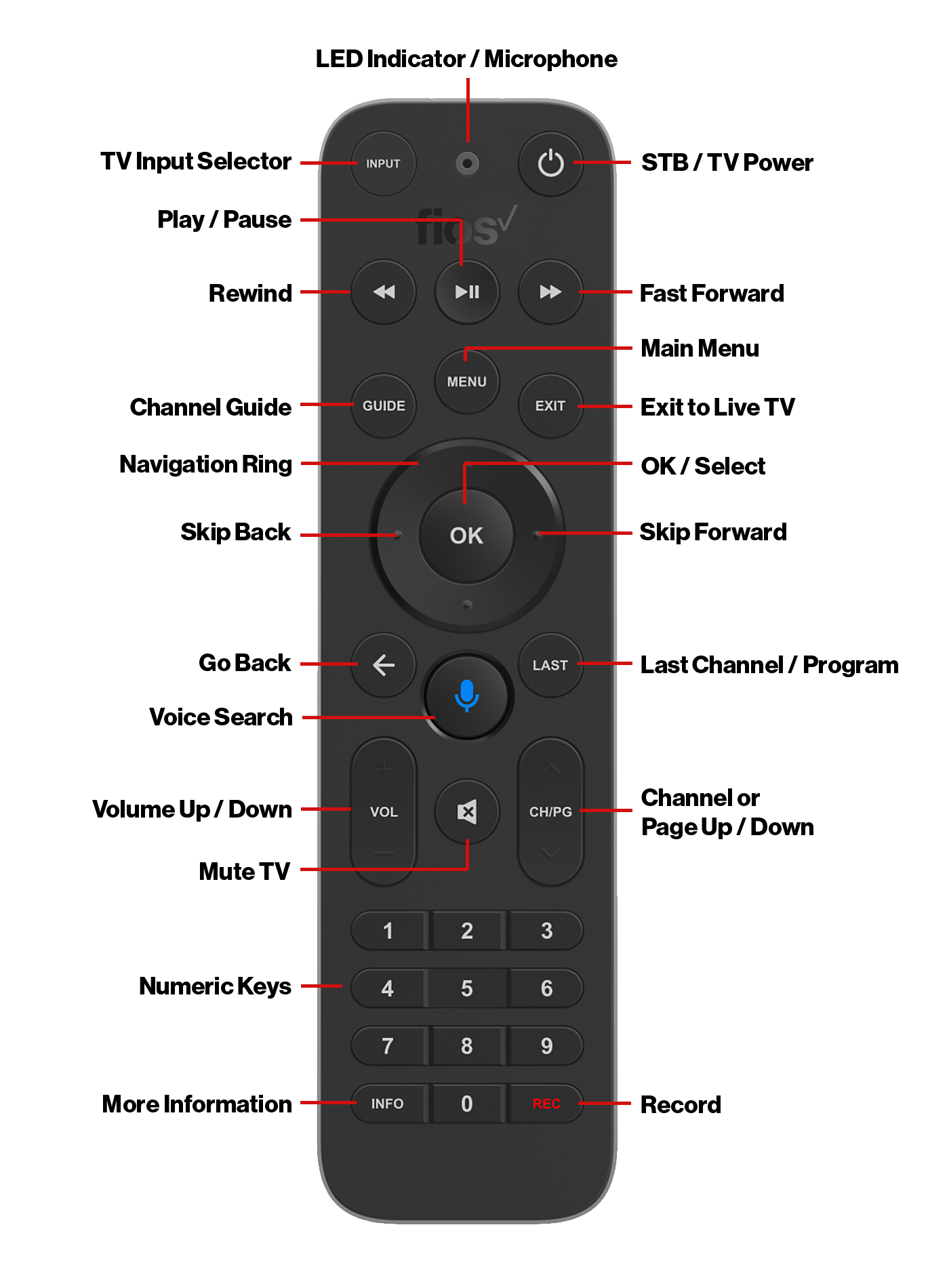
Voice remotes use Bluetooth. If the remote isn’t working, try re-pairing it. Hold the OK and FiOS TV buttons together until the light blinks. Follow the on-screen instructions. If pairing fails, restart the device and try again.
Universal Remote
Universal remotes need programming. Enter the correct code for your device. If the code is wrong, the remote won’t work. Check the Verizon website for updated codes.
How To Reprogram Your Verizon Remote
Sometimes, reprogramming solves the issue. Here’s how to do it for most models:
- Press and hold the Menu and OK buttons until the remote light blinks.
- Enter the code for your TV brand. Codes are listed in the remote manual or on the Verizon site.
- Test the remote by turning the TV on/off.
- If it does not work, try another code.
Programming mistakes are common. Make sure you enter codes slowly and correctly. Some brands need several tries.
Checking For Device Issues
Sometimes the remote is fine, but the device is not responding. Here’s how to check:
- Use another remote (if available) to test the device.
- Use the buttons on the set-top box or TV to change channels.
- Check the device’s power light. If it’s off, plug it in and restart.
- Look for software updates. Go to the device’s settings and check for updates.
If the device responds to other remotes or buttons, your Verizon remote is the problem. If not, there may be an issue with the set-top box or TV.
Advanced Troubleshooting
If simple fixes do not solve the problem, try these advanced steps:
- Reset the remote: Remove the batteries, press all the buttons, then put batteries back in.
- Factory reset the device: Go to the settings menu and select “Reset.” Warning: This may erase your settings.
- Try a different room: Move the device and remote to a new location. Wireless interference from routers or other electronics can cause problems.
- Check for firmware updates: Outdated firmware can cause remote issues. Update your device using the settings menu.
- Replace the remote: If none of these steps work, the remote may be broken.
Here’s a helpful summary of advanced troubleshooting:
| Step | Expected Result | Common Mistake |
|---|---|---|
| Reset remote | Remote starts working | Not pressing all buttons |
| Factory reset device | Device responds to remote | Forgetting to backup settings |
| Update firmware | Improved compatibility | Skipping reboot |
| Replace remote | New remote works | Buying wrong model |
Real-life Examples And Data
Over 30% of Verizon customers report remote issues at least once a year, according to customer service data. Most problems are solved by changing batteries or re-pairing. In a recent survey, 65% of people fixed their remote in less than 10 minutes, while 20% needed a replacement.
Example: Maria from New Jersey had a basic IR remote that stopped working after a power outage. She changed batteries, but it still failed. After cleaning the remote sensor and restarting her set-top box, the remote started working again.
Another example: John in Texas had trouble with his voice remote. Pairing failed until he updated his set-top box software. After the update, his remote worked perfectly.
These stories show that simple steps often solve the problem.
When To Contact Verizon Support
If you have tried all the steps and your remote still does not work, it’s time to contact Verizon support. You can call their customer service or use the online chat. They may offer a replacement remote or help you troubleshoot further.
Before calling, have this information ready:
- Model number of your remote
- Device type (set-top box or TV)
- Steps you have already tried
- Any error messages
Verizon support can guide you through advanced steps or send a new remote if needed. For more details, visit their official site: Verizon Support.
How To Prevent Remote Problems
Prevention is better than cure. Here are ways to keep your Verizon remote working well:
- Use quality batteries and change them every six months.
- Keep the remote clean and dry.
- Avoid dropping or sitting on the remote.
- Store the remote away from heat and sunlight.
- Pair the remote properly after updates or changes.
Some people forget to check for device updates, which can cause remote problems. Make this part of your routine.
Comparison: Verizon Vs Other Brands
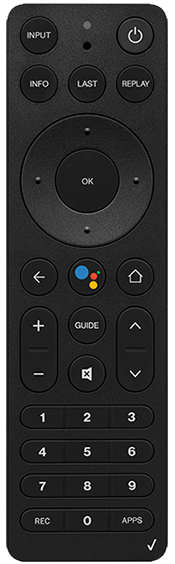
How does Verizon remote reliability compare with other brands? Here’s a quick look:
| Brand | Average Issues per Year | Ease of Troubleshooting | Support Quality |
|---|---|---|---|
| Verizon | 1.2 | Good | Excellent |
| Comcast | 1.5 | Average | Good |
| DIRECTV | 1.7 | Average | Good |
| Dish Network | 1.3 | Good | Average |
Verizon remotes have fewer reported problems and strong support. The troubleshooting process is clear, and replacements are easy to get.
Non-obvious Insights And Tips
Many people overlook these points:
- Bluetooth remotes can lose connection if your device is moved, or if other wireless devices are nearby.
- After a power outage, both the remote and device may need a restart. This is often missed.
- A dirty sensor on your set-top box can block signals, not just a dirty remote.
Always check both the remote and the device. If you only focus on one, you may miss the real problem.
Frequently Asked Questions
What Should I Do If My Verizon Remote Only Works For Some Buttons?
This usually means the remote has dirty or damaged buttons. Clean the remote with a soft cloth. If some buttons are still not working, the remote may need to be replaced.
Can I Use A Universal Remote With Verizon Set-top Boxes?
Yes, most universal remotes will work. You must program the remote with the correct code for Verizon. Check the manual or the Verizon site for codes.
How Do I Pair My Verizon Voice Remote?
Hold the OK and FiOS TV buttons together until the light blinks. Follow the on-screen instructions. If pairing fails, restart your device and try again.
Why Does My Remote Stop Working After A Software Update?
Sometimes updates change the device’s pairing or compatibility. Try re-pairing the remote or check for further updates. If problems continue, contact support.
Where Can I Get A Replacement Verizon Remote?
You can order a new remote from Verizon’s official site or at local electronics stores. Make sure to buy the correct model for your device.
Getting your Verizon remote working again is usually simple. Follow the steps in this article, and you’ll have your remote working in minutes. Remember, most problems are solved with new batteries, cleaning, or re-pairing. If not, Verizon support is ready to help. By understanding the causes and solutions, you can save time and avoid frustration.