
If you own an 8Bitdo controller, you probably enjoy its flexibility and broad device support. But sometimes, the 8Bitdo Ultimate Software refuses to sync with your controller or doesn’t recognize it at all. This can be frustrating, especially when you want to customize button mapping, adjust sensitivity, or update firmware. The good news: most syncing issues can be fixed with some targeted steps. Here, you’ll find clear explanations and proven solutions for getting your 8Bitdo Ultimate Software to sync smoothly, even if you’re not a technical expert.
Why 8bitdo Ultimate Software Fails To Sync
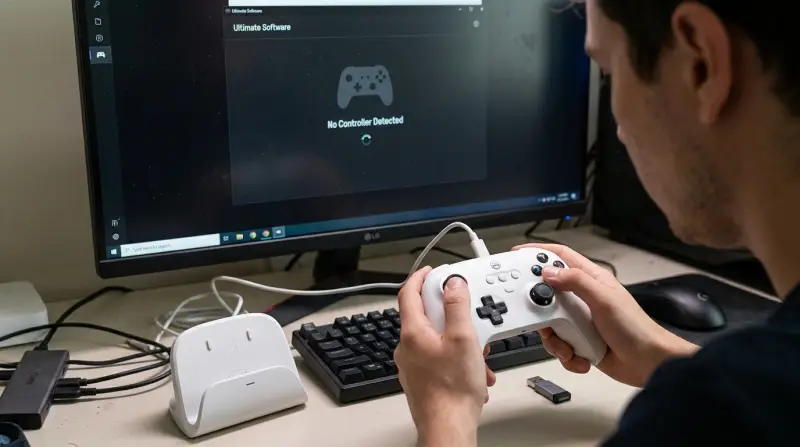
The first step to solving any problem is understanding the root cause. Syncing issues with the 8Bitdo Ultimate Software often come down to a few common factors:
- Firmware mismatch between your controller and the software
- Connection type problems (USB vs Bluetooth)
- Driver conflicts on Windows or macOS
- Outdated or corrupt software installation
- Device compatibility limits
Knowing these potential causes will help you troubleshoot more efficiently, and sometimes save you hours of trial and error.
Basic Checks Before Troubleshooting
Before jumping into advanced fixes, make sure you’ve covered the basics. Many users overlook simple things that can block syncing.
- Confirm Controller Compatibility: Not all 8Bitdo controllers work with Ultimate Software. Check the official 8Bitdo website for the latest compatibility list.
- Use the Right Cable: For wired connections, always use a high-quality USB cable. Faulty or charging-only cables won’t transmit data.
- Charge Your Controller: If the battery is too low, syncing may fail or disconnect often.
- Restart Devices: Sometimes, restarting your PC or reconnecting the controller can fix minor glitches.
Many beginners miss the importance of using the original cable. Even a small defect in a third-party cable can stop syncing entirely.
Step-by-step Solutions For Syncing Issues
Let’s go through the most reliable steps to fix 8Bitdo Ultimate Software not syncing. Work through these in order, and you’ll likely find the solution.
1. Update Firmware On Your Controller
Controllers with old firmware are the #1 cause of syncing problems. Here’s how you can update:
- Download the latest firmware from the 8Bitdo official website.
- Connect your controller to the PC via USB.
- Open the firmware update tool and follow on-screen instructions.
- After updating, restart your controller and try syncing again.
Firmware mismatches can also cause the software to crash or freeze. Always pair the software and controller versions.
2. Reinstall Or Update Ultimate Software
Corrupt installations can block syncing. To ensure your software is current:
- Uninstall the existing 8Bitdo Ultimate Software.
- Download the latest version from the official site.
- Install and restart your computer.
- Connect your controller and try syncing.
Reinstalling can also resolve hidden bugs that updates alone might miss.
3. Check Usb And Bluetooth Connections
Some users aren’t aware that Bluetooth and wired connections are handled differently by the software. Compare them:
| Connection Type | Pros | Common Issues |
|---|---|---|
| USB Wired | Stable, fast syncing | Bad cables, port problems |
| Bluetooth | Wireless, flexible | Driver conflicts, pairing errors |
For best results, always try syncing via USB first. Bluetooth can sometimes cause pairing loops or go undetected by the software.
4. Install Or Update Device Drivers
Missing or outdated drivers can block communication between your PC and controller. On Windows:
- Open Device Manager.
- Look for “Unknown Device” entries when your controller is plugged in.
- Right-click and select Update Driver.
- Choose automatic search or browse for the latest drivers from the 8Bitdo site.
On Mac, make sure you’re running the latest macOS updates. Mac does not always need separate drivers, but updates can still fix hidden compatibility problems.
5. Check For Software Conflicts
Other software like Steam, Xbox Accessories, or third-party controller mappers can block 8Bitdo Ultimate Software from detecting your device.
- Close all other controller-related apps before syncing.
- Temporarily disable background processes if you suspect interference.
This step is often missed by beginners. Even running Steam in the background can sometimes hijack the controller connection.
6. Reset Controller To Factory Settings
If none of the above works, a full reset can clear hidden bugs:
- Hold the pairing button for 10+ seconds, or follow your controller’s specific reset instructions.
- Reconnect to your PC and try syncing again.
This will erase custom profiles, so back up your settings if possible.
7. Try A Different Usb Port Or Computer
Rarely, hardware issues with your PC’s USB port can stop syncing. Try:
- Plugging into a different USB port (preferably USB 3.0)
- Testing on another computer
If the controller syncs elsewhere, the problem is with your original device, not the controller.
Differences Between Supported Controllers
Not all 8Bitdo controllers work the same way with Ultimate Software. Here’s a quick comparison of popular models:
| Controller Model | Ultimate Software Support | Connection Types | Firmware Update? |
|---|---|---|---|
| 8Bitdo Pro 2 | Full | USB, Bluetooth | Yes |
| 8Bitdo SN30 Pro+ | Full | USB, Bluetooth | Yes |
| 8Bitdo Lite | Limited | USB only | Yes |
| 8Bitdo Zero 2 | No | Bluetooth | No |
If you own a model with only partial or no support, you may not be able to sync, no matter what you try.

Advanced Solutions For Persistent Problems
If you’ve tried all the basic solutions and still can’t sync, these advanced steps may help.
Firmware Downgrade
Sometimes, the latest firmware is actually the cause of the syncing issue. If you recently updated and the problem started, try downgrading:
- Download a previous firmware version from the 8Bitdo support page.
- Follow the same update steps as before.
- Test if syncing now works.
This is rarely needed, but can fix issues after a buggy update.
Use A Different Operating System
Some users report that 8Bitdo Ultimate Software works better on Windows than Mac, or vice versa. If you have access to both, try switching to see if syncing works on another system.
Manual Device Uninstall
Device ghosts (leftover drivers) can block new connections. Remove all old controller entries:
- In Device Manager, show hidden devices (View > Show hidden devices).
- Uninstall all gray, duplicate, or “Unknown Device” controller entries.
- Reboot your computer and reconnect.
This step is especially helpful after failed firmware updates.
Real-world Examples
A gamer named Sarah spent two days troubleshooting her Pro 2 controller after a firmware update broke syncing. She tried new cables, reinstalled the software, and even switched computers. The fix? Rolling back to the previous firmware finally restored syncing.
Another user, Leo, couldn’t get his SN30 Pro+ to sync over Bluetooth. It worked fine over USB. The problem was a missing Bluetooth driver on his Windows PC. Installing the correct driver fixed the issue instantly.
These examples show that the right solution often depends on your specific setup and connection method.
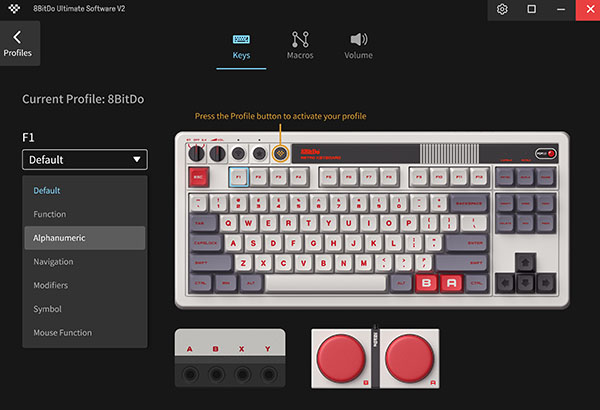
Credit: app.8bitdo.com
How To Avoid Syncing Issues In The Future
Prevention saves time and frustration. Here are simple habits that reduce future syncing problems:
- Always check compatibility before updating firmware or software.
- Backup profiles before updates or resets.
- Use official cables and accessories.
- Update drivers and software regularly, but wait a few days after release to avoid early bugs.
- Avoid running multiple controller apps at the same time.
One non-obvious tip: Some users find that connecting to a different USB port after a failed attempt can “refresh” the connection and allow syncing, even when everything else seems fine.
When To Contact 8bitdo Support
If you’ve tried every solution above and your controller still won’t sync, it’s time to reach out for help. Gather this information before contacting support:
- Controller model and serial number
- Firmware version
- Operating system and version
- Steps you’ve already tried
Providing detailed info will help 8Bitdo support diagnose your issue faster.
For official troubleshooting steps, firmware downloads, and compatibility lists, the 8Bitdo Support Portal is the best starting point.
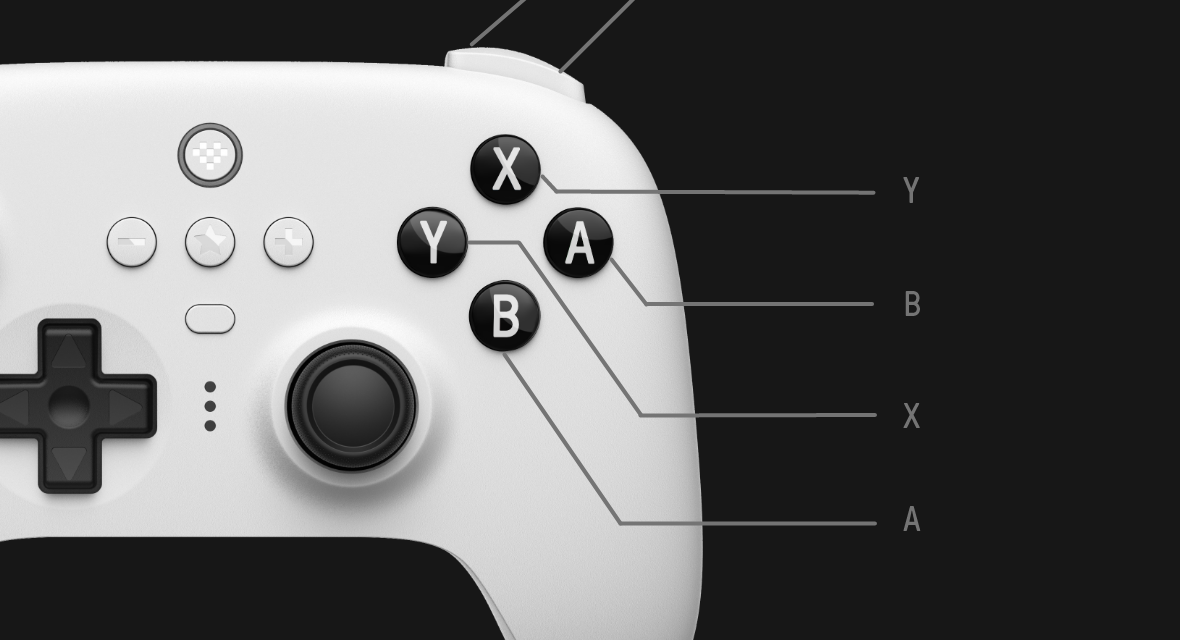
Credit: support.8bitdo.com
Frequently Asked Questions
Why Does 8bitdo Ultimate Software Not Detect My Controller At All?
This is usually caused by a firmware mismatch, a bad USB cable, or device drivers not being installed. Try updating your firmware, using a different cable, and checking Device Manager for errors.
Can I Use 8bitdo Ultimate Software On Macos?
Yes, but support may be limited for some controllers. Make sure you download the Mac version of the software and keep your macOS updated. Some advanced features may only be available on Windows.
Does The Software Work Over Bluetooth Or Only Usb?
The Ultimate Software works best with USB connections for syncing and configuration. Bluetooth works for gameplay, but is often less reliable for software syncing. Always use USB when possible for updates.
My Controller Syncs On One Pc But Not Another. Why?
This usually points to a driver issue or software conflict on the problematic PC. Try updating drivers, using a different USB port, or uninstalling duplicate devices.
Will Syncing Problems Erase My Custom Profiles?
Most syncing issues do not erase profiles unless you perform a factory reset or downgrade firmware. Always back up your profiles before major changes to be safe.
Getting your 8Bitdo Ultimate Software to sync doesn’t have to be a headache. Most problems have a clear solution if you follow the right steps and pay attention to details like cables, drivers, and compatibility. With a bit of patience and the tips above, you’ll be customizing your controller and gaming without frustration. If all else fails, don’t hesitate to contact support with detailed info for a quicker resolution.