
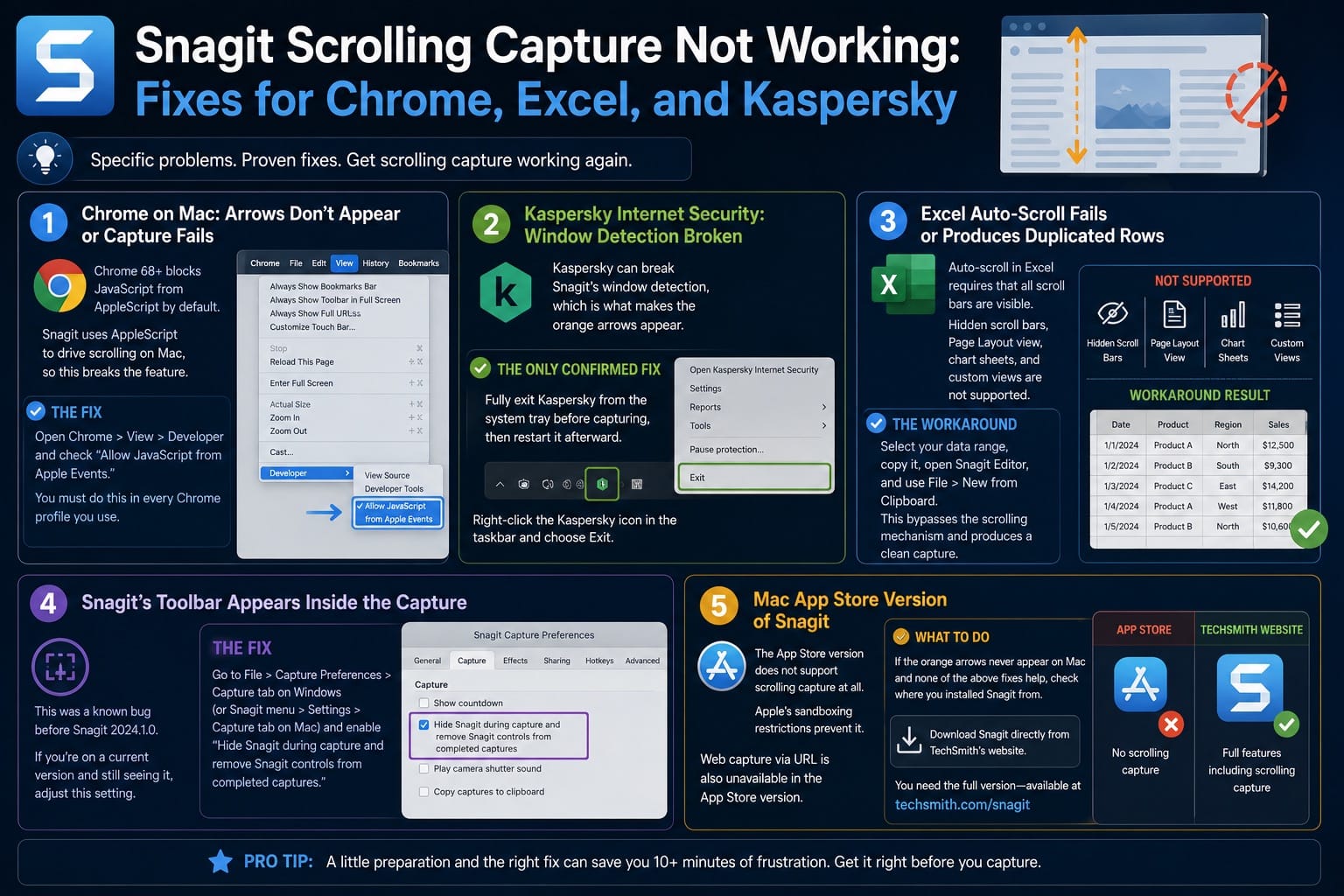
If you use Snagit for capturing screenshots, you may know its Scrolling Capture feature. This tool lets you capture entire web pages, long chat messages, or large documents that don’t fit on your screen. But what if Snagit’s scrolling capture stops working? It’s a common problem that can be frustrating, especially when you need a quick solution. Let’s explore why scrolling capture can fail, how to fix it, and what to do if nothing seems to work.
Understanding Snagit’s Scrolling Capture Feature
Snagit is known for more than just basic screenshots. The Scrolling Capture function is designed to grab content that extends beyond what you can see. For example, you might use it to capture:
- A full web page for a report
- A long email conversation
- A software interface with many options
This feature works by automatically scrolling through the content and stitching images together. But sometimes, instead of a perfect capture, you get incomplete screenshots or errors.
Common Reasons Why Scrolling Capture Fails
Several issues can cause Snagit’s scrolling capture to stop working. Knowing these helps you quickly target the problem.
- Browser Updates: Modern browsers like Chrome, Firefox, and Edge get frequent updates. Sometimes, these updates change how web pages load, making Snagit’s capture scripts less effective.
- Web Page Design: Some websites use dynamic content (like infinite scrolling or sticky headers) that confuses scrolling capture. Pages built with complex JavaScript or frames can also cause trouble.
- Outdated Snagit Version: Using an old version of Snagit may mean it lacks compatibility with new browsers or operating systems.
- Graphics Driver Issues: Problems with your graphics card or its drivers can interfere with how Snagit records the screen.
- Third-Party Extensions or Security Software: Browser extensions, ad blockers, or security tools may block Snagit’s scripts.
- Unusual Scroll Bars or Custom UI Elements: Some applications don’t use standard scroll bars, which Snagit depends on to recognize scrollable areas.
Quick Troubleshooting Steps
Before diving into advanced fixes, try these simple checks. They solve many scrolling capture problems fast.
Restart Snagit And Your Computer
A quick restart can clear temporary glitches. Close Snagit, restart your computer, and try the capture again.
Update Snagit
Always use the latest version. Developers release updates to fix bugs and support new browsers.
- Open Snagit
- Go to Help > Check for Updates
- Follow the prompts to update
Update Your Browser
If you capture web pages, make sure your browser is current. Outdated browsers can cause compatibility issues.
Try A Different Browser
If scrolling capture fails in Chrome, try Firefox or Edge. Some browsers work better with Snagit’s scripts.
Disable Extensions And Add-ons
Turn off browser extensions, especially ad blockers or privacy tools. They can block Snagit’s scrolling scripts.
Check For Security Software Conflicts
Your antivirus or firewall might block Snagit. Temporarily disable it and test scrolling capture. If it works, add Snagit as an exception.
Comparing Scrolling Capture Support Across Browsers
Not all browsers work equally well with Snagit’s scrolling capture. Here’s a quick comparison:
| Browser | Scrolling Capture Success Rate | Common Issues |
|---|---|---|
| Google Chrome | High (80-90%) | Dynamic content, ad blockers |
| Mozilla Firefox | Moderate (70-85%) | Frame-heavy pages |
| Microsoft Edge | High (85-95%) | Occasional plugin conflicts |
| Internet Explorer | Low (40-60%) | Compatibility, outdated tech |
Choosing the right browser can make a big difference, especially for web page captures.
Advanced Solutions To Fix Scrolling Capture
If the basic steps don’t help, these advanced fixes often solve the problem.
Use Snagit’s Alternative Capture Methods
Snagit offers several ways to capture scrolling content:
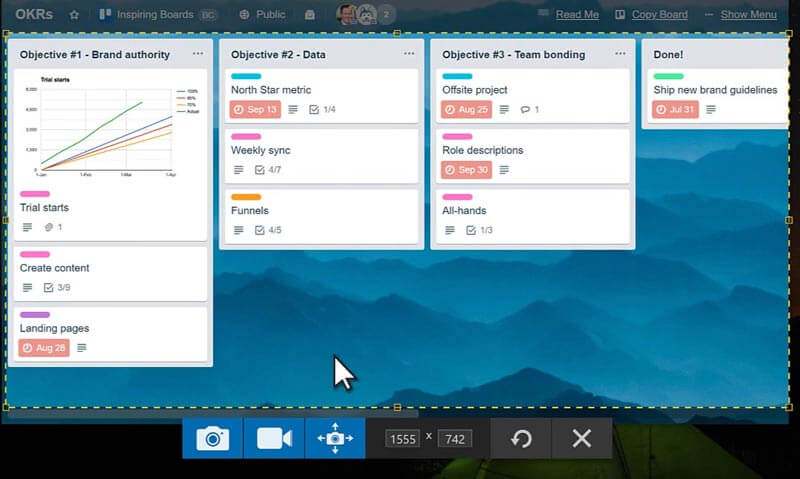
- Panoramic Capture: Lets you manually scroll and capture only what you need. This is helpful for web pages with sticky elements or dynamic loading.
- Window Capture: Works best for documents or apps with standard scroll bars.
Adjust Snagit Settings
Some tweaks in Snagit’s settings can improve scrolling capture results.
- Go to Capture Preferences
- Try changing the Capture Method: Switch between DirectX, GDI, or Region.
- Turn off hardware acceleration if enabled. This can fix issues with certain graphics cards.
Update Your Graphics Drivers
Outdated or buggy drivers may cause capture failures. Visit your graphics card maker’s website (NVIDIA, AMD, Intel) and download the latest driver.
Run Snagit As Administrator
Sometimes, running Snagit with administrator rights can bypass security restrictions.
- Right-click the Snagit icon
- Select Run as administrator
- Try the scrolling capture again
Reinstall Snagit
If nothing else works, a clean reinstall can fix corrupted files or settings.
- Uninstall Snagit from your computer
- Restart your computer
- Download the latest version from the official site
- Install and test again
How To Capture Difficult Web Pages
Some pages are just hard to capture because of their design. Here are some real-world tips:
- Use Panoramic Mode: Start the capture, scroll manually, and stop when you reach the end. This avoids errors from infinite scroll or sticky headers.
- Zoom Out: Reduce the page zoom in your browser. More content fits on the screen, so you might not need to scroll as much.
- Print to PDF, Then Capture: Some pages have a “Print” view with all content visible. Print to PDF, open the PDF, and use Snagit to capture.
- Remove Distractions: Use browser “Reader Mode” or extensions to simplify the page before capturing.
- Capture in Sections: For very complex pages, capture in smaller sections and stitch them together in Snagit’s editor.
Comparing Snagit Scrolling Capture To Other Tools
Snagit is popular, but it’s not the only tool for scrolling screenshots. Here’s how it compares:
| Tool | Scrolling Capture | Ease of Use | Supported Platforms |
|---|---|---|---|
| Snagit | Advanced (Panoramic, Auto, Manual) | Easy | Windows, Mac |
| PicPick | Basic auto-scroll | Easy | Windows |
| ShareX | Auto-scroll, region capture | Moderate (more options) | Windows |
| Awesome Screenshot (extension) | Scroll capture in browser | Easy | Chrome, Firefox |
Snagit stands out for its panoramic capture and editing tools, but browser-based tools may work better for some web pages.
Non-obvious Insights And Pro Tips
Many users miss these important details:
- Not all scroll bars are the same: If an app or website uses a custom-designed scroll bar, Snagit may not recognize it. In such cases, panoramic capture is usually more reliable.
- Invisible page elements can block capture: Pop-ups, chat widgets, or hidden overlays sometimes block scrolling scripts. Close or hide these before starting your capture.
- Printing to PDF can reveal hidden content: Some web pages only show full content in print view. Use this to your advantage by capturing from the PDF.
When To Contact Snagit Support
If you’ve tried all the above and scrolling capture still fails, it may be a bug or compatibility issue. Gather the following before contacting support:
- Snagit version number
- Operating system details
- Browser name and version
- Type of content/page you’re trying to capture
- Steps you’ve already tried
You can reach TechSmith’s official support at their Support Center.
Frequently Asked Questions
What Causes Snagit’s Scrolling Capture To Stop Working Suddenly?
Sudden failures often happen after a browser or app update. Changes to how pages load, new security features, or even updates to Snagit itself can break compatibility. Also, new browser extensions or antivirus settings may interfere.
How Can I Capture An Entire Web Page If Scrolling Capture Fails?
Try Snagit’s Panoramic Capture. This lets you scroll manually and select the area you want. If that fails, use the browser’s print function to save the page as a PDF, then capture from there.
Why Does Snagit Work On Some Websites But Not Others?
Some websites use complex scripts, dynamic loading, or unique scroll bars. These can confuse Snagit’s auto-scroll detection. Simpler, static pages work better, while pages with sticky headers or infinite scroll are more likely to fail.
Is Snagit The Best Tool For Scrolling Screenshots?
Snagit is one of the most powerful tools for scrolling screenshots, especially because of its editing features and panoramic capture. However, browser-based tools like Awesome Screenshot might work better on certain websites.
Can I Use Snagit’s Scrolling Capture On Apps Other Than Browsers?
Yes, you can use it on many apps with standard scroll bars, such as Word, Excel, or PDF readers. However, apps that use custom interfaces or non-standard scroll bars may not work. Panoramic capture can help in these cases.
When Snagit’s scrolling capture fails, it can be frustrating. But with the right steps, you can almost always find a solution. By understanding the causes, trying different browsers or capture modes, and keeping your software updated, you’ll solve most problems.
And if all else fails, TechSmith support is there to help. Remember, capturing the content you need is possible with a bit of patience and the right approach.