
Email is a lifeline for work, personal updates, and everything in between. But if you use the Samsung Email app and notice your messages are not syncing, it’s easy to feel frustrated. Missed emails can lead to lost opportunities or important information slipping through the cracks. The problem is common, but the good news is that most syncing issues with Samsung Email can be solved with a few simple steps.
This guide breaks down why syncing fails, how to fix it, and what you can do to avoid problems in the future. Whether you use a Samsung Galaxy for business or just to stay in touch, you’ll find solutions here that actually work. Let’s get your email back on track.
Why Samsung Email Stops Syncing
Syncing problems can show up as missing emails, delayed notifications, or an inbox that doesn’t update. These issues happen for several reasons:
- Poor internet connection: Without a stable connection, the app can’t fetch new emails.
- Battery optimization settings: Some settings stop apps from working in the background.
- Incorrect account details: Wrong passwords or server info can break the sync.
- Outdated app or software: Old versions of the app or phone software might have bugs.
- Server issues: Sometimes, the email provider has technical problems.
- Storage problems: If your phone is full, new messages may not download.
Many users overlook the impact of battery optimization and background data settings. Even if your internet works for other apps, these settings can quietly block syncing.
Key Features Of Samsung Email
Before diving into fixes, it helps to know why people choose Samsung Email over other apps. Here are some standout features:
- Multiple account support: Add work, school, and personal emails in one app.
- Custom notifications: Set alerts for important contacts or folders.
- Security: Advanced encryption and spam filtering.
- Integration: Works with Samsung Calendar and Contacts.
Knowing these features helps you understand what might go wrong and what you stand to lose if syncing fails.
Common Signs Of Syncing Issues
Not every email delay means a syncing problem. Here’s how to spot real issues:
- No new emails even after refreshing
- Outbox has stuck messages
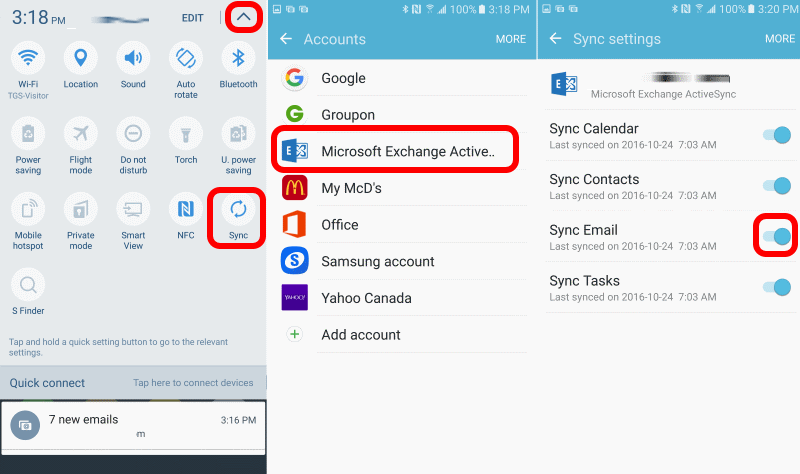
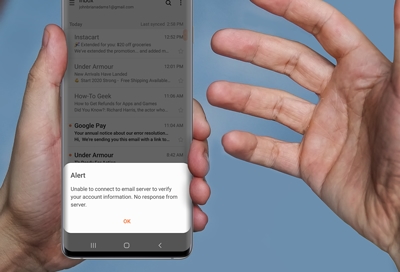
- Error messages like “Sync failed” or “Couldn’t connect to server”
- Emails show up on webmail, but not on your phone
- Notifications stop but emails appear when you open the app manually
If these sound familiar, your device probably has a syncing issue.
Step-by-step Solutions For Samsung Email Not Syncing
It’s important to fix syncing issues methodically. Here’s a process that works for most users.
Check Your Internet Connection
A weak or unstable connection is often the main culprit.
- Switch between Wi-Fi and mobile data to see if syncing resumes.
- Try loading a website to confirm internet access.
- Restart your router if Wi-Fi is slow.
Update The Samsung Email App
Running an outdated app can cause bugs or security problems.
- Open the Galaxy Store or Google Play Store.
- Search for “Samsung Email.”
- Tap Update if available.
Updating also patches known syncing bugs. Users often miss this simple fix.
Review Account Settings
Incorrect passwords or server details can silently break syncing.
- Open Samsung Email.
- Tap the menu (three lines), then Settings.
- Select your account and review server settings.
- Re-enter your password if you recently changed it online.
If unsure, check your provider’s support site for the right settings.
Allow Background Data
If background data is off, emails won’t sync unless you open the app.
- Go to Settings > Apps > Samsung Email.
- Tap Mobile data.
- Enable Allow background data usage and Allow data usage while Data saver is on.
Many users set Data Saver or battery restrictions without realizing the impact.
Adjust Battery Optimization
Samsung’s aggressive battery saving can pause email syncing.
- Go to Settings > Apps > Samsung Email > Battery.
- Set to Unrestricted or Not optimized.
This ensures the app can fetch mail even when the phone is idle.
Clear App Cache And Data
Corrupted data can stop syncing.
- Go to Settings > Apps > Samsung Email > Storage.
- Tap Clear cache.
- If problems persist, try Clear data (this logs you out, so have your credentials ready).
Check Device Storage
If your device is full, new emails might not download.
- Go to Settings > Device care > Storage.
- Free up space by deleting unused apps or old files.
Remove And Re-add The Account
Sometimes, the fastest fix is to start fresh.
- In Samsung Email, tap Settings.
- Remove the affected account.
- Restart your device.
- Add the account back and see if syncing works.
Reboot Your Device
A simple restart can clear up temporary issues.
- Hold the power button and select Restart.
Check Email Server Status
Sometimes, the issue is not your phone. Check your provider’s service status page or try logging in on a computer.
- If webmail works but your phone doesn’t, the problem is likely on your device.
- If webmail is also down, wait for the provider to fix things.
Comparison: Samsung Email Vs Other Email Apps
If syncing issues persist, you might wonder if other apps do better. Here’s a quick look at how Samsung Email compares to two popular alternatives.
| Feature | Samsung Email | Gmail | Outlook |
|---|---|---|---|
| Multiple Accounts | Yes | Yes | Yes |
| Custom Notifications | Yes | Limited | Yes |
| Integration with Samsung Devices | Best | Good | Good |
| Spam Filtering | Strong | Excellent | Excellent |
| Battery Efficiency | High | Medium | Medium |
Samsung Email is especially strong for Samsung Galaxy users due to its device integration and battery management.
Advanced Fixes For Persistent Syncing Problems
If you’ve tried the basics with no luck, these advanced steps might help.
Reset Network Settings
Network misconfigurations can silently block syncing.
- Go to Settings > General management > Reset > Reset network settings.
- This removes saved Wi-Fi networks and Bluetooth devices, so reconnect after.
Check Date And Time
Incorrect date or time can confuse email servers.
- Go to Settings > General management > Date and time.
- Enable Automatic date and time.
Manually Set Sync Frequency
Samsung Email lets you control how often it checks for new mail.
- Open the app, go to Settings > Account > Sync schedule.
- Set to Auto (Push) for instant delivery, or choose a shorter interval.
Use Imap Instead Of Pop3
IMAP keeps messages synced across devices, while POP3 downloads to one device only.
- If your account uses POP3, consider switching to IMAP in the account setup.
Try A Different Email App
As a last resort, try Gmail or Outlook to see if syncing works. If so, the issue is likely with the Samsung Email app.
Data Table: Common Issues And Fixes
Here is a quick reference for common syncing problems and what usually solves them.
| Problem | Likely Cause | Best Solution |
|---|---|---|
| No new emails | Background data off | Enable background data |
| Emails delayed | Battery optimization | Set to Unrestricted |
| Outbox stuck | Poor internet | Check connection |
| Sync error message | Wrong password/server | Update account info |
| Only some emails sync | POP3 used | Switch to IMAP |
Pro Tips And Non-obvious Insights
- Whitelist Samsung Email in any third-party battery or security app. Some users install battery savers or antivirus apps that quietly block syncing in the background.
- Check app permissions: Go to Settings > Apps > Samsung Email > Permissions. Make sure the app can access Contacts, Storage, and Calendar if needed.
- Avoid using Data Saver mode when expecting urgent emails. It can block background activity.
- Don’t ignore minor sync delays. Small issues often grow into bigger ones if not fixed.
- Set up notifications separately: Some users think emails aren’t syncing, but only notifications are off. Check notification settings in both the app and device.
Preventing Future Syncing Issues
Consistent syncing depends on regular maintenance and smart settings:
- Keep your app and system updated: Updates fix bugs and improve performance.
- Review battery and data settings after software updates, as they may reset.
- Back up important emails: Use Samsung’s Smart Switch or your provider’s tools.
- Monitor app permissions whenever you install new apps.
- Be aware of storage limits: Regularly clear out old attachments or photos.
When To Contact Support
If you’ve tried everything and email still won’t sync, it’s time to seek help.
- Samsung Support can help with device-specific problems.
- Email provider support (like Outlook, Gmail, Yahoo) can check for account issues or server blocks.
- Online forums such as Samsung Community can offer tips from other users.
In rare cases, a hardware issue or deep software bug may need a factory reset or service.
For more details on troubleshooting Samsung devices, see the official Samsung Support page.

Frequently Asked Questions
Why Are My Samsung Email Notifications Not Showing?
This usually happens if notifications are turned off in either the app or device settings. Go to Settings > Apps > Samsung Email > Notifications and make sure everything is allowed.
How Do I Change The Sync Frequency In Samsung Email?
Open the Samsung Email app, tap Settings, select your account, and look for Sync schedule. You can choose Auto (Push) for real-time syncing or set a custom interval.
Is It Safe To Clear Data From The Samsung Email App?
Yes, but it will log you out and remove locally stored emails. Make sure you know your email password before clearing data so you can sign in again.
What Does Imap Mean And Why Is It Better Than Pop3?
IMAP keeps emails synced on all devices by storing messages on the server. POP3 downloads emails to one device only. For most users, IMAP is better because it keeps everything updated everywhere.
Can I Use Samsung Email With Gmail, Yahoo, Or Outlook Accounts?
Absolutely. Samsung Email supports all major providers. Just enter your email address and password, and the app will set up the correct settings automatically.
Getting your Samsung Email syncing again is usually straightforward, but don’t ignore small problems they tend to get worse. With the steps above, you can stay connected and never miss an important message.
1 thought on “Samsung Email Not Syncing: Quick Fixes to Restore Your Inbox”