
Resetting your Govee thermometer can solve many common problems. Maybe your device is showing wrong readings, won’t connect to your phone, or just seems stuck. Learning how to reset it correctly can save you time and frustration. This guide will help you understand when and how to reset your Govee thermometer, what to expect during the process, and how to avoid mistakes.
Whether you’re using it for home, office, or greenhouse monitoring, these steps will make things easier and clearer.
When Should You Reset Your Govee Thermometer?
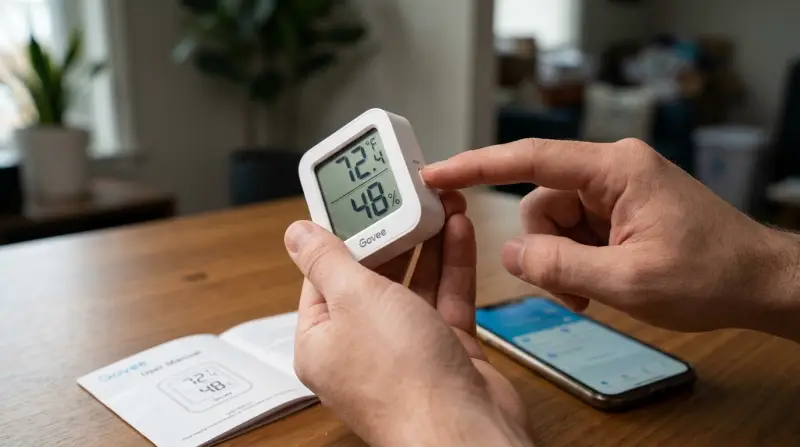
Most people don’t reset their thermometer unless something goes wrong. However, there are a few situations when a reset is helpful:
- Inaccurate readings: If your thermometer shows strange temperatures or humidity levels.
- Bluetooth connection issues: When your phone cannot find or connect to the device.
- App problems: If the Govee app crashes or won’t update data.
- Changing Wi-Fi networks: When you move to a new location and need to connect to a different Wi-Fi.
- After firmware updates: Sometimes updates cause the device to behave unexpectedly.
- Preparing to sell or give away: Resetting erases your data and settings for privacy.
Resetting is not always the first solution. Before you reset, try changing the batteries, checking your network, and restarting your phone. If problems continue, a reset is the next step.
Types Of Govee Thermometers And Reset Methods
Govee offers several thermometer models, and the reset process can vary. The two main categories are:
- Bluetooth-only models: These connect to your phone via Bluetooth.
- Wi-Fi-enabled models: These connect to both Bluetooth and Wi-Fi.
Let’s compare the most common types:
| Model | Connection | Reset Method | Typical Use |
|---|---|---|---|
| Govee H5075 | Bluetooth | Button reset | Home, fridge |
| Govee H5179 | Bluetooth + Wi-Fi | App or button reset | Greenhouse, remote monitoring |
| Govee H5100 | Bluetooth | Battery pull reset | Room, office |
If you’re not sure which model you have, check the back of the device or the original packaging. Each model has a unique number starting with “H”.
Step-by-step: How To Reset Your Govee Thermometer
Follow these steps to reset your device safely. The process is simple, but small mistakes can cause issues.
1. Locate The Reset Button
Most Govee thermometers have a reset button. It’s usually on the back or side. Some models use a small hole that needs a pin or paperclip.
- H5075: Tiny button on the back, next to the battery cover.
- H5179: Pin-hole reset under the battery compartment.
- H5100: No button — remove and reinsert batteries.
2. Press And Hold The Button
- Use a pin, paperclip, or your finger (if the button is accessible).
- Press and hold for at least 5–10 seconds.
- Wait for the LED light to blink or hear a beep (if your model has sound).
This clears the settings and prepares the device for setup.
3. Remove And Reinsert Batteries (if No Button)
If your model doesn’t have a reset button, removing the batteries is the reset method.
- Take out all batteries.
- Wait 30 seconds.
- Put the batteries back in.
This will restart the device’s memory.
4. Reset Using The Govee App (wi-fi Models Only)
Some Wi-Fi models allow resets through the Govee app:
- Open the Govee app.
- Find your thermometer in the device list.
- Tap the settings icon.
- Select “Device Reset” or “Remove Device.”
- Confirm the action.
Your thermometer will disconnect and return to factory settings.
5. Reconnect And Setup Again
After resetting, you must reconnect the thermometer:
- Open the Govee app.
- Tap “Add Device.”
- Follow the instructions to pair via Bluetooth or Wi-Fi.
- Enter Wi-Fi password if needed.
- Name your device and set preferences.
Resetting erases all previous data and settings. You’ll start fresh.
Common Mistakes And How To Avoid Them
Resetting seems easy, but beginners often make errors that cause extra problems. Here are common mistakes and how to prevent them:
- Not holding the reset button long enough: Always hold for at least 5–10 seconds. Too short won’t work.
- Using wrong batteries: Only use recommended batteries. Low-quality or old batteries can make the device fail.
- Forgetting to reconnect the app: After reset, you must pair again. If not, the thermometer won’t send data.
- Resetting too often: Only reset when needed. Frequent resets can reduce device life.
- Ignoring LED signals: The LED light indicates reset success. If it doesn’t blink, try again.
Some users forget to check the model number and follow the wrong steps. Always check your device’s instructions or the Govee website for model-specific guides.

Credit: manuals.plus
Real-world Example: Resetting A Govee H5179
Let’s go through a reset for the popular H5179 Wi-Fi thermometer.
- Remove the battery cover.
- Find the small hole labeled “Reset.”
- Insert a paperclip and hold for 10 seconds.
- The LED will blink rapidly.
- Open the Govee app, remove the device from your list.
- Re-add the device and connect to Wi-Fi.
After these steps, your thermometer will be ready. You can monitor temperature and humidity remotely again.
Troubleshooting After Reset
Sometimes, a reset doesn’t solve everything. Here’s what to do if problems continue:
- Device won’t turn on: Check battery type and placement. Use fresh batteries.
- Can’t connect to app: Restart your phone. Make sure Bluetooth and Wi-Fi are on.
- Wrong readings after reset: Place the thermometer in a stable location, away from heat or moisture sources. Wait 10–15 minutes for accurate readings.
If your thermometer still fails, contact Govee support or check the official Govee help center for more advice.
Credit: www.youtube.com
Comparison: Reset Vs. Factory Reset
Some users confuse a simple reset with a factory reset. Here’s how they differ:
| Type | What It Does | When to Use | Effect on Data |
|---|---|---|---|
| Reset | Restarts device, clears settings | Minor issues, setup problems | Erases local settings |
| Factory Reset | Wipes all data, returns to original state | Major problems, selling device | Erases all stored data |
For most users, a simple reset is enough. Factory resets should only be used if you want to erase all traces of your use.
Two Insights Most Beginners Miss
- Resetting does not fix calibration: If your thermometer is consistently wrong, resetting won’t always solve it. You may need to calibrate or replace the sensor.
- Bluetooth range matters: After resetting, your phone must be close to the thermometer for pairing. Walls and furniture can block signals.
These details help you avoid wasting time and make your reset more successful.

How To Keep Your Govee Thermometer Working Well
After resetting, follow these tips to keep your thermometer accurate and reliable:
- Place it away from direct sunlight, heaters, or vents.
- Check batteries every 3–6 months.
- Clean the sensor area with a dry cloth to prevent dust buildup.
- Update the Govee app regularly for bug fixes and improvements.
Many people ignore these simple steps, but they make a big difference in device performance.
Frequently Asked Questions
How Often Should I Reset My Govee Thermometer?
You should only reset your thermometer when you notice problems like wrong readings, connection issues, or after major updates. Regular resets are not needed and can shorten device life.
Will Resetting Erase All My Data?
Yes, resetting will remove your local settings and any stored data on the thermometer. However, data saved in the app or cloud may remain, depending on your model.
What Should I Do If My Thermometer Still Doesn’t Work After Resetting?
First, check batteries and placement. Try reconnecting with the app. If problems continue, contact Govee support or visit their help center for detailed troubleshooting.
Can I Reset My Thermometer Without The App?
Yes, most models allow a manual reset using the button or battery method. The app is only needed for Wi-Fi models or advanced settings.
Is There A Way To Calibrate My Govee Thermometer After Resetting?
Some models offer calibration in the app. Look for “Calibration” or “Adjust” in the settings. If not, place the thermometer in a known environment and compare readings to a trusted device.
Resetting your Govee thermometer is a simple but powerful way to solve many problems. By following the steps in this guide, you’ll save time, protect your device, and keep your readings accurate. Remember to reset only when needed, and always check your model for specific instructions.
With these tips, you can enjoy reliable monitoring for years.