
If your Ring Floodlight Cam is acting strangely, not connecting, or you plan to give it to someone else, you might need to reset it. Many people find the reset process confusing, especially with smart security devices. But if you follow the right steps, you can get your Ring Floodlight Cam working again without stress.
This guide explains how to reset your Ring Floodlight Cam in clear, simple language. You’ll learn not just how to do it, but also why resets matter, what to do if things go wrong, and how to avoid common mistakes.
What Is A Ring Floodlight Cam?
The Ring Floodlight Cam is a smart security camera with two bright floodlights. It connects to your home Wi-Fi and lets you watch live video, talk to visitors, and get alerts on your phone. Many people choose this camera for their yard, garage, or driveway because it offers clear video and strong lights that scare away trespassers.
There are different models, like the Ring Floodlight Cam Wired Plus and Ring Floodlight Cam Pro. They all work in similar ways, but the reset steps are almost the same for each. This article covers the main process, but always check your model’s manual if you’re not sure.
When Should You Reset Your Ring Floodlight Cam?
Resetting your camera is a powerful tool, but it’s not always needed. Here are the most common reasons to perform a reset:
- Camera not connecting to Wi-Fi: If you keep losing connection or can’t add the camera to your app.
- Device freezing or not responding: The lights or camera won’t turn on, or the app can’t control it.
- Selling or giving away the device: You want to remove your information and let the new owner set up the camera.
- Major software glitches: Issues after a failed update or app bug that normal troubleshooting can’t fix.
- Changing to a new Wi-Fi network: If you move or get a new router and the camera won’t connect.
A reset erases all settings and removes the camera from your Ring account. It returns the device to factory defaults, so set-up will be needed again.
Types Of Resets: Soft Reset Vs. Hard (factory) Reset
Before starting, it helps to understand the two main reset types:
- Soft Reset: This is usually just turning the power off and on. It does not erase settings or remove the camera from your account. Try this first if you just have a small problem.
- Hard (Factory) Reset: This fully erases the device and returns it to its original state. You must set up the camera again from the beginning.
Most problems need a factory reset. Soft resets are mostly for quick fixes, like if the camera is acting slow or won’t connect for a short time.
Preparing For The Reset
Resetting a smart device takes a few minutes, but preparing saves time. Here’s what you need:
- The camera itself: You must have physical access to your Ring Floodlight Cam. You can’t reset it from the app alone.
- A stable ladder or safe way to reach the camera: Most are installed up high.
- The Ring app on your phone or tablet: For re-setup after the reset.
- Your Wi-Fi network name and password: You’ll need these to add the camera back.
It’s smart to note any custom settings (like alert zones or light schedules). After a reset, you must re-enter these.
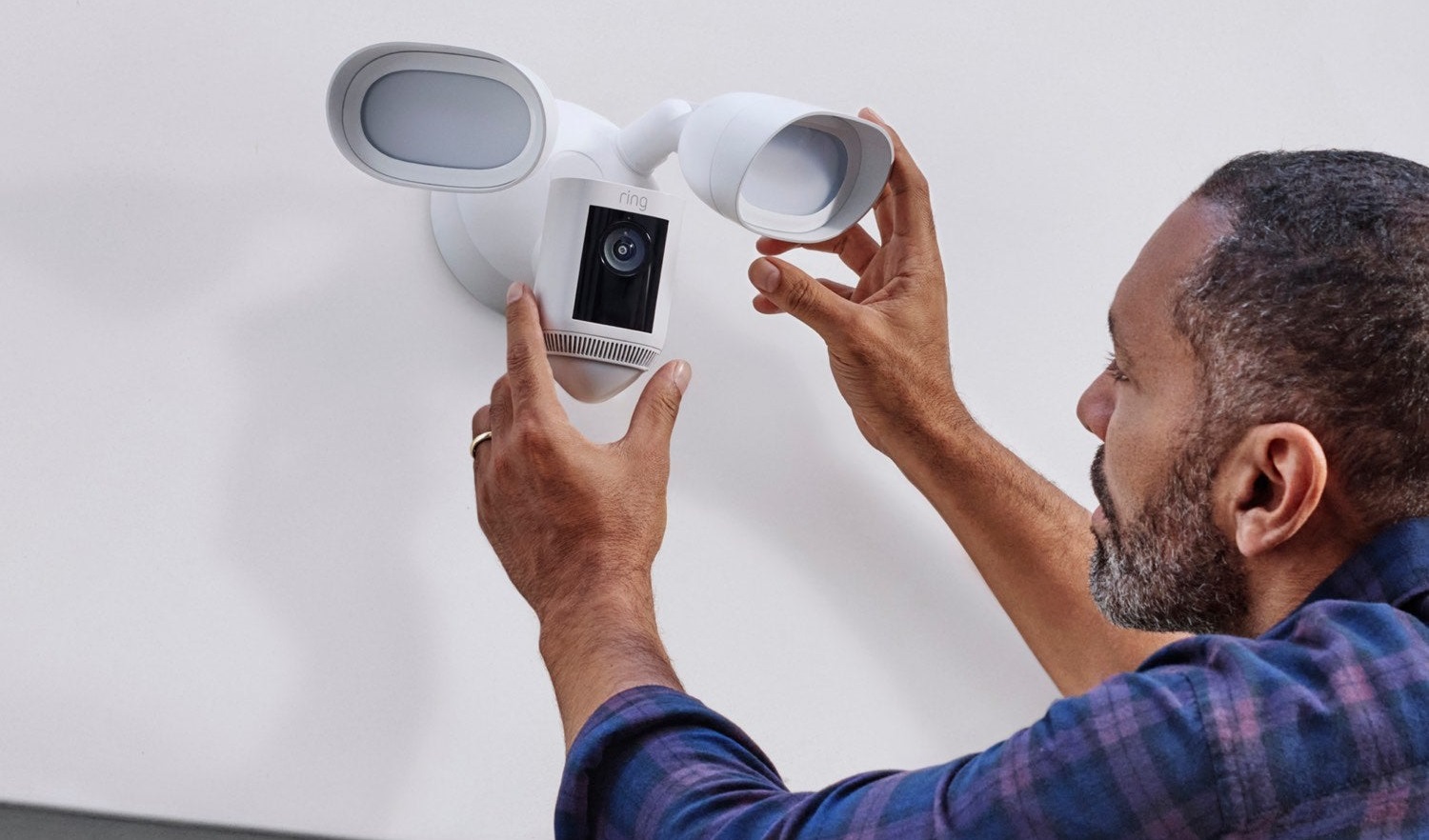
How To Reset Ring Floodlight Cam: Step-by-step
Ready to reset your camera? Follow these clear steps:
- Locate the Reset Button
- The reset button is on top of the camera, near where it connects to the mounting base. On most models, it’s a small, black button.
- You may need a stable ladder to reach it safely.
- Look for the word “RESET” or a small pinhole.
- Press and Hold the Reset Button
- Press and hold the button for 30 seconds. You might hear a click or see the lights flash, depending on the model.
- Keep holding until the lights start blinking or you hear the device say it’s resetting.
- Release the button after 30 seconds.
- Wait for the Camera to Reset
- The camera’s lights will blink, and the device may make a sound.
- Wait about 2–3 minutes for the process to finish. Do not unplug or turn off the power during this time.
- When the lights stop blinking, the device is reset.
- Check for Reset Confirmation
- Open the Ring app. If the device is still listed, try removing it from the app. This ensures your account is clear.
- The camera should now be in setup mode—the light ring spins or flashes, ready to connect to Wi-Fi.
- Re-Add the Camera (if needed)
- Tap “Set Up a Device” in the Ring app.
- Follow the app steps to scan the QR code (found on the camera or in the box), connect to Wi-Fi, and name your device.
- Adjust settings as you like.
If you’re giving the camera away, stop after the reset. Do not add it again to your app.
Resetting Different Ring Floodlight Cam Models
While the general process is the same, here’s a quick comparison for the main models:
| Model | Reset Button Location | Reset Time | Unique Notes |
|---|---|---|---|
| Floodlight Cam (Original) | On top, small black button | 30 seconds | Button is easy to reach |
| Floodlight Cam Wired Plus | On top, near mounting base | 30 seconds | Lights flash during reset |
| Floodlight Cam Pro | On top, slightly recessed | 30 seconds | Device speaks during reset |
If you have a battery-powered Ring camera, the reset process is different—this guide is for floodlight models only.
What To Do If The Reset Doesn’t Work
Sometimes, a reset doesn’t solve the problem. Here’s what to try next:
- Check power supply: Make sure the device is getting power. If the lights don’t turn on at all, the circuit breaker may be off or wiring may be loose.
- Try another reset: Wait a few minutes, then repeat the reset steps. Some devices need a second attempt.
- Update the Ring app: An old app can cause set-up issues. Update it from your app store.
- Reboot your Wi-Fi router: A slow or unstable network can stop the camera from joining during setup.
- Contact Ring support: If nothing works, call or email Ring’s support team. Hardware failures are rare, but sometimes a replacement is needed.
Common beginner mistake: Many people forget to hold the reset button long enough. Less than 30 seconds often does not work. Always use a timer.
How To Remove Ring Floodlight Cam From Your Account
After a factory reset, you should also remove the camera from your Ring account. This ensures no old data or settings stay linked to your device.
- Open the Ring app.
- Tap the three lines (menu) in the upper left corner.
- Tap Devices.
- Choose your Floodlight Cam.
- Tap Device Settings.
- Scroll down and tap Remove This Device.
- Confirm removal.
This step is essential if you plan to sell, give away, or recycle the camera.
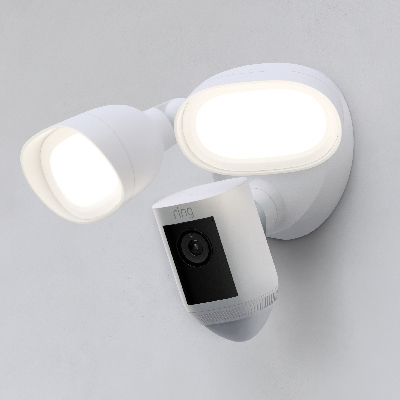
Re-setting Up Your Ring Floodlight Cam
After resetting, you must set up the camera again. Here’s how to do it, with tips for a smoother process:
- Open the Ring app and tap “Set Up a Device.”
- Scan the QR code on your camera or in the box. If you can’t find it, the camera’s MAC address can sometimes be used.
- Follow the app instructions. Choose your location, set device name, and connect to Wi-Fi.
- Test the live view. Make sure you can see video and control the lights from the app.
- Adjust settings. Set your motion zones, light schedules, and alerts.
Practical tip: Set up the camera near your router first, then install it outside. Poor Wi-Fi can cause set-up to fail if you try outdoors.
Troubleshooting Common Setup Problems
Resetting and re-setting up the camera solves most issues, but some problems can appear. Here’s how to deal with the most common ones:
Camera Won’t Connect To Wi-fi
- Check if your Wi-Fi is 2.4 GHz. Most Ring Floodlight Cams do not work with 5 GHz networks.
- Make sure your phone is connected to the same network during setup.
- Move the camera closer to the router for setup, then move it to final position.
Device Not Found In Ring App
- Refresh the app or restart your phone.
- Confirm the camera’s lights are flashing (setup mode).
- Make sure you scanned the correct QR code.
Camera Stuck In Setup Mode
- Try a reset again.
- Check for power issues. If the floodlights don’t turn on with the switch, wiring may be the problem.
- Use a different phone or tablet for setup.
Floodlights Not Working After Reset
- Check the light settings in the app.
- Test the manual light switch (if installed).
- Confirm the device is fully set up and connected.
Non-obvious insight: Sometimes, outdoor Wi-Fi interference causes repeated setup failures. Try changing your router’s Wi-Fi channel or moving the router closer to the camera temporarily.
How Resetting Affects Video History And Settings
A factory reset erases all device-specific settings and removes the camera from your account. But video history and snapshots are stored in your Ring cloud account, not on the device itself.
- Video recordings: These remain in your Ring account unless you manually delete them or cancel your Ring Protect subscription.
- Custom settings: Motion zones, schedules, and alert preferences must be set up again after reset.
- Shared users: People you shared the camera with lose access after reset and removal.
If you want to keep important videos, download them before resetting.
Comparing Soft Reset Vs. Factory Reset: Which Should You Use?
Understanding when to use each reset type can save time. Here’s a quick side-by-side:
| Reset Type | What It Does | When to Use | Effect on Settings |
|---|---|---|---|
| Soft Reset | Restarts device only | Minor issues, quick freezing | Keeps all settings |
| Factory Reset | Erases all data | Major issues, new owner | Deletes all settings |
Non-obvious insight: Many people think a power cycle (soft reset) is enough for Wi-Fi issues, but changing your Wi-Fi network always requires a full factory reset and re-setup.
Safety Tips When Resetting Your Camera
Resetting a device on a ladder or near power wiring can be risky. Here are some safety tips:
- Use a stable ladder: Don’t stretch or lean too far. Ask someone to hold the ladder if possible.
- Turn off the power at the breaker: If you must handle wiring or open the camera, always cut power first.
- Avoid wet or rainy weather: Water and electricity are dangerous together.
- Wear gloves: This protects against sharp edges or insects.
- Check for bees, birds, or spiders: Outdoor cameras sometimes attract nests.
Safety is more important than speed. Take your time and ask for help if needed.
Best Practices: After Resetting Your Ring Floodlight Cam
Once your camera is reset and set up, follow these best practices for security and reliability:
- Change your Wi-Fi password regularly and update it in the app.
- Keep your Ring app updated for better performance and security.
- Use strong passwords for your Ring account.
- Enable two-factor authentication for extra security.
- Test motion detection every few months to be sure it covers the right areas.
- Download important videos to your phone or computer. Cloud recordings can be lost if your subscription ends.
Common Mistakes To Avoid When Resetting
Learning from other users’ mistakes can save you time and frustration:
- Not holding the reset button long enough: Less than 30 seconds will not work.
- Trying to reset from the app only: You must press the physical button on the device.
- Forgetting to remove the camera from your account: This can block new owners from using the device.
- Resetting without a Wi-Fi password: You’ll need it to set up again.
- Trying to use 5 GHz Wi-Fi: Most Ring Floodlight Cams require 2.4 GHz.
How Resetting Can Solve Advanced Issues
Some rare problems only go away after a full reset:
- Firmware errors: Sometimes updates go wrong and only a reset fixes the device.
- Location transfer: If you move to a new house, a reset ensures no old Wi-Fi or location data remains.
- Network security: If your Wi-Fi password was leaked or your account was hacked, a reset protects your device.
For more technical details, you can check the official Ring Help Center.

When To Call For Professional Help
If you’ve tried all steps and your camera still does not work, it might be time for help. Signs you need expert support:
- The device won’t power on at all (no lights, no sound).
- The reset button is stuck or broken.
- You see sparks, smoke, or burning smell.
- The camera will not enter setup mode after several tries.
Ring’s support team can walk you through advanced steps or process a warranty claim if needed.
Frequently Asked Questions
How Do I Know If My Ring Floodlight Cam Has Been Reset?
After a successful reset, the camera will enter setup mode. The lights may blink or the device may say it is ready to set up. In the Ring app, the device should no longer appear under your account. If you see the setup light pattern, your reset worked.
Can I Reset My Ring Floodlight Cam Remotely?
No, you cannot fully reset the camera from the app or website. You must press the physical reset button on the device for 30 seconds. However, you can remove the device from your account using the app.
Will Resetting The Camera Delete My Recorded Videos?
Resetting the camera only erases device settings and removes it from your account. Videos and snapshots stay in your Ring cloud account, as long as your subscription is active. If you want to keep videos, download them before canceling your plan or removing the device.
Do I Need To Reset My Camera If I Get A New Wi-fi Router?
Yes. If your Wi-Fi name or password changes, you must reset and re-set up your Ring Floodlight Cam. The device cannot connect to the new network without a fresh setup.
What’s The Difference Between A Power Cycle And A Reset?
A power cycle (soft reset) means turning the camera’s power off and on. This solves simple glitches but does not erase settings. A factory reset (hard reset) erases all data and requires full setup again. Use a power cycle for small issues; use a reset for bigger problems or when changing owners.
Final Thoughts
Resetting your Ring Floodlight Cam is a straightforward process if you know what to expect. By pressing and holding the reset button for 30 seconds, you can solve many issues from Wi-Fi problems to preparing the device for a new owner. Always remember to remove the device from your Ring account after a reset, and keep your Wi-Fi details handy for setup. Stay patient, follow safety steps, and don’t rush. With this guide, you should feel confident handling your Ring Floodlight Cam’s reset making your home security smart, simple, and reliable.