
If you drive a Chevy Malibu, you probably enjoy the convenience of Bluetooth for hands-free calls and music streaming. But what happens when Bluetooth stops working? Suddenly, your favorite features are gone, and frustration sets in. Many Chevy Malibu owners face this problem, especially with models from 2013 to 2022. The good news: most Bluetooth issues can be fixed with a few logical steps, even if you’re not a tech expert. This guide covers why your Chevy Malibu Bluetooth is not working, common causes, troubleshooting steps, and tips to keep your system running smoothly.
Why Chevy Malibu Bluetooth Stops Working
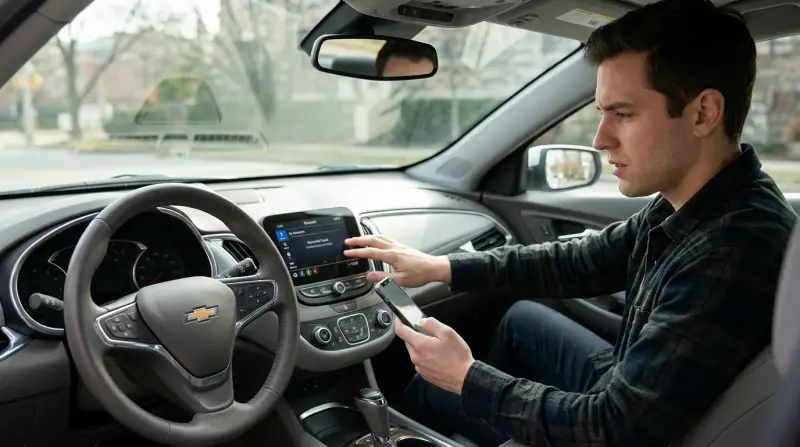
Bluetooth technology is supposed to make life easier, but it relies on several parts working together your car’s infotainment system, your smartphone, and wireless signals. If one part fails or gets confused, the connection can drop. Here are some main reasons why Bluetooth might fail in your Chevy Malibu:
- Software glitches: Both your car’s system and your phone need up-to-date software. Outdated software can cause connection issues.
- Compatibility problems: Not all phones pair well with every car model, especially older Malibus.
- Interference: Too many wireless devices nearby can disrupt Bluetooth signals.
- User error: Sometimes, it’s as simple as Bluetooth not being enabled on one device.
- Hardware faults: Rare, but a damaged Bluetooth module or infotainment system can stop Bluetooth from working.
Understanding the root cause is key to finding the right fix. Often, the problem is not as serious as it seems.
Common Signs Of Bluetooth Problems
Before you can fix an issue, you need to know what’s wrong. Here are some clear signs that your Chevy Malibu Bluetooth is not working as it should:
- Device won’t pair: Your phone doesn’t appear in the car’s Bluetooth list or pairing fails.
- Connection drops: Bluetooth disconnects randomly during use.
- No audio: Calls connect, but you hear nothing or there’s no music.
- Lag or stuttering: Audio skips or stutters while streaming.
- Phonebook not syncing: Contacts and call logs don’t show up on your car’s display.
If you see one or more of these issues, you’re not alone. They’re some of the most reported problems for Malibu owners.
Step-by-step Troubleshooting For Chevy Malibu Bluetooth
Fixing Bluetooth problems is usually a process of elimination. Follow these steps to pinpoint and solve the issue.
Restart Both Devices
A simple restart often solves temporary glitches.
- Turn off your car and remove the key.
- Restart your phone.
- Wait a minute, then start your car and try to reconnect.
Check Bluetooth Settings
- Make sure Bluetooth is enabled on both the phone and the car’s infotainment system.
- On your phone, go to Bluetooth settings and look for “Chevy MyLink” or “Chevrolet” in the list of available devices.
Remove And Re-pair Devices
Sometimes, the connection profile gets corrupted.
- On your phone, “forget” or “delete” the Malibu from the Bluetooth devices list.
- On your car, go to Bluetooth settings and remove your phone.
- Re-pair your phone by following the on-screen prompts in both devices.
Update Software
Both your phone and your car’s infotainment system need the latest updates.
- On your phone, check for system and app updates.
- For your Malibu, some models allow over-the-air updates, while others require a dealer visit. Check your owner’s manual or Chevrolet’s official site.
Check Compatibility
Not every phone works perfectly with every Malibu model. Use the Chevrolet compatibility checker online or ask your dealer for a list of recommended devices.
Clear Bluetooth Cache (for Android Phones)
If you use Android, clearing the Bluetooth cache can help.
- Go to Settings > Apps > Show system apps > Bluetooth > Storage > Clear cache.
Test With Another Phone
If possible, try pairing a different phone with your Malibu. If it works, your original phone may be the problem.
Reset The Infotainment System
Resetting can clear software bugs.
- Some Malibus have a reset option in the settings menu.
- Alternatively, disconnect the negative battery terminal for a few minutes (only if you’re comfortable doing this).
Check For Interference
Other Bluetooth devices or even Wi-Fi routers can cause issues. Move away from busy wireless environments, especially during setup.
Inspect For Hardware Issues
If nothing works, the Bluetooth module or infotainment unit may be faulty. A dealer can diagnose and replace hardware if needed.
Chevy Malibu Bluetooth By Model Year
Bluetooth technology has improved over the years, but some Malibu models have more issues than others. Below is a comparison of Bluetooth features and problems by year.
| Model Year | Bluetooth Version | Common Issues | Update Available? |
|---|---|---|---|
| 2013-2015 | 2.1/3.0 | Pairing, drops, phonebook sync | Rarely |
| 2016-2018 | 4.0 | Audio lag, random disconnects | Yes |
| 2019-2022 | 4.2/5.0 | Minor bugs, Android Auto/Apple CarPlay issues | Yes |
Older models are more likely to have compatibility and connection issues, while newer Malibus benefit from improved software and hardware.
Tips To Prevent Chevy Malibu Bluetooth Problems
Keeping your Bluetooth system healthy can save a lot of headaches. Here are some practical tips:
- Regularly update your phone and car software to fix bugs and add new features.
- Limit the number of paired devices in your car’s system. Too many devices can cause confusion.
- Avoid pairing while driving. Pair your phone while the car is in park for better safety and success.
- Don’t use cheap charging cables. Poor quality or damaged cables can interfere with data connections.
- Keep your infotainment system clean. Dust and dirt can affect touchscreens and buttons.
A non-obvious tip: avoid connecting your phone to multiple cars at once. Some phones may get confused and constantly switch between vehicles, causing instability.
Comparing Chevy Malibu Bluetooth To Other Brands
How does the Chevy Malibu stack up against similar cars in Bluetooth reliability? Here’s a quick comparison with other popular mid-size sedans.
| Car Model | Bluetooth Reliability | Common Problems |
|---|---|---|
| Chevy Malibu | Good (2016+) | Connection drops, audio lag |
| Toyota Camry | Very Good | Pairing issues (older models) |
| Honda Accord | Excellent | Minor sync delays |
| Ford Fusion | Good | Audio stutter, slow pairing |
While Chevy Malibu’s Bluetooth is generally reliable, especially on recent models, Honda Accord leads for Bluetooth stability. This doesn’t mean Malibu is a bad choice, but it highlights the importance of software updates and compatibility checks.
When To Seek Professional Help
Most Bluetooth issues are simple to fix, but sometimes you need an expert. Here are signs it’s time to visit a dealer or certified repair shop:
- No Bluetooth option appears in the car menu.
- Repeated failures even after following all troubleshooting steps.
- Physical damage to the infotainment system.
- Update failures or error messages during software updates.
A dealer can run diagnostic tests and check for recalls or technical service bulletins (TSBs) that may affect your specific vehicle.
Real-world Example: Fixing A 2017 Chevy Malibu Bluetooth
Let’s look at a real-world scenario. Sarah owns a 2017 Malibu. Her phone wouldn’t pair, and when it did, calls would drop. She tried restarting her phone and car, but no luck. Here’s what finally worked:
- She deleted her phone from the car’s Bluetooth memory and vice versa.
- She updated her phone’s operating system.
- At the dealer’s suggestion, she updated her car’s infotainment software.
- She limited her paired devices list to only her own phone.
After these steps, Bluetooth worked perfectly. The lesson: start simple, then try updates and memory management before seeking help.

Advanced Tips Most Owners Miss
Many Malibu owners overlook two key steps:
- Check for app interference: Some apps (like battery savers or task killers) can shut down Bluetooth in the background. Disable or uninstall these apps if you notice problems.
- Test with a different USB port or cable: If you’re using Android Auto or Apple CarPlay, a faulty USB port or cable can block Bluetooth functions.
These small details can make a big difference in solving stubborn issues.
Frequently Asked Questions
Why Does My Chevy Malibu Bluetooth Keep Disconnecting?
Frequent disconnections are often caused by software bugs, interference, or too many devices paired. Try restarting both your car and phone, remove old Bluetooth pairings, and keep software updated. If the problem continues, check for infotainment system updates or visit your dealer.
How Do I Reset The Bluetooth In My Chevy Malibu?
To reset Bluetooth, delete all paired devices from both your phone and the car’s system. Restart both devices. If needed, perform a factory reset of the infotainment system using the settings menu. For older Malibus, disconnecting the battery for a few minutes can also help.
What Phones Are Compatible With Chevy Malibu Bluetooth?
Most modern smartphones (iOS and Android) are compatible, especially with Malibu models from 2016 onward. For the best experience, use the compatibility checker on the official Chevrolet website or contact your dealer for an updated list.
Can A Bad Usb Cable Affect Bluetooth In My Malibu?
Yes, especially if you use Android Auto or Apple CarPlay. Damaged or low-quality cables can cause connectivity issues, including Bluetooth problems. Always use a certified cable from a trusted brand.
Where Can I Find Official Software Updates For My Malibu’s Infotainment System?
You can find updates on the official Chevrolet Owner Center website or by visiting your local dealer. Some newer models allow over-the-air updates, while others require a visit to the service center. For more information, check Chevrolet’s official support page.
If you follow these steps and tips, you’ll likely solve most Chevy Malibu Bluetooth problems. Remember, start with basic checks, don’t ignore software updates, and don’t hesitate to ask for professional help if needed. A working Bluetooth system makes your drives safer and more enjoyable—so it’s worth the effort to keep it running smoothly.