
You can fix your connection by holding the Dock and Max buttons on your robot simultaneously for five seconds until the Wi-Fi light flashes. How to Reconnect Shark Robot to Wifi requires a stable 2.4GHz network and an active SharkClean app account to re-establish communication between your vacuum and your home network. This method is best for users who have recently changed their router settings or moved their cleaning unit to a new location.
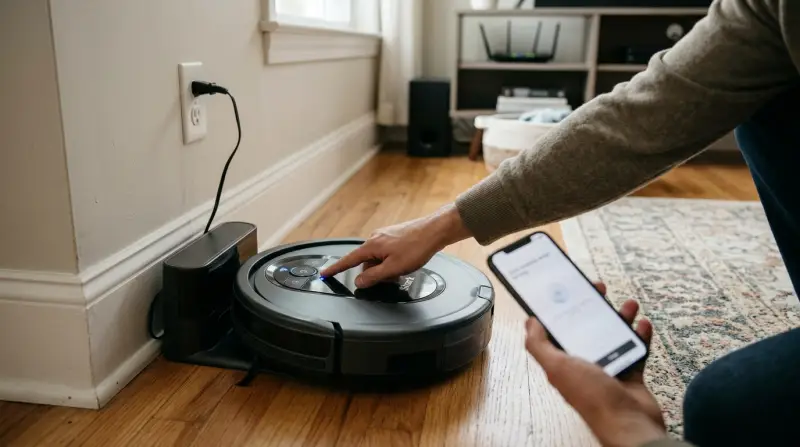
Items needed to reconnect your Shark robot
-
Smartphone or tablet: Your device must be connected to a 2.4GHz Wi-Fi network before you begin. If your router broadcasts both 2.4GHz and 5GHz bands under one name, your phone may automatically jump to the faster 5GHz band, which will cause the setup to fail.
-
SharkClean app: Download the latest version from your app store. If you’re using an older version, the app may fail to detect the robot’s local broadcast signal during the pairing phase.
-
SharkClean account: You must be signed in to manage devices. If you’re stuck in a login loop, check that your phone’s VPN is disabled, as security software often blocks the handshake between the app and the robot’s server.
-
Robot vacuum: Ensure the unit is powered on and resting on its charging dock. The robot must be seated precisely on the charging pins; if the light on the dock doesn’t change color, the robot isn’t receiving power and won’t broadcast the setup signal.
-
Wi-Fi credentials: Have your network name and password ready. If your password contains special characters like asterisks or ampersands, some older app versions may reject the entry. If the app hangs at 99%, double-check your password for hidden trailing spaces.
-
Charging dock: Plug the dock into a wall outlet, not a power strip.
Step-by-step: How to Reconnect Shark Robot to Wifi
- Open the SharkClean app on your mobile device and navigate to the “Add a Device” menu to begin the pairing process.
- Press and hold both the “Dock” and “Max” buttons on the top of your Shark robot at the same time for five seconds.
- Release the buttons when the Wi-Fi indicator light on the robot begins to blink, which signals that the unit is now in pairing mode.
- Follow the on-screen prompts in the app to select your local 2.4GHz Wi-Fi network from the available list.
- Enter your Wi-Fi password carefully when the app requests it, ensuring there are no typos in the characters.
- Wait for the app to finish the handshake process, which typically takes between 30 and 90 seconds depending on your signal strength.
- Verify that the Wi-Fi light on your robot remains solid rather than blinking once the connection is successful.
If the robot fails to connect on the first try, move your router closer to the charging dock to reduce signal interference.
Careful: Don’t attempt to force a firmware update while the Wi-Fi is unstable, as this can cause the robot to become unresponsive.
Connection stability and troubleshooting
The time required to finish this process depends on your network’s signal strength and your familiarity with the app interface.
Starting with a simple power cycle of your router often resolves hidden connectivity issues before you begin the manual pairing process. Unplug the power cable for thirty seconds. This clears the cache and forces the router to re-assign local IP addresses.
If the connection fails after a power cycle, check your frequency band. Most smart devices require a 2.4GHz signal to pair. If your phone is connected to a 5GHz band during setup, the handshake will fail. You can tell which band you’re on by checking your phone’s Wi-Fi settings; if the network name includes “5G,” you must manually switch to the standard network.
A common mistake is assuming the app is frozen during the “searching” phase. Wait at least two minutes before force-closing the application. If the progress bar remains stuck at 99%, the issue is likely a firewall setting on your router. In this case, disable your guest network temporarily to ensure the device has a direct path to the server.
How to tell you did it right
A successful connection shows as a solid, steady light on the robot’s Wi-Fi indicator icon. If the light remains off or continues to blink rapidly, the robot hasn’t successfully registered with your network.
Most users fail here by ignoring their router’s frequency settings. If your mobile device is connected to a 5GHz network during setup, the robot will remain invisible to the app. You must force your phone onto the 2.4GHz band to complete the handshake.
To verify your status, check the router’s client list. If the robot appears as “offline” or “unauthorized,” disable “Smart Steering” or “Band Steering” in your router’s administrative dashboard. This prevents the router from automatically pushing the device to the 5GHz band, which the robot can’t process.
Signal blockage is the other silent killer. If the robot is tucked behind heavy furniture or a metal wall, the connection will drop during firmware updates. Ensure your charging dock has at least three feet of clearance on both sides. If you see the light flicker during operation, move the dock to an open hallway. If the light stays solid, you have successfully bridged the gap.
Maintenance and network standards
Your wireless network must adhere to the IEEE 802.11b/g/n standards to ensure compatibility with Shark hardware. These robots operate exclusively on 2.4GHz bands; attempting to connect via a 5GHz network will result in a persistent pairing failure. If your router uses a combined SSID for both bands, you must temporarily disable the 5GHz radio in your router settings to force the device onto the required frequency.
Once the connection is active, the robot stores these credentials internally until you perform a manual factory reset or update your network password. You should check for app updates regularly to ensure your robot receives the latest performance patches.
If your Wi-Fi light begins flashing slowly, it indicates the robot has lost its connection to the server. You may need to repeat the pairing steps. If you notice the robot is hot to the touch or making unusual noises during the reconnect process, stop immediately and contact the manufacturer’s customer service department. Don’t leave the robot unattended if it shows signs of electrical malfunction. A common mistake is ignoring these physical warnings; doing so risks permanent battery damage or internal circuit failure. If the unit remains unresponsive after a power cycle, assume a hardware fault rather than a software glitch.
Other ways to do it
Using a Guest Network
You can create a dedicated 2.4GHz guest network on your router if your main network uses band steering. This isolates the robot and prevents it from trying to jump to the 5GHz frequency, which simplifies the setup time and keeps your main network traffic separate from your smart home devices.
Resetting the Robot
If the unit refuses to pair, perform a hard reset by holding the power button for ten seconds. This wipes the previous network cache entirely. This is a more drastic step that requires you to re-configure your cleaning schedules and room maps within the app after the connection is established.
Manual Hotspot Pairing
Use a second smartphone to create a temporary mobile hotspot with the same SSID and password as your home network. Connect your primary phone to this hotspot to force the robot through the setup steps. Once the robot connects to this temporary source, it will often “see” your home network more clearly for the final transition.
Frequently asked questions
Can I connect my Shark robot to a 5GHz network?
No, most Shark robot models are designed to operate exclusively on 2.4GHz Wi-Fi networks. If your router combines both 2.4GHz and 5GHz into one network name, you may need to log into your router’s admin panel to temporarily disable the 5GHz band to allow the robot to complete its pairing process without interference.
Why does my Shark robot keep disconnecting from Wi-Fi?
Your robot may disconnect if the Wi-Fi signal at the charging dock location is too weak or if there’s heavy interference from other electronics. Try moving the charging dock to a more open area closer to your router, or check if your router has a “device limit” that’s currently full, preventing the robot from maintaining a stable link.
How long does it take for the robot to reconnect?
The process should take less than five minutes once you have the app open and your credentials ready. If the app hangs on the “Connecting to Robot” screen for more than two minutes, the handshake has failed, and you should close the app, restart your phone, and try the pairing sequence again from the beginning.
Is it safe to reset my robot’s Wi-Fi settings?
Yes, resetting the Wi-Fi settings on your Shark robot is a safe procedure that doesn’t harm the internal components or void your warranty. It simply clears the network memory so the device can look for a new signal; however, remember that you’ll need to re-map your home if you perform a full factory reset.
What happens if the app can’t find my robot?
If the app can’t find your robot, ensure your smartphone’s Bluetooth is enabled, as the initial discovery process often uses Bluetooth to pass network credentials to the vacuum. If Bluetooth is on and it still fails, restart your robot by flipping the power switch off and on again, then wait for the boot-up sequence to finish before trying to pair.
Final Thoughts
Once your vacuum is back online, you won’t have to worry about manual starts anymore. Take a moment to set up a recurring cleaning schedule in the app so your floors stay tidy automatically. You’ll find that life’s a lot easier when your home stays clean without you lifting a finger.
Related guides